
In this tutorial, we will show you how to install and configuration of Elgg on your CentOS 7. For those of you who didn’t know, Elgg is an award-winning open-source social networking engine that provides a robust framework on which to build all kinds of social environments, from a campus-wide social network for your university, school, or college or an internal collaborative platform for your organization through to a brand-building communications tool for your company and its clients. It is a PHP-based application and can easily be installed on a Linux VPS.
This article assumes you have at least basic knowledge of Linux, know how to use the shell, and most importantly, you host your site on your own VPS. The installation is quite simple. I will show you the step-by-step installation Elgg Social Networking Platform in CentOS 7.
Prerequisites
- A server running one of the following operating systems: CentOS 7.
- It’s recommended that you use a fresh OS install to prevent any potential issues.
- SSH access to the server (or just open Terminal if you’re on a desktop).
- A
non-root sudo useror access to theroot user. We recommend acting as anon-root sudo user, however, as you can harm your system if you’re not careful when acting as the root.
Install Elgg on CentOS 7
Step 1. First, let’s start by ensuring your system is up-to-date.
yum -y update
Step 2. Install the LAMP server.
A CentOS 7 LAMP server is required. If you do not have LAMP installed, you can follow our guide here.
Step 3. Installing the Elgg Social Networking Platform.
The first thing to do is to go to Elgg’s download page and download the latest stable version of Elgg, At the moment of writing this article it is version 2.0.1:
wget https://elgg.org/getelgg.php?forward=elgg-2.0.1.zip
Unpack the Elgg archive to the document root directory on your server:
unzip elgg-2.0.1.zip
mv /elgg-2.0.1/ /var/www/html/elgg/
We will need to change some folders permissions:
chown -R apache:apache /var/www/html/elgg/
Step 4. Configuring MariaDB for Elgg.
By default, MariaDB is not hardened. You can secure MariaDB using the mysql_secure_installation script. you should read and below each step carefully which will set a root password, remove anonymous users, disallow remote root login, and remove the test database and access to secure MariaDB:
mysql_secure_installation
Configure it like this:
- Set root password? [Y/n] y
- Remove anonymous users? [Y/n] y
- Disallow root login remotely? [Y/n] y
- Remove test database and access to it? [Y/n] y
- Reload privilege tables now? [Y/n] y
Next, we will need to log in to the MariaDB console and create a database for the Elgg. Run the following command:
mysql -u root -p
This will prompt you for a password, so enter your MariaDB root password and hit Enter. Once you are logged in to your database server you need to create a database for Elgg installation:
create database elggdb;
GRANT ALL PRIVILEGES ON elggdb.* TO 'elgguser'@'localhost' IDENTIFIED BY 'Y0UR-PASSW0RD';
flush privileges;
quit
Step 5. Configuring Apache web server for the Elgg Social Networking Platform.
We will create an Apache virtual host for your Elgg website. First, create ‘/etc/httpd/conf.d/vhosts.conf’ file with using a text editor of your choice:
ano /etc/httpd/conf.d/vhosts.conf

IncludeOptional vhosts.d/*.conf
Next, create the virtual host:
nano /etc/httpd/vhosts.d/yourdomain.com.conf
Add the following lines:
VirtualHost YOUR_SERVER_IP:80>
ServerAdmin webmaster@yourdomain.com
DocumentRoot "/var/www/html/elgg/"
ServerName yourdomain.com
ServerAlias www.yourdomain.com
ErrorLog "/var/log/httpd/yourdomain.com-error_log"
CustomLog "/var/log/httpd/yourdomain.com-access_log" combined

<Directory "/var/www/html/elgg/">
DirectoryIndex index.html index.php
Options FollowSymLinks
AllowOverride All
Require all granted
</Directory>
</VirtualHost>
Save and close the file. Restart the apache service for the changes to take effect:
systemctl restart httpd.service
Step 6. Accessing Elgg Web Interface.
Elgg Social Networking Platform will be available on HTTP port 80 by default. Open your favorite browser and navigate to http://yourdomain.com/install.php or http://server-ip/install.php and complete the required steps to finish the installation. If you are using a firewall, please open port 80 to enable access to the control panel.
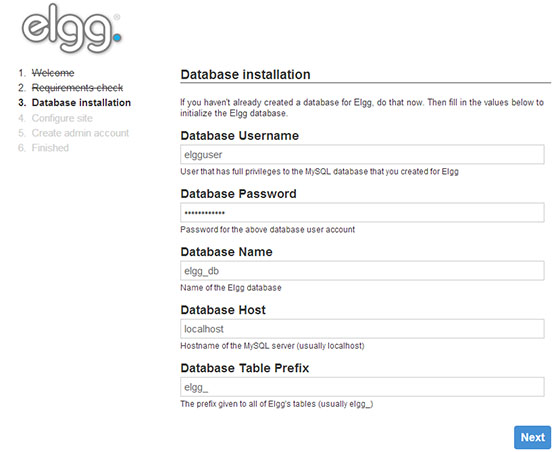
Congratulations! You have successfully installed Elgg. Thanks for using this tutorial for installing the Elgg Social Networking Platform on your CentOS 7 system. For additional help or useful information, we recommend you check the official Elgg website.