
If you work with data pipelines, you already know how fast manual scheduling falls apart at scale. Cron jobs are fine for simple tasks, but the moment your workflows have dependencies, retry logic, and multiple stages, you need something built for the job. Apache Airflow is exactly that tool, and this guide walks you through how to install Apache Airflow on Linux Mint 22, from a clean system all the way to a running web UI, without Docker, without cloud services, and without guesswork.
Linux Mint 22 is an excellent platform for this setup. It runs on Ubuntu 24.04 LTS under the hood, which means full compatibility with Airflow’s Debian-based installation requirements and a stable Python 3.12 environment out of the box. Whether you are a developer building your first pipeline or a sysadmin setting up a local orchestration environment, this guide gives you every command, every explanation, and every fix you need.
By the end of this tutorial, you will have Apache Airflow running with a live web UI on port 8080, a working scheduler, a persistent systemd service, and a solid grasp of the moving parts involved. This is not a copy-paste tutorial. Every step comes with a clear explanation of what the command does and why it matters.
What Is Apache Airflow and Why Does It Matter?
Apache Airflow is an open-source workflow orchestration platform originally developed at Airbnb and donated to the Apache Software Foundation. You use it to define, schedule, and monitor workflows as code, using Python.
The core concept in Airflow is the DAG (Directed Acyclic Graph). A DAG is a collection of tasks organized to reflect their relationships and execution order. Each task is a unit of work, like running a SQL query, calling an API, or moving files between storage systems. Airflow manages the execution order, handles retries on failure, and gives you a visual dashboard to see exactly what ran, when it ran, and whether it succeeded.
Airflow has four core components you need to understand before you install anything:
- Webserver: Hosts the browser-based UI where you monitor and manage DAGs
- Scheduler: Continuously parses DAG files and triggers task instances based on defined schedules
- Metadata Database: Stores all task state, run history, variables, and connections (SQLite by default, PostgreSQL for production)
- Executor: Determines how tasks are run (LocalExecutor for single-machine setups, CeleryExecutor for distributed)
Compared to a basic cron job, Airflow gives you dependency management, logging per task, email alerts, a visual graph of your pipeline, and a clean Python API for defining complex logic. For anyone serious about data engineering or DevOps automation, Airflow is not optional knowledge.
Why Linux Mint 22 Is a Solid Choice for This Apache Airflow on Linux Mint 22 Setup
Linux Mint 22, codenamed “Wilma,” is built directly on Ubuntu 24.04 LTS. That matters because Airflow’s official installation documentation targets Debian-based systems, and every package, dependency, and apt command in this guide works natively on Linux Mint 22 without any workarounds.
Linux Mint 22 ships with Python 3.12, which sits squarely within Airflow’s officially tested Python versions: 3.9, 3.10, 3.11, and 3.12. You are not fighting version mismatches before you even start.
The LTS foundation also means fewer surprise dependency changes over time. If you are setting up a local development environment, a staging machine, or a personal data lab, Linux Mint 22 gives you the stability you need to run Airflow without constant maintenance overhead.
Prerequisites
Before you run a single command, confirm your environment meets these requirements. Skipping this step is the number one reason installations fail halfway through.
System Requirements:
- Linux Mint 22 (64-bit), fully updated
- Minimum 4 GB RAM (8 GB recommended for any real workload)
- At least 5 GB of free disk space in your home directory
- Python 3.9 to 3.12 installed (Linux Mint 22 ships with 3.12 by default)
- pip version 22.1.0 or higher
sudoor root access for installing system packages- Active internet connection for downloading packages from PyPI
Knowledge Requirements:
- Basic Linux terminal navigation (
cd,mkdir,ls,sudo) - Familiarity with Python virtual environments
- Understanding of environment variables (
export,.bashrc)
Database Note:
This guide uses SQLite for setup simplicity. SQLite is fine for learning and single-user testing. If you plan to run real workflows with parallel tasks, migrate to PostgreSQL 12-16 before going further. The SQLite backend does not support parallel task execution and will bottleneck under any real load.
Step 1: Update Your Linux Mint 22 System
Starting with a fully updated system prevents the most common class of installation errors: mismatched library versions and unresolved package dependencies.
Open your terminal and run:
sudo apt update && sudo apt upgrade -yThis fetches the latest package lists and applies all pending updates. After it finishes, clean up unused packages:
sudo apt autoremove -yLinux Mint 22 synchronizes its apt repository with Ubuntu 24.04 Noble Numbat, so your package versions will be current and consistent with Airflow’s Debian-based dependency expectations.
Expected output: You will see a list of packages being updated, followed by a summary line showing how many packages were upgraded. If the output says “0 upgraded,” your system was already current.
Step 2: Install Python 3, pip, and venv on Linux Mint 22
Python, pip, and venv are the three tools that make the entire installation work. Python runs Airflow. pip installs it. venv isolates it from your system Python to prevent dependency conflicts across projects.
First, verify your current Python version:
python3 --versionYou should see Python 3.12.x or similar. Now install the required packages:
sudo apt install python3 python3-pip python3-venv -yAlso install the build tools that some Airflow providers need to compile C extensions:
sudo apt install build-essential libssl-dev libffi-dev python3-dev -ySkipping the build tools causes obscure errors later when pip tries to compile packages like cryptography or psycopg2-binary. Install them now and avoid the headache.
Now upgrade pip to a version that handles Airflow’s PEP 517 build hooks correctly. The minimum required version is 22.1.0:
pip3 install --upgrade pipVerify pip is now at the correct version:
pip3 --versionWhy pip Version Matters
Airflow uses constraint files that depend on pip’s modern dependency resolver. Older pip versions silently install wrong package versions or fail entirely. Always upgrade pip before installing Airflow.
Step 3: Create a Dedicated Python Virtual Environment
A virtual environment is an isolated Python installation that keeps Airflow’s dependencies separate from everything else on your system. Airflow installs dozens of specific package versions. If you install it globally, those versions will conflict with other Python projects over time.
Create a dedicated directory for your Airflow installation:
mkdir -p ~/airflow
cd ~/airflow
Create the virtual environment inside this directory:
python3 -m venv airflow_venvActivate the virtual environment:
source ~/airflow/airflow_venv/bin/activateAfter activation, your terminal prompt changes to show (airflow_venv) at the start. This confirms you are now working inside the isolated environment.
Upgrade pip inside the virtual environment as well. The system pip and the venv pip are separate:
pip install --upgrade pipImportant: Every time you open a new terminal session and want to run Airflow commands, you must re-activate the virtual environment with the source command above. If Airflow commands return “not found,” the virtual environment is almost always the culprit.
Step 4: Set the AIRFLOW_HOME Environment Variable
AIRFLOW_HOME tells Airflow where to store its configuration file (airflow.cfg), your DAG files, logs, and the metadata database. If you skip this step, Airflow defaults to ~/airflow anyway, but setting it explicitly avoids confusion when you work with multiple environments.
Set the variable for the current session:
export AIRFLOW_HOME=~/airflowMake it permanent by adding it to your .bashrc:
echo "export AIRFLOW_HOME=~/airflow" >> ~/.bashrc
source ~/.bashrc
Verify the variable is set correctly:
echo $AIRFLOW_HOMEExpected output: /home/your_username/airflow
Step 5: Install Apache Airflow on Linux Mint 22 Using pip
This is the core step. Apache Airflow uses constraint files to guarantee a reproducible installation. A constraint file is a list of exact package versions that are known to work together for a specific Airflow and Python version combination. Without it, pip’s dependency resolver sometimes picks incompatible versions and the installation silently breaks.
Set your Airflow and Python version variables:
AIRFLOW_VERSION=2.9.3
PYTHON_VERSION="$(python3 --version | cut -d " " -f 2 | cut -d "." -f 1-2)"
CONSTRAINT_URL="https://raw.githubusercontent.com/apache/airflow/constraints-${AIRFLOW_VERSION}/constraints-${PYTHON_VERSION}.txt"
Now install Airflow with the constraint file:
pip install "apache-airflow==${AIRFLOW_VERSION}" --constraint "${CONSTRAINT_URL}"This command will take several minutes. Airflow has many dependencies. Let it run.
To install optional providers for common integrations, add them as extras:
pip install "apache-airflow[postgres,http]==${AIRFLOW_VERSION}" --constraint "${CONSTRAINT_URL}"After installation completes, verify it worked:
airflow versionExpected output: 2.9.3
Understanding the Constraint File
The constraint file is a plain text list of package==version pins. When pip sees the --constraint flag, it treats those versions as hard requirements during the dependency resolution process. This is the official installation method recommended by the Apache Airflow project, and it is the only reliable way to install Airflow without manually resolving conflicts.
Step 6: Initialize the Airflow Metadata Database
Airflow needs a backend database to track DAG runs, task states, connections, variables, and cross-task communication (XComs). Before you can start any Airflow process, you must initialize this database.
Run the initialization command:
airflow db initFor Airflow 2.7 and above, the recommended command is:
airflow db migrateBoth commands accomplish the same goal on a fresh installation. db migrate is the forward-compatible version you should prefer.
After the command completes, check that the necessary files were created:
ls ~/airflow/Expected output: You should see airflow.cfg, airflow.db, logs/, and webserver_config.py. The dags/ directory may need to be created manually:
mkdir -p ~/airflow/dagsStep 7: Create an Apache Airflow Admin User
Without an admin user account, the Airflow web UI will not let you log in. Create one now:
airflow users create \
  --username admin \
  --firstname YourFirstName \
  --lastname YourLastName \
  --role Admin \
  --email admin@example.com \
  --password yourpassword
Replace YourFirstName, YourLastName, and yourpassword with your actual values.
The --role Admin flag gives this user full access to all UI features, including managing connections, variables, and other users. Available roles are: Admin, Viewer, User, Op, and Public.
Verify the user was created:
airflow users listUse a strong password even in a local environment. It builds the habit, and you may eventually expose this service on a network.
Step 8: Start the Airflow Webserver and Scheduler
Airflow requires two processes running simultaneously to function:
- Webserver: Serves the browser UI on port 8080 and handles API requests
- Scheduler: Parses DAG files continuously and triggers tasks based on their schedules
Open two terminal windows (or use tmux or screen to split a single terminal).
Terminal 1 — Start the Webserver:
source ~/airflow/airflow_venv/bin/activate
airflow webserver --port 8080
Terminal 2 — Start the Scheduler:
source ~/airflow/airflow_venv/bin/activate
airflow scheduler
The webserver takes 30 to 60 seconds to initialize on the first launch. Wait for the startup log messages to settle before trying to access the UI.
Now open your browser and go to:
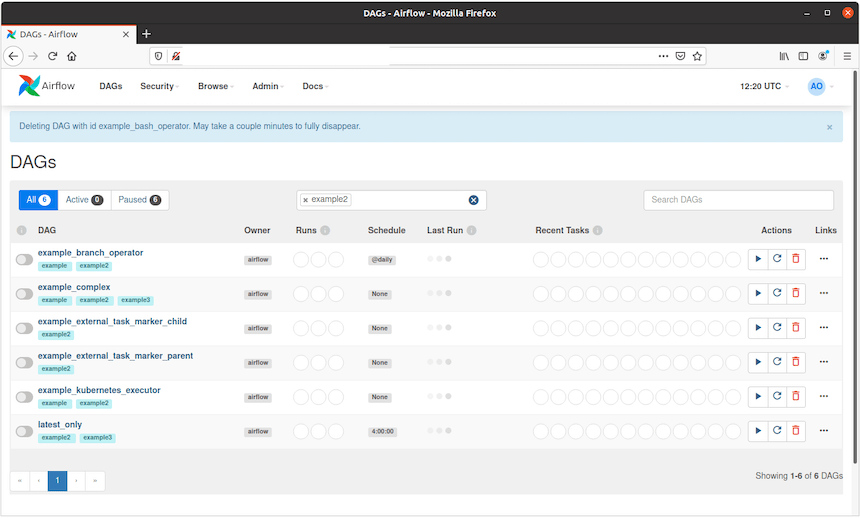
http://localhost:8080Log in with the admin credentials you created in Step 7. You should see the Airflow DAGs list view. Several example DAGs are pre-loaded by default. To disable them, open ~/airflow/airflow.cfg and change:
load_examples = FalseThen restart the webserver for the change to take effect.
Step 9: Configure Apache Airflow on Linux Mint 22 as a systemd Service
Running Airflow in two terminal windows works for a demo, but it is not sustainable. Closing either terminal kills the process. systemd is the right tool for keeping Airflow running as a background service that survives reboots and restarts automatically on failure.
Create the Webserver Service File
Create the file /etc/systemd/system/airflow-webserver.service:
sudo nano /etc/systemd/system/airflow-webserver.servicePaste the following content, replacing your_username with your actual Linux Mint username:
[Unit]
Description=Airflow Webserver
After=network.target

[Service]
User=your_username
Group=your_username
Environment="AIRFLOW_HOME=/home/your_username/airflow"
ExecStart=/home/your_username/airflow/airflow_venv/bin/airflow webserver --port 8080
Restart=on-failure
RestartSec=5s

[Install]
WantedBy=multi-user.target
Create the Scheduler Service File
sudo nano /etc/systemd/system/airflow-scheduler.service[Unit]
Description=Airflow Scheduler
After=network.target
[Service]
User=your_username
Group=your_username
Environment="AIRFLOW_HOME=/home/your_username/airflow"
ExecStart=/home/your_username/airflow/airflow_venv/bin/airflow scheduler
Restart=on-failure
RestartSec=5s
[Install]
WantedBy=multi-user.targetEnable and Start Both Services
sudo systemctl daemon-reload
sudo systemctl enable airflow-webserver airflow-scheduler
sudo systemctl start airflow-webserver airflow-scheduler
Check the status of both services:
sudo systemctl status airflow-webserver
sudo systemctl status airflow-scheduler
Both should show Active: active (running) in green. If either shows a failure, check the logs with:
journalctl -u airflow-webserver -n 50Troubleshooting Common Apache Airflow Installation Errors on Linux Mint 22
Even with clean instructions, installations hit snags. Here are the six most common errors and how to fix each one.
Error 1: ModuleNotFoundError: No module named ‘airflow’
- Cause: You are running
airflowcommands outside the virtual environment. - Fix: Run
source ~/airflow/airflow_venv/bin/activateand try again.
Error 2: pip fails during install with “legacy build backend” errors
- Cause: pip version is too old to handle Airflow’s PEP 517 build hooks.
- Fix: Inside the virtual environment, run
pip install --upgrade pipthen retry the Airflow install.
Error 3: OperationalError: database is locked
- Cause: SQLite does not support concurrent access from multiple processes.
- Fix: Migrate to PostgreSQL. Use
pip install apache-airflow[postgres]and update thesql_alchemy_connsetting inairflow.cfg.
Error 4: Port 8080 is already in use
- Cause: Another service is already listening on port 8080.
- Fix: Stop the conflicting service with
sudo fuser -k 8080/tcp, or start Airflow on a different port:airflow webserver --port 8081.
Error 5: airflow: command not found
- Cause: The virtual environment is not activated.
- Fix: Activate with
source ~/airflow/airflow_venv/bin/activate, or use the full path:/home/your_username/airflow/airflow_venv/bin/airflow version.
Error 6: systemd service fails with Permission denied
- Cause: The
User=field in the service file does not match the actual owner of the Airflow files. - Fix: Confirm your username with
whoami, update both service files, then runsudo systemctl daemon-reload.
Congratulations! You have successfully installed Apache Airflow. Thanks for using this tutorial for installing the Apache Airflow workflows management tool on Linux Mint 22 system. For additional help or useful information, we recommend you check the official Apache Airflow website.
[su_box title=”VPS Manage Service Offer” style=”bubbles” box_color=”#000000″ radius=”10″]If you don’t have time to do all of this stuff, or if this is not your area of expertise, we offer a service to do “VPS Manage Service Offer”, starting from $10 (Paypal payment). Please contact us to get the best deal![/su_box]

