
If you want to install Krita on Ubuntu 26.04 LTS, you have four working paths available and each one fits a different workflow. Krita is a professional-grade, open-source digital painting application built for concept artists, comic illustrators, and animators. Unlike GIMP, it is not designed for photo editing. Think brush engines, layer composition, 2D animation timelines, and texture work.
Ubuntu 26.04 LTS is one of the best Linux releases to run Krita on right now. The distro’s APT repository carries Krita 6.0.1 (1:6.0.1~ufsg-0ubuntu2), which is the most current version available through any Ubuntu package source. The updated Mesa drivers bundled in 26.04 also make Krita’s OpenGL canvas far more reliable than on older LTS releases.
This guide covers all four installation methods: APT (recommended), Flatpak, Snap, and AppImage. For each one, you will get the exact commands, an explanation of what each command does and why it matters, and expected output so you know when something is working correctly.
Prerequisites
Before you run a single command, confirm these conditions on your system.
- Ubuntu 26.04 LTS installed — Run
lsb_release -ato verify. TheRelease:field must show26.04. Running install commands on Ubuntu 24.04 or 22.04 pulls different, older package versions. - A user account with sudo access — APT, Flatpak (system-wide), and Snap all require root-level writes. Confirm with
sudo -l. - Terminal access — Either a local terminal (GNOME Terminal, Konsole) or an SSH session with a forwarded display for GUI testing.
- An active internet connection — All four methods download packages from remote servers.
- Minimum disk space — APT Krita install requires roughly 450 MB. Flatpak requires slightly more due to runtime dependencies. AppImage is self-contained at around 200 MB per file.
Step 1: Update Your System Before Installing Krita
Why this step matters: Ubuntu packages share library dependencies. Installing Krita on a stale system risks a dependency conflict because Krita 6.0.1 links against newer versions of Qt and libkf5 libraries. Updating first puts all shared libraries at their current versions before you add anything new.
Run both commands together:
sudo apt update && sudo apt upgrade -y
What each part does:
sudo apt update— Refreshes the local package index from Ubuntu’s servers. Without this, APT works from a potentially outdated list and may not see the latest Krita package.sudo apt upgrade -y— Applies pending upgrades to all installed packages. The-yflag auto-confirms, so you do not get interrupted mid-upgrade.
Expected output (partial):
Hit:1 http://archive.ubuntu.com/ubuntu noble InRelease
Reading package lists... Done
Building dependency tree... Done
Calculating upgrade... Done
X upgraded, 0 newly installed, 0 to remove and 0 not upgraded.
The number of upgraded packages varies. Zero upgrades is fine — it means your system is already current.
Step 2: Enable the Universe Component (APT Method Only)
Why this step matters: Krita lives in Ubuntu’s universe component, not main. The main component holds packages that Canonical directly maintains. The universe component holds community-maintained packages like Krita. Without enabling universe, APT returns Unable to locate package krita and the installation fails completely.
sudo add-apt-repository universe
After adding the repository, refresh your package index so APT can see the new packages:
sudo apt update
Confirm the universe component is active:
apt-cache policy krita
Expected output:
krita:
  Installed: (none)
  Candidate: 1:6.0.1~ufsg-0ubuntu2
  Version table:
     1:6.0.1~ufsg-0ubuntu2 500
        500 http://archive.ubuntu.com/ubuntu noble/universe amd64 Packages
If the Candidate: line shows a real version string (not (none)), you are ready to install.
Step 3: Install Krita on Ubuntu 26.04 LTS via APT (Recommended)
APT is the recommended method for most Ubuntu 26.04 users. It gives you the newest available version (6.0.1), integrates Krita into Ubuntu’s package manager, and keeps removal clean with a single command.
Install Krita and Its Language Pack
sudo apt install krita krita-l10n -y
Why install krita-l10n alongside Krita?
On Ubuntu, Krita splits its localization files into a separate package called krita-l10n. This package contains UI translations for 65+ languages. If you skip it, Krita’s interface defaults to English regardless of your system locale. Ubuntu separates data from binaries to reduce download sizes for users who only need one language. Installing both packages in the same command is cleaner than running a second install later.
Verify the Installation
Do not run krita --version in a headless terminal or SSH session. Krita is a Qt GUI application and the --version flag attempts to open a display session. In a headless context, it exits with Qt display errors and returns nothing useful.
Use dpkg-query instead. It reads the package database directly and works in any terminal environment:
dpkg-query -W -f='${db:Status-Abbrev} ${binary:Package} ${Version}\n' krita krita-data krita-l10n
Expected output on Ubuntu 26.04:
ii  krita       1:6.0.1~ufsg-0ubuntu2
ii  krita-data  1:6.0.1~ufsg-0ubuntu2
ii  krita-l10n  1:6.0.1~ufsg-0ubuntu2
The ii prefix means the package is installed and in a good state. All three components should report the same version string.
Launch Krita from the Terminal
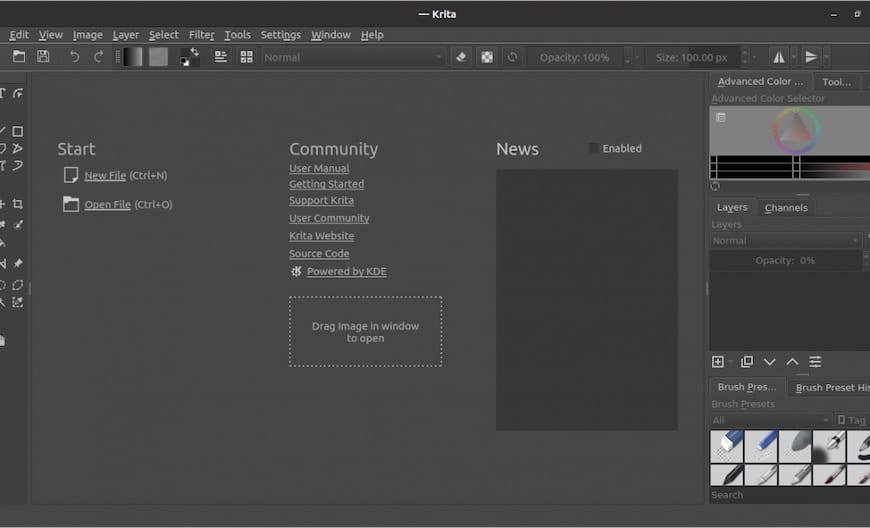
krita
Why launch from the terminal first? The terminal captures Qt warnings, OpenGL initialization messages, and plugin load errors that the GUI swallows silently. On a first launch, these messages tell you whether Krita’s GPU canvas initialized correctly, which saves troubleshooting time later.
Once Krita opens successfully, you can pin it to your GNOME dock by right-clicking the icon in the Activities overview and selecting Add to Favorites.
Step 4: Install Krita on Ubuntu 26.04 via Flatpak (Best for Upstream Version)
The Flatpak method is the right choice if you want Krita 5.3.1, which matches the official upstream Linux AppImage release from krita.org. This is also the method to use if you need the same Krita version across Ubuntu 26.04, 24.04, and 22.04 machines simultaneously.
Install Flatpak
Flatpak is not pre-installed on stock Ubuntu 26.04. Install it first:
sudo apt install flatpak -y
Add the Flathub Remote
Flathub is the central repository for Flatpak applications. You must register it as a remote before any Flatpak install from Flathub works.
sudo flatpak remote-add --if-not-exists flathub https://dl.flathub.org/repo/flathub.flatpakrepo
Why --if-not-exists? This flag prevents the command from failing if Flathub is already registered. Running the command safely becomes idempotent, which matters if you are scripting this setup across multiple machines.
Confirm Flathub Is Active at System Scope
flatpak remotes --columns=name,options | grep '^flathub'
Expected output:
flathub system
The word system confirms Flathub is registered at system scope (available to all users), not just user scope. A user-scope Flathub remote can cause GPU device access issues with graphical applications like Krita.
Install Krita from Flathub
sudo flatpak install flathub org.kde.krita -y
Verify the Flatpak Installation
flatpak info org.kde.krita
Expected output (key fields):
ID:             org.kde.krita
Ref:            app/org.kde.krita/x86_64/stable
Branch:         stable
Version:        5.3.1
Origin:         flathub
Installation:   system
Confirm Branch: stable and Origin: flathub. If Installation: shows user instead of system, the package may lack DRI device access for GPU rendering.
Launch the Flatpak Version
flatpak run org.kde.krita
Step 5: Install Krita on Ubuntu 26.04 via Snap (Convenience Option)
The Snap method is a valid option if you already use snapd on your system and want automatic background updates. Be aware of one key tradeoff: the Snap stable channel currently ships Krita 5.2.11, which is behind both the APT version (6.0.1) and the Flatpak version (5.3.1).
Krita 5.x and 6.x differ significantly in brush engine improvements and performance. If version currency matters for your workflow, choose APT or Flatpak.
Install snapd (If Not Present)
Standard Ubuntu 26.04 desktop installs include snapd. On minimal installs, run:
sudo apt install snapd -y
Install Krita via Snap
sudo snap install krita
Verify the Snap Installation
snap list krita
Expected output:
Name   Version  Rev  Tracking       Publisher  Notes
krita  5.2.11   109  latest/stable  krita**    -
Two things to confirm: latest/stable in the Tracking column, and krita** in the Publisher column. The double asterisk means this is a verified publisher account on Snapcraft, not a third-party repackage.
Launch via Snap
snap run krita
Why use snap run instead of just krita? If you have both the APT and Snap versions installed, typing krita alone invokes whichever version appears first in your $PATH. Using snap run krita explicitly calls the Snap package’s confinement context and avoids any ambiguity.
Step 6: Install Krita on Ubuntu 26.04 via AppImage (No Package Manager Required)
The AppImage method does not touch your system package database at all. Use it when you need a portable Krita install, want to test a new upstream release before committing to it, or are working on a system without sudo access.
Download the AppImage
Go to the official download page: https://krita.org/en/download/krita-desktop/
Download the Linux 64-bit AppImage. The official page also publishes a SHA-256 checksum file alongside it.
Verify the Checksum (Recommended)
sha256sum krita-5.3.1-x86_64.appimage
Compare the output hash against the checksum published on krita.org. A mismatch means the file is corrupt or was tampered with. Do not run it.
Make the AppImage Executable
chmod +x krita-5.3.1-x86_64.appimage
Why is this required? Linux does not mark downloaded files as executable by default. This is a security feature. The chmod +x command sets the execute bit. Without it, running the file produces a Permission denied error regardless of whether the file itself is valid.
Run Krita
./krita-5.3.1-x86_64.appimage
Note: AppImages do not integrate into your system launcher automatically. To add a desktop shortcut, you can use a tool like appimaged or create a .desktop file manually in ~/.local/share/applications/.
Choosing the Right Installation Method
| Method | Krita Version (Ubuntu 26.04) | Updates | Best For |
|---|---|---|---|
| APT | 6.0.1 (highest) | apt upgrade |
Most users, distro-managed |
| Flatpak | 5.3.1 | flatpak update |
Upstream/AppImage parity |
| Snap | 5.2.11 (lowest) | Automatic | Existing snapd users |
| AppImage | 5.3.1 (portable) | Manual re-download | No sudo, USB portability |
For a standard Ubuntu 26.04 LTS desktop setup, APT wins clearly. It ships the newest version, needs no extra daemon or runtime, and stays under Ubuntu’s own package management.
Step 7: Configure Krita on Ubuntu 26.04 LTS After Installation
Configure Krita for Wayland
Ubuntu 26.04 runs a Wayland session by default. Krita 5.3+ and 6.0.x both support Wayland natively, but if you notice canvas jitter or tablet input irregularities, launch Krita with an explicit platform flag:
env QT_QPA_PLATFORM=wayland krita
Why set this manually? Qt applications query the QT_QPA_PLATFORM environment variable to decide which display protocol to use. If the variable is unset, Qt sometimes falls back to XWayland, which proxies events through a compatibility layer. For most mouse users this is invisible, but drawing tablet users lose pressure granularity because XWayland’s event pipeline truncates the data that libinput provides natively.
Enable OpenGL Canvas Acceleration
Open Krita, then navigate to Settings > Configure Krita > Display. Enable the “Use OpenGL for the canvas” option and restart Krita.
Why enable this? Krita’s default canvas renderer is software-based, which is universally compatible but noticeably slower on large canvases. Enabling OpenGL offloads rendering to your GPU. On Ubuntu 26.04 with its updated Mesa stack, OpenGL canvas is stable for the vast majority of hardware. The practical difference on a 4K canvas with complex brushes is significant.
Set Up Drawing Tablet Pressure
Go to Settings > Configure Krita > Tablet. Run the pressure calibration tool there. This overrides the system-level pressure curve with a Krita-specific one, which is what you want for painting workflows.
Ubuntu 26.04 uses libwacom and xf86-input-wacom for Wacom tablets, and libinput for XP-Pen and Huion devices. Krita reads pressure data through Qt’s tablet API. Calibrating inside Krita does not affect other applications.
Step 8: How to Update and Remove Krita on Ubuntu 26.04 LTS
Update Krita
Use the package manager you installed Krita with.
APT:
sudo apt update && sudo apt install --only-upgrade krita krita-l10n -y
The --only-upgrade flag upgrades Krita only if it is already installed. This prevents accidentally re-installing a package you deliberately removed. It is particularly useful in automated scripts.
Flatpak:
sudo flatpak update org.kde.krita -y
Snap:
sudo snap refresh krita
Remove Krita Completely
< Strong>APT removal:
sudo apt remove krita krita-l10n -y && sudo apt autoremove
Remove user configuration files (optional — only if you want a clean slate):
rm -rf ~/.config/krita ~/.local/share/krita
Why is this separate? apt remove deliberately leaves personal configuration files in place. If you reinstall later, Krita restores your brush packs, custom workspaces, and preferences automatically. Only delete those directories if you want a completely fresh start.
Flatpak removal:
sudo flatpak remove org.kde.krita -y && sudo flatpak uninstall --unused
Snap removal:
sudo snap remove krita
Troubleshooting Common Krita Issues on Ubuntu 26.04 LTS
Error: “Unable to locate package krita”
Cause: The universe component is not enabled.
Fix:
sudo add-apt-repository universe
sudo apt update
sudo apt install krita krita-l10n -y
This error is especially common on minimal Ubuntu installs, server configurations, or Docker containers where universe is disabled by default.
Error: Krita Canvas Is Black or Corrupted on Launch
Cause: OpenGL initialization failed on your GPU. This happens most often on hybrid GPU laptops (Intel + NVIDIA Optimus) where Mesa reports OpenGL support but fails to build Krita’s shader pipeline.
Fix: Disable OpenGL canvas rendering and fall back to software mode.
- Navigate to Settings > Configure Krita > Display
- Uncheck “Use OpenGL for the canvas”
- Restart Krita
Software rendering is slower but works on every GPU configuration. Once you resolve driver issues, re-enable OpenGL.
Error: Pen Pressure Not Working in Wayland Session
Cause: Krita is running under XWayland instead of native Wayland, which strips pressure granularity from tablet events.
Fix: Force native Wayland mode:
env QT_QPA_PLATFORM=wayland krita
For a permanent fix, edit the Krita .desktop launcher file located at /usr/share/applications/krita.desktop. Change the Exec= line to:
Exec=env QT_QPA_PLATFORM=wayland krita %F
Error: Flatpak Krita Cannot Access Files on Mounted Drives
Cause: Flatpak’s sandboxing restricts filesystem access by default. Even though the Flathub Krita package requests host filesystem access, user-scope installs sometimes miss this permission.
Fix:
flatpak override --user --filesystem=host org.kde.krita
Restart Krita after applying the override. You can verify the change with:
flatpak info --show-permissions org.kde.krita
Look for filesystems=host in the output.
Error: “snap: command not found”
Cause: snapd is not installed. This occurs on minimal Ubuntu installs or custom desktop configurations.
Fix:
sudo apt update && sudo apt install snapd -y
sudo snap install krita
[su_box title=”VPS Manage Service Offer” style=”bubbles” box_color=”#000000″ radius=”10″]If you don’t have time to do all of this stuff, or if this is not your area of expertise, we offer a service to do “VPS Manage Service Offer”, starting from $10 (Paypal payment). Please contact us to get the best deal![/su_box]

