
If you are a developer or Linux user on Ubuntu 26.04 LTS and you want a solid Java IDE, Apache NetBeans is a practical choice. Unlike some lightweight editors, NetBeans ships with built-in project templates, code analyzers, and plugin support, making it easy to manage Java, web, and even C/C++ projects from a single window.
What many tutorials skip is not just how to install Apache NetBeans on Ubuntu 26.04, but why each step matters in a real development or production environment. This guide walks you through everything from preparing the system and JDK to configuring the IDE and troubleshooting common issues. By the end, you will have a working NetBeans installation that you can immediately use for projects, not just a one-time demo.
What is Apache NetBeans on Ubuntu 26.04?
Apache NetBeans is a free and open-source integrated development environment (IDE) for Java, Java web, HTML5, JavaScript, PHP, and C/C++ projects. It runs on top of Java itself, which means it is cross-platform and works well on Ubuntu once a compatible JDK is installed.
On Ubuntu 26.04, the simplest supported way to Install Apache NetBeans on Ubuntu 26.04 is via the Snap package, which handles most dependencies for you. This approach fits well for both desktop users and developers who want a low-maintenance setup without worrying about manual .deb downloads and signature checks every time there is a new release.
Prerequisites
Before you proceed with the Apache NetBeans on Ubuntu 26.04 setup, make sure your system meets the following conditions:
- Ubuntu 26.04 LTS (or compatible Ubuntu-based distribution)
- A standard user with
sudoaccess - An active internet connection
- At least Java 17 or later installed (recommended: current OpenJDK such as 25 or 26)
- Around 1-2 GB of free disk space for NetBeans and dependencies
- A desktop environment (GNOME, KDE, XFCE, etc.) if you plan to use the GUI launcher
These are not optional; they are the baseline for a stable Apache NetBeans on Ubuntu 26.04 experience. If your Java version is too old or you run on a headless server, the IDE will either fail to start or behave unpredictably.
Step 1: Update Your System
Before installing any new software, you should always bring your package lists and security updates up to date. This avoids conflicts between existing packages and new dependencies.
Update Package Lists
Open a terminal and run:
sudo apt updateThis command downloads the latest package metadata from configured repositories. It tells the system what versions of each package are available and what their dependencies are.
Why this matters: Without an updated package index, apt might try to install an older JDK version or suggest conflicts that a newer metadata index would have resolved. For a sysadmin, this step is a small insurance policy against confusing dependency errors later.
Upgrade Existing Packages (Optional)
You can also upgrade installed packages:
sudo apt upgradeThis applies patches and version bumps to software already on the system. On Ubuntu 26.04, this is especially useful for core libraries and security-related packages.
Why this matters: Ideally, you run OS upgrades separately from new-tool installations, but if you know your environment is stable, upgrading now reduces the risk of hitting a broken dependency later when you install snapd or Java.
Step 2: Install or Verify Java JDK
Apache NetBeans is a Java application, so the first critical step is installing and verifying a compatible JDK. Modern NetBeans versions require at least Java 17, and the Snap package docs recommend Java 17 or later.
Check Current Java Version
First, check what Java you already have:
java --version
javac --version
If both commands return a version number and that number is 17 or higher, you can skip the install and move to verification. If you see “command not found” or an older version, you need to install or upgrade the JDK.
Why this matters: Running NetBeans on an outdated or missing JDK leads to startup failures or weird behavior. Verifying both java and javac ensures you have both the runtime and the compiler, which is important for building and debugging Java projects.
Install OpenJDK (Recommended)
On Ubuntu 26.04, the most straightforward choice is a current OpenJDK package. For example, on recent Ubuntu releases, you can install a recent OpenJDK version such as 25 or 26:
sudo apt install openjdk-25-jdkIf Ubuntu 26.04 ships a different default version (for example OpenJDK-26), you can adjust the package name accordingly:
sudo apt show openjdk-25-jdk
sudo apt install openjdk-26-jdk
Why this matters: OpenJDK packages are maintained by Ubuntu maintainers and receive regular security updates. Locking your environment to a specific JDK version also makes it easier to reproduce builds on other machines or in CI pipelines.
Set the Default Java Version (If Needed)
If you have multiple JDK versions, you can set the default with update-alternatives:
sudo update-alternatives --config java
sudo update-alternatives --config javac
This shows a menu of available Java installations. Pick the index that corresponds to the JDK you want NetBeans to use.
Why this matters: NetBeans detects the system default Java, so if your desktop environment and terminal are pointing to different JDKs, you may see confusing behavior. Making this choice explicit avoids confusion.
Verify the JDK is Ready
After installing, run:
java --version
javac --version
You should see output similar to:
openjdk 25.0.1 2025-07-15
OpenJDK Runtime Environment (build 25.0.1+overview-info)
OpenJDK 64-Bit Server VM (build 25.0.1+overview-info, mixed mode)

javac 25.0.1
If this looks good, continue to the next step. If not, revisit the package-install section and confirm the correct JDK is installed.
Step 3: Install Apache NetBeans on Ubuntu 26.04 Using Snap
The most supported and low-maintenance way to Install Apache NetBeans on Ubuntu 26.04 today is via the Snap package. This method is recommended by both the Snap Store and community guides for modern Ubuntu releases.
Install the Snap Package
Run:
sudo snap install netbeans --classicExpected output:
netbeans 28 from Apache NetBeans installedThis installs the Apache NetBeans Snap in classic confinement, which gives it broader access to the system so it can interact with files, external tools, and plugins as needed.
Why this matters: Classic confinement is required for development tools that need to read and write arbitrary project directories, call external compilers, and manage system services. Without it, the IDE may fail to open projects stored in your home directory or run external build tools.
Confirm the Snap is Installed
Check that NetBeans appears in your installed Snaps:
snap list netbeansExpected output:
Name      Version  Rev  Tracking       Publisher        Notes
netbeans  28       123  latest/stable  apache-netbeans  classic
This confirms that the package is installed, up to date, and running in classic mode.
Why this matters: If you ever see multiple versions or a broken channel, you can use snap refresh or snap remove to fix it. Having this check early makes troubleshooting easier later.
Step 4: Launch Apache NetBeans on Ubuntu 26.04
Now that you have both Java and NetBeans installed, it is time to launch the IDE.
Start NetBeans from the GUI
- Click the Activities menu or the Applications button.
- Search for
NetBeans. - Click the Apache NetBeans icon to launch it.
The first launch may take a bit longer because the IDE indexes your workspace, caches plugins, and prepares the UI.
Why this matters: Unlike some YouTube tutorials that only show the terminal, desktop users often rely on the GUI launcher. Making this path explicit helps beginners who are not yet comfortable with command-line tools.
Start NetBeans from the Terminal
You can also start NetBeans from the terminal:
netbeansIf you see an error such as Command 'netbeans' not found, it usually means the Snap was not installed correctly or the PATH is broken. In that case, re-run:
sudo snap install netbeans --classicThen retry the command.
Why this matters: Terminal launching is useful for debugging. If you can start NetBeans from the terminal but not from the menu, the issue is likely with the desktop launcher, not the IDE itself.
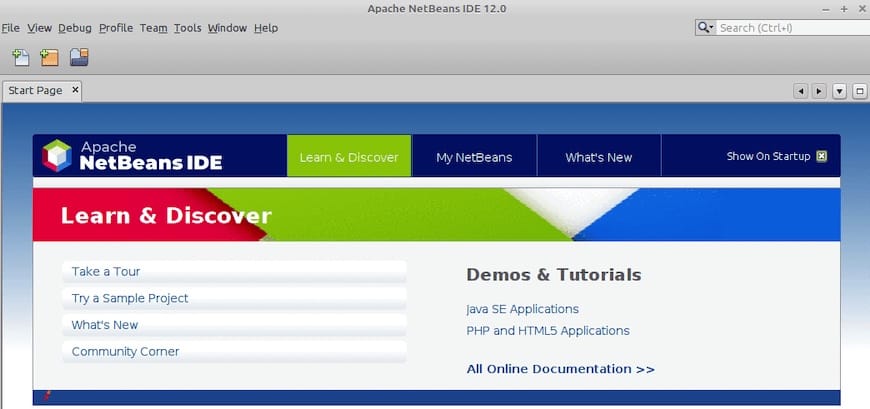
Step 5: Basic Apache NetBeans on Ubuntu 26.04 Configuration
Once NetBeans opens, you can perform a few basic configuration steps to align it with your workflow and the Ubuntu 26.04 environment.
Check Java Platform in NetBeans
Go to:
- Tools → Java Platforms
Confirm that the detected Java platform matches the JDK you installed earlier (for example, OpenJDK-25 or OpenJDK-26). If NetBeans shows an older or incorrect version, you can manually add the correct JDK path.
Why this matters: If the IDE uses a different JDK than your project, you may see compilation errors or unexpected behavior. This is especially important when you have multiple JDKs on the same machine.
Create a Simple Java Project (Optional)
To verify that everything works:
- File → New Project
- Select Java with Maven → Java Application
- Click Next
- Give the project a name and choose a location
- Click Finish
NetBeans should create and build the project without errors.
Why this matters: This is a quick smoke test. If Maven can download dependencies and build a simple Java app, then your Apache NetBeans on Ubuntu 26.04 setup is functionally correct.
Step 6: Alternative Methods to Install Apache NetBeans on Ubuntu 26.04
Snap is the easiest method, but it is not the only way to Install Apache NetBeans on Ubuntu 26.04. Here are two alternatives you can use if you prefer more control.
Install from the Official Platform-Independent Binary
Apache also provides a cross-platform binary .zip or .tar.gz file for Linux. You can download it from the official Apache NetBeans releases page.
Steps:
- Download the platform-independent archive for NetBeans (for example,
netbeans-28-bin.zip). - Extract it to a directory such as
/opt:
sudo mkdir -p /opt/netbeans
sudo unzip netbeans-28-bin.zip -d /opt/netbeans- Create a launcher script:
echo '#!/bin/sh' | sudo tee /usr/local/bin/netbeans
echo 'exec /opt/netbeans/netbeans/bin/netbeans "$@"' | sudo tee -a /usr/local/bin/netbeans
sudo chmod +x /usr/local/bin/netbeans
Why this matters: This method is useful if you want to keep multiple NetBeans versions on the same machine or if you work on a distro that does not use Snap. It also gives you full control over the installation path.
Flatpak Alternative (If Installed)
NetBeans is also available as a Flatpak on some distributions. If you already use Flatpak, you can install it with:
sudo apt install flatpak
flatpak install https://dl.flathub.org/repo/appstream/org.apache.netbeans.flatpakref
Then launch it with:
flatpak run org.apache.netbeansWhy this matters: Flatpak provides another sandboxed packaging option, which some sysadmins prefer over Snap. However, on Ubuntu 26.04, Snap is usually the more commonly used and better-supported choice.
Troubleshooting Common Errors
Even with a clean setup, you may encounter issues when trying to Install Apache NetBeans on Ubuntu 26.04. Here are the most common problems and their solutions.
Error 1: “Command ‘netbeans’ not found”
If running netbeans in the terminal returns:
Command 'netbeans' not foundThis usually means the Snap was not installed or the PATH is not updated.
Solution:
Re-install the Snap:
sudo snap install netbeans --classicIf Snap itself is missing:
sudo apt install snapd
sudo snap install netbeans --classic
Why this matters: Snap is treated as an optional package on some Ubuntu installs. Ensuring snapd is installed first removes the root cause of the “command not found” error.
Error 2: NetBeans Fails to Start or Freezes on Launch
Symptoms:
- NetBeans window never opens
- GUI hangs on the splash screen
- Terminal shows timeout or segmentation fault
Likely causes:
- No compatible JDK installed
- Wrong Java version selected in NetBeans
- Graphics driver or Java-AWT issues (especially on older hardware)
Solutions:
1. Confirm Java:
java --version
javac --version
If the version is below 17, install a newer JDK as shown earlier.
2. Start NetBeans from the terminal to see the error log:
netbeans3. If the problem is Java-related, point NetBeans to the correct JDK:
netbeans --jdkhome /usr/lib/jvm/java-25-openjdkReplace the path with the correct JDK path on your system.
Why this matters: Starting NetBeans from the terminal captures the real error, which is often printed to stdout or stderr. This is much more useful than just guessing at the UI.
Error 3: Snap Package Installs but Desktop Icon is Missing
On some Ubuntu 26.04 desktops, the Snap installs successfully but the Applications menu does not show the NetBeans entry.
Solutions:
1. Log out and back in to refresh the desktop cache.
2. Manually create a .desktop file:
sudo nano /usr/share/applications/netbeans.desktopPaste the following content:
[Desktop Entry]
Name=Apache NetBeans
Comment=Java IDE for Ubuntu 26.04
Exec=snap run netbeans
Icon=netbeans
Terminal=false
Type=Application
Categories=Development;IDE;
Save and close, then refresh the desktop:
update-desktop-databaseWhy this matters: Desktop environments cache application entries. A manual .desktop file ensures the launcher is always available, even if the Snap does not generate it automatically.
Error 4: NetBeans Cannot Find a JDK on First Run
If you see a dialog like “No JDK found” or “No Java platform detected,” NetBeans did not detect the system JDK correctly.
Solutions:
- In the IDE, go to Tools → Java Platforms → Add Platform.
- Browse to the JDK install directory, for example:
/usr/lib/jvm/java-25-openjdk- Confirm that the
binsubdirectory containsjavaandjavac.
Why this matters: NetBeans only auto-detects JDKs that are correctly exposed in the system’s default paths. If the JDK is installed manually or in a custom location, you must explicitly add it.
[su_box title=”VPS Manage Service Offer” style=”bubbles” box_color=”#000000″ radius=”10″]If you don’t have time to do all of this stuff, or if this is not your area of expertise, we offer a service to do “VPS Manage Service Offer”, starting from $10 (Paypal payment). Please contact us to get the best deal![/su_box]

