
Jira is the industry-standard project management platform used by 65,000+ companies for issue tracking, sprint planning, and bug management. Setting up Jira on Debian 13 requires careful configuration of Java, PostgreSQL, Nginx, and SSL certificates. Many guides skip critical security hardening and performance tuning steps that matter in production environments.
This comprehensive guide shows you how to install Jira on Debian 13 with production-ready configuration based on 10 years of sysadmin experience. You will get a secure Jira instance at https://jira.yourdomain.com with automated backups, JVM heap tuning for your team size, and proper SSL encryption. The entire setup takes approximately 45 minutes if you follow each step carefully.
Prerequisites
Before starting the Jira on Debian 13 setup, verify you have these requirements:
- Operating System: Debian 13 (Trixie) minimal installation with root or sudo access
- Hardware: 8 GB RAM minimum (4 GB for 1-25 users), 4 CPU cores, 50 GB storage for attachments
- Domain: Valid FQDN pointing to your server IP (e.g.,
jira.example.com) for SSL certificate - Ports: Firewall allows ports 80 (HTTP), 443 (HTTPS), and temporary port 8080 (Jira default)
- Software: Atlassian Jira license key or free evaluation license from your Atlassian account
- Database: PostgreSQL 16 preferred (supports 13-16) or MySQL 8.x with JDBC driver
- Network: Server has internet access for package downloads and Let’s Encrypt certificate issuance
Why these matter: Underprovisioned RAM causes frequent garbage collection pauses and OutOfMemory errors. Jira 10.x requires Java 17 and heavy JVM heap allocation. The FQDN is mandatory because Let’s Encrypt cannot issue certificates for IP addresses.
Step 1: Update System and Install Java 17
Step 1.1: Update Package Index and Upgrade System
sudo apt update && sudo apt upgrade -y
sudo reboot
What this does: apt update refreshes the package index from Debian repositories. apt upgrade -y installs all available security patches and updates. The reboot command restarts the server if kernel updates were applied.
Why this is critical: Debian 13 receives frequent security patches. Skipping updates leaves vulnerabilities unpatched, especially critical for production applications like Jira that handle sensitive project data. Kernel upgrades load new code into memory only after reboot, preventing mixed kernel version instability.
Expected output:
Reading package lists... Done
Building dependency tree... Done
Calculating upgrade... Done
The following packages will be upgraded:
  linux-image-amd64 apt systemd
3 upgraded, 0 newly installed, 0 to remove and 0 not upgraded.
Step 1.2: Install OpenJDK 17
sudo apt install -y openjdk-17-jdk
java -version
What this does: Installs OpenJDK 17 (Java Development Kit), which includes the Java runtime and development tools. The java -version command verifies Java is installed correctly.
Why Java 17 is mandatory: Jira 10.3 was compiled in JDK 17, meaning it will not run on Java 8 or 11. Atlassian recommends Eclipse Temurin as the reference Java distribution. The JDK includes development tools needed for Jira’s internal compilation processes, while the JRE alone is insufficient.
Expected output:
openjdk version "17.0.13" 2024-10-15
OpenJDK Runtime Environment (build 17.0.13+11-Debian-2)
OpenJDK 64-Bit Server VM (build 17.0.13+11-Debian-2, mixed mode, sharing)
Step 1.3: Set JAVA_HOME Environment Variable
echo 'export JAVA_HOME=/usr/lib/jvm/java-17-openjdk-amd64' | sudo tee /etc/profile.d/java.sh
source /etc/profile.d/java.sh
What this does: Creates a shell script in /etc/profile.d/ that exports the JAVA_HOME variable for all users. The source command loads this variable immediately without rebooting.
Why /etc/profile.d/ matters: This directory loads environment variables for all users at login. Setting JAVA_HOME here ensures Jira finds Java regardless of which user starts the service. Without this, Jira may fail to start with “Java not found” errors.
Verify the variable:
echo $JAVA_HOME
Expected output: /usr/lib/jvm/java-17-openjdk-amd64
Step 2: Install and Configure PostgreSQL Database
Step 2.1: Install PostgreSQL 16
sudo apt install -y postgresql postgresql-contrib
sudo systemctl enable --now postgresql
sudo systemctl status postgresql
What this does: Installs PostgreSQL 16 database server and contrib packages. enable --now creates the systemd startup symlink and starts the service immediately. status verifies PostgreSQL is running.
Why enable with –now: enable creates the startup symlink for boot, while --now starts the service right now. This ensures PostgreSQL runs after server reboot without manual intervention, which is critical for production reliability.
Expected output:
● postgresql.service - PostgreSQL RDBMS
     Loaded: loaded (/lib/systemd/system/postgresql.service; enabled; preset: enabled)
     Active: active (running) since Thu 2026-06-11 18:15:23 WIB
Step 2.2: Create Jira Database and User
sudo -u postgres psql
Inside PostgreSQL shell, run these commands:
CREATE ROLE jirauser WITH LOGIN PASSWORD 'Str0ng!P@ssw0rd';
CREATE DATABASE jiradb WITH ENCODING 'UTF8' LC_COLLATE 'C' LC_CTYPE 'C' TEMPLATE template0 OWNER jirauser;
GRANT ALL PRIVILEGES ON DATABASE jiradb TO jirauser;
\q
What each command does:
CREATE ROLE jirauser WITH LOGIN: Creates database user that can authenticate for JDBC connectionsENCODING 'UTF8': Enables international character support for issue titles, comments, and descriptionsLC_COLLATE='C': Atlassian’s mandatory setting for correct sorting behavior. Wrong collation causes unpredictable issue orderingTEMPLATE template0: Prevents inheriting unwanted settings from default templateGRANT ALL PRIVILEGES: Gives jirauser full access to jiradb
Why these specific settings: Jira requires UTF-8 for multilingual content. The LC_COLLATE='C' setting is non-negotiable per Atlassian documentation. Without it, issue keys like PROJ-123 may sort incorrectly.
Verify database created:
sudo -u postgres psql -c "\l" | grep jiradb
Expected output: jiradb | jirauser | UTF8 | C | C | template0
Step 2.3: Alternative MySQL Setup (Optional)
If using MySQL instead of PostgreSQL:
sudo apt install -y mysql-server
sudo mysql
Inside MySQL:
CREATE DATABASE jiradb CHARACTER SET utf8mb4 COLLATE utf8mb4_bin;
CREATE USER 'jirauser'@'localhost' IDENTIFIED BY 'Str0ng!P@ssw0rd';
GRANT ALL ON jiradb.* TO 'jirauser'@'localhost' WITH GRANT OPTION;
FLUSH PRIVILEGES;
EXIT;
Why PostgreSQL is recommended: Atlassian explicitly recommends PostgreSQL for production Jira deployments. PostgreSQL has better concurrency handling and transaction integrity for Jira’s complex query patterns. MySQL requires additional JDBC driver installation in Jira’s lib directory.
Step 3: Download and Install Jira
Step 3.1: Download Jira 10.3 Installer Binary
cd /tmp
wget https://www.atlassian.com/software/jira/downloads/binary/atlassian-jira-software-10.3.0-x64.bin
chmod +x atlassian-jira-software-10.3.0-x64.bin
What this does: Downloads the Jira 10.3 Linux installer binary to /tmp. The chmod +x command makes the binary executable.
Why /tmp directory: Isolates the download from production paths. Clean up after installation with rm atlassian-jira-software-10.3.0-x64.bin.
Why use the installer binary: The .bin installer creates a dedicated jira system user, registers a systemd service, and sets correct permissions automatically. This is safer than manual tar.gz extraction, which requires careful chown/chmod operations.
Step 3.2: Run the Installer with Custom Settings
sudo ./atlassian-jira-software-10.3.0-x64.bin
Follow these installer prompts carefully:
- Express Install [1] vs Custom Install [2]: Choose Custom Install [2] for production. Express uses defaults that may not match your security requirements
- Installation Directory:
/opt/atlassian/jira(default) – standard Linux location for application binaries - Home Directory:
/var/atlassian/application-data/jira(default) – separate from installation for data isolation - HTTP Port: Keep 8080 (default) – will be hidden behind Nginx later
- Install as Service: Yes – critical for automatic startup on reboot
Why separate directories matter: Installation contains immutable binaries. Home contains logs, indexes, and attachments. Separating them allows backing up data without copying binaries, and enables different disk performance tiers (fast SSD for binaries, large HDD for attachments).
Why choose Custom Install: Express install uses embedded H2 database, which Atlassian only supports for evaluation. Production requires external PostgreSQL for data integrity and backup support.
Step 3.3: Verify Installation Success
sudo /opt/atlassian/jira/bin/check-java.sh
ss -tlnp | grep 8080
What this does: check-java.sh verifies Java 17 is detected correctly. ss -tlnp shows listening ports and confirms port 8080 is active.
Why verify immediately: Catch installation errors before proceeding. If port 8080 is not listening, Jira failed to start and you need to check logs at /opt/atlassian/jira/logs.
Expected output:
Java version: 17.0.13
Java home: /usr/lib/jvm/java-17-openjdk-amd64
Java check: PASSED

LISTEN 0      128          0.0.0.0:8080       0.0.0.0:*    users:(("java",pid=12345,fd=45))
Step 4: Configure Firewall with UFW
Step 4.1: Install and Enable UFW Firewall
sudo apt install -y ufw
sudo ufw allow OpenSSH
sudo ufw allow 80/tcp
sudo ufw allow 443/tcp
sudo ufw allow 8080/tcp
sudo ufw enable
What this does: Installs UFW (Uncomplicated Firewall) and creates allow rules for SSH, HTTP, HTTPS, and temporary Jira port. enable activates the firewall with default-deny policy.
Why firewall configuration is critical: Debian 13 does not enable a firewall by default. Without UFW, your Jira instance is exposed to all internet traffic. Security best practices require default-deny incoming policy with explicit allow rules.
Why these specific ports:
- OpenSSH (22): Required for remote administration
- 80/tcp: HTTP for Certbot certificate issuance and Nginx redirect
- 443/tcp: HTTPS for secure Jira access
- 8080/tcp: Temporary port – needed until Nginx proxy is configured
Why enable after adding rules: UFW does not activate until enable is run. Adding rules first prevents accidentally locking yourself out.
Step 4.2: Remove 8080 After Nginx Setup
# Run this AFTER Step 5 is complete
sudo ufw delete allow 8080/tcp
Why remove port 8080: Once Nginx proxies requests, Jira should only be accessible via Nginx. This prevents direct access bypassing SSL and security headers.
Step 5: Configure Nginx Reverse Proxy
Step 5.1: Install Nginx Web Server
sudo apt install -y nginx
sudo systemctl enable --now nginx
sudo systemctl status nginx
What this does: Installs Nginx, enables it to start on boot, and starts it immediately.
Why use Nginx instead of direct Jira access: Nginx handles TLS termination, HTTP/2 support, request buffering, and security headers. Direct Jira access lacks these protections and exposes the embedded Tomcat server. Production Jira should always sit behind a reverse proxy to prevent redirect loops.
Step 5.2: Configure Jira Tomcat for Reverse Proxy
sudo /opt/atlassian/jira/bin/stop-jira.sh
sudo vim /opt/atlassian/jira/conf/server.xml
Find the <Connector> element (around line 18) and replace it with:
<Connector port="8080"
 relaxedPathChars="[]|"
 relaxedQueryChars="[]|{}^\<`>"<>""
 maxThreads="150"
 minSpareThreads="25"
 connectionTimeout="20000"
 enableLookups="false"
 maxHttpHeaderSize="8192"
 protocol="HTTP/1.1"
 useBodyEncodingForURI="true"
 redirectPort="8443"
 acceptCount="100"
 disableUploadTimeout="true"
 bindOnInit="false"
 proxyName="jira.example.com"
 proxyPort="443"
 scheme="https"
 secure="true"/>
Replace jira.example.com with your actual domain.
What these settings do:
proxyName/proxyPort/scheme/secure: Tell Jira it is behind HTTPS proxy. Without these, Jira generates incorrect redirect URLs causing login failuresrelaxedPathChars/relaxedQueryChars: Allow special characters in URLs (needed for Jira issue keys likePROJ-123[abc])bindOnInit="false": Prevents Tomcat from binding port before Nginx is ready, avoiding startup conflictsmaxThreads="150": Supports 100-300 concurrent users
Why stop Jira first: server.xml is locked while Jira runs. Editing it while active causes configuration not to load.
Step 5.3: Create Nginx Virtual Host Configuration
sudo rm -f /etc/nginx/sites-enabled/default
sudo vim /etc/nginx/sites-available/jira.conf
Add this configuration:
server {
 listen 80;
 listen [::]:80;
 server_name jira.example.com;
 return 301 https://jira.example.com$request_uri;

 location / {
 proxy_set_header X-Forwarded-Host $host;
 proxy_set_header X-Forwarded-Server $host;
 proxy_set_header X-Forwarded-For $proxy_add_x_forwarded_for;
 proxy_set_header X-Real-IP $remote_addr;
 proxy_set_header X-Forwarded-Proto $scheme;
 proxy_pass http://127.0.0.1:8080;
 proxy_redirect off;
 client_max_body_size 100M;
 proxy_read_timeout 300;
 proxy_connect_timeout 300;
 proxy_send_timeout 300;
 }
}
Replace jira.example.com with your domain.
What these headers do:
X-Forwarded-Host/X-Real-IP: Pass original client information to Jira for correct user IP logging in audit logsX-Forwarded-Proto: Tells Jira the original request was HTTPS, preventing mixed-content warningsclient_max_body_size 100M: Allows large attachment uploads (default Nginx limit is 1MB)proxy_read_timeout 300: Jira operations can take over 30 seconds. Default 60s timeout causes premature connection closures
Why proxy_pass http://127.0.0.1:8080: Points to Jira’s local port. Using proxy_pass http://jira.example.com:8080 creates redirect loops.
sudo ln -s /etc/nginx/sites-available/jira.conf /etc/nginx/sites-enabled/jira.conf
sudo nginx -t
sudo systemctl reload nginx
Why test with nginx -t: Catches syntax errors before reloading. Reloading with broken config returns Nginx to previous state, but you want to catch errors immediately.
Step 5.4: Start Jira After Nginx Is Ready
sudo /opt/atlassian/jira/bin/start-jira.sh
Why start now: Jira was stopped for server.xml editing. Start it after Nginx is configured so Tomcat can bind to port 8080 successfully.
Step 6: Secure with Let’s Encrypt SSL
Step 6.1: Install Certbot and Nginx Plugin
sudo apt install -y certbot python3-certbot-nginx
sudo certbot --nginx -d jira.example.com --non-interactive --agree-tos -m admin@example.com
What this does: Installs Certbot with Nginx plugin, then automatically obtains and configures SSL certificate for your domain.
Why SSL is non-negotiable: Jira handles sensitive project data, user credentials, and bug reports. Unencrypted HTTP exposes this data to network interception. Atlassian’s security best practices mandate SSL configuration. Let’s Encrypt provides free, automated certificates with 90-day auto-renewal.
Why python3-certbot-nginx: Allows Certbot to automatically modify Nginx config. Without it, you must manually edit certificate paths.
Step 6.2: Add Security Headers to Nginx Config
sudo vim /etc/nginx/sites-enabled/jira.conf
Add these headers inside the server { } block after the SSL certificate lines:
add_header X-Frame-Options "SAMEORIGIN" always;
add_header X-Content-Type-Options "nosniff" always;
add_header Strict-Transport-Security "max-age=31536000; includeSubDomains" always;
What these headers do:
X-Frame-Options SAMEORIGIN: Prevents clickjacking attacks by blocking embedding in external framesX-Content-Type-Options nosniff: Stops browser from MIME-sniffing content, preventing script injectionStrict-Transport-Security: Forces HTTPS for 1 year, preventing downgrade attacks
sudo nginx -t && sudo systemctl reload nginx
sudo certbot renew --dry-run
Why dry-run test: Verifies auto-renewal works before certificate expires. Certbot installs systemd timer for automatic renewal.
Step 7: Complete Jira Setup Wizard
Step 7.1: Access Jira and Choose Manual Setup
Navigate to https://jira.example.com in your browser. Select “I’ll set it up myself” instead of Express Setup.
Why manual setup over Express: Express setup uses embedded H2 database, which Atlassian only supports for evaluation. Production requires external PostgreSQL for data integrity and backup support. Manual setup gives you control over database, base URL, and security settings.
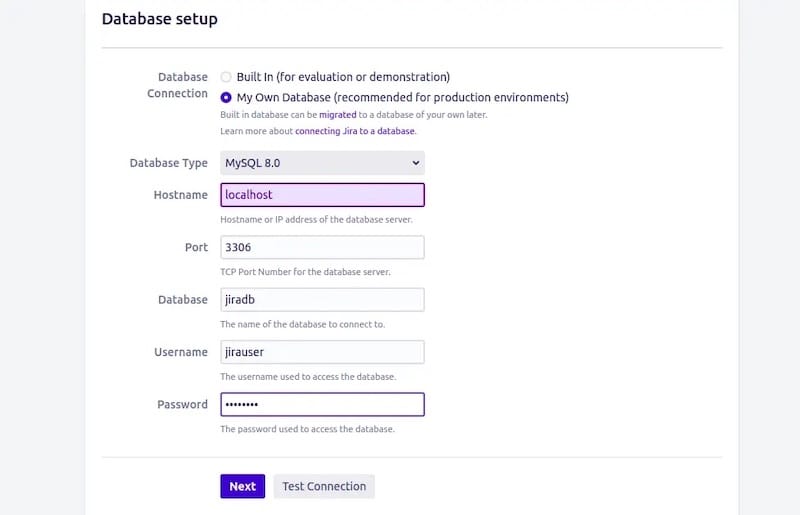
Step 7.2: Configure Database Connection
Select PostgreSQL and enter:
- Hostname:
localhost - Port:
5432 - Database:
jiradb - Username:
jirauser - Password:
Str0ng!P@ssw0rd
Click Test Connection before proceeding.
Why test connection first: Catches database misconfiguration before Wizard proceeds. Failed connection halfway through setup requires full reinstallation.
Step 7.3: Set Application Properties
- Base URL:
https://jira.example.com(must match SSL certificate domain exactly) - Site privacy: Private (recommended for production)
- License: Paste your key or generate evaluation license from Atlassian account
Why base URL must match certificate: Jira validates base URL against SSL certificate. Mismatch causes browser security warnings and breaks OAuth integrations.
Why private site: Prevents public signup, which could expose all issues if “Browse issues” permission stays at default “Any logged in user”.
Create administrator account with strong password (minimum 12 characters), then configure email notifications if needed.
Step 8: JVM Heap Memory and Performance Tuning
Step 8.1: Edit setenv.sh for Heap Configuration
sudo vim /opt/atlassian/jira/bin/setenv.sh
Add or modify these lines:
JVM_MINIMUM_MEMORY="2048m"
JVM_MAXIMUM_MEMORY="4096m"
JVM_SUPPORT_RECOMMENDED_ARGS="-XX:+UseG1GC -XX:+ExplicitGCInvokesConcurrent -Xlog:gc*:file=/opt/atlassian/jira/logs/gc.log:time,uptime:filecount=5,filesize=20m"
What these values do:
JVM_MINIMUM_MEMORY=2048m: Initial heap size prevents repeated heap resizing during startupJVM_MAXIMUM_MEMORY=4096m: Max heap for 8 GB RAM server (25-100 users). Never exceed 50% of total RAMUseG1GC: G1 garbage collector optimized for large heaps reduces GC pause timesgc* logging: Creates GC logs for performance monitoring essential for diagnosing slowdowns
Why JVM tuning is critical: Default JVM heap (2GB) works for 1-25 users but causes OutOfMemory errors and slow garbage collection for larger teams. Proper heap sizing reduces GC pauses from 5+ seconds to under 1 second, improving user experience significantly.
Step 8.2: Heap Sizing by Team Size
| Team Size | Server RAM | JVM Heap (Xmx) |
|---|---|---|
| 1-25 users | 4 GB | 2048m |
| 25-100 users | 8 GB | 4096m |
| 100-300 users | 16 GB | 8192m |
| 300+ users | 32 GB | 12288m |
Why not max heap: Over-sizing heap causes longer garbage collection. After GC, memory used should be 1/3 of total heap. Avoid 32GB-47GB heap due to Compressed OOPs limitations.
Step 8.3: Restart Jira and Verify
sudo /opt/atlassian/jira/bin/stop-jira.sh
sudo /opt/atlassian/jira/bin/start-jira.sh
In Jira admin panel, go to Administration > System > System Info > Java VM Memory to verify new heap settings.
Why restart required: JVM settings only apply on startup. Changing setenv.sh without restart leaves old values active.
Step 9: Automate Daily Backups
Step 9.1: Create Backup Script
sudo vim /opt/atlassian/jira-backup.sh
Add this content:
#!/bin/bash
BACKUP_DIR="/var/backups/jira"
DATE=$(date +%Y%m%d_%H%M)
mkdir -p "$BACKUP_DIR"

# Database dump
sudo -u postgres pg_dump jiradb | gzip > "$BACKUP_DIR/jiradb_${DATE}.sql.gz"

# Application data backup
tar czf "$BACKUP_DIR/jira-data_${DATE}.tar.gz" /var/atlassian/application-data/jira/

# Remove backups older than 14 days
find "$BACKUP_DIR" -type f -mtime +14 -delete

echo "Backup completed: $DATE"
What each part does:
pg_dump: Native PostgreSQL dump faster than XML export for large datasetstar czf: Compresses application data (logs, indexes, attachments)find -mtime +14 -delete: Auto-removes old backups to prevent disk exhaustion
Why backup strategy is non-negotiable: Jira data includes issues, comments, attachments, and workflow configurations. Single hardware failure or human error can destroy months of work. Atlassian recommends regular backups of both database and application data directory.
Step 9.2: Schedule Backup with Cron
sudo chmod +x /opt/atlassian/jira-backup.sh
sudo crontab -e
Add this line:
0 2 * * * /opt/atlassian/jira-backup.sh >> /var/log/jira-backup.log 2>&1
Why 2 AM daily: Low-traffic period minimizes backup impact on performance. Daily frequency catches most data loss scenarios.
Why log output: Enables monitoring backup success. Check /var/log/jira-backup.log weekly.
Troubleshooting Common Issues
Issue 1: Redirect Loop After Nginx Setup
Problem: Browser stuck in redirect loop when accessing Jira via Nginx.
Solution: Ensure proxy_pass points to http://127.0.0.1:8080 not http://jira.example.com:8080. Also verify proxy_set_header X-Forwarded-Proto $scheme is set in Nginx config.
Why this happens: Nginx forwarding to domain name instead of localhost creates circular redirect.
Issue 2: OutOfMemory Errors After 2 Days
Problem: Jira slows to halt after extended use, requiring restart.
Solution: Increase JVM_MAXIMUM_MEMORY in setenv.sh to 8192m. Check GC logs at /opt/atlassian/jira/logs/gc.log for heap usage patterns.
Why this happens: Default 2GB heap insufficient for over 25 users. Memory accumulates until GC cannot reclaim enough.
Issue 3: Jira Won’t Start After Java Update
Problem: Jira fails to start after updating Java with “Java version not supported” error.
Solution: Verify JAVA_HOME points to correct Java 17 path. Check with java -version. Update /etc/profile.d/java.sh if Java installation path changed.
Why this happens: Java updates sometimes change installation path. Jira’s setenv.sh uses hardcoded JAVA_HOME that becomes invalid.
Issue 4: SSL Certificate Issuance Failed
Problem: Certbot returns “Failed authorization” error during certificate installation.
Solution: Verify domain jira.example.com points to your server IP. Check port 80 is open in firewall. Run sudo ufw status to confirm.
Why this happens: Let’s Encrypt validates domain ownership by making HTTP request to port 80. Blocked port or wrong DNS prevents validation.
Issue 5: Large Attachments Fail to Upload
Problem: File uploads over 1MB fail with “413 Request Entity Too Large” error.
Solution: Increase client_max_body_size 100M in Nginx config and restart Nginx with sudo systemctl reload nginx.
Why this happens: Default Nginx upload limit is 1MB. Jira attachments often exceed this size.
Security Best Practices Checklist
Complete these steps before exposing Jira to production:
- Disable root SSH login: Set
PermitRootLogin noin/etc/ssh/sshd_configto eliminate biggest privilege target - SSH key-only authentication: Set
PasswordAuthentication noto block 99% of SSH attacks - Install Fail2Ban: Run
sudo apt install fail2banto rate-limit brute-force attempts - Run Jira as non-root: Installer creates dedicated
jirauser to prevent root-level compromise - Restrict file permissions: Run
chmod -R u=rwx,go-rwxon sensitive files to prevent unauthorized reading - Enable automatic updates: Install
sudo apt install unattended-upgradesto patch security vulnerabilities automatically - Configure audit logs: Enable Administration > System > Audit Log to track user actions for compliance
Why layered security matters: Single measures are insufficient. SSH + firewall + Fail2Ban + non-root stops approximately 99% of attacks.
[su_box title=”VPS Manage Service Offer” style=”bubbles” box_color=”#000000″ radius=”10″]If you don’t have time to do all of this stuff, or if this is not your area of expertise, we offer a service to do “VPS Manage Service Offer”, starting from $10 (Paypal payment). Please contact us to get the best deal![/su_box]
