Arduino IDE is the go-to software for writing, compiling, and uploading code to microcontroller boards. If you run Fedora 44, you already have one of the most developer-friendly Linux distros available, but getting Arduino working correctly takes more than just downloading a file. This guide walks you through every step to install Arduino on Fedora 44, fix serial port access, and verify your setup with a working board upload.
Fedora 44 shipped in April 2026 with GNOME 50, Linux Kernel 7.0, and GCC 16. It is a solid platform for embedded development, but it does not include Arduino IDE out of the box. You need to install it manually and handle USB permissions before you can upload a single sketch.
This guide covers three installation methods: Flatpak (the recommended path for Fedora), the official Linux AppImage, and the Linux ZIP archive. Each method is explained with the “why” behind every command, not just the “how.” By the end, your IDE will open, detect your board, and upload code without issues.
Before You Start: Prerequisites
Make sure your system is ready before running any install commands. Skipping this check wastes time if a dependency is missing midway through.
Requirements:
- Fedora 44 (Workstation or Server with a desktop environment)
- A user account with
sudoprivileges - Internet connection for downloading packages
- A USB cable and an Arduino board (optional for the install, required for the upload test)
- At least 500 MB of free disk space
- Flatpak installed (included by default on Fedora 44 Workstation)
What you should know beforehand:
- Basic terminal usage (running commands, navigating directories)
- How to open a terminal on GNOME 50 (press
Super, type “Terminal”) - Your current Fedora version: run
cat /etc/fedora-releaseto confirm you are on Fedora 44
Step 1: Update Your Fedora 44 System
Before installing anything, update your system packages. This step keeps your DNF package index in sync and prevents conflicts between old cached metadata and new installs.
sudo dnf upgrade --refresh -yWhat this does: dnf upgrade fetches the latest package versions. The --refresh flag forces DNF to re-sync metadata from all configured repositories. The -y flag skips the confirmation prompt.
Why it matters: Fedora 44 uses DNF5, which is faster and stricter than previous versions. If your local cache is stale, package installs can fail silently or pull mismatched dependencies. Running this first takes two minutes and prevents hours of debugging later.
Expected output:
Last metadata expiration check: ...
Dependencies resolved.
Nothing to do.
Complete!
If updates are available, DNF will list and install them automatically.
Step 2: Verify Flatpak Is Ready
Fedora 44 Workstation includes Flatpak by default. However, the Flathub repository, where Arduino IDE lives, is not always pre-configured. This step confirms Flatpak is present and adds Flathub if it is missing.
Check if Flatpak is installed
flatpak --versionExpected output:
Flatpak 1.15.xIf this returns “command not found,” install Flatpak first:
sudo dnf install flatpak -yAdd the Flathub repository
flatpak remote-add --if-not-exists flathub https://flathub.org/repo/flathub.flatpakrepoWhat this does: This registers Flathub as a remote source for Flatpak apps. The --if-not-exists flag prevents an error if Flathub is already configured.
Why it matters: Flatpak has no default remote on a fresh Fedora install in some configurations. Without Flathub, the flatpak install command has nowhere to look for Arduino IDE and returns a “no remote” error. This one command unlocks access to thousands of verified apps, including Arduino IDE.
Verify Flathub is listed
flatpak remotesExpected output:
Name    Options
fedora  system,oci
flathub system
You should see flathub in the list before continuing.
Step 3: Install Arduino IDE via Flatpak on Fedora 44
This is the primary and recommended method to install Arduino on Fedora 44. Flatpak packages Arduino IDE in a sandboxed environment with its own runtime libraries. This means you do not need to worry about system-level Java dependencies or missing .so files.
flatpak install flathub cc.arduino.IDE2 -yWhat this does: This fetches the cc.arduino.IDE2 package from Flathub and installs it along with the required runtime. The package ID cc.arduino.IDE2 points to Arduino IDE version 2.x, the current generation of the IDE.
Why this matters: The package ID is specific. Using the wrong ID, such as cc.arduino.arduinoide (which is the legacy 1.x version), installs an outdated IDE. Arduino IDE 2.x includes the Language Server Protocol editor, a better board manager, and an integrated debugger. You want 2.x.
Expected output:
Looking for matches...
Found ref 'app/cc.arduino.IDE2/x86_64/stable' in remote 'flathub'
Installing: cc.arduino.IDE2/x86_64/stable
[====================] Installing

cc.arduino.IDE2 permissions:
    devices: all  (USB access)
The install typically takes 2 to 5 minutes depending on your connection speed.
Launch Arduino IDE
Once installed, launch the IDE from the GNOME application menu by searching “Arduino,” or use the terminal:
flatpak run cc.arduino.IDE2Why this launch command matters: Running it from the terminal on first use lets you see any error output directly. If a permission or runtime issue exists, the error appears here instead of silently failing from the app menu.
Step 4: Fix Serial Port Access on Fedora 44
This is the step most tutorials skip, and it is the reason most people report that Arduino IDE opens but cannot detect their board. On Linux, serial ports like /dev/ttyUSB0 and /dev/ttyACM0 are owned by the dialout group. Your user account is not in that group by default.
Add your user to the dialout group
sudo usermod -aG dialout $USERWhat this does: usermod -aG appends the user to the specified group without removing existing group memberships. $USER is a shell variable that automatically uses your current username.
Why it matters: Without dialout membership, the Arduino IDE throws a “permission denied” error when it tries to open the serial port. The board appears in lsusb but the IDE port dropdown stays empty or grayed out. This single command resolves the majority of upload failures on Linux.
Apply the group change
Group memberships do not refresh automatically in an active session. You must log out and log back in, or reboot:
sudo rebootWhy rebooting works: Linux loads group memberships into the user session at login. Adding a group mid-session does not update the running session’s permissions token. Rebooting is the cleanest way to ensure the new group applies correctly. An alternative is to run newgrp dialout in the terminal, but this only applies to that specific shell session.
Verify group membership after reboot
groups $USERExpected output:
yourusername wheel dialout plugdevYou should see dialout in the list. If you do not, re-run the usermod command and reboot again.
Step 5: Set Up udev Rules for Your Arduino Board
The dialout group fix handles most boards. However, some boards, especially clones using CH340 or CP2102 USB-to-serial chips, require a dedicated udev rule to get consistent port access. udev rules tell the Linux kernel how to set permissions when a specific USB device is plugged in.
Check if your board is detected
Plug in your Arduino board and run:
lsusbA standard Arduino Uno shows up as ID 2341:0043 Arduino SA Uno R3. A clone with CH340 shows as ID 1a86:7523 QinHeng Electronics CH340 serial converter.
Create a udev rule for common boards
For boards using the CP2102 chip (common on ESP32 clones and some Arduino-compatible boards):
echo 'SUBSYSTEM=="tty", ATTRS{idVendor}=="10c4", ATTRS{idProduct}=="ea60", GROUP="dialout", MODE="0660"' | sudo tee /etc/udev/rules.d/99-arduino.rulesFor boards using the CH340 chip:
echo 'SUBSYSTEM=="tty", ATTRS{idVendor}=="1a86", ATTRS{idProduct}=="7523", GROUP="dialout", MODE="0660"' | sudo tee -a /etc/udev/rules.d/99-arduino.rulesWhat this does: Each rule tells udev to match a device by its vendor ID and product ID, assign it to the dialout group, and set read/write permissions. The file /etc/udev/rules.d/99-arduino.rules is a custom file, so system updates will not overwrite it.
Why this matters: Without a udev rule, device permissions reset each time you unplug and replug the board. The udev rule makes the permission setting automatic and persistent. You write this file once and never touch it again.
Reload udev rules
sudo udevadm control --reload
sudo udevadm trigger
What this does: udevadm control --reload tells udev to re-read all rule files without a reboot. udevadm trigger re-applies rules to currently connected devices.
Why this is necessary: udev caches its rules at boot. Without reloading, new rules take effect only after the next reboot. These two commands make the new rule active immediately.
Step 6: Configure Arduino on Fedora 44 and Run a Board Test
With the IDE installed and port access fixed, run a board test to confirm everything works end to end. This is the most important verification step because an IDE that opens but cannot upload is not a working setup.
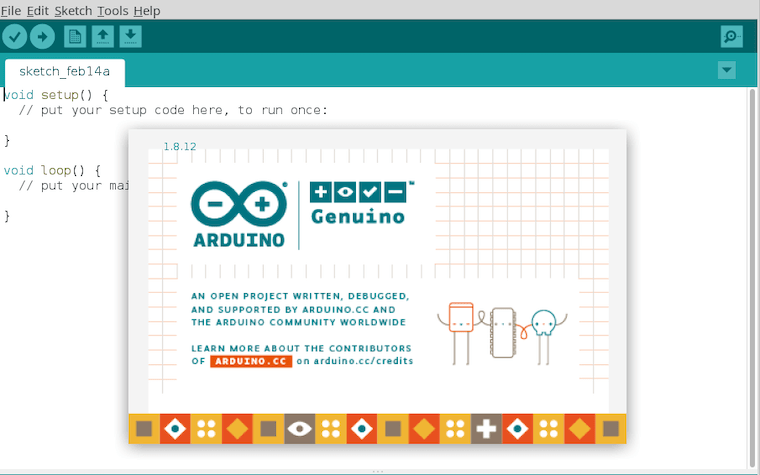
Open the IDE and select your board
- Launch Arduino IDE from the app menu or with
flatpak run cc.arduino.IDE2 - Go to Tools > Board > Arduino AVR Boards
- Select your board (for example, Arduino Uno)
- Go to Tools > Port
- Select the port that matches your board (for example,
/dev/ttyACM0)
Why board selection matters: The compiler uses the board profile to generate the correct binary. Selecting the wrong board causes the compiled binary to mismatch the microcontroller architecture. The upload may fail entirely, or the board may behave in unexpected ways.
Upload the Blink example
- Go to File > Examples > 01.Basics > Blink
- Click the Upload button (the right-pointing arrow icon in the toolbar)
- Watch the console output at the bottom of the IDE
Expected output in the IDE console:
Sketch uses X bytes (X%) of program storage space.
Global variables use X bytes (X%) of dynamic memory.
The LED on your Arduino board should then start blinking every second. If you see this behavior, the entire Install Arduino on Fedora 44 setup is complete and confirmed working.
Alternative Method A: Install Arduino via AppImage
If you prefer to use the official binary directly from Arduino’s website without Flatpak, the AppImage method is a clean and self-contained alternative.
Download the AppImage
Visit arduino.cc/en/software and download the Linux AppImage 64 bits (X86-64) file. Or use the terminal:
wget -O ~/arduino-ide.AppImage "https://downloads.arduino.cc/arduino-ide/arduino-ide_latest_Linux_64bit.AppImage"Make it executable
chmod +x ~/arduino-ide.AppImageWhy the chmod step is required: Linux does not treat downloaded files as executable by default. This is a security safeguard. Without setting the execute bit, running the file returns a “permission denied” error even though you own the file.
Run the AppImage
~/arduino-ide.AppImageNo installation is needed. The AppImage runs directly from your home directory. Still apply the dialout group fix from Step 4 because port permissions apply regardless of the installation method.
When to use AppImage: Use this method when you want the official Arduino-signed binary without involving your system’s package manager. It also works well for testing a specific version without affecting an existing Flatpak install.
Alternative Method B: Install via Linux ZIP Archive
The ZIP method gives you a fully extracted application folder. It is portable and transparent. You can copy it to a USB drive or move it between systems without reinstalling.
Download the ZIP file
From the official Arduino download page, get the Linux ZIP file 64 bits (X86-64). Or via terminal:
wget -O ~/arduino-ide.zip "https://downloads.arduino.cc/arduino-ide/arduino-ide_latest_Linux_64bit.zip"Extract the archive
unzip ~/arduino-ide.zip -d ~/arduino-ideWhat this does: unzip extracts the contents into a new directory called arduino-ide inside your home folder.
Run the executable
~/arduino-ide/arduino-ideWhy choose ZIP over AppImage or Flatpak: The ZIP archive is the most portable option. You can run it from a network share, a mounted drive, or any path on the filesystem. It does not require AppImage FUSE support or Flatpak infrastructure. It is especially useful in restricted environments where Flatpak is disabled or FUSE is unavailable.
Troubleshooting Common Issues
Even with a correct install, Fedora-specific quirks can still cause problems. Here are the five most common issues with direct fixes.
Issue 1: Port is grayed out or empty in Arduino IDE
Cause: Your user is not in the dialout group, or you have not logged out since adding the group.
Fix:
sudo usermod -aG dialout $USER
groups $USER  # Verify dialout appears after relogging
Then log out and back in or reboot.
Issue 2: “Permission denied” when uploading a sketch
Cause: The /dev/ttyACM0 or /dev/ttyUSB0 device does not have the correct group permissions.
Fix: Check current permissions first:
ls -l /dev/ttyACM0The output should show crw-rw---- 1 root dialout. If the group is not dialout, reload udev:
sudo udevadm control --reload && sudo udevadm triggerIssue 3: Flatpak version cannot access the USB port
Cause: Flatpak sandboxing may restrict direct hardware access on some Fedora configurations.
Fix:
flatpak info --show-permissions cc.arduino.IDE2 | grep deviceIf device access is missing, override it:
flatpak override --user --device=all cc.arduino.IDE2Then relaunch the IDE.
Issue 4: Board is not detected by lsusb
Cause: The USB cable is faulty, the USB port is not powered, or the board itself is damaged.
Fix: Try a different USB cable. Many micro-USB cables are charge-only with no data lines. Test the port with another USB device. Run lsusb before and after plugging in the board to confirm the device appears.
Issue 5: Arduino IDE AppImage crashes on launch
Cause: FUSE is not available on the system, or the AppImage runtime is incompatible with the current kernel version.
Fix:
sudo dnf install fuse fuse-libs -yIf FUSE is already installed and the crash persists, switch to the Flatpak method. Flatpak bundles its own runtime and avoids system-level FUSE issues entirely.

