
Managing a Fedora server entirely through SSH works well—until it does not. A failed service, a full filesystem, a misconfigured network interface, or a sudden memory spike often requires checking several commands in sequence. That workflow is familiar to experienced administrators, but it can become unnecessarily slow when managing multiple machines, onboarding another administrator, or diagnosing an incident under pressure.
Cockpit provides a browser-based management console for Linux servers without attempting to replace the command line. It exposes the same underlying system services and tools administrators already use: systemd, NetworkManager, firewalld, journal logs, storage utilities, Podman, SELinux, and package management. The result is a practical graphical layer over the operating system rather than an opaque control panel.
Fedora is one of Cockpit’s primary platforms. Fedora Server commonly includes Cockpit as part of its management tooling, while Fedora Workstation and other Fedora installations can add it through the standard DNF repositories. The normal installation is small: install the cockpit package, enable the systemd socket, permit the Cockpit service through firewalld if remote access is required, and connect over HTTPS on TCP port 9090.
This guide explains how to install Cockpit on Fedora 44, verify that it is operating correctly, secure access, add useful management modules, and troubleshoot the failures that tend to appear on real systems. It also covers production considerations such as reverse proxies, SSH tunneling, SELinux, resource usage, remote hosts, and the relationship between Cockpit and traditional command-line administration.
What Cockpit Does on Fedora
Cockpit is an open-source web console for administering Linux systems. Once installed, it allows an authenticated system user to view and manage:
- CPU, memory, swap, disk, and network activity.
- Systemd services and targets.
- Journal logs and boot history.
- User accounts and administrative privileges.
- Network interfaces, routes, DNS, and hostnames.
- Firewalld zones and services.
- Storage devices, filesystems, RAID, and mounts.
- Software packages and system updates.
- Podman containers.
- Virtual machines through libvirt.
- SELinux status and related policy information.
- System shutdown and reboot operations.
Cockpit does not normally run a large application stack such as Apache, PHP, or a database. The web interface is provided by the Cockpit Web Service, while privileged operations are performed through authenticated system components. It uses system credentials and integrates with the operating system’s existing permission model.
The default access URL is:
https://server-ip-address:9090Cockpit uses HTTPS by default. A new installation generally creates or uses a locally trusted certificate arrangement that may produce a browser warning when accessed by IP address or an unrecognized hostname. That warning does not mean the traffic is unencrypted; it means the browser cannot validate the certificate’s issuing authority.
Cockpit socket activation
Fedora uses systemd socket activation for Cockpit. The key unit is:
cockpit.socketEnabling the socket is preferable to treating cockpit.service as a continuously running daemon. Systemd listens on the configured port and starts the Cockpit service when a connection arrives. This reduces idle resource usage and follows the service design recommended for Cockpit.
Before Installing Cockpit
A clean installation starts with a few basic checks. These are quick, but they prevent confusion later—especially on cloud servers where the system may already have custom firewall rules or an unexpected hostname.
Confirm the Fedora release
Check the operating system and kernel:
cat /etc/fedora-release
hostnamectl
uname -r
For Fedora 44, the release file should identify Fedora Linux 44. The exact kernel version depends on when the system was installed and which updates have been applied.
If the system has been upgraded from an older Fedora release, check for interrupted transactions and pending package work:
sudo dnf history
sudo dnf check
If dnf check reports dependency problems, repair those before installing additional packages. Do not ignore package database errors on a production host.
Update package metadata
Refresh package metadata and apply available updates:
sudo dnf upgrade --refreshA reboot may be appropriate if the kernel, systemd, OpenSSL, or other foundational components were updated:
sudo rebootOn a remote server, confirm that you have an out-of-band console or a reliable recovery path before rebooting. A reboot is routine, but a cloud networking problem or an incorrect boot configuration can turn a simple update into an availability incident.
Confirm administrative access
Cockpit authenticates against local system accounts. The user should either be root or have administrative privileges through sudo and the appropriate wheel-group membership.
Check the current account:
whoami
id
groups
To see whether the account can use sudo:
sudo -vOn Fedora, adding an administrator to the wheel group is typical:
sudo usermod -aG wheel usernameThe user must start a new login session before the new group membership is recognized. Avoid enabling direct root login through Cockpit unless there is a specific operational reason. A named administrator account gives better accountability and can be revoked without changing a shared root password.
Check the network and port
Identify the server’s addresses:
ip -br address
hostname -I
Check whether port 9090 is already occupied:
sudo ss -ltnp | grep -F ':9090'If this command returns a process before Cockpit is installed, identify that process first. Do not blindly stop it. Another web administration tool, a development service, or a test application may already be using the port.
Install Cockpit on Fedora 44
The standard Fedora package is available from the regular repositories. For most Fedora 44 systems, the basic installation is:
sudo dnf install cockpitDNF resolves and installs the required dependencies. The Fedora package repository provides Cockpit documentation and Fedora 44 package builds, so Cockpit can be installed as a native Fedora package without adding a third-party repository.
For an unattended installation, use:
sudo dnf install -y cockpitThe base package provides the web console and core functionality. It does not necessarily install every optional integration. Add only the modules that match the server’s role.
Useful optional packages include:
For container management:
sudo dnf install -y cockpit-podmanFor storage management:
sudo dnf install -y cockpit-storagedFor virtual machine administration:
sudo dnf install -y cockpit-machinesFor SELinux-related management:
sudo dnf install -y cockpit-selinuxFor package and operating-system integration:
sudo dnf install -y cockpit-packagekitPackage names can change between Fedora releases, so confirm availability before scripting a large deployment:
dnf search cockpit
dnf info cockpit
A common production mistake is installing every Cockpit extension “just in case.” That increases the package footprint and may add components that are irrelevant to the machine. A web server may need the core package, storage integration, and perhaps Podman support. A virtualization host may need cockpit-machines, while a minimal reverse proxy may need nothing beyond the base package.
Enable and Start the Cockpit Socket
After installing the package, enable and start the socket:
sudo systemctl enable --now cockpit.socketThis single command both enables Cockpit at boot and starts listening immediately.
Check the socket state:
systemctl status cockpit.socketA healthy socket normally reports that it is listening. You can also inspect the enablement and runtime state directly:
systemctl is-enabled cockpit.socket
systemctl is-active cockpit.socket
Expected output is:
enabled
active
Confirm that the port is listening:
sudo ss -ltnp | grep -F ':9090'You may see a listener associated with systemd rather than a permanently running Cockpit process. That is normal with socket activation.
To display the listening sockets managed by systemd:
sudo systemctl list-sockets | grep cockpitThe service itself may not appear as continuously active until a browser connects. Check it after opening the web console:
systemctl status cockpit.serviceDo not automatically replace cockpit.socket with:
sudo systemctl enable --now cockpit.serviceThe socket unit is the normal and more efficient Fedora configuration. Starting the service directly can work in some situations, but it bypasses the intended activation model.
Configure Firewalld
Cockpit listens on TCP port 9090. A local browser on the Fedora server may connect without a firewall change, but remote access requires a permitted firewall rule.
First inspect the active firewalld zones:
sudo firewall-cmd --get-active-zonesThen inspect the active zone configuration:
sudo firewall-cmd --list-allThe simplest Fedora rule is to allow the predefined Cockpit service:
sudo firewall-cmd --permanent --add-service=cockpit
sudo firewall-cmd --reload
Verify the rule:
sudo firewall-cmd --list-servicesOpening port 9090 to every source address is rarely necessary on a production server. If administration occurs from a known office subnet or VPN, restrict access to that network.
For example, to permit Cockpit only from 192.168.50.0/24:
sudo firewall-cmd --permanent \
  --add-rich-rule='rule family="ipv4" source address="192.168.50.0/24" service name="cockpit" accept'

sudo firewall-cmd --reload
If a broad Cockpit service rule already exists, remove it:
sudo firewall-cmd --permanent --remove-service=cockpit
sudo firewall-cmd --reload
Use caution with rich rules. Verify the active zone and test access before disconnecting your current administrative session. On a remote host, an incorrect firewall change can lock you out.
You can also use an SSH tunnel and avoid exposing port 9090 externally:
ssh -L 9090:localhost:9090 username@server.example.comThen open this address on your local workstation:
https://localhost:9090The browser connection travels through the SSH session, while Cockpit remains bound to the server’s local interface from an external firewall perspective. This is often the best approach for a small private server or an emergency maintenance session.
Access the Cockpit Web Console
Open a browser and visit:
https://server-ip-address:9090For a server named fedora-node.example.com:
https://fedora-node.example.com:9090Use the HTTPS scheme explicitly. Redirecting or typing http:// may produce a confusing result because Cockpit’s normal endpoint is HTTPS.
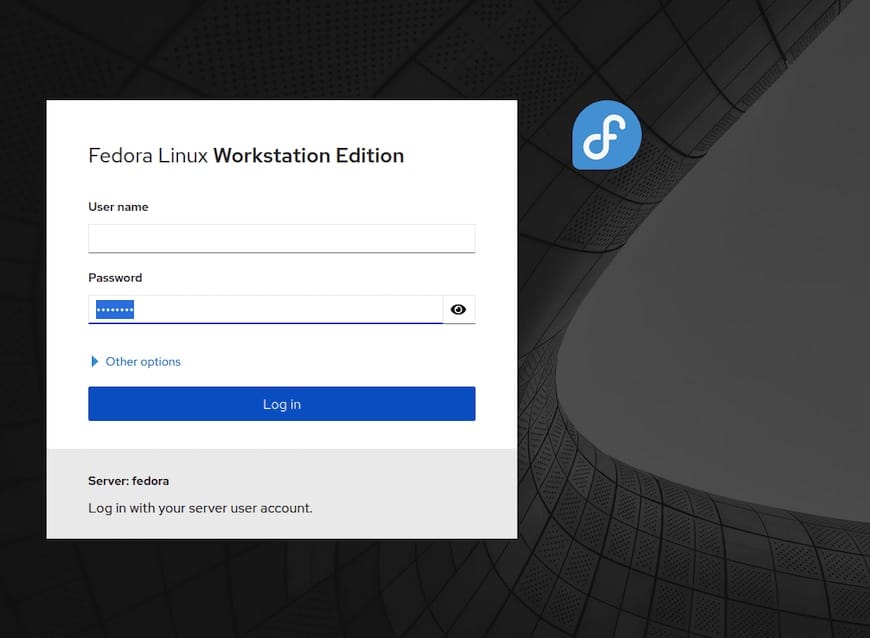
At the login screen, enter a valid Fedora system username and password. Use an administrative account when the session needs to change services, networking, storage, packages, or firewall settings.
Certificate warnings
A certificate warning is expected when Cockpit is accessed using an IP address or a hostname not covered by the certificate. For a private lab, you can inspect the certificate and proceed after verifying that you reached the correct server.
Use OpenSSL to inspect the TLS endpoint:
openssl s_client -connect server-ip-address:9090 -servername server.example.comFor production administration, avoid teaching users to ignore certificate warnings permanently. A better approach is to provide Cockpit with a certificate issued by an internal certificate authority or a public CA for a valid DNS name.
Certificate deployment depends on the Cockpit version and its certificate discovery configuration. Before changing files, inspect the installed documentation and package layout:
rpm -ql cockpit-ws | grep -E 'cert|key|cockpit'Also review the local manual pages:
man cockpit-wsDo not place a private key in a world-readable directory. The key should be readable only by the service account or the tightly controlled mechanism used by the web service.
First Post-Installation Checks
Once logged in, do not immediately start changing settings. Use the console to verify that the server’s baseline state is understood.
Review system health
The Overview page provides a quick view of:
- CPU utilization.
- Memory and swap consumption.
- Load average.
- Disk capacity.
- System hostname.
- Operating system version.
- Kernel version.
- Last boot time.
The graphical dashboard is useful for orientation, but it is not a replacement for historical monitoring. A load average that looks acceptable at one moment may hide a recurring overnight problem. For longer-term analysis, use tools such as sar, vmstat, iostat, Prometheus, or an existing monitoring platform.
Install useful command-line diagnostics when needed:
sudo dnf install -y sysstat iotopExamples:
vmstat 1 5
iostat -xz 1 5
sudo iotop
Inspect logs
Cockpit’s Logs section provides access to the system journal. Look for:
- Failed systemd units.
- Authentication failures.
- Kernel warnings.
- Storage errors.
- NetworkManager events.
- SELinux denials.
- Repeated application crashes.
The command line remains faster for focused filtering:
sudo journalctl -p warning..alert -bTo inspect the current boot for a particular service:
sudo journalctl -u nginx -bTo follow new messages:
sudo journalctl -fCockpit and journalctl display the same underlying journal data. If the browser view and command-line output appear different, check time filters, boot selection, and privilege level.
Check failed services
systemctl --failedA failed unit should be investigated rather than merely restarted. For example:
sudo systemctl status nginx
sudo journalctl -u nginx -b --no-pager
Restarting a service may temporarily restore functionality while leaving the underlying cause unresolved, such as a bad configuration, a full filesystem, an exhausted connection pool, or a certificate that has expired.
Managing Services Through Cockpit
The Services page is valuable during incidents because it gives a searchable view of systemd units. You can start, stop, restart, reload, enable, and disable services according to the user’s permissions.
The distinction between these actions matters:
- Start runs a service now but does not necessarily enable it at boot.
- Enable configures the service to start during the appropriate boot target.
- Restart stops and starts the process, causing a service interruption.
- Reload asks the service to reread configuration without a full stop, if supported.
- Disable prevents automatic startup but does not necessarily stop a currently running process.
For a web server, prefer a configuration test before reloading:
sudo nginx -t
sudo systemctl reload nginx
For Apache HTTP Server:
sudo apachectl configtest
sudo systemctl reload httpd
A graphical button makes actions easy to execute, which is precisely why administrators should pause before using it on a production machine. Confirm the unit name, understand the dependency impact, and check the journal after the change.
Managing Packages and Updates
Cockpit can display available software updates through its package integration. The graphical update view is convenient for routine maintenance, but production patching still deserves a change-control process.
Before applying updates to a critical server, record:
rpm -qa | sort > installed-packages-before.txt
sudo dnf history info last
Check available updates:
sudo dnf check-updateApply updates manually when you need precise control:
sudo dnf upgrade --refreshAfterward, check whether a reboot is recommended:
sudo dnf install -y dnf-utils
sudo needs-restarting -r
Not every update requires an immediate reboot. Kernel, systemd, glibc, OpenSSL, and security-sensitive components may justify one, depending on the system’s role and maintenance window.
For internet-facing WordPress, Nginx, or application servers, patching should be coordinated with health checks. A package update that restarts PHP-FPM, a database, or a reverse proxy can briefly interrupt traffic. If the server is behind a load balancer, drain it before maintenance.
Add Podman Container Management
Fedora integrates well with Podman. Install the container engine and Cockpit’s Podman module:
sudo dnf install -y podman cockpit-podmanRefresh the Cockpit session after installation. The Podman section should expose containers, images, networks, and volumes.
Useful command-line checks include:
podman info
podman ps
podman images
podman system df
Cockpit can make container operations accessible to administrators who do not work with Podman every day, but it does not eliminate container fundamentals. Understand:
- Whether the container is rootful or rootless.
- Where persistent volumes are stored.
- Which ports are published.
- How the container restarts.
- Whether systemd or Quadlet manages it.
- How secrets and environment variables are supplied.
- How logs are retained.
For production workloads, avoid treating a graphical “restart” as a deployment strategy. Use versioned images, explicit configuration, health checks, backups, and a rollback plan.
Storage and Filesystem Management
The storage module can display block devices, partitions, filesystems, mounts, RAID, and related information. It is useful for investigating capacity and identifying devices, but destructive operations remain dangerous even when presented through a friendly interface.
Before modifying storage, collect a command-line inventory:
lsblk -f
findmnt
df -hT
sudo blkid
For disk health, use SMART tools where supported:
sudo dnf install -y smartmontools
sudo smartctl -a /dev/sda
Watch for the difference between filesystem usage and inode exhaustion:
df -h
df -i
A filesystem can report free gigabytes while refusing new files because all inodes are consumed. This frequently occurs on systems with huge numbers of small cache, session, or log files.
On an Nginx or WordPress server, also inspect log growth:
sudo du -xhd1 /var/log | sort -h
sudo journalctl --disk-usage
Do not delete active logs casually. Use the application’s rotation configuration and logrotate where appropriate. If the journal is consuming excessive space, configure retention rather than repeatedly deleting files.
Network Management
Cockpit’s Networking page uses NetworkManager on Fedora. It can display and modify:
- Ethernet and wireless interfaces.
- IPv4 and IPv6 addresses.
- Routes.
- DNS settings.
- Bonding and bridging.
- Interface state.
Before changing a remote server’s network configuration, confirm that you have console access. A typo in a static address, gateway, VLAN, or DNS setting can terminate the Cockpit session and SSH connection simultaneously.
Record the current configuration:
nmcli connection show
nmcli device status
ip route
resolvectl status
After a change, validate:
ping -c 3 gateway-ip-address
ip route
resolvectl query example.com
curl -I https://example.com
For servers hosting websites, a DNS problem can look like an application outage. Test each layer separately: interface state, route, resolver, TCP connectivity, TLS negotiation, reverse proxy, application runtime, and backend database.
Security Hardening
Cockpit adds an administrative web endpoint. Treat it as a privileged control plane, not as an ordinary website.
Limit network exposure
The safest common arrangements are:
- Expose Cockpit only on a private management VLAN.
- Permit access only through a VPN.
- Restrict firewalld rules to trusted administrator networks.
- Use an SSH tunnel for occasional access.
- Avoid publishing port 9090 directly to the public internet.
If public access is unavoidable, place it behind strong network controls, enforce multi-factor authentication through the surrounding identity architecture where possible, and monitor authentication events.
Use named administrator accounts
Do not share a root credential among administrators. Create individual accounts:
sudo useradd --create-home --shell /bin/bash adminname
sudo passwd adminname
sudo usermod -aG wheel adminname
Remove access when an administrator leaves:
sudo gpasswd --delete adminname wheel
sudo userdel --remove adminname
The exact account lifecycle should match your organization’s identity management process. Local accounts are workable for a small fleet, but centralized identity can provide stronger auditing and easier revocation.
Keep SELinux enforcing
Check SELinux:
getenforce
sestatus
The desired state for most Fedora servers is:
EnforcingDo not disable SELinux merely because a Cockpit operation encounters a denial. Inspect the audit records:
sudo ausearch -m AVC -ts recentThen determine whether the denial is legitimate, caused by an incorrect file context, or related to a missing policy rule. Cockpit can help expose SELinux status, but the underlying policy still needs to be understood.
Monitor authentication events
Review successful and failed logins:
sudo journalctl _SYSTEMD_UNIT=sshd.service -b
sudo journalctl SYSLOG_IDENTIFIER=sshd -b
On systems using traditional auth logs, check the relevant files under /var/log. Also monitor firewalld changes, sudo activity, and unusual Cockpit access patterns.
Performance and Resource Optimization
Cockpit is generally lightweight, especially when idle under socket activation. Still, server performance depends more on the workload being managed than on Cockpit itself.
CPU and load
Use Cockpit for a quick visual indication, then identify the process responsible:
top
ps aux --sort=-%cpu | head
pidstat -u 1 5
A high load average does not automatically mean CPU saturation. It may represent processes waiting on disk I/O or uninterruptible kernel operations. Compare load with CPU idle time, I/O wait, and disk latency.
Memory and swap
Inspect memory:
free -h
vmstat 1 5
A server with no swap may become less resilient during traffic spikes. Swap is not a substitute for adequate RAM, but a correctly sized swap area can help absorb short-lived pressure and reduce abrupt out-of-memory kills.
Check for OOM events:
sudo journalctl -k | grep -i -E 'out of memory|oom-killer'For PHP-based sites, excessive worker counts can consume memory quickly. If a Fedora server hosts Nginx, PHP-FPM, MariaDB, and containers on the same machine, tune the total process budget rather than optimizing each service in isolation.
Disk I/O
Check latency and utilization:
iostat -xz 1 5High %util, queue depth, or await values can indicate that the storage layer is the bottleneck. Common causes include database checkpoints, log bursts, backup jobs, container image extraction, or a noisy neighbor on virtualized storage.
Network
Use:
ss -s
sar -n DEV 1 5
For a web server, inspect connection states:
ss -ant state established | wc -l
ss -ant state time-wait | wc -l
A sudden increase in TIME_WAIT, retransmissions, or connection queues may require application, kernel, load balancer, or upstream investigation. Changing kernel parameters without evidence is rarely the right first move.
Troubleshooting Cockpit on Fedora 44
Cockpit page does not load
Check the socket:
systemctl status cockpit.socket
sudo ss -ltnp | grep -F ':9090'
If the socket is inactive:
sudo systemctl enable --now cockpit.socketCheck recent logs:
sudo journalctl -u cockpit.socket -u cockpit.service -b --no-pagerAlso verify that you are using the correct IP address and that the server is reachable:
ping -c 3 server-ip-address
nc -vz server-ip-address 9090
If nc reports a timeout, inspect firewalld, cloud security groups, router ACLs, and upstream network controls.
Connection is refused
A refusal generally means that the host is reachable but no process is accepting connections on that address and port. Confirm the listener:
sudo ss -ltnp | grep 9090Check whether Cockpit is listening only on localhost or on the expected address. Review the socket configuration:
systemctl cat cockpit.socketIf another process owns port 9090, identify it:
sudo lsof -nP -iTCP:9090 -sTCP:LISTENDo not change Cockpit’s port until you understand the conflict and update all firewall, monitoring, proxy, and documentation references consistently.
Browser shows a certificate warning
This is expected with a self-signed or privately issued certificate. Verify the hostname and certificate details before accepting the warning. For routine production use, configure a certificate whose subject and SAN entries match the DNS name administrators actually use.
Avoid accessing Cockpit through a raw public IP when a stable administrative DNS name is available. Certificates validate names, not intentions.
Login fails
Confirm that the user can log in locally or through SSH:
ssh username@server-ip-addressCheck account status:
sudo passwd -S username
sudo chage -l username
An expired password, locked account, invalid shell, or identity-provider issue can prevent login.
Review authentication logs:
sudo journalctl -b | grep -i -E 'cockpit|pam|authentication|failed'If the user authenticates successfully but cannot perform administrative actions, check group membership and sudo policy:
id username
sudo -l -U username
Firewall rule appears correct but access still fails
Firewalld rules are zone-specific. A frequent error is adding the Cockpit service to one zone while the active interface is attached to another.
Display the active zones:
sudo firewall-cmd --get-active-zonesThen inspect each relevant zone:
sudo firewall-cmd --zone=public --list-all
sudo firewall-cmd --zone=internal --list-all
On cloud servers, also check the provider’s security group or network ACL. The local Fedora firewall can permit 9090 while the cloud firewall silently drops it.
Cockpit module is missing
Check installed packages:
rpm -qa | grep '^cockpit'Search for the appropriate extension:
dnf search cockpitInstall the required module, then refresh the browser session:
sudo dnf install cockpit-podmanSome integrations also require the underlying service. Installing cockpit-machines without libvirt packages will not create a functional virtualization environment.
SELinux denial appears
Inspect recent AVC messages:
sudo ausearch -m AVC -ts recentCheck file contexts if the problem concerns a mounted directory or custom application path:
ls -lZ /path/to/file
matchpathcon /path/to/file
Do not use setenforce 0 as a permanent fix. Temporary permissive mode may help confirm a diagnosis during controlled troubleshooting, but the policy or context should then be corrected and enforcing mode restored.
Cockpit on Other Linux Distributions
The Cockpit workflow is similar across Fedora, Debian, Ubuntu, AlmaLinux, and related systems, but package names, repository versions, firewall tools, and security defaults differ.
On Ubuntu or Debian, installation commonly uses:
sudo apt update
sudo apt install cockpit
sudo systemctl enable --now cockpit.socket
If UFW is enabled:
sudo ufw allow 9090/tcpOn AlmaLinux or another Enterprise Linux system:
sudo dnf install cockpit
sudo systemctl enable --now cockpit.socket
With firewalld:
sudo firewall-cmd --permanent --add-service=cockpit
sudo firewall-cmd --reload
Do not copy Fedora-specific package commands into Fedora Atomic or Silverblue systems. Immutable Fedora variants generally use rpm-ostree for host packages, and the installation process differs.


