
Anyone who has spent a decade babysitting production servers knows the drill: a client insists on running some ancient Windows-only accounting tool, or a designer on the team needs a specific .exe that has no Linux equivalent. The old answer was “dual boot” or “spin up a VM,” both of which waste resources and time. Bottles changes that calculus entirely.
Bottles is a GTK4/libadwaita frontend built on top of Wine, but calling it “just a Wine GUI” undersells it. It isolates each Windows application into its own self-contained “bottle” — a separate prefix with its own DLL overrides, runner version, and dependency set. That isolation matters more than most tutorials admit. On a shared workstation or a lab machine where multiple users run different legacy tools, one broken Wine prefix used to mean broken everything. With Bottles, a corrupted environment for one app doesn’t touch the others.
Ubuntu 26.04 LTS (the next long-term support release following the 24.04 “Noble Numbat” cycle) ships with a tightened Snap-first philosophy for GNOME apps, updated kernel drivers, and a more aggressive AppArmor confinement model. That has real consequences for how Bottles behaves — particularly around Flatpak permissions, GPU passthrough, and filesystem access. This guide walks through the installation from a systems administrator’s perspective: not just “run this command,” but why each step exists, what can go sideways, and how to keep the setup secure and performant on a machine you actually care about.
If you’ve ever fought with winetricks, dealt with a bottle refusing to detect your GPU, or wondered why an installer silently fails with zero useful error output, this is written for you.
Understanding How Bottles Fits Into the Linux Compatibility Stack
Before touching a terminal, it helps to understand the architecture, because most “it doesn’t work” tickets trace back to a misunderstanding of where Bottles sits in the stack.
Bottles doesn’t reinvent Wine — it manages it. Underneath, it downloads and maintains its own Wine “runners” (vanilla, Proton-based forks like Wine-GE, Soda, or Caffe) independent of whatever Wine version, if any, is installed system-wide via APT. This is a deliberate design decision: system Wine packages lag behind, and version drift between distro releases used to be a constant source of “works on my machine” bugs. By bundling its own runners inside the Flatpak sandbox, Bottles sidesteps Ubuntu’s release cadence entirely.
That’s also why the officially supported and actively recommended distribution method is Flatpak via Flathub, not a .deb package, a PPA, or a distro-maintained build. There’s no Ubuntu-native package for Bottles, and there likely never will be — the sandboxing model is core to how it manages dependencies like Mono, Gecko, DXVK, and VKD3D without polluting the host system. Native .deb builds went stale, and the Bottles team explicitly steers users toward Flatpak because it keeps dependency versions consistent regardless of what distro or release you’re running.
Prerequisites Before You Touch a Terminal
A few checks up front save a lot of debugging later, especially on a fresh Ubuntu 26.04 install where drivers may not be fully configured yet.
Hardware and System Requirements
- 64-bit CPU with virtualization extensions enabled in firmware (not strictly required for Bottles, but many Windows apps assume it)
- At least 4 GB RAM free for lightweight apps; 8 GB+ if you’re running anything graphics-heavy or a full Office suite
- GPU drivers installed and current — Mesa for AMD/Intel, or proprietary NVIDIA drivers if you’re on that hardware
- Sufficient disk space; a single bottle with .NET, Visual C++ runtimes, and a moderately sized application can easily consume 3–6 GB
Software Prerequisites
- Ubuntu 26.04 LTS, fully updated
- A user account with sudo privileges
- Flatpak installed (Ubuntu 26.04 does not ship Flatpak preinstalled by default, continuing the trend from 24.04 where GNOME Software leans on Snap instead)
Run a quick system update first. Skipping this step is the single most common reason installs behave unpredictably on a brand-new LTS release, since early point releases often have driver and kernel patches rolling out fast.
sudo apt update && sudo apt full-upgrade -y
sudo reboot
Reboot after a kernel update, not just a soft logout. Wine relies heavily on kernel-level features (memory management, threading behavior) and a stale running kernel with new modules installed on disk is a recipe for weird graphical glitches later.
Step 1: Install and Configure Flatpak
Ubuntu’s default repositories include a flatpak package, so there’s no need to add a third-party PPA for this part.
sudo apt install flatpak -yOnce installed, add the Flathub remote. Flathub is the de facto standard Flatpak repository and the only place Bottles is officially published:
sudo flatpak remote-add --if-not-exists flathub https://dl.flathub.org/repo/flathub.flatpakrepoNote the --if-not-exists flag — it’s not just a cosmetic convenience. It makes the command idempotent, which matters if you’re scripting this as part of a provisioning playbook (Ansible, cloud-init, or a bare shell script for imaging lab machines). Running it twice won’t throw an error and won’t duplicate the remote.
On GNOME-based Ubuntu installs, you’ll also want the Flatpak plugin for GNOME Software so Bottles updates show up in the graphical software center rather than only via CLI:
sudo apt install gnome-software-plugin-flatpak -yThis step is optional if you’re comfortable managing updates entirely through the terminal, which, frankly, most sysadmins are. But if this machine will be handed off to an end user, install the plugin — nobody wants a support ticket asking why “the app store doesn’t show updates.”
Verify the remote is registered correctly:
flatpak remotesYou should see flathub listed with the correct URL. If it’s missing, the previous command silently failed — often due to no internet connectivity or a corporate proxy blocking dl.flathub.org. Check /etc/environment or your APT proxy config if you’re behind a corporate firewall; Flatpak doesn’t automatically inherit APT’s proxy settings.
Step 2: Install Bottles from Flathub
With the remote configured, installing Bottles itself is refreshingly simple:
flatpak install flathub com.usebottles.bottles -yThis pulls down the Bottles application along with its runtime dependencies — primarily the Freedesktop and GNOME Flatpak platforms, which Bottles builds against. Expect this to download several hundred megabytes on first install since it includes shared runtime libraries, not just the app binary itself.
If you’d rather test the bleeding-edge build (useful if you’re troubleshooting a bug that’s already fixed upstream but not yet in stable), the project also maintains a beta channel:
flatpak remote-add --user flathub-beta https://flathub.org/beta-repo/flathub-beta.flatpakrepo
flatpak update --appstream
flatpak install --user flathub-beta com.usebottles.bottles
Stick with the stable channel for production or client-facing machines. The beta channel is genuinely useful for personal testing rigs, but it’s not where you want to discover a regression the night before a demo.
Step 3: First Launch and Sandbox Permissions
Launch Bottles from the terminal the first time so you can see any permission errors immediately rather than guessing why the GUI window is blank:
flatpak run com.usebottles.bottlesBottles will prompt to download its dependency stack (Wine runners, DXVK, VKD3D) on first run. This can take a few minutes depending on connection speed — it’s fetching compiled binaries, not compiling from source, so it’s mostly a bandwidth bottleneck rather than a CPU one.
Here’s where the Flatpak sandbox model actually earns its keep, and also where new users get confused. By default, Flatpak apps are sandboxed away from your full filesystem. Bottles typically requests access to your home directory for storing bottle prefixes, but if you need it to reach an external drive or a specific mount point (say, a shared NTFS partition with installers on it), you’ll need to grant that explicitly with Flatseal or the flatpak override command:
flatpak override --user --filesystem=/media/yourdrive com.usebottles.bottlesDon’t reach for --filesystem=host as a lazy fix unless you fully understand what you’re giving up. That flag effectively disables the sandbox’s filesystem isolation, which defeats a good chunk of the security benefit you got from choosing Flatpak in the first place. Grant the narrowest path that solves the problem.
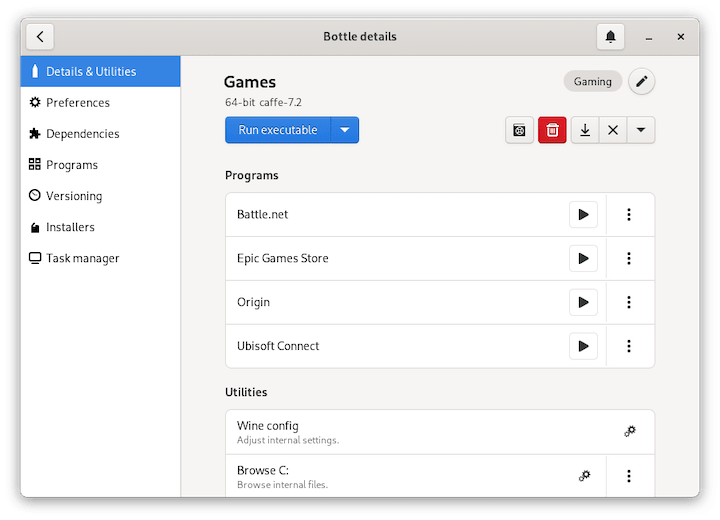
Step 4: GPU Acceleration and Graphics Configuration
This is the step most tutorials gloss over, and it’s exactly where support tickets pile up. Bottles relies on Wine’s DXVK/VKD3D translation layers to map DirectX calls to Vulkan, which means GPU driver correctness is non-negotiable for anything beyond basic productivity apps.
For NVIDIA GPUs
Install the proprietary driver rather than relying on Nouveau:
sudo ubuntu-drivers autoinstall
sudo reboot
Check the active driver post-reboot:
nvidia-smiFor AMD and Intel GPUs
Mesa’s RADV and ANV Vulkan drivers are typically solid out of the box on a current LTS kernel, but confirm Vulkan support is actually present:
sudo apt install mesa-vulkan-drivers vulkan-tools -y
vulkaninfo --summary
If vulkaninfo throws an error about no compatible devices, that’s your root cause for any Bottles app that hangs at launch or renders a black window — not a Bottles bug, but a driver-layer gap.
Inside each bottle, you can also fine-tune GPU behavior per-application via the bottle’s settings panel — enabling DXVK, adjusting Vulkan ICD selection on hybrid graphics laptops (Optimus setups), or forcing discrete GPU usage with environment variables like DRI_PRIME=1 or __NV_PRIME_RENDER_OFFLOAD=1. On laptops with switchable graphics, this single setting is often the difference between a game running at 60fps and a game that stutters at 12.
Real-World Use Cases and Bottle Templates
Bottles ships with preset templates tuned for different application categories, and choosing the right one up front saves a lot of manual winetricks fiddling later.
- Application bottle: Lean environment for productivity software — think older versions of Office, accounting tools, or CAD viewers that don’t need gaming-specific tweaks.
- Gaming bottle: Preconfigured with DXVK, VKD3D, and common gaming dependencies baked in.
- Custom/blank bottle: For advanced users who want granular control over every dependency, useful when an installer has very specific runtime requirements that conflict with the defaults.
A practical scenario worth mentioning: a small accounting firm running a legacy Windows-only invoicing tool on a shared Ubuntu terminal server. Using one dedicated application bottle per department kept each user’s data and DLL configuration isolated, so a broken .NET update for one team never cascaded into downtime for another. That’s the isolation advantage in practice, not theory.
Troubleshooting Common Bottles and Wine Errors
“Bottles” fails to launch with a blank window or immediate crash. Check for a mismatched or missing GPU driver first, using vulkaninfo as described above. If Vulkan checks out, launch from terminal with verbose output to catch the actual stderr trace:
flatpak run --verbose com.usebottles.bottlesInstaller hangs at “Installing Mono” or “Installing Gecko” indefinitely. This is almost always a networking issue inside the sandbox, not a broken installer. Confirm the Flatpak app has network access (it should by default) and check if a firewall or DNS filter is silently dropping the download. Corporate networks with SSL inspection proxies are a frequent culprit — Wine’s internal downloader doesn’t always respect system CA certificates the same way a browser does.
Application installs but crashes with a “0xc0000135” or missing DLL error. This nearly always means a missing Visual C++ or .NET runtime component inside that specific bottle. Open the bottle’s dependency manager in Bottles and install the matching redistributable package rather than trying to manually drop DLLs into the prefix — manual DLL copying breaks Wine’s own override tracking and creates harder-to-diagnose problems down the line.
Permission denied errors when accessing external drives or shared folders. This is the Flatpak sandbox doing its job. Revisit the flatpak override --filesystem command from Step 3 and grant access to the specific path needed.
Slow performance compared to native Wine. Verify DXVK and VKD3D are actually enabled for that specific bottle in its settings — they aren’t always toggled on by default depending on the template chosen. Also check nvidia-smi or GPU utilization during app runtime; if the GPU sits idle while the CPU spikes, the app is likely falling back to software rendering.
Bottles reports a corrupted or unusable runner after a Flatpak update. Runners occasionally break after upstream changes. From the Bottles preferences panel, force a re-download of the affected runner rather than trying to patch it manually — Wine prefixes are notoriously fragile to partial updates.
Performance, Security, and Maintenance Best Practices
Keep Flatpak runtimes current. Stale GNOME/Freedesktop platform runtimes are a common source of subtle graphics bugs. Schedule a periodic update check, either manually or via cron for unattended systems:
flatpak update -yAudit sandbox permissions regularly, especially on shared or multi-user machines. Use Flatseal (also available via Flathub) to visually review what filesystem paths, devices, and network access each Flatpak app has been granted. It’s far easier to spot an overly permissive --filesystem=host grant in a GUI than to remember every override command you ran six months ago.
Isolate bottles per application, not per user habit. Resist the temptation to install everything into one “general purpose” bottle. Separate bottles mean a bad DLL override or a corrupted registry hive in one application doesn’t take down every other Windows app on the system — the same logic you’d apply to containerizing services on a production server.
Watch disk I/O on systems running multiple bottles. Each prefix duplicates a fair amount of runtime data (fonts, .NET, Mono). On SSD-backed systems this rarely matters, but on older spinning-disk hardware or resource-constrained VMs, multiple large bottles can noticeably affect boot and login times if they’re indexed by a file search daemon like Tracker.
Firewall and network exposure. Bottles itself doesn’t open listening ports, but individual Windows applications running inside a bottle might, particularly software with licensing check-ins or update mechanisms. If you’re deploying Bottles on a machine with ufw enabled, audit outbound connections per application rather than assuming the sandbox model provides network-level isolation — it primarily isolates filesystem and D-Bus access, not network traffic by default.
Backup bottle prefixes before major updates. A bottle prefix lives under Flatpak’s user data directory. Before updating Bottles itself or swapping a runner version on a critical application bottle, snapshot it:
cp -r ~/.var/app/com.usebottles.bottles/data/bottles/bottles/YourBottleName ~/backups/YourBottleName-$(date +%F)This one habit has saved more than one afternoon of reinstalling and reconfiguring a fussy legacy application from scratch.
