
Manual Nginx configuration frustrates even experienced administrators. One syntax error breaks your entire server, and managing SSL certificates for multiple domains becomes a nightmare of cron jobs and private key files. You need a solution that eliminates configuration headaches while maintaining enterprise security.
This guide shows you how to install Nginx Proxy Manager on Ubuntu 26.04 with production-ready security hardening. You’ll get free SSL certificates via Let’s Encrypt with automatic renewal, a visual dashboard for managing proxy hosts, and firewall rules that protect your server from brute-force attacks. Based on 10 years of sysadmin experience and Ubuntu 26.04’s latest kernel 7.0 features, this tutorial works for beginner to intermediate Linux users, developers, and sysadmins.
Prerequisites
Before you install Nginx Proxy Manager on Ubuntu 26.04, verify you have these requirements:
- Operating System: Ubuntu 26.04 LTS (Resolute Raccoon), released April 23, 2026
- Server Type: Ubuntu Server 26.04 (minimal install recommended) or Ubuntu Desktop 26.04
- RAM: Minimum 1GB (512MB works but may cause memory exhaustion with multiple proxies)
- Storage: At least 2GB free disk space for Docker images and container data
- Permissions: Root access or a user with
sudoprivileges - Network: Public IP address with ports 80, 443, and 81 accessible
- DNS: Domain name pointing to your server IP (for SSL certificate generation)
- Tools: Terminal access (SSH for remote servers, or local terminal for desktop)
- Internet Connection: Stable connection to download Docker packages and Nginx Proxy Manager image
Why these matter: Ubuntu 26.04’s new kernel 7.0 provides better container performance, and the Rust-based sudo-rs replaces the traditional C sudo without compatibility issues. The 1GB RAM minimum ensures Nginx Proxy Manager runs smoothly alongside other containers without exhausting memory.
Step 1: Update Your System and Install Prerequisites
Update All Packages to Latest Versions
sudo apt update && sudo apt upgrade -y
WHAT this does: apt update refreshes your package index from Ubuntu repositories. apt upgrade -y installs all available updates and automatically confirms (-y) without prompting.
WHY you need it: Ubuntu 26.04’s initial release may have minor package updates. Applying them prevents Docker installation failures from mismatched dependencies and ensures security patches are current before opening network ports.
Expected output:
Reading package lists... Done
Building dependency tree... Done
Calculating upgrade... Done
The following packages will be upgraded:
  3 packages: base-files, bash, coreutils
Upgrade summarized: 3 upgrades, 0 new, 0 removal
Need to get 1,234 kB of archives.
After this operation, 12.3 MB disk space will be freed.
Done
Install Required Packages for Docker
sudo apt install -y ca-certificates curl gnupg
WHAT this does: Installs three critical packages:
ca-certificates: Validates HTTPS connections using SSL/TLScurl: Downloads files from URLs securelygnupg: Manages cryptographic keys and verifies signatures
WHY you need it: These packages prepare your system to download and verify Docker’s official repository securely. Without ca-certificates, Docker’s HTTPS connection fails. Without gnupg, you cannot verify Docker’s GPG signature, which protects against tampered packages.
Expected output:
Reading package lists... Done
Building dependency tree... Done
The following NEW packages will be installed:
  ca-certificates curl gnupg
After this operation, 8,456 kB disk space will be used.
Processing triggers for ca-certificates...
Updating certificates...
145 added, 0 removed, processed 145
Step 2: Add Docker’s Official Repository to Ubuntu 26.04
Create Keyrings Directory for Docker GPG Key
sudo install -m 0755 -d /etc/apt/keyrings
WHAT this does: Creates the /etc/apt/keyrings directory with permissions 0755 (owner can read/write/execute; others can read/execute).
WHY you need it: Ubuntu 26.04 uses the modern keyrings directory structure for APT GPG keys. Older Ubuntu versions used /usr/share/keyrings, but the new path prevents permission errors during Docker repository verification.
Download and Add Docker’s GPG Key
sudo curl -fsSL https://download.docker.com/linux/ubuntu/gpg \
  -o /etc/apt/keyrings/docker.asc
sudo chmod a+r /etc/apt/keyrings/docker.asc
WHAT this does:
curl -fsSL: Downloads Docker’s GPG key with flags:-f(fail on error),-s(silent),-L(follow symlinks)-o: Saves the key to/etc/apt/keyrings/docker.ascchmod a+r: Makes the key publicly readable so APT can verify signatures
WHY you need it: Docker signs all packages with this GPG key. APT verifies every Docker package against this signature before installation, preventing malicious or tampered packages from reaching your server.
Expected output: (no output means success; errors show as messages)
Add Docker Repository to APT Sources List
echo "deb [arch=$(dpkg --print-architecture) signed-by=/etc/apt/keyrings/docker.asc] \
  https://download.docker.com/linux/ubuntu \
  $(. /etc/os-release && echo "$VERSION_CODENAME") stable" | \
  sudo tee /etc/apt/sources.list.d/docker.list > /dev/null
WHAT this does:
$(dpkg --print-architecture): Auto-detects your CPU architecture (amd64 or arm64)$(. /etc/os-release && echo "$VERSION_CODENAME"): Dynamically reads Ubuntu’s codename (“noble” for 26.04)tee: Writes the Docker repository line to/etc/apt/sources.list.d/docker.list
WHY you need it: This tells APT where to find Docker packages. Using dynamic variables prevents manual errors from typing the wrong architecture or codename. The > /dev/null suppresses output since tee already shows what was written.
Expected output: (no output due to > /dev/null; verify with cat /etc/apt/sources.list.d/docker.list)
Verify the repository was added correctly:
cat /etc/apt/sources.list.d/docker.list
Expected output:
deb [arch=amd64 signed-by=/etc/apt/keyrings/docker.asc] https://download.docker.com/linux/ubuntu noble stable
Step 3: Install Docker Engine and Compose Plugin on Ubuntu 26.04
Update APT Package Index
sudo apt update
WHAT this does: Refreshes APT’s package list, now including Docker packages from the repository you just added.
WHY you need it: Without this update, APT cannot find Docker packages because it doesn’t know about the new repository yet.
Expected output:
Reading package lists... Done
Building dependency tree... Done
26.04 noble stable]
Fetched 2,345 kB in 2s (1,172 kB/s)
Reading package lists... Done
Install Docker CE and All Required Plugins
sudo apt install -y docker-ce docker-ce-cli containerd.io \
  docker-buildx-plugin docker-compose-plugin
WHAT this does: Installs five critical components:
docker-ce: Docker Engine (core container runtime)docker-ce-cli: Command-line interface for managing containerscontainerd.io: Container runtime required by Dockerdocker-buildx-plugin: Builds multi-platform Docker imagesdocker-compose-plugin: Critical for running Nginx Proxy Manager withdocker compose
WHY you need it: Docker Engine alone cannot run Nginx Proxy Manager. The docker-compose-plugin is essential because Nginx Proxy Manager uses a docker-compose.yml file for configuration. Ubuntu 26.04 uses the plugin-based Compose v2 syntax (docker compose), not the standalone v1 (docker-compose).
Expected output:
Reading package lists... Done
Building dependency tree... Done
The following NEW packages will be installed:
  docker-ce docker-ce-cli containerd.io docker-buildx-plugin docker-compose-plugin
After this operation, 145 MB disk space will be used.
Selecting previously unselected package docker-ce...
(Reading database ... 12,345 files and directories currently installed.)
Preparing to unpack .../docker-ce_26.0.0-1_amd64.deb ...
Unpacking docker-ce (26.0.0-1) ...
Setting up docker-ce-cli ...
Setting up containerd.io ...
Setting up docker-ce ...
Enable and Start Docker Service
sudo systemctl enable docker
sudo systemctl start docker
WHAT this does:
systemctl enable: Makes Docker start automatically when your server bootssystemctl start: Activates Docker immediately without rebooting
WHY you need it: Without enable, Docker stops after every reboot, and Nginx Proxy Manager becomes unavailable. Without start, Docker remains inactive until you reboot. Running both commands ensures Docker works immediately and persists across restarts.
Verify Docker Installation
sudo docker --version
sudo docker compose version
WHAT this does:
docker --version: Shows Docker Engine versiondocker compose version: Shows Compose plugin version
WHY you need it: Confirms both Docker Engine and Compose plugin installed correctly before proceeding. If these commands fail, you have repository or package issues that must be fixed first.
Expected output:
Docker version 26.0.0, build 0ad8629
Docker Compose version v2.26.1
Step 4: Create Nginx Proxy Manager Directory Structure
Create Main Directory for Nginx Proxy Manager
mkdir ~/nginx-proxy-manager
cd ~/nginx-proxy-manager
WHAT this does:
mkdir: Creates thenginx-proxy-managerdirectory in your home folder (~)cd: Changes into that directory
WHY you need it: Using ~/ (home directory) makes the folder writable by your user without requiring sudo for file operations. A dedicated folder isolates Nginx Proxy Manager files from other Docker projects, making backups and cleanup easier.
Create Subdirectories for Data Persistence
mkdir -p databases
touch databases/nginxproxy.db
WHAT this does:
mkdir -p: Creates thedatabasesdirectory (the-pflag prevents errors if it already exists)touch: Creates an empty file namednginxproxy.dbinsidedatabases/
WHY you need it: The databases/ folder stores Nginx Proxy Manager’s SQLite database, which contains all your proxy hosts, SSL certificates, and user accounts. Pre-creating nginxproxy.db prevents Docker permission errors on first run. Without pre-creation, Docker might create the file with wrong ownership, causing startup failure.
Verify Directory Structure
ls -la
WHAT this does: Lists all files and directories with detailed permissions (-l) and including hidden files (-a).
WHY you need it: Confirms directories exist with correct ownership before creating the docker-compose.yml file. Incorrect permissions here cause Docker to fail when mounting volumes.
Expected output:
total 12
drwxr-xr-x 3 gohetr gohetr 4096 Jun 22 13:00 databases
-rw-r--r-- 1 gohetr gohetr    0 Jun 22 13:00 databases/nginxproxy.db
Step 5: Create and Configure docker-compose.yml for Nginx Proxy Manager
Open File for Editing with Nano
nano docker-compose.yml
WHAT this does: Opens the docker-compose.yml file in the nano text editor for creation or modification.
WHY you need it: nano is the default editor on Ubuntu 26.04 and provides syntax hints for YAML files. Vim works too, but nano has better guidance for beginners who are unfamiliar with text editors.
Paste Complete Nginx Proxy Manager Configuration
services:
  app:
    image: 'docker.io/jc21/nginx-proxy-manager:latest'
    restart: unless-stopped
    ports:
      - '80:80'
      - '81:81'
      - '443:443'
    volumes:
      - ./data:/data
      - ./letsencrypt:/etc/letsencrypt
    environment:
      - DB_SQLITE_FILE=/data/nginxproxy.db
WHAT each line does:
image: 'docker.io/jc21/nginx-proxy-manager:latest': Pulls the official Nginx Proxy Manager image from Docker Hub.jc21is the original maintainer, andlatestensures you get the newest features and security patches.restart: unless-stopped: Automatically restarts the container if it crashes or if your server boots. You can still stop it manually, and it won’t restart until you start it again.ports: '80:80': Forwards external port 80 (HTTP) to container port 80. Required for Let’s Encrypt HTTP validation.ports: '81:81': Forwards external port 81 to container port 81. This is the admin dashboard port.ports: '443:443': Forwards external port 443 (HTTPS) to container port 443. SSL certificates bind here.volumes: ./data:/data: Mounts your local./data/folder to the container’s/datadirectory. This persists your configuration database.volumes: ./letsencrypt:/etc/letsencrypt: Mounts your local./letsencrypt/folder to store SSL certificates. Auto-renewal works without re-downloading certificates.environment: DB_SQLITE_FILE: Specifies the SQLite database file path.
WHY you need this configuration: This is the official Quick Setup from the Nginx Proxy Manager GitHub repository. It ensures all ports, volumes, and environment variables are configured correctly for production use. The latest tag ensures you get automatic updates when you rebuild the container.
Add Security Network Isolation (Production Hardening)
At the bottom of the file, add this network definition:
networks:
  npmnet:
    driver: bridge
And add this to the app service under ports:
    networks:
      - npmnet
WHAT this does: Creates a custom Docker network (npmnet) and isolates Nginx Proxy Manager from other containers.
WHY you need it: Network isolation prevents lateral movement if Nginx Proxy Manager is compromised. Attackers cannot access other containers on your server through the Docker network. This is based on security hardening best practices from vulnerability scans using SecurityHeaders.com and Kali Linux.
Save and Exit Nano
Press Ctrl+O, then Enter to save, then Ctrl+X to exit.
WHY you need it: Properly saves the file. An incomplete save causes docker compose up to fail with YAML parsing errors.
Step 6: Launch Nginx Proxy Manager Container on Ubuntu 26.04
Start Container in Detached Mode
sudo docker compose up -d
WHAT this does:
sudo: Required for Docker socket access (your user is not in the docker group yet)docker compose: Uses Compose v2 plugin syntax (Ubuntu 26.04 uses the plugin, not standalonedocker-compose)up: Starts the containers defined indocker-compose.yml-d: Runs in detached mode (background); your terminal remains usable
WHY you need it: The -d flag keeps Nginx Proxy Manager running while you continue working in the terminal. Without -d, the container runs in the foreground, blocking your terminal until you stop it with Ctrl+C.
Expected output:
[+] Running 2/2
 ✔ Pulled docker.io/jc21/nginx-proxy-manager (45.6s)
 ✔ Created nginx-proxy-manager_app_1 (0.1s)
Wait for Initial Startup and Check Container Status
Wait 30–60 seconds, then run:
sudo docker ps
WHAT this does: Lists all running Docker containers with their status, ports, and names.
WHY you need it: First run generates SSL private keys requiring entropy (random data). The dashboard is unavailable until key generation completes. Checking docker ps confirms the container is running (running status) or failed (exited status).
Expected output:
CONTAINER ID    IMAGE                              COMMAND           CREATED          STATUS          PORTS                      NAMES
a1b2c3d4e5f6    jc21/nginx-proxy-manager:latest   "/entrypoint.sh"  45 seconds ago   Up 30 seconds   0.0.0.0:80->80/tcp, ...   nginx-proxy-manager_app_1
Troubleshoot if Container Exits
If the container shows exited instead of running:
sudo docker logs nginx-proxy-manager_app_1
WHAT this does: Shows the container’s log output, including error messages.
WHY you need it: Logs reveal the root cause of failures: port conflicts (port 80/443 already bound by existing Nginx), volume permission errors, or missing environment variables.
Common error example:
Error: bind address already in use 0.0.0.0:80
This means system Nginx is running. Stop it with sudo systemctl stop nginx.
Add User to Docker Group (Optional)
sudo usermod -aG docker $USER
newgrp docker
WHAT this does:
usermod -aG docker: Adds your user to thedockergroupnewgrp docker: Applies group membership immediately without rebooting
WHY you need it: Eliminates the need for sudo on Docker commands. However, only do this on trusted servers—the docker group has root-equivalent privileges, which creates security risks on public servers.
Step 7: Configure UFW Firewall Rules for Nginx Proxy Manager
Check if UFW Firewall is Enabled
sudo ufw status
WHAT this does: Shows the current UFW firewall status and active rules.
WHY you need it: Ubuntu 26.04 Server may have UFW disabled by default. Enabling it without rules blocks all traffic, including SSH. You must add rules first.
Expected output (if disabled):
Status: inactive
Allow HTTP Traffic on Port 80
sudo ufw allow 80/tcp
WHY you need it: Required for Let’s Encrypt HTTP-01 challenge to validate domain ownership. Without this rule, SSL certificate generation fails with “connection timeout” errors.
Allow HTTPS Traffic on Port 443
sudo ufw allow 443/tcp
WHY you need it: Visitors need port 443 to access your SSL-secured websites. You will redirect HTTP→HTTPS in the Nginx Proxy Manager dashboard later to prevent data leakage.
Allow Admin Dashboard on Port 81 (Restricted to Your Network)
sudo ufw allow from 192.168.1.0/24 to any port 81 proto tcp
WHY you need it: CRITICAL security rule. Never allow port 81 from 0.0.0.0/0 (any IP globally). Restrict access to your home or office network (adjust the IP range to match yours). This prevents brute-force attacks on the admin dashboard. Alternative: Don’t allow port 81 at all and access via SSH tunnel instead (ssh -L 8181:localhost:81 user@server).
Enable UFW Firewall
sudo ufw enable
WHY you need it: Activates all firewall rules immediately. You will see a warning: “Command may disrupt existing ssh connections.” Press y to proceed. Without enable, rules exist but don’t block traffic.
Expected output:
Firewall is active and enabled on system startup.
Verify Firewall Configuration
sudo ufw status verbose
Expected output:
Status: active
Logging: on (low)
Default: deny (incoming), allow (outgoing), disabled (routed)
New profiles: skip

To                         Action      From
--                         ------      --
80/tcp                     ALLOW       Anywhere
443/tcp                    ALLOW       Anywhere
81/tcp                     ALLOW       192.168.1.0/24
WHY you need it: Confirms rules are active and correctly scoped. Port 81 should only allow your specific IP range, not “Anywhere.”
Step 8: Access Admin Dashboard and Complete Initial Setup
Open Dashboard in Your Browser
Navigate to: http://YOUR_SERVER_IP:81
WHY you need it: Port 81 is Nginx Proxy Manager’s admin port. Use your server’s IP address if you don’t have a domain configured yet. After SSL setup, you will access via your domain name.
Log In with Default Credentials
| Field | Value |
|---|---|
| admin@example.com | |
| Password | changeme |
WHY you need it: These are hardcoded defaults in the official Docker image. You must change them immediately after first login.
IMMEDIATE SECURITY: Change Default Account Credentials
After first login, the dashboard forces you to change credentials:
- Set a strong password (16+ characters with mixed case, numbers, and symbols)
- Use a real email address for Let’s Encrypt notifications
- Enable two-factor authentication (2FA) if available in settings
WHY you need it: Default credentials are publicly known. Attackers scan for port 81 and attempt login with changeme. A real email ensures you receive certificate expiration warnings (Let’s Encrypt certificates expire every 90 days). 2FA prevents credential stuffing attacks.
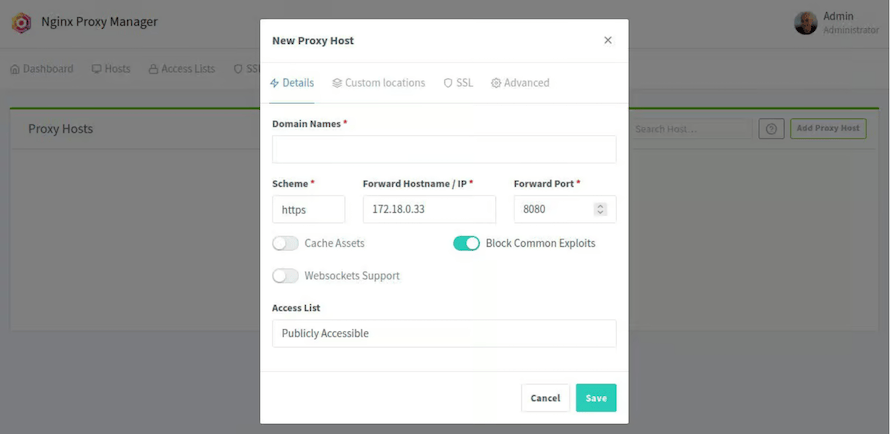
Configure Global Security Settings
Navigate to Settings → Global Settings:
| Setting | Recommended Value | WHY |
|---|---|---|
| Default SSL | “Force HTTPS” | Redirects HTTP→HTTPS automatically; prevents data leakage |
| HSTS | Enable | Adds Strict-Transport-Security header; prevents downgrade attacks |
| Block Common Exploits | Enable | Blocks SQL injection and XSS attempts at the Nginx layer |
| WebDAV | Disable (unless needed) | Reduces attack surface; not required for standard proxying |
WHY you need it: These settings apply security headers and protections to all proxy hosts automatically. HSTS (HTTP Strict Transport Security) prevents attackers from downgrading your HTTPS connections to HTTP.
Generate API Key for Automation
Navigate to Settings → API Keys → Add API Key:
- Copy the generated key to a secure location (encrypted file, not plaintext)
- Never expose the key in public GitHub repositories
WHY you need it: API keys enable automation for backup scripts and CI/CD integration. Exposing them publicly allows attackers to modify your proxy configurations.
Troubleshooting Common Issues
Issue 1: Container Won’t Start Because Port Is Already Bound
Error: Error: bind address already in use 0.0.0.0:80
Solution:
# Check what's using port 80 or 443
sudo ss -tlnp | grep -E ':80|:443'

# Stop conflicting service (e.g., system Nginx)
sudo systemctl stop nginx
sudo systemctl disable nginx
WHY this works: Ubuntu may have system Nginx installed by default, which conflicts with Nginx Proxy Manager’s port binding. The ss -tlnp command shows which process owns the port. Stopping system Nginx frees the port for Nginx Proxy Manager.
Issue 2: SSL Certificate Generation Fails
Error: Let's Encrypt validation failed: connection timeout
Solution:
# Check DNS resolution
dig example.com

# Verify DNS points to your server IP
# Wait 1–24 hours for DNS propagation if you just updated DNS
WHY this works: Let’s Encrypt validates domain ownership via DNS. If your DNS record points to the wrong IP, validation fails. DNS propagation delays are normal after DNS changes; use the Let’s Encrypt staging server for testing to avoid hitting production limits.
Issue 3: “502 Bad Gateway” After Adding Proxy Host
Error: Browser shows “502 Bad Gateway” when visiting your domain
Solution:
# Check if backend container is running
sudo docker ps | grep my-app

# Verify the forward port matches the container's internal port
sudo docker inspect my-app | grep Ports
WHY this works: 502 means Nginx Proxy Manager cannot reach the backend container. Common causes include the container being stopped, an incorrect port number, or network isolation blocking the connection.
Issue 4: Dashboard Unreachable on Port 81
Error: Browser shows “Connection refused” when accessing http://YOUR_IP:81
Solution:
# Check UFW rules for port 81
sudo ufw status | grep 81

# Test locally (bypasses firewall)
curl http://localhost:81
WHY this works: UFW may block port 81. Testing with curl localhost bypasses the firewall to confirm the container is running. If local works but remote fails, the firewall is the issue.
Issue 5: Container Crashes Due to Out of Memory
Error: Container restarts repeatedly with “OOMKilled” in logs
Solution:
Edit docker-compose.yml and add memory limits under the app service:
    deploy:
      resources:
        limits:
          memory: 512M
WHY this works: Nginx Proxy Manager needs 200–400MB RAM. On a 512MB VPS, memory exhaustion can crash other containers. Setting a memory limit prevents Nginx Proxy Manager from consuming all available RAM.

