
If you want to Install Budgie Desktop on Ubuntu 26.04, this guide walks you through the full process in a clean, practical way. It is written for beginner to intermediate Linux users, developers, and sysadmins who want a stable desktop without wasting time on vague steps or extra noise.
Budgie on Ubuntu 26.04 is now a Wayland-first desktop experience, and the release brings a refreshed session stack and a new SDDM-based greeter. That means setup and login behavior can differ a bit from older Ubuntu desktop guides, so the article below explains not only how to install it, but also why each step matters.
Introduction
Installing a new desktop environment sounds simple, but on Ubuntu it can affect your display manager, login session, GPU behavior, app layout, and update path. If you skip the basics, you may end up with a desktop that works but feels broken, slow, or inconsistent.
This guide shows you how to Install Budgie Desktop on Ubuntu 26.04 with a sysadmin mindset. You will learn how to prepare the system, install the right packages, pick the right login manager, and verify that the desktop starts correctly. The article also explains the why behind every command so you can troubleshoot with confidence later.
Budgie is a clean, modern Linux desktop that focuses on simplicity and usability, while Ubuntu Budgie 26.04 marks a major shift toward Wayland. That makes this a good time to set it up carefully, especially if you want a reliable daily driver or a clean desktop on a workstation or VM.
Prerequisites
- Ubuntu 26.04 LTS installed and booting normally. Ubuntu Budgie 26.04 is built as an LTS release with a Wayland-first desktop stack.
- Sudo access or root privileges. You need this to install packages and change the display manager.
- A stable internet connection. Package downloads and dependency checks need network access.
- At least 4 GB RAM, 2.4 GHz CPU, and 60 GB storage for a smooth Budgie experience.
- A backup or snapshot before you begin. This gives you a fast rollback if your display manager or desktop session changes unexpectedly.
- Basic terminal access. You will use apt, reboot, and a few verification commands.
Step 1: Update Your System
Refresh package lists
sudo apt updateThis command refreshes your package index so Ubuntu can see the latest versions available from your configured repositories. You want this first because installing desktop packages against stale package lists can cause dependency problems or missing updates.
Upgrade installed packages
sudo apt upgrade -yThis installs the latest security fixes and package updates already available on your system. It matters because desktop installs are smoother when your base system is current, and it reduces the chance of conflicts during the Budgie install.
Expected output usually includes lines like:
Reading package lists... Done
Building dependency tree... Done
Calculating upgrade... Done
If you see package errors, fix them before continuing. A clean system makes the later desktop switch much less risky.
Step 2: Install Budgie Desktop on Ubuntu 26.04
Install the Budgie desktop package
sudo apt install ubuntu-budgie-desktopThis installs the Budgie desktop meta package and the components needed to launch the session properly. It is the simplest way to Install Budgie Desktop on Ubuntu 26.04 setup because it pulls in the core desktop, login integration, and common defaults.
This step matters because Budgie is not just one app. It is a full desktop session, so Ubuntu needs the right panel, session files, settings tools, and related packages to make it usable after login.
Expected output may include dependency details and package download lines such as:
The following NEW packages will be installed:
  ubuntu-budgie-desktop
If apt asks to continue, type Y and press Enter.
Why this package choice matters
Using the meta package gives you the most reliable setup for a normal desktop install. It reduces guesswork because Ubuntu installs the components that the Budgie desktop expects to find together.
If you want a minimal install for a custom build, you can use smaller Budgie components instead. That is useful for advanced users, but for most people the meta package is the safer choice.
Step 3: Choose the Display Manager
Watch for the login manager prompt
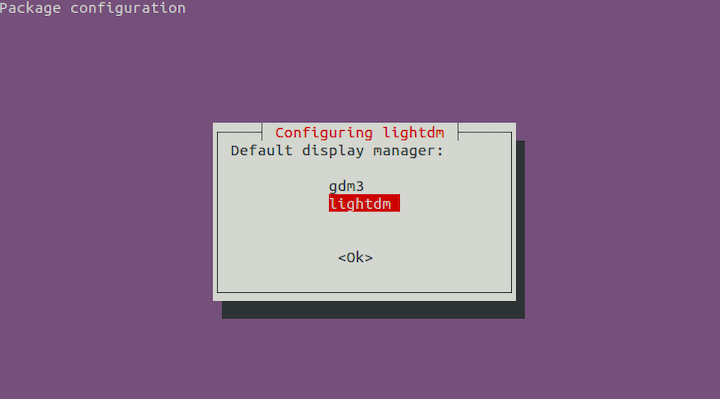
During installation, Ubuntu may ask you to choose a display manager. Common choices are gdm3 and lightdm, and on Ubuntu Budgie 26.04 you may also see the newer SDDM-based login flow depending on package selection and session defaults.
If you see the prompt, read it carefully before pressing Enter. The display manager controls the login screen, session selection, and how your desktop starts after boot.
If you want to switch later
sudo dpkg-reconfigure lightdmor
sudo dpkg-reconfigure gdm3This command lets you reselect the default display manager after the install finishes. It matters because the display manager affects startup behavior, and the wrong choice can lead to session issues, missing desktop options, or login quirks.
Why this step matters
Budgie 26.04 uses a Wayland-first stack, so login behavior is not identical to older Ubuntu desktop setups. Picking the right display manager helps you avoid unnecessary graphics issues and keeps the session flow predictable.
Step 4: Reboot and Log In
Restart the system
sudo rebootA reboot is important because it reloads the display manager, session files, and desktop services. Without rebooting, your system may still be using the old login stack and you will not see the Budgie session correctly.
Select Budgie at the login screen
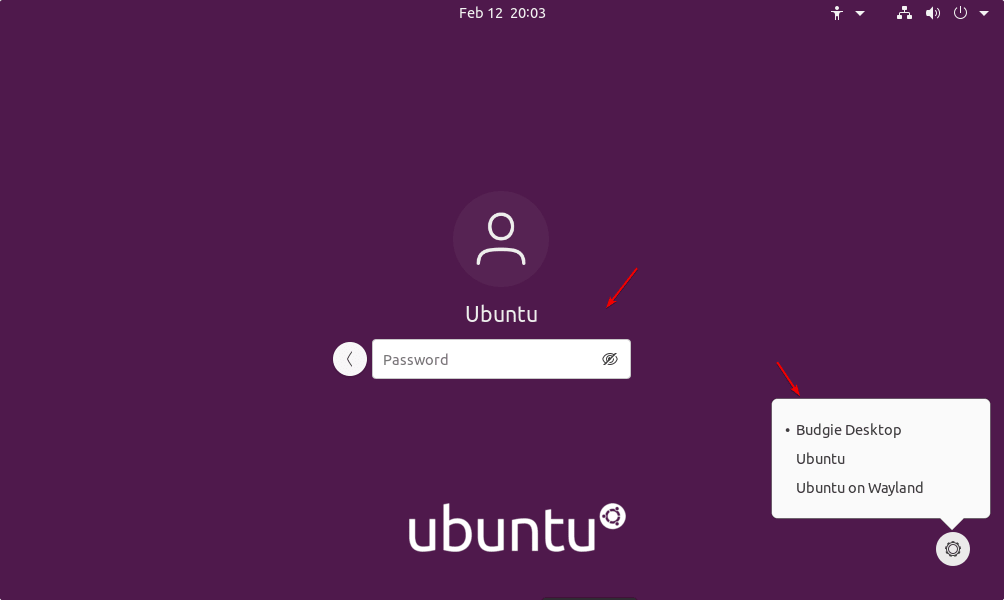
At the login screen, click the session menu and choose Budgie Desktop before you sign in. This is the step that actually starts the new desktop environment for your user account.
If Budgie does not appear, it usually means the session package did not install fully or the login manager did not refresh its session list. In that case, continue to troubleshooting after verifying the install.
Step 5: Verify the Installation
Check the installed packages
apt list --installed | grep budgieThis confirms that Budgie-related packages are present on the system. It is useful because it tells you whether the install completed or if something failed partway through.
Check available sessions
ls /usr/share/xsessions/This shows the available desktop session files. You want to see a Budgie session entry here because the login screen reads these files to know which desktops it can launch.
Why verification matters
This step saves time. Instead of guessing whether the desktop is broken, you can prove whether the package is installed and whether the session file exists.
Step 6: Configure Budgie Desktop on Ubuntu 26.04
Open Budgie settings
After login, open Budgie Settings from the application menu. Use it to change panel layout, themes, applets, and window behavior.
This matters because a clean install gives you a working desktop, but configuration makes it comfortable to use. If you work all day in Linux, spending a few minutes here improves productivity a lot.
Adjust startup apps
You should also review startup applications and disable anything you do not need. Fewer startup apps usually means faster login and lower memory use.
Why configuration matters
A desktop is not just about appearance. Proper setup reduces clutter, prevents duplicate tools from running, and makes the system easier to maintain over time.
Step 7: Test Core Functions
Open a terminal and check session behavior
echo $XDG_SESSION_TYPEThis tells you whether you are on Wayland or X11-style session handling. On Ubuntu Budgie 26.04, Wayland is expected as part of the new desktop direction.
Check system health
journalctl -b -p errThis shows boot-time errors from the current session. It is one of the fastest ways to spot graphics issues, login problems, or missing services.
Why testing matters
You do not want to assume the desktop is fine just because you reached the desktop. A quick health check helps you catch hidden errors before they turn into daily annoyances.
Step 8: Fine-Tune the Desktop
Adjust panels and applets
Budgie works best when the panel layout matches your workflow. Move applets, add launchers, and remove anything you do not use.
Choose a consistent theme
If you want a cleaner look, apply one theme and keep icon sets consistent. This avoids the mismatched appearance that often happens after switching desktops.
Why fine-tuning matters
A well-tuned desktop feels faster even if the hardware is the same. Less visual clutter and fewer extra applets usually make the system easier to use and easier to explain later if you need to document it for a team.
Troubleshooting
1. Budgie does not appear at login
Run:
ls /usr/share/xsessions/If no Budgie entry appears, the desktop session package may not have installed correctly. Reinstall the meta package, then reboot.
2. Black screen after login
Check logs with:
journalctl -b -p errA black screen often points to a graphics or session manager issue. On Wayland-based desktops, GPU drivers and login manager choice matter more than on older X11 setups.
3. Display manager prompt did not show
Re-run:
sudo dpkg-reconfigure gdm3or
sudo dpkg-reconfigure lightdmThis forces Ubuntu to ask which login manager should be the default. It helps when the system kept the wrong value during package install.
4. Budgie feels slow
Remove extra startup apps and check memory use with:
free -hA slow desktop is often caused by background apps, not Budgie itself. Reducing startup load usually gives the fastest improvement.
5. Package install was interrupted
Fix broken packages with:
sudo apt --fix-broken installThis resolves incomplete dependency states. It matters because even one interrupted install can leave your desktop in a half-configured state.
