If you shoot RAW files and you run Linux, you have probably wondered whether a free, professional-grade photo editor exists for your workflow. The answer is yes, and it is called Darktable. This guide walks you through exactly how to install Darktable on Ubuntu 26.04 LTS, step by step, from a fresh system to a fully configured photo editing workstation.
Ubuntu 26.04 LTS, codenamed Resolute Raccoon, shipped on April 23, 2026. It brings Linux kernel 7.0, GNOME 50, a Wayland-only desktop, and the new APT 3.2 package manager. These are not minor changes. They affect how GPU-accelerated apps like Darktable interact with your system, and knowing that upfront saves you troubleshooting time later.
This tutorial covers three installation methods, post-install configuration, and the most common errors you will encounter on Ubuntu 26.04 LTS. Whether you are a developer, a beginner photographer, or a sysadmin setting up a workstation, this Linux server tutorial has everything you need to get Darktable running correctly.
What Is Darktable and Why Should You Use It?
Darktable is an open-source photography workflow application and non-destructive RAW image developer. Think of it as the Linux-native equivalent of Adobe Lightroom, except it costs nothing, requires no subscription, and stores your data locally.
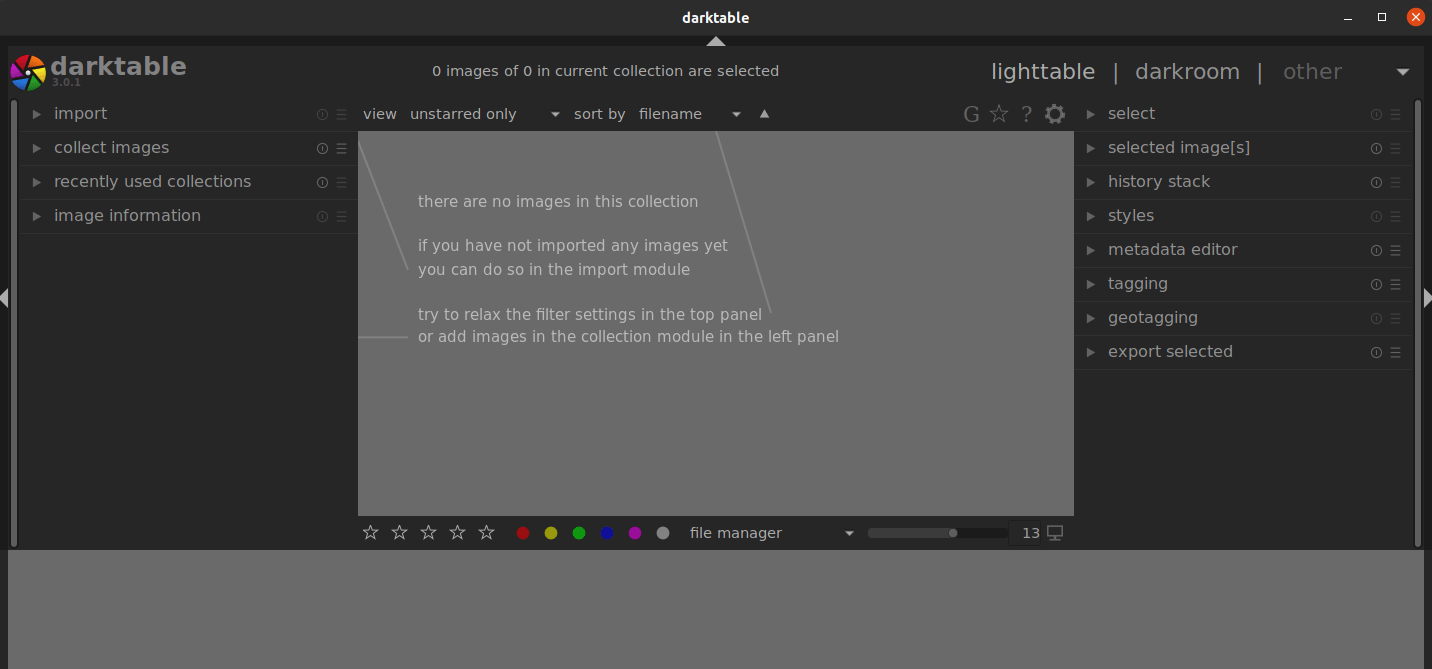
It has two core workspaces:
- Lighttable: Organize, rate, tag, and browse your photo library
- Darkroom: Apply non-destructive edits using a modular processing pipeline
Darktable supports hundreds of RAW formats including CR2, CR3, NEF, ARW, DNG, and ORF. The current stable release is Darktable 5.4.1.
Why Ubuntu 26.04 LTS Is a Strong Platform for Darktable
Ubuntu 26.04 LTS has a support window through 2031 (standard) and 2036 with extended security maintenance. That makes it a solid long-term base for a photography workstation.
More importantly for Darktable users:
- GNOME 50 delivers flawless fractional scaling and a fully Wayland-native rendering environment
- NVIDIA CUDA and AMD ROCm ship natively in the Ubuntu 26.04 LTS repositories, making OpenCL GPU acceleration far easier to enable than on previous Ubuntu releases
- APT 3.2 introduces a smarter dependency resolver and native transaction rollback, which reduces the risk of broken installs
These are practical benefits, not just marketing bullet points.
Prerequisites
Before you type a single command, confirm the following:
- OS: Ubuntu 26.04 LTS (Resolute Raccoon) installed and booted
- User privileges: A user account with
sudoaccess - Internet connection: Active, to download packages and repository keys
- Disk space: At least 1 GB free on the root partition (more for your photo library)
- RAM: 4 GB minimum, 8 GB recommended for smooth editing with large RAW files
- GPU (optional but recommended): Any OpenCL-compatible GPU with 1 GB VRAM or more for hardware acceleration
You do not need a special development environment or any prior Linux experience beyond knowing how to open a terminal. If you can press Ctrl+Alt+T, you are ready.
Step 1: Update Your System
Always start with a full system update. This is not optional.
sudo apt update && sudo apt upgrade -y
sudo apt dist-upgrade -y
What this does:
apt updaterefreshes your local package index against all configured repositoriesapt upgrade -yapplies available updates for currently installed packagesapt dist-upgrade -yhandles dependency changes intelligently, including kernel updates
Why this matters:
Ubuntu 26.04 LTS uses APT 3.2 with a new default dependency solver called solver3. Running Darktable’s installation on top of an outdated package database can cause solver3 to make incorrect dependency decisions, leading to broken libraries. A clean, updated system eliminates that risk before you add any new software.
Expected output will end with something like:
0 upgraded, 0 newly installed, 0 to remove and 0 not upgraded.
If you see pending upgrades, let them complete and reboot if the kernel was updated before proceeding.
Step 2: Confirm Your Ubuntu Version
This step takes five seconds and prevents a category of frustrating errors.
lsb_release -a
Expected output:
No LSB modules are available.
Distributor ID: Ubuntu
Description:    Ubuntu 26.04 LTS
Release:        26.04
Codename:       resolute
Why this matters:
The OBS (Open Build Service) repository URL you will use in Method 2 is version-specific. If you are running Ubuntu 24.04 and accidentally use the 26.04 repo URL, APT will pull packages built against the wrong system libraries. Verifying your version first makes the correct repo URL obvious.
Step 3: Check Available Disk Space
df -h /
Expected output (example):
Filesystem      Size  Used Avail Use% Mounted on
/dev/sda1        50G   18G   30G  38% /
Why this matters:
Darktable and its dependency stack (liblensfun, libjpeg-turbo, rawspeed, libsqlite3, and others) pulls roughly 300 to 500 MB on a fresh install. Your RAW image library will consume significantly more. Catching a near-full disk before installation avoids a corrupted package database, which is one of the messier situations to fix on any Linux system.
As a rule: if you have less than 2 GB free, clear space before proceeding.
Step 4: Install Darktable on Ubuntu 26.04 – Choose Your Method
There are three reliable ways to install Darktable on Ubuntu 26.04. Each has clear strengths. Pick the one that fits your situation.
Method 1: Install via APT (Ubuntu Default Repository)
This is the simplest method and the right choice if you prioritize stability and do not need the absolute latest version.
sudo apt install darktable -y
What this does:
APT fetches Darktable and all required dependencies from Ubuntu’s default repository and installs them. The -y flag skips the confirmation prompt.
Why this matters:
Ubuntu’s default repos are tested for compatibility with the rest of the system. You get a stable version of Darktable that integrates cleanly. The trade-off is that it may lag one or two major releases behind the latest Darktable stable release.
After installation, verify it worked:
darktable --version
Expected output:
this is darktable 5.x.x
...
Launch from the terminal for the first run:
darktable
Launching from terminal first is a good habit. First-run errors such as missing camera support files or OpenCL initialization failures print to stdout here. Those messages are invisible when you launch from the application grid.
Method 2: Install via OBS Repository (Latest Stable Version)
This is the method the Darktable project recommends for Ubuntu users who want the latest stable release. The Open Build Service (OBS) repository is maintained by the Darktable team and ships the most current stable build.
Step 2a: Add the OBS Repository
echo 'deb http://download.opensuse.org/repositories/graphics:/darktable/xUbuntu_26.04/ /' | sudo tee /etc/apt/sources.list.d/graphics:darktable.list
What this does:
This writes a new repository definition into a dedicated file inside /etc/apt/sources.list.d/. The OBS URL points to the Darktable project’s Ubuntu 26.04-specific build.
Why this matters:
Placing third-party repo definitions in separate files under sources.list.d/ is the correct approach on Ubuntu 26.04. It keeps your main sources.list clean and makes the OBS source trivial to remove later without disturbing other repositories. Ubuntu 26.04 with APT 3.2 also supports the newer DEB822 .sources format, but the .list format still works and is universally documented.
Step 2b: Import the GPG Signing Key
curl -fsSL https://download.opensuse.org/repositories/graphics:darktable/xUbuntu_26.04/Release.key | gpg --dearmor | sudo tee /etc/apt/trusted.gpg.d/graphics_darktable.gpg > /dev/null
What this does:
This command fetches the repository’s cryptographic signing key, converts it from ASCII-armored PEM format to binary GPG format using --dearmor, and writes it to the trusted keyring directory.
Why this matters:
APT refuses to install packages from unsigned repositories as a security policy. Without this key, running apt update produces a NO_PUBKEY error and APT refuses to pull any packages from the OBS source. The key tells APT that the packages from this repository are cryptographically verified by the Darktable project.
The > /dev/null at the end suppresses binary output from printing to your terminal. That is cosmetic, not functional.
Step 2c: Refresh the Package Index and Install
sudo apt update
sudo apt install darktable -y
Why you must run apt update again:
Adding a new repository file does not automatically pull its package list. The second apt update fetches the package manifest from the OBS server so APT knows what versions are available from that source. Skip this step and APT either installs the older Ubuntu default repo version or throws a “Package not found” error.
Step 2d: Pin the OBS Version to Prevent Silent Downgrade
sudo tee /etc/apt/preferences.d/darktable <<EOF
Package: darktable
Pin: origin "download.opensuse.org"
Pin-Priority: 1001
EOF
What this does:
This creates an APT preferences file that tells the package manager to always prefer the OBS-sourced version of Darktable over any version from other configured sources.
Why this matters:
Without pinning, a future sudo apt upgrade could silently replace your OBS-installed Darktable with an older version from Ubuntu’s default repository. A pin priority of 1001 overrides APT’s default source priority of 500. This is a common sysadmin practice when mixing upstream project repositories with distro repos on any Ubuntu system.
Method 3: Install via Flatpak (Sandboxed, Always Current)
Flatpak gives you a sandboxed, distribution-independent Darktable install that is completely isolated from your system libraries. Use this if you want the latest release without adding any third-party APT sources.
Step 3a: Install Flatpak
sudo apt install flatpak -y
Why this matters:
Ubuntu 26.04 LTS does not ship Flatpak by default. This installs the Flatpak runtime needed to run any Flatpak application on your system.
Step 3b: Add the Flathub Repository
sudo flatpak remote-add --if-not-exists flathub https://dl.flathub.org/repo/flathub.flatpakrepo
What this does:
This registers Flathub, the primary public Flatpak repository, as a software source on your system.
Why the --if-not-exists flag matters:
If Flathub was already configured previously, running this command without that flag throws a “remote already exists” error. The flag makes the command safely repeatable, which is useful in setup scripts or automated environments.
Step 3c: Install Darktable
flatpak install flathub org.darktable.Darktable
Why use the full application ID:
org.darktable.Darktable is the official Flatpak application ID for Darktable on Flathub. Using the full reverse-domain ID prevents accidentally installing an unofficial fork or similarly named package.
To launch the Flatpak version:
flatpak run org.darktable.Darktable
Note: If you have both the APT version and the Flatpak version installed, typing darktable in the terminal calls the APT version. Use the flatpak run command above to explicitly launch the Flatpak version.
Which Install Method Should You Use?
Here is a quick decision guide:
| Method | Best For | Version Currency | System Integration |
|---|---|---|---|
| APT (Ubuntu Repo) | Stability-first users | May lag behind | Full native |
| OBS Repository | Most photographers and developers | Latest stable | Full native |
| Flatpak | Users avoiding APT source changes | Latest stable | Sandboxed |
From a sysadmin perspective, the OBS method is the right call for most Ubuntu 26.04 LTS users. It delivers the latest stable Darktable with full system library access, which matters for OpenCL and CUDA acceleration with Ubuntu 26.04 LTS’s native GPU driver repos.
Step 5: Configure Darktable After Installation
Installing the software is step one. Configuring it correctly takes ten minutes and makes a real difference in performance.
Enable OpenCL GPU Acceleration
Open Darktable, then go to Preferences > Processing > Enable OpenCL and toggle it on.
To verify OpenCL drivers are available on your system before doing that:
clinfo | head -20
If OpenCL is not available, install the runtime for your GPU:
# For NVIDIA users:
sudo apt install nvidia-opencl-dev

# For AMD users:
sudo apt install rocm-opencl-runtime

# General OpenCL loader:
sudo apt install ocl-icd-opencl-dev
Why this matters:
By default, Darktable processes every image entirely on your CPU. GPU acceleration through OpenCL offloads pixel-math-heavy operations like denoise, sharpening, and tone mapping to the GPU. On a mid-range dedicated GPU, this can cut processing time per image by 60 to 80 percent. On Ubuntu 26.04 LTS, NVIDIA CUDA and AMD ROCm live in the official repos, so this setup is cleaner than on any previous Ubuntu release.
Set Up Your Image Library Location
Create a dedicated directory for Darktable’s working files:
mkdir -p ~/Pictures/Darktable-Library
On first launch, Darktable asks where to store its database. Point it to this directory.
Why this matters:
Darktable stores all your edits, ratings, tags, and styles in a SQLite database file (~/.config/darktable/library.db). Keeping that database on an SSD separate from your raw image archive prevents database read/write operations from competing with image file reads.
Back Up Your Database Before Any Major Update
cp -r ~/.config/darktable ~/.config/darktable.bak
Why this matters:
The Darktable database has no built-in version control or cloud sync. If power cuts out mid-edit or a disk fills up during a write, you can lose every edit, star rating, and tag you have built up. This one-line backup takes two seconds and saves real grief.
Install Git for the Scripting Module
sudo apt install git -y
Why this matters:
Darktable’s Lua scripting module, which enables workflow automation and community plugin downloads, requires git to fetch scripts from the darktable-scripts repository. Without git installed, the script manager silently fails to download anything, and no error message tells you why.
Step 6: Keep Darktable Updated
For APT and OBS Installs
sudo apt update && sudo apt upgrade -y
Run this regularly. New Darktable releases add camera support profiles for newly released camera bodies. If you buy a new camera and your Darktable version predates its release, the RAW files will not decode correctly.
For Flatpak Installs
flatpak update org.darktable.Darktable
One important note: Ubuntu 26.04 LTS’s unattended-upgrades service handles APT packages automatically, but it does not manage Flatpak apps. If you installed Darktable via Flatpak, you must run updates manually or configure a cron job to handle it.
Troubleshooting Common Issues
Error 1: Darktable Crashes on Launch Under Wayland
Ubuntu 26.04 LTS runs Wayland only. X11 sessions have been removed. Some older Darktable builds have a display connection issue under pure Wayland.
Fix: Use the OBS or Flatpak version, both of which ship Wayland-native builds. You can also try forcing the display variable temporarily:
darktable --wayland
If the issue persists, ensure your Darktable version is 5.x or newer, which has full Wayland support.
Error 2: OpenCL Initialization Failed
Darktable shows “OpenCL unavailable” in Preferences even though you have a dedicated GPU.
Fix:
sudo apt install ocl-icd-opencl-dev clinfo
# Verify detection:
clinfo
If clinfo shows no platforms, your GPU runtime is missing. Install the correct one for your hardware (see Step 5 above) and restart Darktable.
Error 3: NO_PUBKEY Error After Adding OBS Repository
W: GPG error: http://download.opensuse.org ... NO_PUBKEY XXXXXXXXXXXXXXXX
Fix: Re-run the GPG key import command from Method 2, Step 2b. This error means the key file was not written correctly the first time, often due to a curl interruption.
Error 4: Broken Dependencies After Installation
E: Unmet dependencies. Try 'apt --fix-broken install'
Fix:
sudo apt --fix-broken install
sudo apt autoremove
Why this works: An interrupted installation leaves APT’s dependency graph in an inconsistent state. The --fix-broken flag instructs APT to resolve and complete any unfinished package configurations before continuing. Always run autoremove afterward to clean up orphaned packages.
Error 5: Darktable Runs Slowly or Crashes with High Memory Usage
On systems with 4 GB RAM, Darktable’s default mipmap cache can exhaust available memory.
Fix:
- Open Darktable > Preferences > Core Options
- Set Cache Size to 512 MB
- Enable GPU acceleration (see Step 5)
- Close GPU-heavy applications running alongside Darktable (browsers with hardware acceleration, video players)
The mipmap cache stores decoded thumbnails in RAM for fast library browsing. An oversized cache on a low-memory system triggers the Linux OOM killer, which kills the Darktable process mid-edit with no warning.
How to Uninstall Darktable Cleanly
If you need to remove Darktable:
For APT installs:
sudo apt remove darktable -y
sudo apt autoremove -y
To also remove configuration files:
sudo apt purge darktable -y
Remove the OBS repository and key if you added them:
sudo rm /etc/apt/sources.list.d/graphics:darktable.list
sudo rm /etc/apt/trusted.gpg.d/graphics_darktable.gpg
sudo rm /etc/apt/preferences.d/darktable
sudo apt update
For Flatpak installs:
flatpak uninstall org.darktable.Darktable
Always run apt update after removing a third-party repository. Leaving a stale .list file pointing to a removed source generates warnings on every future apt update run.

