
If you’ve just spun up a fresh Fedora 44 Workstation image, you’ve probably noticed something odd: Firefox isn’t sitting there waiting for you like it used to in older releases. Fedora’s relationship with Firefox has shifted over the last few release cycles, and depending on how your image was built, where you’re pulling packages from, and whether you care about sandboxing, updates, or raw performance, “installing Firefox” can mean three or four genuinely different things.
This isn’t a fluff piece rehashing a single dnf install command. After more than a decade of managing production Linux boxes and desktop fleets, the recurring theme with browser installs on Fedora is that people hit an error, panic, and either give up or reach for the first Stack Overflow answer that vaguely matches their symptom. That’s how you end up with three competing Firefox installations fighting over .desktop file precedence, or a Flatpak sandbox silently blocking a browser extension from reading a downloads folder.
Fedora 44 ships Firefox through its standard repositories as an RPM package, but Mozilla also distributes its own binary tarball, and Flathub offers a fully sandboxed Flatpak build. Each method has real tradeoffs around update cadence, codec support, extension compatibility, and resource isolation — and during the Fedora 44 development cycle there was even a well-documented hiccup where Firefox briefly became uninstallable due to a missing mozilla-openh264 dependency in the repos. That kind of thing is exactly why understanding how the package system resolves dependencies matters more than memorizing a single command.
This guide walks through every practical installation path for Firefox on Fedora 44, explains the dependency chain behind each one, and covers the troubleshooting steps you’ll actually need when something breaks — because on a rolling, aggressively-updated distro like Fedora, something eventually will.
Why Fedora 44 Handles Firefox Differently
Fedora has always built Firefox from source rather than repackaging Mozilla’s official binary, which is part of why the Fedora build sometimes lags a point release or two behind what you’d get from Mozilla directly. During the Fedora 44 prerelease window, this build process ran into a dependency snag: the noopenh264 placeholder package (used for patent-encumbered codec compliance) wasn’t matched with an updated mozilla-openh264 package in time, which caused dnf install firefox to fail outright for early adopters. That’s been resolved in the stable release, but it’s a useful reminder that “the repo version” isn’t always synonymous with “the reliable version” on a distro that ships new packages daily.
Fedora 44 also currently carries Firefox 150.x in its official package set, which is a meaningfully newer major version line than what you’d find in Debian stable or even Ubuntu’s default archives. That’s one of Fedora’s genuine strengths — you get closer to upstream, faster — but it also means you’ll occasionally catch a regression or packaging bug that other conservative distros never expose you to, simply because they’re still shipping last year’s release.
Method 1: Installing Firefox via DNF (Recommended for Most Users)
For the overwhelming majority of desktop and workstation use cases, DNF is still the right tool. It ties Firefox updates into your regular system update cycle, handles dependency resolution automatically, and doesn’t require you to babysit a separate update mechanism.
Step-by-Step DNF Installation
First, make sure your package metadata is current. Skipping this step is one of the most common reasons people get confusing “package not found” errors on a fresh install:
sudo dnf check-update
sudo dnf upgrade --refresh
Now install Firefox directly:
sudo dnf install firefoxDNF will resolve dependencies, including the mozilla-openh264 codec package needed for H.264 video playback in sites that haven’t fully switched to VP9/AV1. If you hit a dependency conflict here — and during certain Fedora 44 milestones, some users did — you can work around it temporarily:
sudo dnf install firefox --allowerasingUse --allowerasing with intent, not reflexively. It tells DNF it’s allowed to remove conflicting packages to satisfy the install, which is fine on a desktop but not something you want to run blindly on a server or a machine with custom package pins.
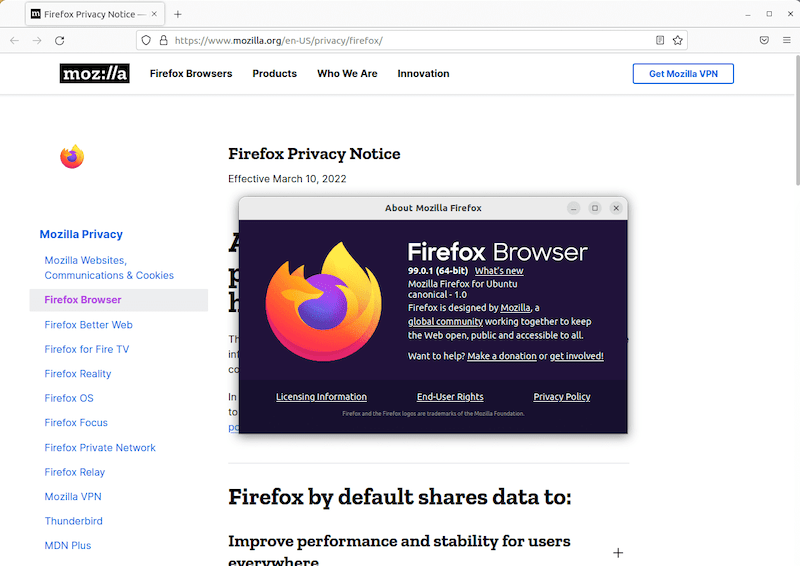
Once installed, confirm the version and verify it’s actually the Fedora-built package rather than a stray Flatpak or tarball shadowing it:
firefox --version
rpm -qa firefox\*
which firefox
That last command matters more than it looks. On systems where a user previously installed Firefox from Mozilla’s tarball into /opt, which firefox can resolve to the wrong binary depending on $PATH ordering, and you’ll spend twenty minutes debugging “why won’t my updates apply” before realizing DNF was never touching the binary you were actually launching.
Enabling Hardware Acceleration
Once Firefox is running, hardware-accelerated video decoding is worth enabling if your hardware supports it — it’s a meaningful CPU load reducer on laptops and low-power desktops. Navigate to about:config and confirm:
media.ffmpeg.vaapi.enabledis set totrue.gfx.webrender.allis enabled (default on modern Firefox builds).
On Intel and AMD integrated graphics, you’ll also want the appropriate VA-API driver installed:
sudo dnf install libva-intel-driver intel-media-driverSwap intel-media-driver for mesa-va-drivers on AMD hardware. This single step routinely cuts CPU usage during video playback by 30-50% on integrated GPUs, which matters a lot on fanless mini-PCs and older thin clients still running desktop workloads.
Method 2: Installing Firefox via Flatpak
Flatpak is Fedora’s preferred sandboxing model, and it’s baked into GNOME Software by default. If you’re deploying Firefox on shared machines, kiosks, or environments where extension permissions and filesystem isolation actually matter, Flatpak is the more defensible choice from a security standpoint.
Setting Up Flathub (If Not Already Configured)
Fedora Workstation usually ships with Flathub pre-enabled, but on minimal installs or server-with-GUI setups, you may need to add it manually:
flatpak remote-add --if-not-exists flathub https://flathub.org/repo/flathub.flatpakrepoInstalling Firefox
flatpak install flathub org.mozilla.firefoxLaunch it with:
flatpak run org.mozilla.firefoxThe Flatpak build runs inside a Bubblewrap sandbox with restricted filesystem access by default — it can’t see your entire home directory, only specific portals like Downloads unless you grant broader permissions explicitly:
flatpak override --user org.mozilla.firefox --filesystem=homeBe deliberate about that override. Granting full home directory access defeats a good chunk of the sandboxing benefit you installed Flatpak for in the first place. If you just need access to a specific project folder for uploads or downloads, scope the permission to that path instead of the entire home tree.
One caveat worth flagging from real-world use: some browser extensions that rely on native messaging hosts (password managers with desktop app integration, certain hardware security key tools) behave inconsistently inside Flatpak’s sandbox because the native host binary lives outside the sandbox boundary. If your workflow depends on those integrations, test them before rolling Flatpak Firefox out to an entire team.
Method 3: Installing Firefox from Mozilla’s Official Tarball
There’s a persistent argument in the Fedora community that the Mozilla-signed binary outperforms the distro-built RPM, particularly around scrolling smoothness and media playback responsiveness. Whether that’s placebo or measurable varies by hardware, but the option exists for a reason, and it’s genuinely useful when you need bleeding-edge Firefox builds ahead of Fedora’s repo sync, or when you’re running a locked-down enterprise image where you don’t want DNF managing the browser at all.
Download and Extract
wget "https://download.mozilla.org/?product=firefox-latest-ssl&os=linux64&lang=en-US" -O firefox-latest.tar.xz
tar -xJf firefox-latest.tar.xz
Move it out of your home directory and into a proper system location rather than leaving it in ~/Downloads:
sudo mv firefox /opt/firefoxCreating a Launcher and Desktop Entry
Add a symlink so firefox resolves correctly from the terminal:
sudo ln -s /opt/firefox/firefox /usr/local/bin/firefoxThen create a proper .desktop file so it shows up in your application launcher and integrates with default-browser settings:
sudo tee /usr/share/applications/firefox-mozilla.desktop <<'EOF'
[Desktop Entry]
Version=1.0
Name=Firefox
GenericName=Web Browser
Comment=Browse the Web
Exec=/opt/firefox/firefox %U
Icon=/opt/firefox/browser/chrome/icons/default/default128.png
Terminal=false
Type=Application
MimeType=text/html;text/xml;application/xhtml+xml;x-scheme-handler/http;x-scheme-handler/https;
StartupNotify=true
Categories=Network;WebBrowser;
StartupWMClass=firefox
EOF

sudo update-desktop-database /usr/share/applications/
This method requires you to manage updates manually or via Firefox’s built-in updater, since DNF has no visibility into a binary living in /opt. That’s a fair tradeoff on a personal workstation; it’s a liability on a fleet of machines where you need centralized patch visibility for compliance reasons.
Method 4: Snap (For Ubuntu-Adjacent Workflows)
Snap isn’t native to Fedora’s ecosystem, but if your organization standardizes on Snap across mixed Ubuntu/Fedora fleets for consistency, it’s supported:
sudo dnf install snapd
sudo ln -s /var/lib/snapd/snap /snap
Log out and back in, then install:
sudo snap install firefoxRealistically, unless you have an existing organizational reason to standardize on Snap, this adds a layer of complexity and startup latency that neither DNF nor Flatpak impose on Fedora. It’s the least commonly recommended path for a reason.
Comparing the Installation Methods
| Method | Update Source | Sandboxing | Startup Speed | Best For |
|---|---|---|---|---|
| DNF (RPM) | Fedora repos, synced with dnf upgrade |
None (native process) | Fastest | Most desktop and workstation users |
| Flatpak | Flathub, independent of system updates | Bubblewrap sandbox | Slightly slower cold start | Shared machines, security-conscious setups |
| Mozilla tarball | Manual or built-in Firefox updater | None | Fast | Power users wanting latest builds first |
| Snap | Snap Store | AppArmor confinement | Noticeably slower cold start | Mixed-distro standardization |
Troubleshooting Common Firefox Installation Issues
“Problem: conflicting requests” or Dependency Errors During DNF Install
This is almost always a codec or metadata sync issue. Fedora 44’s early prerelease builds actually hit this exact error when mozilla-openh264 wasn’t available for the release yet. Fix it by refreshing metadata and, if needed, allowing DNF to resolve conflicts:
sudo dnf clean metadata
sudo dnf makecache
sudo dnf install firefox --allowerasing
If it’s still failing and you suspect a temporary repo sync gap, pulling the package from the previous release as a stopgap has worked for others in practice, though it’s a workaround, not a fix:
sudo dnf --releasever=43 install mozilla-openh264
sudo dnf install firefox
Firefox Won’t Launch, No Error Message
Nine times out of ten, this is a permissions or profile lock issue, especially after an interrupted update or a hard shutdown. Check for a stale lock file:
rm ~/.mozilla/firefox/*.default*/lockIf that doesn’t resolve it, launch from the terminal to actually see the crash output instead of guessing:
firefox --new-instanceVideo Playback Is Choppy or CPU Usage Spikes During Streaming
This is usually a missing hardware acceleration driver, not a Firefox bug. Confirm VA-API is actually detected:
vainfoIf vainfo returns errors or shows no supported profiles, the driver package for your GPU vendor either isn’t installed or isn’t being loaded — revisit the driver installation step from Method 1.
Multiple Firefox Installs Conflicting With Each Other
If you’ve installed via DNF and then later added the Flatpak or tarball version, .desktop file precedence and MIME type handlers can get muddled, and clicking a link in another app might launch the wrong Firefox instance. Check which handler is registered as default:
xdg-settings get default-web-browserReset it explicitly to whichever installation you intend to keep:
xdg-settings set default-web-browser firefox-mozilla.desktopSELinux Denials When Using the Mozilla Tarball
Because the tarball binary lives outside standard package-managed paths, SELinux can occasionally flag it depending on your enforcement policy. Check the audit log if Firefox behaves strangely (silent crashes, failure to write to profile):
sudo ausearch -m avc -ts recentIf you see denials tied to /opt/firefox, relabeling the directory with the correct context usually resolves it:
sudo restorecon -Rv /opt/firefoxPerformance, Security, and Optimization Considerations
Firewall and Network Exposure
Firefox itself doesn’t need inbound firewall rules — it’s a client application — but if you’re managing a shared or kiosk-style Fedora 44 machine, worth double-checking that firewalld isn’t inadvertently permissive:
sudo firewall-cmd --list-allLock down anything you don’t explicitly need open, especially on machines that double as lightly-used workstations and get forgotten about for months.
File Permissions on Profile Directories
Firefox profiles under ~/.mozilla/firefox/ should always be owned by the user running the browser, with 700 permissions on the profile directory itself. On shared or multi-user Fedora boxes, verify this hasn’t drifted after a migration or backup restore:
find ~/.mozilla/firefox -maxdepth 1 -type d -exec chmod 700 {} \;Keeping Firefox Patched
Security updates for browsers are not optional in any production or shared environment — Firefox regularly ships critical CVE fixes, and delaying updates on a browser is a materially different risk profile than delaying, say, a kernel update on an air-gapped server. If you’re on the DNF path, automate it:
sudo dnf install dnf-automatic
sudo systemctl enable --now dnf-automatic.timer
Tune /etc/dnf/automatic.conf to apply security updates only if you want tighter control over what gets patched unattended versus what waits for manual review.
Memory and CPU Tuning for Heavy Tab Usage
Firefox’s process model (Fission/site isolation) means each site gets its own content process, which is great for security but can balloon RAM usage on machines with many tabs open. On resource-constrained VMs or low-RAM workstations, capping the content process count helps:
In about:config, set dom.ipc.processCount to a lower value (default is usually 8; dropping to 4 on a 4GB RAM machine noticeably reduces memory pressure at a small cost to tab isolation and crash containment).
For disk I/O, profile directories on spinning disks (rare these days, but still out there on older thin clients) benefit from moving the Firefox cache to a tmpfs mount if RAM allows:
sudo mount -t tmpfs -o size=512M tmpfs ~/.cache/mozillaAdd this to /etc/fstab if you want it persistent across reboots, but weigh that against RAM availability on the box — tmpfs eats real memory, it’s not free space.

