
Fish Shell gives Fedora users a smoother terminal experience with syntax highlighting, autosuggestions, and simple configuration. If you want to Install Fish Shell Fedora 44, this guide walks you through the full process, from package installation to making Fish your default shell.
Many Fedora users stay with Bash because it is familiar, but Fish can make daily terminal work faster and easier. It helps beginners avoid common command mistakes and gives sysadmins a cleaner interactive shell without extra setup.
This article shows you how to install Fish safely, verify it, switch your login shell, and configure it for real use. It is written for beginners, developers, and sysadmins who want a practical Install Fish Shell Fedora 44 setup without fluff.
Prerequisites
Before you begin, make sure you have the right setup in place.
- Fedora 44 installed on your machine.
- A user account with
sudoaccess. - A working internet connection.
- A terminal app such as GNOME Terminal, Konsole, or an SSH session.
- Basic comfort with running Linux commands.
Step 1: Update Your System
Check your Fedora version
cat /etc/fedora-releaseThis command shows your Fedora release name and version. Why this matters: package instructions should match your system version, and Fedora 44 may ship different package builds than older releases.
Expected output:
Fedora release 44 (Forty Four)Refresh package metadata
sudo dnf update -yThis command updates installed packages and refreshes package data. Why this matters: it reduces dependency problems and helps DNF resolve the latest package set before you install Fish.
If your system has pending updates, this step may take a few minutes. That is normal on a Fedora system that has not been updated recently.
Step 2: Install Fish Shell Fedora 44
Install the package
sudo dnf install fish -yThis installs Fish from the official Fedora repository. Why this matters: Fedora’s package source gives you a trusted, signed package and avoids the risk of third-party install scripts. Fedora 44 lists Fish as 4.2.0-2.fc44 in its package repository.
Expected output will include DNF resolving dependencies and then finishing with something like:
Complete!Confirm the installed version
fish --versionThis prints the Fish version that is now available on your system. Why this matters: it confirms that the install succeeded and that your shell binary is ready to run.
Expected output:
fish, version 4.2.0The exact patch number may vary slightly, but the command should return a version string, not an error.
Step 3: Start Fish Manually
Launch Fish in your current terminal
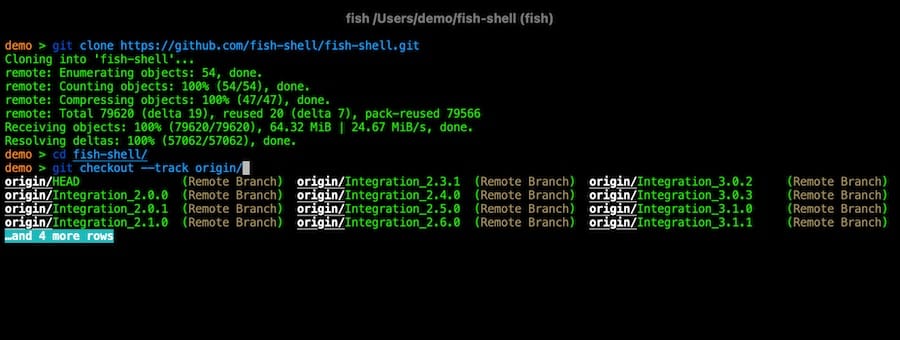
fishThis starts an interactive Fish session right away. Why this matters: it lets you test Fish before changing your login shell, so you can confirm the prompt, completions, and highlighting work as expected. Fish is known for being a smart and user-friendly shell with syntax highlighting, autosuggestions, and tab completions.
Expected output is usually a Fish prompt that looks different from Bash.
Test a few Fish features
echo helloThen try typing a partial command and press the right arrow key to accept a suggestion if one appears. Why this matters: Fish is designed to help you work faster in an interactive terminal, not just to replace Bash.
When you are done testing, leave Fish with:
exitStep 4: Install Required Login Shell Tools
Install util-linux-user
sudo dnf install util-linux-user -yThis package provides chsh, the command used to change your login shell. Why this matters: on some minimal Fedora setups, chsh is not installed by default, and you need it to make Fish your default shell.
Expected output:
Complete!Check that chsh exists
which chshThis confirms the chsh command is available. Why this matters: if the command is missing, the next step will fail, and you will waste time troubleshooting the wrong thing.
Expected output:
/usr/bin/chshStep 5: Add Fish to Allowed Shells
Find the Fish binary
command -v fishThis prints the full path to Fish. Why this matters: chsh usually needs the exact shell path, and Fedora uses the binary path as a trusted shell entry.
Expected output:
/usr/bin/fishRegister Fish in /etc/shells
command -v fish | sudo tee -a /etc/shellsThis adds Fish to the system’s approved shell list. Why this matters: chsh checks /etc/shells before it allows a user shell change. If Fish is missing from that list, the shell switch may fail even though Fish is installed.
You may see the path echoed back in the terminal. That is normal.
Step 6: Set Fish as Your Default Shell
Change your login shell
chsh -s /usr/bin/fishThis tells your account to use Fish at login. Why this matters: it changes your default interactive shell so every new terminal session starts in Fish instead of Bash. Fish is a solid choice for users who want a friendlier shell without extra plugins or heavy setup.
If the command asks for your password, enter your sudo or account password.
Log out and log back in
You need a new login session for the shell change to take effect. Why this matters: the current terminal already loaded Bash or your previous shell, so it will not switch automatically.
After logging back in, verify the result:
echo $SHELLExpected output:
/usr/bin/fishStep 7: Configure Fish Shell Fedora 44
Open the Fish config directory
mkdir -p ~/.config/fishThis creates the Fish config folder if it does not exist. Why this matters: Fish stores user settings in its own directory, not in .bashrc.
Create the main config file
touch ~/.config/fish/config.fishThis creates the file where Fish reads startup settings. Why this matters: this is where you set paths, aliases, and environment tweaks for your user account.
Add a simple path entry
fish_add_path ~/.local/binThis adds ~/.local/bin to your Fish path in a clean, Fish-native way. Why this matters: it avoids duplicate PATH entries and keeps your setup tidy.
Add a simple alias
alias ll "ls -lah"This creates a short command for a common listing format. Why this matters: aliases save time and make repeated terminal tasks faster.
Save a permanent greeting change
If you want to remove the welcome message, run:
set -U fish_greeting ""This disables the startup greeting for your user. Why this matters: it keeps the terminal clean, especially if you open many shells during the day.
Step 8: Use Fish Config Tools
Open the built-in config UI
fish_configThis starts Fish’s web-based configuration tool in your browser. Why this matters: it gives you a visual way to adjust themes, prompts, and functions without editing files by hand. That is useful for users who want to fine-tune Fish Shell Fedora 44 setup quickly.
If you do not need the web UI, you can skip this step. Many sysadmins prefer the terminal-only workflow.
Step 9: Optional Fish Shell Plugins
Install Git first
sudo dnf install git -yThis installs Git, which many Fish plugin tools rely on. Why this matters: plugin managers and theme installers often clone code from Git repositories, so Git must be available first.
Install Oh My Fish
curl https://raw.githubusercontent.com/oh-my-fish/oh-my-fish/master/bin/install | fishThis installs Oh My Fish, a package manager for Fish themes and plugins. Why this matters: it gives you a fast way to extend Fish without manually copying plugin files.
Install a theme
omf install bobthefishThis adds a popular prompt theme. Why this matters: a better prompt can show Git status, current directory, and other useful details at a glance.
You may also need font support for powerline-style prompts:
sudo dnf install powerline-fonts -yStep 10: Switch Back to Bash if Needed
Revert the default shell
chsh -s /bin/bashThis changes your login shell back to Bash. Why this matters: some users rely on Bash scripts or legacy shell behavior that Fish does not support in the same way.
Then log out and log back in again.
If you need a temporary Bash session right away, use:
bash --norcThat starts a clean Bash shell without reading your normal startup files.
Troubleshooting
1. chsh: command not found
This usually means util-linux-user is not installed. Fix it with:
sudo dnf install util-linux-user -yThen run which chsh again to confirm it exists.
2. chsh: /usr/bin/fish is not listed in /etc/shells
Fish is installed, but the system does not trust it as a login shell yet. Add it with:
command -v fish | sudo tee -a /etc/shellsThen retry chsh -s /usr/bin/fish.
3. Fish starts, but your prompt looks wrong
This often means your theme or config file has a bad setting. Check ~/.config/fish/config.fish for typos and test with a clean session first.
4. Your old shell still appears after login
You probably did not fully log out. Close the session completely, then sign in again. Why this matters: shell changes apply only to new login sessions.
5. Bash scripts fail inside Fish
Fish uses different syntax from Bash and does not follow POSIX shell rules in the same way. If you need to run Bash scripts often, keep Bash as your login shell and launch Fish only when you need it. Fish is excellent for interactive work, but it is not a drop-in replacement for every script.
