
If you spend several hours a day in a Linux terminal, the shell you use matters more than most people realize. Bash has been the default since 1989, and while it works, it was never designed for the kind of interactive, fast-paced workflow that modern developers and sysadmins actually use. Fish Shell (Friendly Interactive SHell) solves this by giving you real-time syntax highlighting, intelligent autosuggestions, and smart tab completions right out of the box, with zero configuration needed. This guide shows you exactly how to install Fish Shell on Ubuntu 26.04, set it as your default shell, configure it, extend it with plugins, and troubleshoot the most common problems you will run into.
Why Fish Shell Is Worth Your Attention on Ubuntu 26.04
Before diving into installation, it helps to understand what you are actually installing. Fish is not just another Bash alternative with a prettier prompt. Starting with version 4.0, the entire shell was rewritten from C++ to Rust, dropping startup time to under 100ms and significantly improving memory safety. Ubuntu 26.04 ships the 4.x Rust-based series by default in its repositories, which means you get the modern rewrite without any manual compilation.
Here is a quick comparison of the three most popular Linux shells:
| Feature | Bash | Zsh | Fish |
|---|---|---|---|
| Syntax highlighting | Requires plugin | Requires plugin | Built-in |
| Autosuggestions | None | Requires Oh My Zsh | Built-in |
| Startup time | Under 50ms | 500-1000ms with plugins | Under 100ms |
| POSIX-compliant | Yes | Mostly | No |
| Config file needed | Extensive | Moderate | Minimal |
| Tab completion with docs | No | No | Yes |
One important note upfront: Fish is not POSIX-compliant. This means you cannot run standard Bash scripts natively inside a Fish session. You will need to call them explicitly with bash script.sh. This is a known tradeoff, and the productivity gains in interactive use far outweigh this limitation for most workflows.
Prerequisites
Before you run a single command, confirm you have everything in place. Skipping this step is the leading cause of failed installations.
- Ubuntu 26.04 LTS installed and fully booted
- A terminal emulator open (GNOME Terminal, Kitty, or Alacritty all work)
- A user account with sudo privileges
- Active internet connection to fetch packages from Ubuntu repositories or the official Fish PPA
- Basic comfort with the command line (you do not need to be a shell expert)
If you are working on a remote server via SSH, all steps in this guide apply equally. Fish installs on servers the same way it installs on a desktop.
Step 1: Update Your System Before Installing
Always update your package index before installing anything. This is not optional.
sudo apt update && sudo apt upgrade -yWhat this does: apt update syncs Ubuntu’s local package list with the remote repositories. apt upgrade applies any pending security patches and dependency updates. Running both commands together ensures the Fish Shell installation does not pull in an outdated dependency that conflicts with your system.
Why it matters: If your package cache is stale, APT might try to satisfy Fish’s dependencies with library versions that are no longer available at the listed checksums. This causes a broken package state that is annoying to fix mid-installation. One command before you start prevents this entirely.
Expected output:
0 upgraded, 0 newly installed, 0 to remove and 0 not upgraded.Step 2: Install Fish Shell on Ubuntu 26.04
You have two installation methods. The right choice depends on whether you want the Ubuntu-packaged version or the absolute latest release directly from the Fish team.
Method A: Install via Ubuntu APT Repository (Recommended for Most Users)
This is the simplest path and the one most sysadmins should use on Ubuntu 26.04.
sudo apt install fish -yWhat this does: APT pulls the Fish Shell package from Ubuntu 26.04’s official repositories and installs it along with any required dependencies.
Why Ubuntu 26.04 specifically: Unlike Ubuntu 24.04, which shipped Fish 3.x (the older C++ version), Ubuntu 26.04 includes the Rust-based 4.x series in its main repositories. You get the modern rewrite without touching a PPA.
Verify the installation:
fish --versionExpected output:
fish, version 4.x.xIf this outputs a version number starting with 4, the installation succeeded. If you see version 3.x, the APT repo may be pointing at an older source; use Method B below to override it.
Method B: Install via the Official Fish PPA (For Latest Features)
Use this method if you want to stay on the absolute cutting edge of Fish releases or if Method A returns a version below 4.x.
Step 1: Add the official Fish Shell PPA:
sudo add-apt-repository ppa:fish-shell/release-4Why add a PPA: The Fish team maintains their own Ubuntu PPA that receives updates the same day a new release ships. Ubuntu’s official repositories can lag behind by several minor versions. If you want features like Fish 4.2’s multi-line command suggestions, the PPA is the only way to get them before they land in Ubuntu’s official pool.
Step 2: Refresh the package index:
sudo apt updateWhy run apt update again: Adding a PPA modifies /etc/apt/sources.list.d/ with a new source entry. APT does not automatically read it until you explicitly refresh the cache. Skipping this step means APT still serves Fish from the old source.
Step 3: Install Fish from the PPA:
sudo apt install fish -yStep 4: Confirm the PPA is the active source:
apt-cache policy fishExpected output:
fish:
  Installed: 4.x.x
  Candidate: 4.x.x
  Version table:
 *** 4.x.x 500
        500 https://ppa.launchpadcontent.net/fish-shell/release-4/ubuntu noble/main amd64 Packages
The PPA URL in the output confirms APT is pulling from the correct source.
Step 3: Launch Fish Shell and Explore It
Before setting Fish as your permanent default shell, launch it manually inside your current Bash session. This gives you a safe sandbox to explore.
fishWhat this does: Starts a Fish Shell session inside your existing terminal. Your terminal emulator stays the same; only the shell process changes.
Why test before committing: Changing your default login shell without testing first is a common mistake that can produce unexpected behavior at the next login, especially on GNOME desktops where certain startup scripts assume a POSIX-compatible shell. A few minutes of interactive testing now prevents a potential headache later.
Once inside Fish, try these to see its features in action:
- Start typing any command and watch real-time syntax highlighting color valid commands green and invalid ones red before you press Enter
- Press the right arrow key to accept an autosuggestion drawn from your command history
- Type
gitand press Tab to see Fish’s built-in tab completions with subcommand descriptions
To exit and return to Bash:
exit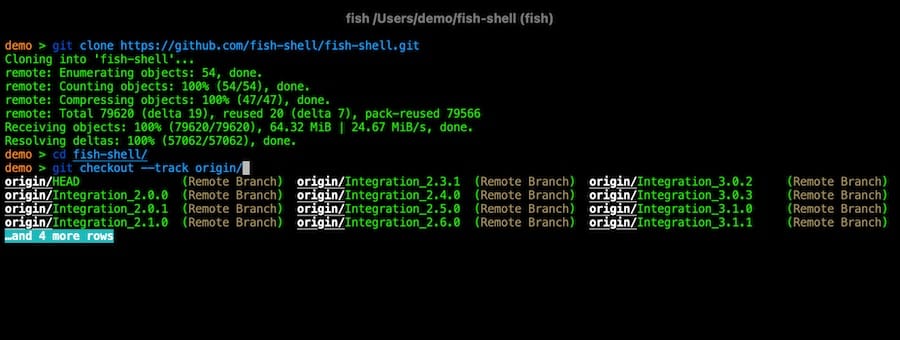
Step 4: Set Fish as Your Default Shell on Ubuntu 26.04
Once you are satisfied with Fish, make it your default login shell. This is a three-command process.
Step 4.1: Find the Fish Binary Path
which fishExpected output:
/usr/bin/fishWhy you need this: Depending on whether you used APT or the PPA, Fish may be installed at /usr/bin/fish or /usr/local/bin/fish. Using the wrong path in the next step causes chsh to silently fail or throw an authentication error. Always check the path rather than assuming.
Step 4.2: Register Fish as a Valid Login Shell
echo $(which fish) | sudo tee -a /etc/shellsWhat this does: Appends the Fish binary path to /etc/shells, a system file that lists all shells allowed as login shells.
Why this step is required: The chsh command refuses to set any shell that is not listed in /etc/shells. Without this step, you will hit the error chsh: /usr/bin/fish is an invalid shell. This is a deliberate security control in Linux, not a Fish bug.
Verify the entry was added:
cat /etc/shellsYou should see /usr/bin/fish in the list.
Step 4.3: Change Your Default Login Shell
chsh -s $(which fish)What this does: Updates your user’s entry in /etc/passwd to point to Fish as the default login shell. The $(which fish) subshell dynamically inserts the correct binary path, removing any risk of a typo.
Why you should avoid sudo here: Running this command without sudo changes the shell for your current user account. Running it with sudo changes root’s shell, which is not what you want in most cases.
Step 4.4: Log Out and Log Back In
Why a full logout is required: The chsh change does not affect your current terminal session. Your running terminal already has a Bash process attached to it, and that process will not switch mid-session. You must fully log out of your desktop session (or close and reopen your terminal on a remote server) so that the login process reads the updated /etc/passwd entry and spawns a Fish process.
After logging back in, open a terminal and confirm Fish is now the active shell:
echo $SHELLExpected output:
/usr/bin/fishStep 5: Configure Fish Shell on Ubuntu 26.04
Fish stores its configuration in ~/.config/fish/config.fish, the equivalent of .bashrc in Bash. You can edit it manually or use Fish’s built-in browser-based configuration UI.
Using the fish_config Web Interface
fish_configWhat this does: Fish starts a local web server and opens a browser window with a full graphical configuration panel. You can change color themes, inspect your command history, manage functions, and set your prompt without touching a single config file.
Why this matters: This feature has no equivalent in Bash or Zsh. It is one of the clearest examples of Fish’s philosophy: useful features should work without configuration. For users new to shell customization, fish_config is the fastest way to make meaningful changes.
Editing the Config File Manually
nano ~/.config/fish/config.fishSetting environment variables in Fish syntax:
set -gx EDITOR nano
set -gx PATH $HOME/.local/bin $PATH
Why the syntax differs from Bash: Fish intentionally uses a cleaner variable syntax. The -g flag sets the variable globally (available in all Fish functions), and -x exports it to child processes. Without -x, commands launched from Fish like git hooks or Makefiles will not inherit the variable, causing silent failures that are difficult to debug.
Update Fish’s built-in completions:
fish_update_completionsWhy run this: Fish generates smart tab completions by parsing your installed man pages. Running this command after a fresh install ensures completions reflect all the tools currently installed on your system, not just the defaults bundled with Fish.
Step 6: Extend Fish with the Fisher Plugin Manager
Fisher is the recommended plugin manager for Fish Shell. It is lightweight, fast, and written entirely in Fish, so it adds no measurable startup overhead.
Install Fisher
Run this command inside a Fish session:
curl -sL https://raw.githubusercontent.com/jorgebucaran/fisher/main/functions/fisher.fish | source && fisher install jorgebucaran/fisherWhat this does: Downloads the Fisher bootstrap script, sources it into the current Fish session, and then installs Fisher itself as a permanent Fish function.
Why Fisher over Oh My Fish: Oh My Fish (OMF) is the older framework option with a larger theme library. However, it modifies Fish’s startup sequence and adds framework overhead. Fisher expands plugins directly into your Fish configuration directory without wrapping any of Fish’s core behavior, keeping that sub-100ms startup time intact.
Install a Recommended Plugin: Tide Prompt
fisher install IlanCosman/tide@v6What the Tide prompt adds: Inline display of Git branch, staged/unstaged changes, Node.js or Python version, last command exit code, and current directory, all updated in real time. This removes the need to constantly run git status or node --version during development.
Install Oh My Fish as an Alternative
curl -L https://get.oh-my.fish | fishUse this if you need OMF’s larger collection of themes. Install themes with:
omf install <theme-name>
omf theme <theme-name>
Troubleshooting: Common Errors When You Install Fish Shell on Ubuntu 26.04
Even a clean installation can run into issues. Here are the five most common problems and their exact fixes.
Error 1: Fish Does Not Appear After Running chsh
Symptom: Terminal still opens in Bash after running chsh -s $(which fish).
Fix: A terminal window relaunch is not enough. You need a full logout from your desktop session and a fresh login. On a remote server, close the SSH connection entirely and reconnect.
Error 2: chsh: PAM: Authentication failure
Symptom: chsh returns an authentication error even with the correct password.
Fix: Confirm Fish is listed in /etc/shells:
cat /etc/shellsIf /usr/bin/fish is missing, re-run the registration step:
echo $(which fish) | sudo tee -a /etc/shellsThen run chsh again.
Error 3: Bash Scripts Stop Working Inside Fish
Symptom: Existing shell scripts throw syntax errors or fail silently when run from a Fish session.
Fix: Fish is not POSIX-compliant. Run Bash scripts explicitly:
bash /path/to/script.shOr add the correct shebang to each script so the OS chooses the right interpreter automatically:
#!/usr/bin/env bashThis is not a Fish bug. It is an intentional design decision that allows Fish to use a cleaner, more consistent syntax.
Error 4: Black Screen After Setting Fish as Login Shell on GNOME
Symptom: The GNOME desktop environment fails to load after Fish is set as the default shell.
Fix: Boot into recovery mode, open a root shell, and reset the login shell to Bash:
chsh -s /bin/bash your_usernameReboot normally. This happens because some GNOME session startup scripts contain Bash-specific syntax and fail when Fish is the login shell. On GNOME desktops, consider keeping Bash as the login shell and launching Fish only inside your terminal emulator by adding exec fish to your .bashrc as the final line.
Error 5: fish: Unknown command: apt-add-repository
Symptom: Running apt-add-repository inside a Fish session returns an “Unknown command” error.
Fix: Run it explicitly with the full path:
sudo /usr/bin/add-apt-repository ppa:fish-shell/release-4Or install the software-properties-common package if it is missing:
sudo apt install software-properties-common -yCongratulations! You have successfully installed Fish Shell. Thanks for using this tutorial to install the latest version of the Fish Shell on Ubuntu 26.04 LTS (Resolute Raccoon) system. For additional help or useful information, we recommend you check the official Fish Shell website.
[su_box title=”VPS Manage Service Offer” style=”bubbles” box_color=”#000000″ radius=”10″]If you don’t have time to do all of this stuff, or if this is not your area of expertise, we offer a service to do “VPS Manage Service Offer”, starting from $10 (Paypal payment). Please contact us to get the best deal![/su_box]
