
Fedora 44 does not ship HandBrake in its default repositories. You cannot run sudo dnf install handbrake and expect it to work. This is not a bug. Fedora intentionally omits patented multimedia codecs to stay legally clean. Many Linux users face this when they need to encode large video files for smaller devices or lower bitrates.
You need a reliable video transcoder. Raw ffmpeg commands work but are fragile for repeatable quality presets. HandBrake gives you professional encoding with GUI presets and a headless CLI for scripts.
This guide shows you exactly how to install HandBrake on Fedora 44 using three proven methods. You will learn Flatpak from Flathub (upstream official), RPM Fusion (native DNF), and building from source (advanced control). Each step includes the WHAT and the WHY so you understand the system, not just copy commands.
Beginner users will follow Flatpak. Sysadmins managing servers will prefer RPM Fusion. Power users needing custom hardware encoder flags will build from source.
Prerequisites
Before running any installation command, verify these requirements:
- Operating System: Fedora 44 Workstation or Server (confirm with
cat /etc/fedora-release) - User Permissions: sudo access (run
sudo -vto verify) - Internet Connection: Stable connection for downloading packages (at least 150 MB for Flatpak)
- Disk Space: Minimum 500 MB free space for HandBrake and dependencies
- Terminal Access: GNOME Terminal, KDE Terminal, or SSH session
- Package Manager:
dnfversion 4.14+ ordnf5(Fedora 44 ships dnf5 by default)
Why verify first: Skipping prerequisites causes confusing failures mid-install. Confirming sudo access prevents “permission denied” errors. Checking Fedora version ensures you pull the correct repository URLs.
Step 1: Update Your System First
Step 1.1: Run the Full System Upgrade
sudo dnf upgrade --refresh
WHAT this does: The --refresh flag forces DNF to download fresh metadata from all enabled repositories before resolving packages. upgrade installs newer versions of every package on your system, not just one.
WHY you must do this: Pending multimedia library updates (GStreamer, Mesa, libva) can conflict with newly installed HandBrake packages. Fedora 44 ships with recent encoder libraries like SVT-AV1 and x265. Updating first ensures the dependency resolver works against a consistent package state. This step prevents “dependency conflict” errors later.
Expected output:
Dependencies resolved.
================================================================================
 Package               Version           Repository               Size
================================================================================
Upgrading:
 gstreamer1            1.24.11-1.fc44    fedora                   4.2 M
 mesa-va-drivers       24.3.4-1.fc44     fedora                   1.8 M
...
Complete!
Verification step:
dnf list updates
If this returns nothing, your system is fully up to date.
Step 2: Install HandBrake via Flatpak (Recommended Method)
Step 2.1: Add the Flathub Remote
sudo flatpak remote-add --if-not-exists flathub https://dl.flathub.org/repo/flathub.flatpakrepo
WHAT this does: This registers Flathub as a Flatpak repository source for your system. The --if-not-exists flag prevents errors if Flathub was already added manually.
WHY you need this: Fedora Workstation ships Flatpak by default but does not add Flathub. Without explicitly registering Flathub, the flatpak install command has nowhere to pull fr.handbrake.ghb from. Flathub is the official source for the upstream HandBrake Team build.
Expected output:
Verifying ...
Importing gpgkey.
Step 2.2: Verify Flathub Is Active
flatpak remotes --columns=name,options
WHAT this does: Lists all registered Flatpak remotes with their status (enabled/disabled).
WHY verify: A disabled or missing Flathub remote silently causes install failures. You might see “Can’t fetch summary from disabled remote ‘flathub'” later if you skip this check.
Expected output:
flathub system
The word system confirms Flathub is enabled at the system scope.
Step 2.3: Install HandBrake
sudo flatpak install flathub fr.handbrake.ghb
WHAT this does: Downloads and installs HandBrake version 1.11.1 (upstream release) from Flathub. The app ID fr.handbrake.ghb is HandBrake’s canonical Flatpak identifier.
WHY sudo: Running with sudo deploys HandBrake system-wide so every user account on the machine can launch it. Without sudo, Flatpak installs only under ~/.local/share/flatpak for your single user.
Expected output:
Looking for matches...

Required permissions:
  Access the devices on the system
  Access to the network

Do you confirm that these permissions shall be granted? [Y/n]: Y

Downloading fr.handbrake.ghb...
[====================] 100%
Installing fr.handbrake.ghb...
[====================] 100%
Step 2.4: Confirm the Installation
flatpak info fr.handbrake.ghb
WHAT this does: Shows detailed metadata about the installed Flatpak package including version, origin, and installation scope.
WHY confirm: Flatpak does not always throw a clear success message. This command gives you the exact installed version so you can confirm you received the upstream build, not a stale cached package.
Expected output:
Name:           HandBrake
App ID:         fr.handbrake.ghb
Version:        1.11.1
Branch:         master
Origin:         flathub
Installation:   system
Runtime:        flathub/x86-64/master
Key verification points:
Version: 1.11.1confirms upstream release (newer than RPM Fusion’s 1.10.2)Origin: flathubconfirms correct sourceInstallation: systemconfirms system-wide deployment
Step 2.5: Launch HandBrake
GUI launch:
flatpak run fr.handbrake.ghb
CLI launch (headless):
flatpak run --command=HandBrakeCLI fr.handbrake.ghb --help
WHAT these do: The GUI command starts the GTK4 graphical interface. The CLI command runs the headless encoder and prints help text.
WHY use flatpak run: Flatpak apps run inside a sandbox with a controlled filesystem view. You cannot call ghb directly from your shell path without flatpak run unless you have a desktop shortcut created. This is critical for sysadmins who want to use HandBrake in bash scripts on servers without displays.
Expected CLI output:
HandBrake CLI 1.11.1
...
-i INPUT       Input file
-o OUTPUT      Output file
--preset NAME  Use preset by name
Step 3: Install HandBrake via RPM Fusion (Native DNF Method)
Step 3.1: Enable the RPM Fusion Free Repository
sudo dnf install https://mirrors.rpmfusion.org/free/fedora/rpmfusion-free-release-$(rpm -E %fedora).noarch.rpm
WHAT this does: Downloads and installs the RPM Fusion Free repository configuration package. The $(rpm -E %fedora) macro expands to your installed Fedora version (44) at runtime, so the same command works across Fedora releases.
WHY RPM Fusion: RPM Fusion is the most established third-party repository for Fedora. It provides native .rpm packages managed entirely through dnf. This means HandBrake integrates with your existing update workflows, delta RPMs, and package audit tools. Fedora’s main repos cannot carry legally restricted multimedia codecs, but RPM Fusion Free fills this gap.
Expected output:
rpmfusion-free-release-44.noarch.rpm               5.2 kB/s | 13 kB     00:02
Processing packages...
Dependencies resolved.
...
Complete!
Step 3.2: Confirm the Repository Is Enabled
dnf repo list --enabled | grep rpmfusion
WHAT this does: Lists all enabled DNF repositories and filters for RPM Fusion entries.
WHY verify: An unconfirmed repo can appear registered but remain disabled. Verifying the repo list prevents a confusing “no match for argument: HandBrake-gui” error in the next step.
Expected output:
rpmfusion-free               Fedora Free RPM Fusion Repository
rpmfusion-free-updates       Fedora Free RPM Fusion Updates Repository
Both rpmfusion-free and rpmfusion-free-updates must appear.
Step 3.3: Install Both HandBrake Packages
sudo dnf install HandBrake-gui HandBrake
WHAT this does: Installs two packages in one transaction:
HandBrake-gui: The GTK4 graphical application (ghbbinary)HandBrake: The headless encoder (HandBrakeCLIbinary)
WHY install both together: Installing both in one transaction lets DNF resolve all shared dependencies in a single pass. This avoids a second dependency resolution run and potential version mismatch between the GUI and CLI packages. The DNF dependency resolver is smarter when handling multiple packages at once.
Expected output:
HandBrake-gui-1.10.2-5.fc44.x86_64.rpm             12 MB/s | 4.8 MB  00:00
HandBrake-1.10.2-5.fc44.x86_64.rpm                 12 MB/s | 2.1 MB  00:00
Dependencies resolved.
================================================================================
 Package                Version               Repository          Size
================================================================================
Installing:
 HandBrake-gui          1.10.2-5.fc44         rpmfusion-free     4.8 M
 HandBrake              1.10.2-5.fc44         rpmfusion-free     2.1 M
...
Installed:
 HandBrake-gui-1.10.2-5.fc44.x86_64
 HandBrake-1.10.2-5.fc44.x86_64
Complete!
Note version: RPM Fusion ships HandBrake 1.10.2, which is one minor version behind Flathub’s 1.11.1. This is normal for repository builds.
Step 3.4: Verify Installed Versions
rpm -q HandBrake HandBrake-gui
WHAT this does: Queries the RPM database to show the exact installed version, build tag, and architecture for both packages.
WHY verify: An RPM query confirms not just that the package name is registered, but the exact build tag and architecture. This matters when reporting bugs or checking compatibility with a specific codec plugin.
Expected output:
HandBrake-1.10.2-5.fc44.x86_64
HandBrake-gui-1.10.2-5.fc44.x86_64
Key verification points:
- Version
1.10.2-5.fc44confirms RPM Fusion build - Architecture
x86_64confirms correct platform
Step 3.5: Confirm Both Binaries Are on PATH
command -v HandBrakeCLI ghb
WHAT this does: Checks if both binaries exist in your shell $PATH and returns their full paths.
WHY verify: A successful dnf install does not guarantee the binary ended up on your $PATH. This check is critical for automation scripts that call HandBrakeCLI directly without wrapper commands.
Expected output:
/usr/bin/HandBrakeCLI
/usr/bin/ghb
Both paths must appear. If either returns nothing, the package installation failed silently.
Step 4: Build HandBrake from Source (Advanced Method)
Step 4.1: Install Base Build Dependencies
sudo dnf5 install autoconf automake binutils bzip2-devel cmake fontconfig-devel freetype-devel git glib2-devel gtk4-devel nasm ninja-build python3-devel
WHAT this does: Installs the core build toolchain required by HandBrake. This includes compilers, build systems (CMake, Automake), and essential development headers.
WHY these packages: HandBrake has no single-package build dependency. Each component requires its own toolchain:
autoconf+automake: Configure script generationcmake: Modern build system for some librariesgit: Clone the source repositorygtk4-devel: Required for GUI buildnasm: Assembly compiler for encoder optimizationsninja-build: Fast build system
Expected output:
Installing:
 autoconf-2.72-1.fc44.noarch               1.2 M
 cmake-3.29.6-1.fc44.x86_64               24 M
...
Complete!
Step 4.2: Install Multimedia Encoder Dependencies
sudo dnf5 install aom-devel dav1d-devel libsvtav1-devel svt-av1-devel x264-devel x265-devel libvpx-devel
WHAT this does: Installs development headers for all video encoders HandBrake supports: AV1 (aom, dav1d, SVT-AV1), H.264 (x264), H.265 (x265), and VP9 (libvpx).
WHY these encoders: HandBrake’s strength is multi-encoder support. Without these headers, the build will fail or produce a binary missing encoder backends. Fedora’s default repos exclude some encoders due to patent concerns, so you need RPM Fusion for full support.
Step 4.3: Clone and Build HandBrake
git clone https://github.com/HandBrake/HandBrake.git
cd HandBrake
./configure --launch-jobs=$(nproc)
make -C build
WHAT these do:
git clone: Downloads the latest source code from the official repositorycd HandBrake: Enters the source directory./configure --launch-jobs=$(nproc): Generates build files using all available CPU threadsmake -C build: Compiles the binary in thebuildsubdirectory
WHY –launch-jobs=$(nproc): This flag uses all available CPU threads during configure. On a 4-core machine this cuts a 30-minute serial build to under 10 minutes. Building without parallelism is wasteful on modern hardware.
Expected configure output:
Configuring HandBrake...
Checking for program 'gcc'... found /usr/bin/gcc
Checking for program 'cmake'... found /usr/bin/cmake
Checking for x265... found
Configuration complete.
Expected make output:
[  1%] Building C object...
[ 15%] Linking C executable...
[ 85%] Building GTK...
[100%] Built target ghb
Build time: 15–40 minutes depending on CPU cores.
Step 5: Use HandBrake After Installation
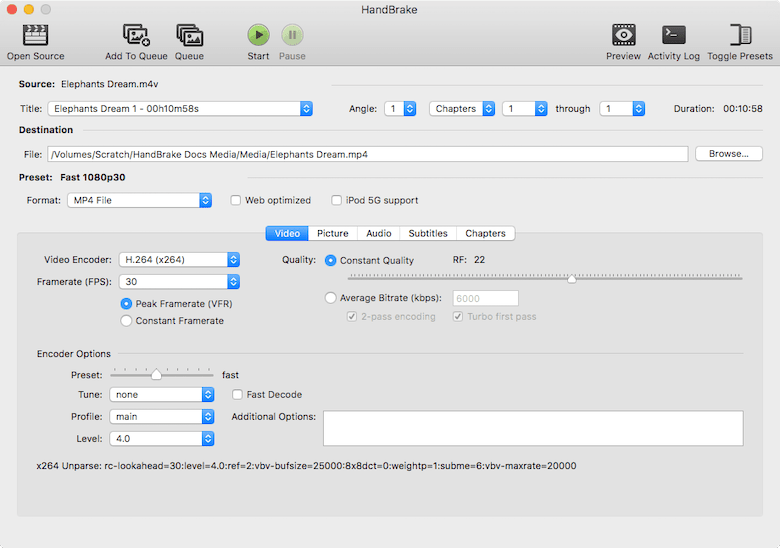
Step 5.1: Launch the GUI and Encode a File
- Open Activities and search “HandBrake”
- Drag your source video (MKV, MP4, AVI) onto the queue
- Select a preset from the right panel (e.g., “H.265 MKV 1080p30”)
- Click “Add to Queue” then “Start Queue”
WHY use presets: Presets encode sane encoder settings vetted by the HandBrake Team. Starting with a preset rather than raw x265 parameters avoids accidentally producing files that crash certain media players due to non-standard level or profile flags.
Step 5.2: Run a CLI Batch Encode
RPM Fusion (native binary):
HandBrakeCLI -i input.mkv -o output.mp4 --preset="H.265 MKV 1080p30"
Flatpak (sandboxed):
flatpak run --command=HandBrakeCLI fr.handbrake.ghb -i input.mkv -o output.mp4 --preset="H.265 MKV 1080p30"
WHAT these do: Both commands encode input.mkv to output.mp4 using the H.265 1080p preset. The Flatpak version wraps the CLI in flatpak run --command=.
WHY use CLI: The CLI is the correct tool for encoding large directories, cron jobs, or server-side media pipelines. It is scriptable, produces machine-readable log output, and does not require a display server.
Expected CLI output:
Opening input file: input.mkv
Input file detected as: matroska
Duration: 01:45:32
Scene count: 0
...
Encoding job complete.
Output written to: output.mp4
Step 6: Enable Hardware Encoding on Fedora 44
Step 6.1: Check VA-API Support First
sudo dnf install libva-utils
vainfo
WHAT this does: Installs VA-API utilities then queries your GPU for video encoding entry points.
WHY check first: Hardware encoding in HandBrake depends entirely on the driver exposing the correct VA-API or NVENC entry points. Checking vainfo output before configuring HandBrake tells you whether the problem is HandBrake configuration or a missing driver layer.
Expected output with AMD support:
  VAEntrypointEncSlice      H.264
  VAEntrypointEncSlice      HEVC
  VAProfileHEVCMain           0
Look for VAEntrypointEncSlice for H.264 or HEVC.
Step 6.2: Install Freeworld VA-API Drivers (AMD/Intel)
sudo dnf install mesa-va-drivers-freeworld
WHAT this does: Installs the Freeworld variant of Mesa VA-API drivers from RPM Fusion, which re-enables H.264 hardware encode support.
WHY Freeworld: Fedora’s default Mesa build excludes H.264 hardware encode support because of patent concerns. The Freeworld variant re-enables these codec entry points, which is required for AMD VCN and Intel QSV H.264 encode in HandBrake.
Troubleshooting HandBrake on Fedora 44
Error 1: “Flatpak system operation Deploy not allowed for user”
Cause: Flathub was added as a system remote but install was run without sudo.
Fix:
sudo flatpak install flathub fr.handbrake.ghb
WHY this works: System-scope remotes require elevated privileges to deploy. User-scope installs go under ~/.local/share/flatpak and are invisible to other users.
Error 2: “Can’t fetch summary from disabled remote ‘flathub'”
Cause: Flathub remote exists but was disabled.
Fix:
sudo flatpak remote-modify --enable flathub
WHY this works: Flathub can end up disabled if a prior Fedora update changed remote policies or if it was toggled off in GNOME Software settings.
Error 3: “Cannot load libnvidia-encode.so.1” or “qsv: not available”
Cause: System lacks NVIDIA or Intel QSV hardware. HandBrakeCLI probes all encoder backends at startup.
Fix: These are warnings, not failures. Verify the package is installed:
rpm -q HandBrake
# or
flatpak info fr.handbrake.ghb
WHY ignore: HandBrakeCLI prints hardware probing warnings to stderr even on clean installs. Recognizing them as non-fatal avoids unnecessary reinstallation attempts.
Error 4: Source Video Will Not Open
Fix:
sudo dnf install gstreamer1-plugin-libav gstreamer1-plugins-bad-freeworld
WHY this works: RPM Fusion HandBrake depends on GStreamer multimedia plugins for container demuxing. Fedora’s default GStreamer install excludes FFmpeg/LibAV support due to patent concerns. Installing the Freeworld plugins fills this gap.
How to Update HandBrake on Fedora 44
Flatpak Update
sudo flatpak update fr.handbrake.ghb
WHY: Updates only HandBrake without touching system packages. Flatpak keeps application versions independent from OS updates.
RPM Fusion Update
sudo dnf upgrade --refresh
WHY: HandBrake updates ride the same DNF upgrade path as all other RPM Fusion packages. This is cleaner for system administrators managing hundreds of packages.
How to Uninstall HandBrake from Fedora 44
Flatpak Removal
sudo flatpak uninstall fr.handbrake.ghb
rm -rf ~/.var/app/fr.handbrake.ghb
WHY both commands: Flatpak uninstall removes the app but intentionally preserves user data in ~/.var/app/. Deleting that directory removes saved presets and queue state. This matters when troubleshooting corrupted presets.
RPM Removal
sudo dnf remove HandBrake-gui HandBrake
Optional cleanup (if RPM Fusion was added only for HandBrake):
sudo dnf remove rpmfusion-free-release
WHY cleanup: Leaving an unused repository active means your system resolves packages against it on every dnf upgrade, marginally slowing metadata refreshes.
Frequently Asked Questions
Is HandBrake free on Fedora 44?
Yes. HandBrake is fully open-source under the GNU GPL v2. Both the Flatpak and RPM Fusion packages are zero cost.
Which method is better — Flatpak or RPM Fusion for HandBrake on Fedora?
Flatpak delivers the upstream HandBrake Team release and is slightly more current (1.11.1). RPM Fusion gives you a native RPM integrated with dnf and places HandBrakeCLI directly on your system $PATH without flatpak run wrappers.
Does HandBrake support H.265/HEVC encoding on Fedora 44?
Yes. Both builds include x265 for software HEVC encoding. Hardware HEVC encoding requires libva-utils and optionally mesa-va-drivers-freeworld.
Can I run HandBrake without a desktop environment on Fedora?
Yes. Install only the HandBrake RPM package (not HandBrake-gui) or use flatpak run --command=HandBrakeCLI. Both give you a fully headless encoder.


