
If you work with video on Linux, sooner or later you will need a reliable transcoder. HandBrake is the most trusted open-source tool for the job, and knowing how to install HandBrake on Ubuntu 26.04 LTS correctly saves you time and prevents broken installs. This guide walks you through three proven methods: Flatpak via Flathub, APT from the Ubuntu Universe repository, and a headless CLI-only install for servers. By the end, you will have a working HandBrake installation, hardware encoding set up, and a solid understanding of why each command matters.
What Is HandBrake and Why Does It Matter on Ubuntu 26.04?
HandBrake is a free, open-source video transcoder that converts video files between formats, compresses large recordings, and applies device-optimized presets for phones, tablets, and web streaming. It runs on Windows, macOS, and Linux, but the Linux version is particularly powerful because it integrates directly with your system’s codec stack and supports hardware-accelerated encoding through Intel QSV, NVIDIA NVENC, and AMD VCN.
Ubuntu 26.04 LTS (codenamed “Resolute Rumpus”) ships with HandBrake 1.11.1 in the Universe repository. This version is significant because HandBrake 1.11 was the first release to fully support FFmpeg 8.0, which introduced breaking API changes that affected older builds. If you tried installing HandBrake on Ubuntu 26.04 early in the release cycle, you may have hit a “package not found” error because the Ubuntu MOTU team had to patch the build before it could land in the repos.
That issue is now resolved. HandBrake 1.11.1 is available via APT, and HandBrake 1.11.2 is available on Flathub with bundled FFmpeg 8.0.2.
Prerequisites: What You Need Before You Start
Before you run a single command, verify that your system meets these requirements. Skipping this step is the most common reason installations fail or produce unexpected results.
- Operating System: Ubuntu 26.04 LTS (64-bit/amd64). These steps are not compatible with 32-bit systems.
- User permissions: Your account must have
sudoprivileges. Verify this by runningsudo -vin a terminal. If it prompts for your password and succeeds, you are good. - Internet connection: All three methods download packages from remote repositories. A stable connection prevents mid-install failures.
- Disk space: At least 500 MB free for a GUI install, or 150 MB for CLI-only. Flatpak installs also download a GNOME Platform runtime (~250 MB) on first use.
- Existing installation check: Run the command below before starting. Installing on top of a broken or mismatched HandBrake build causes config conflicts.
which ghb || flatpak list --app | grep handbrakeIf the command returns nothing, you have a clean slate and can proceed.
Step 1: Update Your System Before Installing HandBrake on Ubuntu 26.04
This is not a formality. Running a system update before any install syncs your local APT package index with Ubuntu’s mirrors and applies any pending security patches that might interfere with dependencies.
sudo apt update && sudo apt upgrade -yWhat this does: apt update refreshes the list of available packages and their versions. apt upgrade -y installs all pending updates and confirms them automatically. The -y flag prevents the command from pausing to ask for confirmation.
Why you need it: Ubuntu’s APT database can be days or weeks behind the actual repository state, especially on a freshly installed system. If your index is stale, APT might try to install an older version of HandBrake or flag dependency conflicts that do not actually exist in the current repo. Running the update first eliminates that entire category of problems.
Expected output: You will see a list of packages being updated, followed by a summary like:
5 upgraded, 0 newly installed, 0 to remove and 0 not upgraded.If your system is already up to date, you will see:
All packages are up to date.Either result is fine. You can now move on to the installation method that fits your use case.
Step 2: Choose Your Installation Method
Ubuntu 26.04 supports three ways to install HandBrake. Each serves a different workflow. Pick the one that matches your situation before continuing.
| Method | Best For | HandBrake Version |
|---|---|---|
| Flatpak (Flathub) | Desktop users who want the latest official release | 1.11.2 |
| APT (Universe repo) | Sysadmins who manage everything through APT | 1.11.1 |
| APT CLI-only | Headless servers, scripted encoding pipelines | 1.11.1 |
There is no wrong choice here. If you are on a desktop and want the most up-to-date release with bundled libraries that do not touch your system’s codec stack, choose Flatpak. If you manage your system with Ansible, Puppet, or a custom shell script and need uniform APT-based package management, choose APT.
Step 3: Install HandBrake via Flatpak (Recommended for Desktop Users)
Flatpak is the official upstream delivery method recommended by the HandBrake project for Linux users. The Flathub version ships its own bundled FFmpeg and codec libraries, so it stays isolated from your system packages. This means a system upgrade that changes your FFmpeg version will never break your HandBrake install.
Step 3.1: Install the Flatpak Package Manager
Ubuntu 26.04 does not ship Flatpak by default, but it is available in the main repository.
sudo apt install flatpak -yWhat this does: Downloads and installs the Flatpak runtime and its supporting tools from Ubuntu’s main repository.
Why before adding Flathub: You cannot add a Flatpak remote without the Flatpak daemon installed. Running this first ensures the flatpak command exists and works correctly before you try to configure it.
Step 3.2: Add the Flathub Repository
sudo flatpak remote-add --if-not-exists flathub https://dl.flathub.org/repo/flathub.flatpakrepoWhat this does: Registers Flathub as a trusted Flatpak remote source on your system. The --if-not-exists flag makes this command safe to re-run. If Flathub is already configured, it does nothing instead of throwing an error.
Why Flathub specifically: Flathub hosts the official HandBrake release published directly by the HandBrake team. Other Flatpak sources or community remotes may carry modified or outdated builds. Using the official Flathub App ID fr.handbrake.ghb ensures you get the real thing.
Step 3.3: Install HandBrake from Flathub
sudo flatpak install flathub fr.handbrake.ghb -yWhat this does: Downloads HandBrake and its required GNOME Platform runtime from Flathub and installs both system-wide.
Why the full App ID: Flatpak identifies applications by reverse-DNS app IDs, not friendly display names. Specifying fr.handbrake.ghb ensures you install the GUI package, not a lookalike or the CLI-only build. On first install, this command also downloads the GNOME Platform runtime if it is not already present, which may add a few minutes to the process.
Expected output after install:
Installing: fr.handbrake.ghb/x86_64/stable
[==========================================] 100%
Installation complete.
Step 3.4: Verify the Flatpak Installation
flatpak info fr.handbrake.ghbExpected output:
HandBrake - Open-source video transcoder

          ID: fr.handbrake.ghb
         Ref: app/fr.handbrake.ghb/x86_64/stable
        Arch: x86_64
      Branch: stable
     Version: 1.11.2
      Origin: flathub
  Collection: org.flathub.Stable
Installation: system
Confirm that Version shows 1.11.2 and Origin shows flathub. If you see a different origin or version, the install may have pulled from a cached or alternate remote.
Step 4: Install HandBrake via APT (Ubuntu Universe Repository)
This is the right method for sysadmins who need APT-managed packages across their infrastructure. You get HandBrake 1.11.1, the version patched by Ubuntu’s MOTU team to fix the FFmpeg 8.0 API compatibility issue.
Step 4.1: Enable the Universe Repository
sudo add-apt-repository universe -y
sudo apt update
What this does: The first command adds Ubuntu’s universe repository to your APT sources. The second refreshes your package index so APT knows what packages are now available.
Why this step is critical: Ubuntu 26.04 minimal and server installs often ship with only the main repository active. HandBrake lives in universe, not main. If you skip this step and run apt install handbrake, you will see the error:
E: Unable to locate package handbrakeThat error does not mean HandBrake is unavailable. It means APT cannot see the universe repo yet. Enabling it first solves the problem immediately.
Step 4.2: Install the HandBrake GUI Package
sudo apt install handbrake -yWhat this does: Downloads and installs the HandBrake GUI (ghb) binary along with all required GTK4 and media library dependencies.
Why handbrake and not handbrake-gtk: On Ubuntu 22.04 and earlier, the package was named handbrake-gtk. That name was deprecated. On Ubuntu 26.04, the correct package name is simply handbrake. If you follow an older guide that uses handbrake-gtk, APT will return a package-not-found error.
Step 4.3: Install the CLI Package (Optional but Recommended)
sudo apt install handbrake-cli -yWhat this does: Installs the HandBrakeCLI binary, which lets you run transcoding jobs from the terminal or inside shell scripts.
Why it is a separate package: APT splits the GUI and CLI into two independent packages. Installing handbrake alone does not give you HandBrakeCLI. If you plan to automate batch encoding jobs, you must install handbrake-cli explicitly. This is by design and mirrors how many Linux tools separate their graphical and command-line components.
Step 4.4: Verify the APT Installation
apt-cache policy handbrakeExpected output:
handbrake:
  Installed: 1.11.1-0ubuntu1
  Candidate: 1.11.1-0ubuntu1
  Version table:
 *** 1.11.1-0ubuntu1 500
        500 http://archive.ubuntu.com/ubuntu resolute/universe amd64 Packages
Confirm that Installed shows 1.11.1-0ubuntu1 and the origin is resolute/universe. If it shows (none) under Installed, the install did not complete successfully. Re-run the install command.
Step 5: Install HandBrake CLI Only (For Headless Servers)
This method targets Ubuntu 26.04 Server users running media pipelines without a desktop environment. If you manage a Jellyfin, Plex, or Emby server, or if you run automated transcoding via cron jobs or systemd timers, this is your path.
Step 5.1: Install Only the CLI Binary
sudo apt update
sudo apt install handbrake-cli -y
What this does: Installs only the HandBrakeCLI binary without pulling in any GTK4 or graphical dependencies. This keeps your server lean.
Why this matters on a server: The GUI package pulls in over 150 MB of GTK4, GStreamer, and GNOME runtime libraries. On a headless server with 4 GB of RAM and no display manager, those libraries are pure waste. The handbrake-cli package installs only what the transcoder engine needs.
Step 5.2: Run a Test Encode
Verify that the binary works and is in your $PATH:
HandBrakeCLI --versionExpected output:
HandBrake 1.11.1Then run a real test encode to confirm your codec stack is functional:
HandBrakeCLI --input input.mp4 --output output.mkv --preset "Fast 1080p30"Why test immediately: This single command validates the binary, your codec stack, and your input/output file permissions at the same time. If something is broken in the installation, it surfaces here rather than mid-job in a 3-hour batch process.
Step 6: Launch HandBrake on Ubuntu 26.04
Launching the Flatpak Version
The most reliable way to launch HandBrake after a Flatpak install is through the terminal:
flatpak run fr.handbrake.ghbWhy launch from the terminal first: Terminal launches pipe stdout directly to your screen. If HandBrake cannot find a codec, a hardware encoder, or a required runtime library, you will see the warning immediately. These messages are completely hidden when you launch from the app menu. Make a habit of using the terminal launch at least once after a fresh install to confirm there are no silent errors.
Launching the APT Version
ghbOr simply:
handbrakeLaunching from the GNOME App Menu
- Press the Super key (Windows key) or click Activities in the top-left corner
- Type “HandBrake” in the search bar
- Click the HandBrake icon to open it
Note for Flatpak users: After a fresh Flatpak install, the app icon may not appear in the GNOME menu immediately. This happens because GNOME caches the application launcher database and has not refreshed it yet. Log out and log back in to force a cache refresh. The icon will appear on your next session.
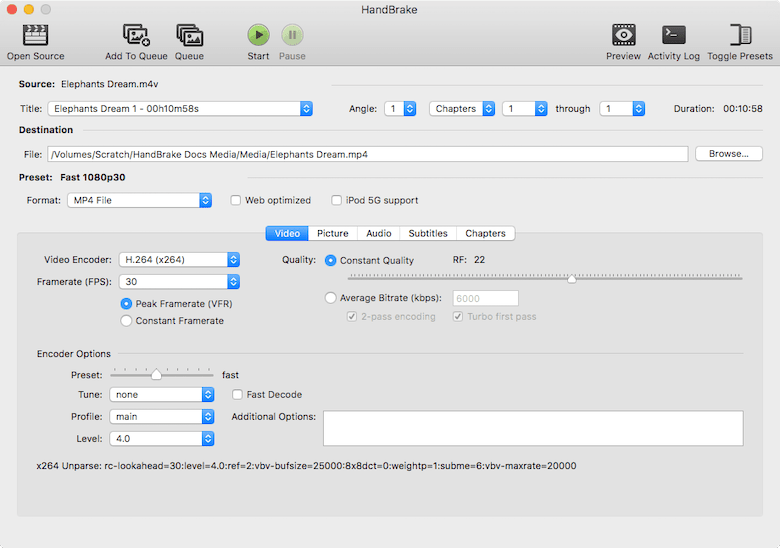
Step 7: Enable Hardware Encoding (NVIDIA NVENC, Intel QSV, AMD VCN)
Most guides stop at installation. This section covers hardware encoding setup, which is where HandBrake’s performance advantage over software encoding becomes real. Hardware encoding a 1080p H.265 file with NVENC takes under two minutes on a modern NVIDIA GPU. The same job with CPU-only x265 encoding can take 20 minutes or longer.
Step 7.1: Check GPU Driver Status
For NVIDIA GPUs:
nvidia-smiFor Intel QSV:
vainfoWhy check drivers first: HandBrake only exposes hardware encoder options when the correct kernel module and driver are loaded and reporting correctly. If nvidia-smi returns “command not found” or vainfo shows no supported profiles, HandBrake cannot use hardware encoding regardless of what you configure inside the app.
Step 7.2: Verify Flatpak GPU Access
For Flatpak installs, the sandbox must have access to your GPU device. Confirm this with:
flatpak info --show-permissions fr.handbrake.ghb | grep devicesExpected output:
devices=all;The devices=all value confirms that Flatpak gives HandBrake full access to your hardware devices, including the GPU. If you see devices=dri; instead, the sandbox has limited GPU access, which may restrict hardware encoder availability.
Step 7.3: Confirm Hardware Encoders Inside HandBrake
- Open HandBrake
- Go to the Video tab
- Click the Video Encoder dropdown
If your GPU drivers are correctly installed and recognized, you will see options like H.265 (NVENC), H.264 (NVENC), H.265 (QSV), or H.265 (VCN) in the encoder list.
If the hardware options are greyed out, the problem is at the driver or kernel level, not in HandBrake itself. Reinstalling the appropriate GPU driver package is the fix.
Step 8: How to Update HandBrake on Ubuntu 26.04
Keeping HandBrake current matters because major updates include security patches, FFmpeg library bumps, and codec improvements. HandBrake 1.11.2, for example, bundles FFmpeg 8.0.2 with several bug fixes for 2-pass encoding crashes and WebM output on Linux.
Updating the Flatpak Version
sudo flatpak update fr.handbrake.ghb -yWhy target only HandBrake: Running sudo flatpak update without specifying an app updates every installed Flatpak plus any shared runtimes. That can trigger large downloads for unrelated apps. Targeting fr.handbrake.ghb specifically keeps the update scoped and predictable.
Updating the APT Version
sudo apt update && sudo apt install --only-upgrade handbrake handbrake-cliWhy --only-upgrade instead of apt upgrade: This flag upgrades only the packages you name and refuses to install anything new. It is the right approach in environments where a full system upgrade would be disruptive or requires change-control approval.
Troubleshooting Common HandBrake Installation Problems
Even clean systems can produce errors. Here are the five most common problems and how to fix them.
Problem 1: “Unable to locate package handbrake”
Cause: The Universe repository is not enabled, or the APT index has not been refreshed after enabling it.
Fix:
sudo add-apt-repository universe -y
sudo apt update
sudo apt install handbrake -y
Problem 2: HandBrake Icon Missing from GNOME App Menu After Flatpak Install
Cause: The GNOME session launcher database has not refreshed since the Flatpak .desktop file was written.
Fix: Log out of your GNOME session and log back in. The icon will appear after the session restarts. You do not need to reboot the machine, just end and restart your desktop session.
Problem 3: HandBrakeCLI Returns “Command Not Found”
Cause: The CLI is packaged separately from the GUI. Installing handbrake alone does not install HandBrakeCLI.
Fix:
sudo apt install handbrake-cli -yProblem 4: Hardware Encoder Greyed Out in the Video Tab
Cause: Either the GPU driver is not installed, the kernel module is not loaded, or the Flatpak sandbox lacks device permissions.
Fix for NVIDIA:
sudo apt install nvidia-driver-570 -y
sudo reboot
Fix for Intel QSV:
sudo apt install intel-media-va-driver i965-va-driver -yAfter the driver install, relaunch HandBrake and check the Video Encoder dropdown again.
Problem 5: Snap-Based HandBrake is Outdated or Not Working
Cause: The Snap package for HandBrake (handbrake-jz) is a community-maintained build that may be several versions behind and is not published by the HandBrake team. It is not recommended.
Fix: Uninstall the Snap version and install via Flatpak or APT instead:
sudo snap remove handbrake-jz
sudo flatpak install flathub fr.handbrake.ghb -y
How to Uninstall HandBrake from Ubuntu 26.04
Uninstall the Flatpak Version
sudo flatpak remove fr.handbrake.ghb -y
sudo flatpak uninstall --unused -y
Why --unused: This command removes orphaned Flatpak runtimes that HandBrake depended on but no other app uses. Without it, those runtimes can consume several hundred MB of disk space permanently.
To also remove your personal presets and config:
rm -rf ~/.var/app/fr.handbrake.ghb/Uninstall the APT Version
sudo apt remove --purge handbrake handbrake-cli -y
sudo apt autoremove -y
Why --purge: The remove command alone leaves configuration files behind. Adding --purge removes package config files from /etc as well. The autoremove command then cleans up orphaned dependencies that were installed alongside HandBrake.
To also remove user-level config files:
rm -rf ~/.config/ghb/Important: Skip the rm step above if you plan to reinstall HandBrake later. Your saved presets, encode queue, and custom settings live in that directory. Keeping it means you can restore your workflow instantly after a reinstall.
[su_box title=”VPS Manage Service Offer” style=”bubbles” box_color=”#000000″ radius=”10″]If you don’t have time to do all of this stuff, or if this is not your area of expertise, we offer a service to do “VPS Manage Service Offer”, starting from $10 (Paypal payment). Please contact us to get the best deal![/su_box]

