
You SSH into a production server at midnight, the load average is climbing, and top greets you with a wall of monochrome text that is nearly impossible to parse under pressure. That is the moment every Linux sysadmin realizes they need a better tool. Htop is that tool, and learning how to install Htop on Ubuntu 26.04 takes less than five minutes.
This guide walks you through every installation method available on Ubuntu 26.04 (Resolute Raccoon), explains what each command actually does, and gives you the interface knowledge to start diagnosing real server problems immediately. Whether you manage a bare-metal rack, a cloud VPS, or a local development machine, htop belongs in your toolkit.
Ubuntu 26.04 LTS ships with htop 3.4.1 in its default APT repository, which means no PPAs, no manual compiling, and no version hunting. You install it, launch it, and get to work.
What Is Htop and Why Every Linux Sysadmin Needs It
Before touching the terminal, it is worth understanding what htop actually does differently from the tools Ubuntu already ships with.
Htop is an interactive, real-time process viewer built on the ncurses library. It reads data directly from the Linux /proc filesystem and presents it in a color-coded, navigable interface that you can control with a keyboard or mouse.
The default top command has been in Linux since the early 1990s. It works, but it has real limitations that slow you down when speed matters.
Here is a direct comparison:
| Feature | top |
htop |
|---|---|---|
| Color-coded interface | No | Yes |
| Mouse support | No | Yes |
| Per-core CPU meters | No | Yes |
| Process tree view | No | Yes (F5) |
| Horizontal scrolling | No | Yes |
| Kill process with menu | No | Yes (F9) |
| Filter by user or name | No | Yes (F4, u) |
| Customizable layout | Minimal | Extensive (F2) |
The per-core CPU display alone changes how you diagnose problems. When one core sits at 100% while the others idle, you are looking at a single-threaded bottleneck. A MySQL query gone rogue or a PHP-FPM worker spinning in a loop produces exactly that pattern, and top‘s aggregate percentage hides it completely.
Htop surfaces that information at a glance. That is the practical reason to install it before you need it, not after a crisis has already started.
Prerequisites for This Ubuntu 26.04 Setup
Before running any commands, confirm you have the following in place. Skipping these checks is the most common reason installation fails or behaves unexpectedly.
- Ubuntu 26.04 LTS installed on your system (server or desktop edition)
- A non-root user account with
sudoprivileges — running package management directly as root bypasses audit logging and introduces unnecessary security risk - An active internet connection — APT must reach Ubuntu’s package mirrors to download htop and resolve dependencies
- Terminal access — either a local terminal or an active SSH session
- Optional but recommended: confirm your exact Ubuntu version before starting
Run this to verify your Ubuntu release:
lsb_release -aExpected output:
No LSB modules are available.
Distributor ID: Ubuntu
Description:    Ubuntu 26.04 LTS
Release:        26.04
Codename:       resolute
If your codename reads resolute, you are on Ubuntu 26.04 and every command in this guide applies directly to your system.
Step 1: Update Your Package Index Before You Install Anything
This step is mandatory. It is also the step most tutorials treat as optional. Do not skip it.
Run:
sudo apt update && sudo apt upgrade -yWhy This Command Matters
apt update refreshes the local package metadata cache. That cache is a snapshot of what Ubuntu’s repository servers know about available packages. If you skip this step on a freshly provisioned server or a system that has not been updated in weeks, APT may resolve an older version of htop or fail to locate it entirely.
apt upgrade applies pending security patches to your existing packages. Htop links against system libraries like libncurses. Installing htop on top of stale libraries can produce dependency warnings. Running the upgrade first eliminates that variable.
A note for production servers: On live systems carrying active traffic, review the list of packages staged for upgrade before applying them. You can run apt update alone if applying upgrades now is operationally inappropriate. The htop install itself will still work cleanly.
Expected Output
After running the update, you will see a line similar to:
35 packages can be upgraded. Run 'apt list --upgradable' to see them.Or if your system is already current:
0 upgraded, 0 newly installed, 0 to remove and 0 not changed.Either result is fine. Proceed to Step 2.
Step 2: Install Htop on Ubuntu 26.04 Using APT (Recommended Method)
APT is the right tool for this job on Ubuntu 26.04. The default repository carries htop 3.4.1, a stable release that receives security patches through Ubuntu’s update cycle without any extra configuration on your part.
Run:
sudo apt install htop -yWhat This Command Does
sudo apt install htop tells APT to locate the htop package in the repository index, download it along with any required dependencies, and install everything to the appropriate system paths. The -y flag auto-confirms the installation prompt so you do not need to type “yes” manually.
On Ubuntu 26.04, htop has minimal dependencies. You will typically see APT download between 200-400 KB of data, which completes in seconds on any reasonable connection.
Verify the Installation
Once the install finishes, confirm htop is properly installed and the binary is in your $PATH:
htop --versionExpected output:
htop 3.4.1If you see htop 3.4.1, the installation succeeded. If the terminal returns command not found, jump to the Troubleshooting section at the end of this article.
Launch Htop
Start htop with:
htopOr, to see all system processes including those owned by root and other service accounts:
sudo htopWhy sudo htop gives you a more complete picture: Without elevated privileges, htop silently filters out processes owned by other users. On a production server, your most critical workloads run as www-data, postgres, redis, or other dedicated service accounts. Running htop without sudo means you are watching an incomplete list, which leads to incorrect conclusions during incident response.
Step 3: Install Htop via Snap (Alternative Method)
The Snap method makes sense when you want automatic upstream updates delivered without waiting for Ubuntu’s distribution cycle.
Run:
sudo snap install htopConnect the Required Snap Interfaces
This step is critical and frequently skipped, which causes the Snap version of htop to display incomplete or missing data.
sudo snap connect htop:mount-observe
sudo snap connect htop:network-control
Why these connections are not optional: Snap packages run in a strict confinement sandbox by default. Without mount-observe, htop cannot read /proc/mounts to display filesystem information. Without network-control, certain network-related process data is blocked at the kernel interface level.
A Snap htop that launches without these connections will show CPU and memory data, but memory-mapped files, network process details, and delay accounting metrics will be absent or zeroed out. Most users assume htop is broken. The fix is these two commands.
APT vs Snap: Which Should You Use?
| Consideration | APT | Snap |
|---|---|---|
| Stability | Tested against Ubuntu 26.04 userland | May introduce upstream changes unexpectedly |
| Update control | You control when updates apply | Auto-updates run in the background |
| Interface setup | None required | Must connect interfaces manually |
| Best environment | All production and server environments | Non-production, feature testing |
For the vast majority of servers and workstations, use APT. Snap is the right choice only when you specifically need htop features that are not yet in the Ubuntu repository version.
Step 4: Install Htop From a .deb File (Air-Gapped Servers)
Some enterprise environments restrict outbound internet access on production servers. On those machines, both APT and Snap fail at the download step. The solution is a manual .deb installation.
On a machine with internet access, download the package:
wget https://launchpad.net/ubuntu/+archive/primary/+files/htop_3.4.1-1_amd64.debTransfer the file to your air-gapped server using scp or your organization’s approved file transfer method, then install:
sudo apt install ./htop_3.4.1-1_amd64.debWhy apt install ./ Instead of dpkg -i
Both commands install a local .deb file, but they handle dependencies differently. dpkg -i installs the package in isolation. If any required library is missing, dpkg fails with a dependency error and leaves the system in a broken state.
apt install ./ with a local path does the same install but automatically resolves and fetches missing dependencies from whatever mirrors are accessible. On a server with partial internet access or a local APT mirror, this distinction matters.
Architecture note: The amd64 package covers standard 64-bit x86 servers. For ARM-based cloud instances (AWS Graviton, Oracle Ampere, Raspberry Pi), download the arm64 build instead.
Step 5: Understanding the Htop Interface on Ubuntu 26.04
Installing htop is the easy part. Getting real diagnostic value from it requires knowing what you are actually reading. This section covers what experienced sysadmins look at first.
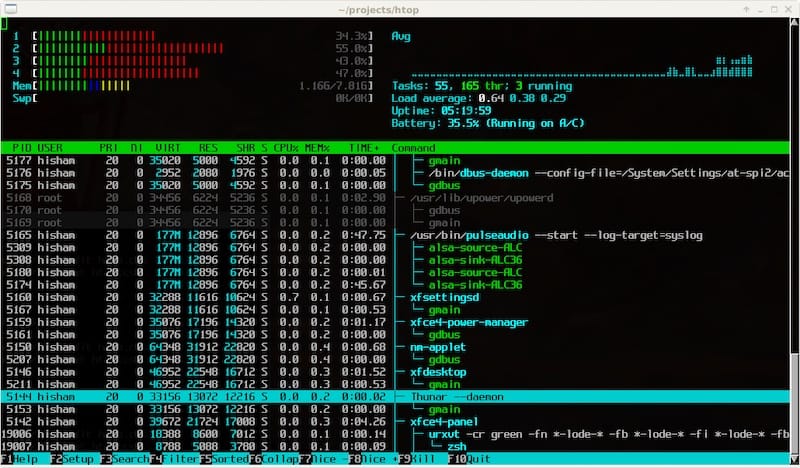
The Header Panel (Top Section)
The top section of htop contains the meters you will use most during incident response.
CPU meters: Each bar represents one logical CPU core. The color breakdown tells you who is consuming that CPU:
- Green: Normal user-space processes
- Blue: Low-priority background processes
- Red: Kernel threads
A single core pinned at 100% red means the kernel is spinning on something, which often points to a driver issue or a system call loop. A single core green at 100% while others sit idle is a single-threaded application bottleneck.
Memory meter:
- Green: RAM actively used by processes
- Blue: Buffer and page cache (safe to reclaim under pressure)
- Yellow: Swap usage
When you see swap climbing above 20-30% on a production server, the system is under genuine memory pressure. At that point you need to either kill memory-heavy processes, add swap space as a temporary measure, or plan a RAM upgrade.
Load averages: The three numbers show 1-minute, 5-minute, and 15-minute averages. The 15-minute number is the one that drives decisions. A high 1-minute average trending down on the 15-minute means a spike that already resolved. A 15-minute average consistently above your CPU core count means sustained saturation — something that requires immediate investigation.
The Process List (Bottom Section)
The columns you should read first:
- RES: Resident Set Size — the actual physical RAM this process is consuming right now. This is the number to trust.
- VIRT: Virtual memory — inflated by memory-mapped files and allocations the process has not yet touched. Ignore this for capacity planning.
- CPU%: CPU usage for this process since the last sample interval.
- MEM%: What percentage of total system RAM this process holds in RES.
Step 6: Essential Htop Keyboard Shortcuts for Daily Use
Htop’s interface is only as fast as your knowledge of its shortcuts. These are the ones that actually get used during real incidents:
| Key | Action | When to Use It |
|---|---|---|
F2 |
Open setup/configuration | Customize meters and column layout |
F3 |
Search processes by name | Find a specific process among hundreds |
F4 |
Filter processes | Show only processes matching a string |
F5 |
Toggle tree view | See parent-child process relationships |
F6 |
Sort by column | Sort by MEM% to find top memory consumer |
F9 |
Kill process (signal menu) | Choose SIGTERM before SIGKILL |
F7 / F8 |
Raise / lower nice value | Throttle a process without killing it |
u |
Filter by user | Isolate postgres, www-data, etc. |
Space |
Tag a process | Select multiple for batch operations |
q |
Quit htop | Exit cleanly |
One workflow tip from the field: When you suspect a memory leak in a specific application, press u, select the service account that application runs under, then press F6 and sort by RES. You now have a real-time view of exactly how much RAM every instance of that application is consuming, sorted from worst to best.
How To Configure Htop on Ubuntu 26.04 for Your Workflow
The default htop layout works, but five minutes of configuration makes it significantly more useful for your specific environment.
Press F2 to open the setup menu. You will see four panels: Meters, Display Options, Colors, and Columns.
Customizing the Meters Panel
The left and right meter columns in the header are fully configurable. Useful additions beyond the defaults:
- Disk I/O meter: Shows read/write throughput in real time — critical on database servers where I/O is often the actual bottleneck
- Network meter: Shows inbound/outbound traffic without needing a separate tool
- Battery meter: Useful on laptops or edge devices running Ubuntu
To add a meter, highlight the slot you want to fill, press F5 to add a new entry, and select from the list.
Saving Your Configuration
Htop saves all configuration automatically to ~/.config/htop/htoprc when you exit the setup menu.
If you manage a fleet of servers, copy this file into your dotfiles repository or Ansible playbook. A single htoprc file deployed across all servers means every team member gets the same consistent layout. That consistency matters during joint incident response when two people are looking at htop output on different machines.
Step 7: How To Uninstall Htop From Ubuntu 26.04
Removing htop is straightforward regardless of how you installed it.
Remove the APT Version
sudo apt remove htopTo remove the package and clean up any leftover configuration files:
sudo apt purge htopWhy purge over remove: apt remove leaves configuration files behind in /etc/. On a server you are reprovisioning or returning to a clean state, those orphaned files cause confusion. apt purge removes the package and its configuration in a single step.
Remove the Snap Version
sudo snap remove htopSnap handles cleanup automatically. Removing a Snap package also removes its associated data and configuration, so no separate purge step is needed.
Troubleshooting Common Htop Issues on Ubuntu 26.04
Most htop problems fall into a handful of categories. Here are the ones that come up most often.
Error 1: htop: command not found After Installation
Cause: The htop binary was installed to a path not included in your current $PATH variable. This happens most often in restricted shell environments or minimal Docker base images.
Fix: Check where htop was installed:
which htopIf that returns nothing, try:
find /usr -name htop 2>/dev/nullOnce you find the binary, add its directory to your $PATH in ~/.bashrc:
export PATH="/usr/bin:$PATH"
source ~/.bashrc
Error 2: Snap Version Shows Missing or Zero Metrics
Cause: The required Snap interface connections were not established after installation.
Fix: Run both connect commands:
sudo snap connect htop:mount-observe
sudo snap connect htop:network-control
Relaunch htop. The missing metrics should now populate.
Error 3: Htop Shows 0% CPU for All Processes Immediately After Launch
Cause: This is not actually an error. Htop calculates CPU percentages as a delta between two readings from /proc/stat. On the very first render cycle, there is no previous reading to compare against, so everything shows 0%.
Fix: Wait 2-3 seconds. CPU percentages will populate on the second render cycle and update in real time from that point.
Error 4: Cannot Kill a Process Even With sudo htop
Cause: The process is in an uninterruptible sleep state, shown as D in the S (state) column. A process in D state is waiting on kernel-level I/O and cannot receive signals, including SIGKILL.
Why SIGKILL fails here: Signals are delivered to a process only when the kernel returns control to that process. A process stuck waiting on a disk read, NFS mount, or broken network filesystem never returns control, so the signal never lands.
Fix: Resolve the underlying I/O block. Check for stalled disk operations with iostat -x 1, look for unresponsive NFS mounts with df -h, and investigate whether a storage device is reporting errors in:
dmesg | tail -20Error 5: Htop Launches But Shows Only the Current User’s Processes
Cause: Htop was started without sudo on a multi-user server.
Fix: Quit htop and relaunch with elevated privileges:
sudo htopAll system processes, including those owned by service accounts like www-data, postgres, and systemd-resolve, will now appear in the process list.
Congratulations! You have successfully installed Htop. Thanks for using this tutorial for installing the Htop interactive process viewer on the Ubuntu 26.04 LTS “Resolute Raccoon” system. For additional help or useful information, we recommend you check the official Htop website.
[su_box title=”VPS Manage Service Offer” style=”bubbles” box_color=”#000000″ radius=”10″]If you don’t have time to do all of this stuff, or if this is not your area of expertise, we offer a service to do “VPS Manage Service Offer”, starting from $10 (Paypal payment). Please contact us to get the best deal![/su_box]
