
If you want to install Hypnotix on Ubuntu 26.04 and get it working without confusion, this guide walks you through the whole process in a clean, sysadmin-friendly way. Hypnotix is an IPTV player, so the job is not just installing the app, but also understanding what it needs, why each step matters, and how to avoid the common traps that hit newer Ubuntu users.
This article is written for beginner to intermediate Linux users, developers, and sysadmins who want a reliable Hypnotix on Ubuntu 26.04 setup. I will show you the safest install path, how to configure Hypnotix on Ubuntu 26.04, and what to do when video playback or package installation does not go smoothly.
Ubuntu 26.04 LTS is a long-term support release, so it makes sense to write a practical guide around it now. Canonical says this release is supported until April 2031, which makes it a solid base for a tutorial that should stay useful for years.
Prerequisites
Before you start, make sure you have the following in place:
- Ubuntu 26.04 LTS installed and updated. This guide assumes a current LTS desktop system.
- Sudo access or an administrator account. You need it to add a repository and install packages.
- Internet connection. Hypnotix is usually installed from a package source, so your system must reach the repository.
- Terminal access. You will run apt commands from the command line.
- A legal IPTV source. Hypnotix is a player, not a content provider, so you need your own M3U playlist or IPTV credentials.
Step 1: Update Your System
Refresh Package Lists
Start by updating the package index:
sudo apt updateThis command tells Ubuntu to refresh the list of available packages from all configured software sources. You do this first because a fresh package index lowers the chance of dependency errors during installation.
Expected output usually looks like this:
Hit:1 http://archive.ubuntu.com/ubuntu resolute InRelease
Reading package lists... Done
Upgrade Installed Packages
sudo apt upgrade -yThis brings installed packages up to date. You want this because Hypnotix and its dependencies work more reliably on a system that is already current.
Step 2: Add the Mint Tools Repository
Add the PPA
Use the community PPA that packages Linux Mint apps for Ubuntu:
sudo add-apt-repository ppa:kelebek333/mint-toolsThis step adds a new software source so Ubuntu can find Hypnotix. It matters because Hypnotix is not always present in the default Ubuntu repositories, especially when you want the newest available package for a current LTS release.
You may see output like this:
Press [ENTER] to continue or Ctrl-c to cancel adding it.Refresh Package Metadata Again
sudo apt updateThis second update is important because Ubuntu must read the new PPA metadata before it can install Hypnotix. If you skip this, apt may say the package cannot be found.
Step 3: Install Hypnotix
Install the Package
sudo apt install hypnotixThis is the main install command. Apt downloads Hypnotix and resolves the required dependencies automatically, which is why package-based installation is safer than random .deb downloads for most users.
Expected output may include lines like:
The following NEW packages will be installed:
  hypnotix
Do you want to continue? [Y/n]
Why This Method Is Preferred
This approach gives you a cleaner Linux server tutorial style workflow even on a desktop system. You keep package management centralized, which makes updates easier later and reduces the chance of version drift between libraries.
Step 4: Verify the Installation
Confirm the Package Exists
apt policy hypnotixThis shows which version Ubuntu installed and which repository provided it. You should use this check because it confirms the package source before you launch the app.
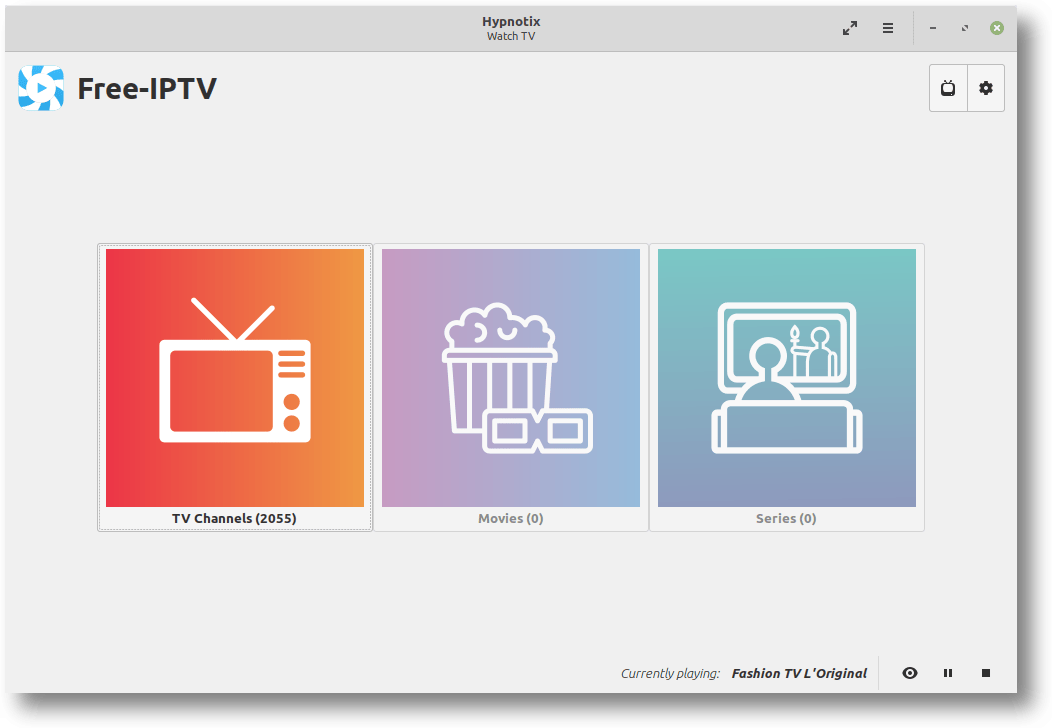
Launch Hypnotix
hypnotixIf the app opens, the install worked. If it does not open, the next section explains the most common causes and fixes.
Step 5: Configure Hypnotix
Add Your IPTV Source
When Hypnotix opens, you can add a provider using an M3U URL, Xtream API credentials, or a local playlist. This matters because Hypnotix is only the player, and your content source comes from your provider or your own media list.
Choose the Right Source Type
- M3U URL for simple playlist-based services.
- Xtream API for providers that support API logins.
- Local M3U file for offline or self-managed lists.
Each option exists for a different workflow, so choose the one that matches your IPTV service or test lab.
Step 6: Fix Wayland Playback Issues
Use the X11 Playback Option
If you run Ubuntu 26.04 with Wayland and video fails to load, add this MPV option in Hypnotix preferences:
vo=x11Then start Hypnotix like this:
GDK_BACKEND=x11 hypnotixThis workaround exists because the Hypnotix project documents Wayland compatibility issues and recommends X11 as the safer path for playback on some systems.
Why This Step Matters
Wayland is modern, but some video applications still behave better under X11. The fix does not change your IPTV source, only the display backend used by the app.
Step 7: Keep the Install Maintainable
Remove or Update the PPA Later If Needed
If you no longer want the source, you can remove it with:
sudo add-apt-repository --remove ppa:kelebek333/mint-toolsThis is useful when you want a cleaner system or when you have finished testing. Package sources should stay intentional, especially on a long-term support desktop.
Troubleshooting
1. Package Not Found
If apt says it cannot find Hypnotix, the PPA was probably not added or you skipped the second sudo apt update. Re-add the PPA, refresh package lists, then try again.
2. Dependency Errors
If installation fails with missing libraries, your system may be out of sync or partly updated. Run sudo apt update and sudo apt upgrade -y, then reinstall. Hypnotix depends on supporting packages such as libmpv and xapp-related components, so version mismatch can break the install path.
3. App Opens but No Video Plays
This usually means the IPTV source is invalid, the playlist is empty, or the provider needs a different login format. Check your M3U URL or Xtream API credentials and make sure the source is legal and active.
4. Black Screen on Wayland
Run Hypnotix with the X11 backend:
GDK_BACKEND=x11 hypnotixAlso add vo=x11 in preferences. Hypnotix documents this workaround because some Wayland sessions do not handle playback correctly.
5. Installed but Still Unstable
If the app launches but behaves oddly, confirm the package source with apt policy hypnotix. That helps you see whether Ubuntu installed the version from the PPA you expected.
[su_box title=”VPS Manage Service Offer” style=”bubbles” box_color=”#000000″ radius=”10″]If you don’t have time to do all of this stuff, or if this is not your area of expertise, we offer a service to do “VPS Manage Service Offer”, starting from $10 (Paypal payment). Please contact us to get the best deal![/su_box]
