
If you work with vector graphics on Linux, you already know that having the right tool makes all the difference between a frustrating afternoon and a productive one. Inkscape is the open-source vector graphics editor that serious designers, developers, and sysadmins rely on daily — and if you want to install Inkscape on Fedora 44, you have three solid methods to choose from.
Fedora 44, released on April 28, 2026, ships with significant changes under the hood: the fully mature DNF5 package manager, Linux kernel 6.19, and GNOME 50 as the default desktop environment. These changes affect how you install, update, and manage software — including Inkscape.
This guide walks you through all three installation methods for Inkscape on Fedora 44 setup: the native DNF5 package manager, Flatpak from Flathub, and Snap. For each step, you will understand not just what to type, but why the command works the way it does. Whether you are a beginner setting up a design workstation or a sysadmin deploying Inkscape across multiple machines, this tutorial covers your exact scenario.
What Is Inkscape and Why Should You Run It on Fedora 44?
Inkscape is a free, open-source vector graphics editor that uses the W3C Scalable Vector Graphics (SVG) standard as its native file format. It competes directly with Adobe Illustrator and CorelDRAW, offering features like path editing, node manipulation, gradient meshes, text tools, and a rich extension ecosystem — all at zero cost.
On Fedora 44, Inkscape benefits from the new Wayland-first display stack backed by GNOME 50 and kernel 6.19. This means smoother canvas rendering, better HiDPI scaling, and improved GPU utilization on both AMD and Intel integrated graphics. Running Inkscape on a modern, actively maintained distribution like Fedora 44 gives you a stable, well-tested graphics foundation that older distros simply cannot match.
Fedora’s commitment to shipping up-to-date packages also means the version of Inkscape in the official repository stays reasonably current, while the Flatpak channel keeps you on the absolute latest upstream release if you need cutting-edge SVG capabilities.
Prerequisites
Before you begin, confirm your environment matches the following requirements:
Operating System:
- Fedora 44 Workstation or Server (verified via
cat /etc/fedora-release)
User Permissions:
- A user account with
sudoprivileges (root access is required for package installation)
System Requirements:
- 2GHz dual-core CPU minimum (quad-core recommended for smooth SVG editing)
- 4GB RAM minimum; 8GB recommended for complex projects
- At least 1GB of free disk space (more for Flatpak, which bundles its own libraries)
- Active internet connection
Tools Needed:
- Terminal emulator (GNOME Terminal, Konsole, or Alacritty)
- DNF5 (pre-installed on Fedora 44)
- Flatpak (pre-installed on Fedora 44 Workstation)
- Snapd (requires manual installation — covered in Method 3)
Step 1: Update Your System Before Installing Anything
This step applies to all three installation methods. Do not skip it.
Why a System Update Matters
Fedora 44 uses DNF5 as its default package manager, replacing the older DNF4 that shipped in previous releases. When you install a new package without first refreshing the local metadata cache, DNF5 may resolve dependencies against an outdated package list. This creates a scenario where it installs an older library version alongside your new application, causing subtle runtime bugs or outright failures.
Running a full system upgrade first forces DNF5 to sync with the live repository mirrors, pulls in all pending security patches, and ensures the dependency graph is accurate before you add Inkscape to the mix.
Run the System Upgrade
Open a terminal and run:
sudo dnf5 upgrade --refreshWhat this does:
sudoelevates your permissions to root level, required for writing to system directoriesdnf5calls the new DNF5 package managerupgradechecks for and installs all available package updates--refreshforces a full metadata cache refresh from repository servers, bypassing any locally cached data
Expected output:
Updating and loading repositories:
Repositories loaded.
Nothing to do.
Or, if updates are available:
Transaction Summary:
 Installing:       3 packages
 Upgrading:       47 packages
 ...
Is this ok [y/N]:
Type y and press Enter. Once the upgrade completes, you are ready to install Inkscape.
Step 2: Install Inkscape on Fedora 44 Using DNF5 (Recommended Method)
The DNF5 native method is the fastest, cleanest, and most system-integrated way to install Inkscape on Fedora 44. It pulls a pre-compiled RPM package from Fedora’s official repositories, installs it directly into your system paths, and registers it with the package manager for future updates.
Why Choose DNF5 Over Flatpak or Snap?
Native RPM packages use your system’s shared libraries rather than bundling their own copies. This means smaller download sizes, faster application startup, and lower RAM usage at runtime. The trade-off is that the repository version may lag slightly behind the latest upstream Inkscape release.
For most users — designers, developers, and sysadmins on a standard Fedora 44 Workstation — the DNF5 method is the right default choice.
Step 2.1: Search for the Inkscape Package
Before installing, confirm the package name and available version:
dnf5 search inkscapeWhy run this first? Confirming the exact package name prevents you from accidentally installing an unrelated package with a similar name. It also shows you the current version in the Fedora 44 repository so you know what build you are getting before committing to the install.
Expected output:
====== Name Exactly Matched: inkscape ======
inkscape.x86_64 : A vector graphics editor
inkscape-docs.noarch : Documentation for Inkscape
inkscape-extensions.noarch : Additional Inkscape extensions
Step 2.2: Install Inkscape
sudo dnf5 install inkscapeWhat this does:
- Resolves all required dependencies automatically (GTK libraries, Python bindings, etc.)
- Downloads the Inkscape RPM and any missing dependency packages
- Installs the binary to
/usr/bin/inkscapeand supporting files to/usr/share/inkscape/
When prompted with Is this ok [y/N]:, type y and press Enter.
Step 2.3: Verify the Installation
inkscape --versionWhy verify? This confirms the binary is accessible from your shell’s $PATH and that the correct version installed. If the command returns “command not found,” something went wrong during installation and you can catch it immediately rather than discovering it later.
Expected output:
Inkscape 1.x.x (e7c3feb, 2025-09-05)The exact version number will reflect whatever the Fedora 44 repository currently packages.
Step 2.4: Launch Inkscape
inkscape &The & runs Inkscape as a background process so your terminal stays available. You can also find Inkscape in the GNOME Activities Overview by pressing the Super key and typing “Inkscape.”
Step 3: Install Inkscape on Fedora 44 via Flatpak (Latest Upstream Version)
Use Flatpak when you need the absolute latest Inkscape release. The official Inkscape Flatpak package on Flathub ships the upstream stable build, which often sits one or two minor versions ahead of what the Fedora repository packages.
This is the preferred method for professional designers who depend on new features — for example, Inkscape 1.4’s improved gradient mesh tools, updated extension API, or new SVG export filters.
Step 3.1: Confirm Flatpak Is Installed
Fedora 44 Workstation includes Flatpak by default. Verify this:
flatpak --versionExpected output:
Flatpak 1.x.xIf you get “command not found,” install Flatpak first:
sudo dnf5 install flatpakStep 3.2: Add the Flathub Repository
flatpak remote-add --if-not-exists flathub https://dl.flathub.org/repo/flathub.flatpakrepoWhy this step exists: Flatpak does not come pre-configured with any remote repositories out of the box. Flathub is the primary community repository hosting the official Inkscape Flatpak. Without adding it as a remote source, the flatpak install command has nowhere to pull the package from.
The --if-not-exists flag makes the command safe to run multiple times — it silently skips the step if Flathub is already configured, which is useful in automation scripts.
If Flathub was added but got accidentally disabled, re-enable it:
flatpak remote-modify --enable flathubStep 3.3: Install Inkscape from Flathub
flatpak install flathub org.inkscape.InkscapeWhy use the full application ID? Using org.inkscape.Inkscape instead of just “inkscape” ensures you install the verified, official package. Flathub hosts thousands of apps, and a plain name search could match multiple results. The reverse-DNS application ID is unique and unambiguous.
During installation, Flatpak downloads Inkscape along with its runtime dependencies (typically the GNOME Platform runtime). Accept any prompts with y.
Expected output excerpt:
Installing in system:
 org.inkscape.Inkscape/x86_64/stable
 ...
Is this ok [y/N]: y
Step 3.4: Verify and Launch the Flatpak Install
Verify the install:
flatpak list | grep inkscapeLaunch from the terminal:
flatpak run org.inkscape.InkscapeWhy run it from the terminal first? Launching via terminal during the first run shows you any error messages directly in stdout. If the sandbox fails to initialize or a library is missing, you will see a clear error message rather than the application silently refusing to open.
After the first successful launch, Inkscape appears in GNOME Activities and you can open it from there going forward.
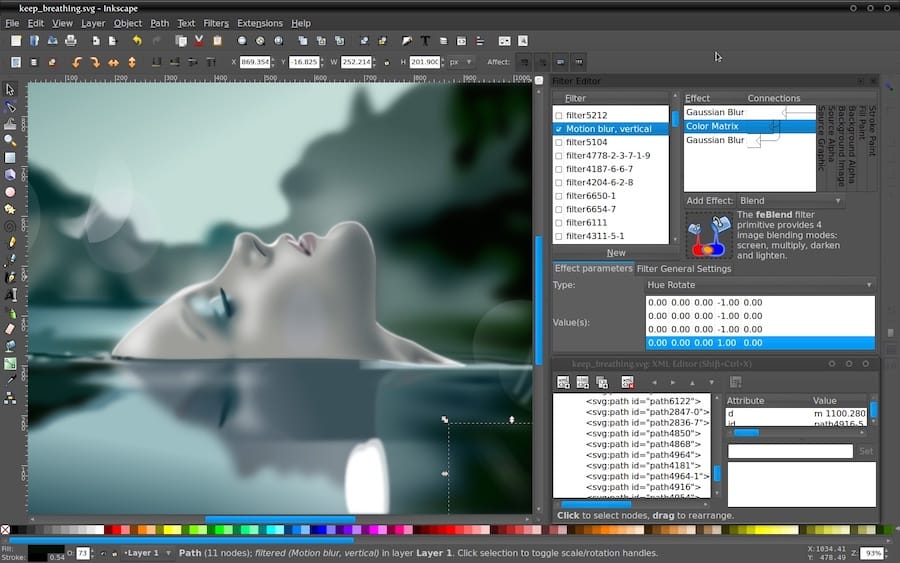
Step 3.5: Keep Inkscape Updated via Flatpak
flatpak updateWhy this matters: Unlike DNF5, running sudo dnf5 upgrade does not update Flatpak applications. You must run flatpak update separately. Setting a reminder or adding this to a cron job keeps your Flatpak-installed apps patched with the latest security and feature updates.
Step 4: Install Inkscape on Fedora 44 via Snap (Alternative Method)
Snap is a universal Linux packaging format maintained by Canonical. It works on Fedora but requires manual setup because Fedora does not ship snapd by default — Red Hat and Fedora officially push Flatpak as the preferred universal packaging solution.
Use Snap only if you already manage Snap packages across multiple distributions and want consistency, or if a specific workflow depends on it.
Step 4.1: Install and Enable snapd
sudo dnf5 install snapdAfter installation, enable the snapd socket and service:
sudo systemctl enable --now snapd.socketCreate the required symbolic link:
sudo ln -s /var/lib/snapd/snap /snapWhy the symlink? Snap assumes a /snap directory exists at the filesystem root. Fedora does not create this by default because it does not ship snapd. Without the symlink, Snap cannot mount its loop-device packages and will fail with a path resolution error.
After these steps, log out and log back in (or restart) to ensure your $PATH updates to include Snap’s binary directory.
Step 4.2: Install Inkscape via Snap
sudo snap install inkscapeExpected output:
inkscape x.x.x from Inkscape Project installedStep 4.3: Verify the Snap Installation
snap list inkscapeExpected output:
Name      Version  Rev   Tracking  Publisher          Notes
inkscape  1.x.x    xxx   latest    inkscape           -
Step 5: Choose the Right Installation Method
All three methods install a working copy of Inkscape, but they serve different use cases. Here is a direct comparison to help you decide:
| Method | Best For | Version | Disk Usage | Update Command |
|---|---|---|---|---|
| DNF5 | Daily use, speed, system integration | Fedora repo build | Smallest | sudo dnf5 upgrade inkscape |
| Flatpak | Latest features, sandboxed installs | Latest upstream | Larger | flatpak update |
| Snap | Multi-distro consistency | Latest upstream | Larger | sudo snap refresh inkscape |
Sysadmin recommendation: For a standard Fedora 44 Workstation, start with DNF5. If you need a feature that the repo version does not yet include, switch to Flatpak. Snap adds unnecessary complexity on Fedora and is the last resort for edge-case scenarios.
Step 6: Post-Installation — Configure Inkscape on Fedora 44
Installing the binary is only the beginning. A few targeted configuration steps significantly improve your Inkscape experience on Fedora 44.
Step 6.1: Install Additional Extensions
sudo dnf5 install inkscape-extensionsWhy? The core Inkscape package ships a minimal set of extensions. The inkscape-extensions package adds support for additional export formats (DXF, EMF), path manipulation effects, and automation tools that many design and engineering workflows depend on.
Step 6.2: Tune Memory Usage for Large SVG Files
Open Inkscape, navigate to Edit > Preferences > Behavior > Undo, and reduce the Undo history steps from the default 100 to 30–50.
Why? Each undo step stores a full copy of the document state in RAM. On complex SVG files with hundreds of nodes, a 100-step history can silently consume 500MB to 1GB of memory. Reducing it to 30–50 steps keeps memory usage manageable without meaningfully limiting your editing flexibility.
Step 6.3: Set Inkscape as Your Default SVG Handler
In GNOME Files, right-click any .svg file, choose Open With > Other Application, select Inkscape, and check Always use for this file type.
Why? Without this step, GNOME opens SVG files in a browser (Firefox or GNOME Web) by default. Setting Inkscape as the handler means double-clicking any SVG opens it ready for editing, not for passive viewing.
Step 6.4: Verify Wayland Rendering
Launch Inkscape and check the title bar for the version number. Navigate to a complex SVG and zoom in and out aggressively.
Why? Fedora 44 defaults to the Wayland display server. Inkscape uses GTK3/GTKmm which supports Wayland natively, but some GPU driver configurations can cause canvas tearing or rendering glitches at first run. If you see visual artifacts, see the troubleshooting section below.
Troubleshooting Common Installation Errors on Fedora 44
Error 1: “No match for argument: inkscape”
Cause: The package cache is stale or the Fedora repository is not enabled.
Fix:
sudo dnf5 upgrade --refresh
sudo dnf5 install inkscape
The --refresh flag forces DNF5 to rebuild its cache from live repository mirrors, which resolves stale metadata issues.
Error 2: Flatpak Install Fails — “No remote refs found”
Cause: The Flathub remote was not added correctly or is disabled.
Fix:
flatpak remote-add --if-not-exists flathub https://dl.flathub.org/repo/flathub.flatpakrepo
flatpak remote-modify --enable flathub
flatpak install flathub org.inkscape.Inkscape
Also verify your internet connection can reach dl.flathub.org.
Error 3: Inkscape Crashes or Shows Blank Canvas on Wayland
Cause: Some GPU driver versions under kernel 6.19 have incomplete Wayland compositing support.
Fix: Force Inkscape to use the X11 backend via XWayland:
GDK_BACKEND=x11 inkscapeWhy this works: Setting GDK_BACKEND=x11 tells GTK to use the X11 rendering path through XWayland instead of the native Wayland compositor protocol. This bypasses any GPU driver-level Wayland bugs while you wait for an updated driver package.
To make this permanent, create a wrapper script:
echo '#!/bin/bash
GDK_BACKEND=x11 /usr/bin/inkscape "$@"' | sudo tee /usr/local/bin/inkscape-xwayland
sudo chmod +x /usr/local/bin/inkscape-xwayland
Error 4: “snap: command not found” After Installing snapd
Cause: The Snap binary directory was not added to your $PATH yet.
Fix: Log out and log back in, or source the profile manually:
source /etc/profile.d/snapd.shWhy? Snapd modifies $PATH through /etc/profile.d/snapd.sh, which only loads during a new login session. Your current shell session does not inherit the change until you reload the profile or start a new session.
Error 5: Inkscape Opens But Extensions Are Missing
Cause: The inkscape-extensions package was not installed, or the Flatpak version needs extensions updated separately.
Fix (DNF5):
sudo dnf5 install inkscape-extensionsFix (Flatpak): Extensions for the Flatpak version are bundled in the main package. If specific extensions are missing, verify the Flatpak is fully updated:
flatpak update org.inkscape.InkscapeHow to Uninstall Inkscape on Fedora 44
If you need to remove Inkscape or switch from one installation method to another, clean removal matters.
DNF5 removal:
sudo dnf5 remove inkscape
sudo dnf5 autoremove
Flatpak removal:
flatpak uninstall org.inkscape.InkscapeSnap removal:
sudo snap remove inkscapeWhy use the package manager to remove — not rm? Package managers track every file an application installs across the entire filesystem. Manually deleting a binary leaves configuration files, cached data, and shared library references scattered across your system. The manager’s remove command handles all of it cleanly and updates the package database. The dnf5 autoremove command additionally removes orphaned dependency packages that were only installed to support Inkscape.
Congratulations! You have successfully installed Inkscape. Thanks for using this tutorial for installing Inkscape free and open-source vector graphics editor on Fedora 44 Linux system. For additional help or useful information, we recommend you check the Inkscape website.
[su_box title=”VPS Manage Service Offer” style=”bubbles” box_color=”#000000″ radius=”10″]If you don’t have time to do all of this stuff, or if this is not your area of expertise, we offer a service to do “VPS Manage Service Offer”, starting from $10 (Paypal payment). Please contact us to get the best deal![/su_box]
