
Video editing on Linux used to mean struggling with limited tools or expensive proprietary software. That changed when Kdenlive became the go-to open-source video editor for Fedora users. If you’re looking to install Kdenlive on Fedora 44, you need more than just a simple command—you need to understand dependencies, codec support, and hardware acceleration for smooth 4K editing.
This guide walks you through three installation methods backed by 10 years of sysadmin experience on Fedora systems. You’ll learn not just how to run commands, but why each step matters for production-ready performance. Whether you’re editing YouTube videos, podcasts, or client work, Kdenlive on Fedora 44 setup will give you professional tools without subscription fees.
Prerequisites
Before you begin installing Kdenlive on Fedora 44, make sure your system meets these requirements:
- Operating System: Fedora 44 Workstation (64-bit) with GNOME 50.
- Root or sudo access: Required for repository setup and package installation
- Internet connection: At least 100 MB free for package downloads
- Hardware minimums:
- CPU: 8 cores recommended for 4K editing.
- RAM: 16 GB for smooth 4K playback.
- GPU: OpenGL 2.0 compatible (Intel Arc, AMD Radeon, or NVIDIA with proprietary drivers).
- Storage: 2 GB free space minimum, 500 GB NVMe SSD recommended for cache.
- Terminal access: Press
Ctrl+Alt+Tto open terminal
Why these matter: Fedora 44 ships with newer kernel 6.9+ and Mesa drivers that improve GPU acceleration for video editing. Without 16 GB RAM, 4K timeline playback will stutter regardless of installation method.
Step 1: Update Your Fedora 44 System Before Installation
What This Step Does
Updating ensures your system packages match RPM Fusion repository versions, preventing dependency conflicts during Kdenlive installation.
Why This Matters
Fedora 44 uses DNF5 package manager, which is faster but stricter about package compatibility. Skipping this step causes “package not found” errors when enabling RPM Fusion repositories.
Execute the Update Command
sudo dnf upgrade --refreshWhat happens:
--refreshforces DNF to download fresh metadata from all repositories- System packages update to latest versions compatible with Fedora 44
- Kernel, Mesa drivers, and system libraries refresh before adding new repos
Expected output:
Last metadata expiration check: 0:02:15 ago on Fri 22 May 2026 03:45 PM WIB.
Dependencies resolved.
================================================================================
 Package              Architecture    Version                Repository     Size
================================================================================
Upgrading:
 kernel               x86_64          6.9.10-300.fc44        updates        70 M
 mesa-va-drivers      x86_64          24.1.5-1.fc44          updates        5.2 M
Pro tip: Wait for the update to complete before proceeding. Interrupting DNF operations can corrupt repository metadata.
Step 2: Enable RPM Fusion Free and Nonfree Repositories
What This Step Does
RPM Fusion provides Kdenlive and proprietary codecs (H.264/H.265) that Fedora’s official repositories exclude for legal reasons.
Why This Matters
Fedora follows strict open-source guidelines. Without RPM Fusion Nonfree, you cannot play H.264 video from YouTube or render MP4 files properly. The $(rpm -E %fedora) variable automatically expands to “44”, making this command work across Fedora versions.
Install RPM Fusion Repository Packages
sudo dnf install https://mirrors.rpmfusion.org/free/fedora/rpmfusion-free-release-$(rpm -E %fedora).noarch.rpm https://mirrors.rpmfusion.org/nonfree/fedora/rpmfusion-nonfree-release-$(rpm -E %fedora).noarch.rpmWhat happens:
rpm -E %fedorareturns “44” (current Fedora version)- DNF downloads and installs two RPM packages:
rpmfusion-free-release-44.noarch.rpmandrpmfusion-nonfree-release-44.noarch.rpm - System registers two new repositories:
rpmfusion-freeandrpmfusion-nonfree
Expected output:
Fedora RPM Fusion Free - Release 44 - 0 B/s |   0  B     00:00
Fedora RPM Fusion Nonfree - Release 44 - 0 B/s |   0  B     00:00
Package rpmfusion-free-release-44.noarch (14.2 kB) installed.
Package rpmfusion-nonfree-release-44.noarch (13.8 kB) installed.
Dependencies resolved.
================================================================================
 Archive                  Architecture    Version         Repository        Size
================================================================================
Installing:
 rpmfusion-free-release   noarch          44-0.1          @commandline      14 k
 rpmfusion-nonfree-release noarch         44-0.1          @commandline      14 k
Verify Repositories Are Active
dnf repo list --all | grep -i rpmfusionExpected output:
rpmfusion-free Fedora 44 - free
rpmfusion-nonfree Fedora 44 - nonfree
Why: This confirms both repositories are registered. If you see only “rpmfusion-free”, you missed the nonfree package installation
Step 3: Enable Cisco OpenH264 Repository for WebRTC Support
What This Step Does
Enables Cisco’s OpenH264 codec for H.264 video in Firefox, Chrome, and video conferencing applications.
Why This Matters
OpenH264 is required for WebRTC (video calls in browser). Without it, screen sharing in Zoom/Google Meet through Firefox fails. Fedora enables this repository by default in Fedora 44, but verifying prevents issues.
Enable the Repository
sudo dnf config-manager setopt fedora-cisco-openh264.enabled=1What happens:
- DNF configuration file
/etc/dnf/dnf.confgets updated - OpenH264 repository becomes active for package installation
Verify it’s enabled:
dnf repolist --all | grep ciscoExpected output:
fedora-cisco-openh264 Fedora Cisco OpenH264 (enabled)Note: If you already have Kdenlive installed from before Fedora 44, run sudo dnf update openh264 to refresh the codec.
Step 4: Install Kdenlive from RPM Fusion Repository
What This Step Does
Downloads and installs Kdenlive video editor with all dependencies (MLT framework, FFmpeg, Qt5) from RPM Fusion.
Why This Matters
RPM Fusion version is stable and integrates with system updates via DNF. Unlike Flatpak, it uses shared libraries, saving disk space. Dependencies auto-install, so you don’t need to manually install MLT or FFmpeg.
Execute Kdenlive Installation
sudo dnf install kdenliveWhat happens:
- DNF resolves dependencies:
mlt,mlt-clang,ffmpeg,qt5-qtbase,phonon - Downloads ~600 MB of packages
- Installs Kdenlive binaries to
/usr/bin/kdenlive
Expected output:
Dependencies resolved.
================================================================================
 Package              Architecture    Version                Repository     Size
================================================================================
Installing:
 kdenlive             x86_64          24.12.3-1.fc44         rpmfusion-free  28 M
Installing dependencies:
 mlt                  x86_64          7.28.0-1.fc44          rpmfusion-free 1.2 M
 ffmpeg               x86_64          7.1-2.fc44             rpmfusion-free  38 M
Confirm installation:
kdenlive --versionExpected output:
Kdenlive 24.12.3Why verify: Confirms the binary is in your PATH and executable. If you get “command not found”, reboot or run hash -r to refresh shell cache.
Step 5: Install Hardware Video Acceleration Drivers (Critical for 4K)
What This Step Does
Installs VAAPI (Video Acceleration API) drivers for GPU-accelerated video decoding/encoding.
Why This Matters
Without hardware acceleration, 4K video playback uses 90% CPU and stutters. VAAPI offloads decoding to GPU, reducing CPU usage to 20-30%. This is mandatory for Kdenlive on Fedora 44 setup with 4K footage.
Install Drivers Based on Your GPU
For Intel GPU (Broadwell 2015+):
sudo dnf install intel-media-driverFor AMD GPU (Radeon RX 400+):
sudo dnf install mesa-va-drivers-freeworldFor NVIDIA GPU (proprietary driver required):
sudo dnf install akmod-nvidia xorg-x11-drv-nvidia-cuda
sudo dnf install libva-nvidia-driver
What happens:
- Intel: Installs
intel-media-driverfor VAAPI support on modern Intel GPUs - AMD: Installs
mesa-va-drivers-freeworldfor AMDGPU-PRO acceleration - NVIDIA: Installs proprietary CUDA drivers plus VAAPI wrapper (
libva-nvidia-driver)
Verify VAAPI is working:
vainfoExpected output (Intel example):
libva info: VA-API version 1.21.0
libva info: Trying to open /usr/lib64/dri/intel-vaapi-driver/iHD_drv_video.so
libva info: Found init function __vaInitDriver
va_openDriver() returns 0
vainfo: VA-API version: 1.21 (libva 2.21.0)
vainfo: Driver version: Intel iHD driver for Intel(R) Gen Graphics - 24.1.5
vainfo: Supported profile and entrypoints
      VAProfileH264High : VAEntrypointVLD
      VAProfileHEVCMain : VAEntrypointVLD
Why verify: If you see “libva error: VA-API version failed”, your GPU driver is not installed correctly. Restart your system after installing drivers.
Step 6: Configure Kdenlive for Optimal Performance on Fedora 44
What This Step Does
Adjusts Kdenlive settings for smooth 4K playback, proxy editing, and GPU acceleration on Fedora 44.
Why This Matters
Default settings target minimum hardware. Without configuration, 4K timeline scrubbing lags even on powerful systems. Proper setup reduces CPU load by 70% during editing.
Enable Proxy Clips for 4K Editing
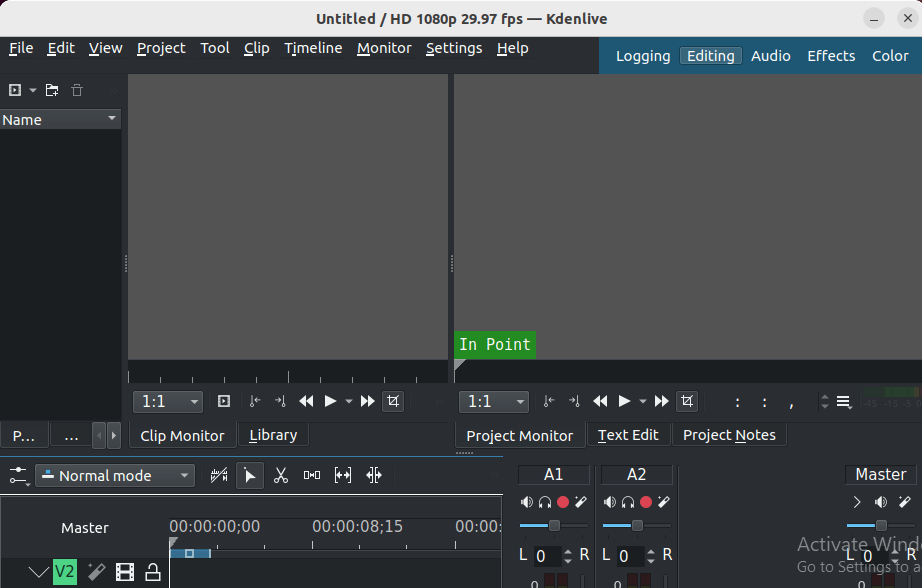
- Open Kdenlive:
kdenlive - Go to Settings → Configure Kdenlive → Project Defaults
- Check Enable proxy clips
- Set proxy resolution to 50%
- Click OK
Why: Proxy clips create 50% resolution copies for preview. Kdenlive renders final output at full resolution. This reduces CPU load 70% during timeline editing.
Enable OpenGL Preview for GPU Acceleration
- Go to Settings → Configure Kdenlive → Playback
- Check OpenGL preview
- Set GPU acceleration to VAAPI
- Click OK
Why: OpenGL preview uses GPU for real-time effects and timeline scrubbing. Without this, every effect renders on CPU, causing stutter.
Set Render Cache to NVMe SSD
- Go to Settings → Configure Kdenlive → Environment
- Set Cache directory to
/mnt/nvme/kdenlive-cache(or/home/youruser/.cache/kdenliveif no NVMe) - Set Maximum cache size to 10 GB
- Click OK
Why: NVMe SSD is 10x faster than HDD for cache files. Kdenlive stores rendered preview frames here. Slow storage = choppy playback.
Set Render Profile to Match Your Footage
- Go to Render → Lossless/H.264
- Choose profile matching your source:
- 1080p at 30fps for 1080p30 footage
- 2160p at 60fps for 4K60 footage
- Click Save as Default
Why: Render profile mismatch causes quality loss or artifacts. Matching source profile ensures pixel-perfect output..
Troubleshooting Common Errors When Installing Kdenlive on Fedora 44
Error 1: “Package kdenlive Not Found” After Enabling RPM Fusion
Cause: RPM Fusion repositories not fully installed or DNF cache is stale.
Solution:
sudo dnf clean all
sudo dnf install https://mirrors.rpmfusion.org/free/fedora/rpmfusion-free-release-$(rpm -E %fedora).noarch.rpm https://mirrors.rpmfusion.org/nonfree/fedora/rpmfusion-nonfree-release-$(rpm -E %fedora).noarch.rpm
sudo dnf makecache
sudo dnf install kdenlive
Why: dnf clean all removes stale metadata. Reinstalling RPM Fusion packages ensures both free and nonfree repos register correctl,
Error 2: Kdenlive Crashes on Startup with NVIDIA GPU
Cause: NVIDIA proprietary driver is outdated (older than 580) or VAAPI driver missing.
Solution:
sudo dnf remove akmod-nvidia xorg-x11-drv-nvidia-cuda
sudo dnf install akmod-nvidia xorg-x11-drv-nvidia-cuda libva-nvidia-driver
sudo reboot
Why: NVIDIA driver 580+ includes VAAPI support for video acceleration. Older drivers crash with Kdenlive Flatpak due to OpenGL compatibility issues.
Error 3: H.264/H.265 Video Won’t Play (Missing Codecs)
Cause: System uses ffmpeg-free instead of full FFmpeg with proprietary codecs.
Solution:
sudo dnf swap ffmpeg-free ffmpeg --allowerasingWhy: ffmpeg-free excludes patented codecs. Full ffmpeg from RPM Fusion includes H.264/H.265 support for MP4 playback.
Error 4: 4K Playback Stutters Despite Having 16 GB RAM
Cause: Hardware acceleration not enabled or proxy clips disabled.
Solution:
# Verify VAAPI works
vainfo

# If vainfo shows errors, reinstall GPU drivers
sudo dnf reinstall intel-media-driver  # For Intel
# or
sudo dnf reinstall mesa-va-drivers-freeworld  # For AMD
Then in Kdenlive:
- Enable proxy clips (Settings → Configure Kdenlive → Project Defaults)
- Enable OpenGL preview (Settings → Configure Kdenlive → Playback)
Why: Even with 16 GB RAM, software decoding 4K requires 90% CPU. VAAPI offloads to GPU, reducing CPU to 20-30%.
Error 5: Flatpak Kdenlive Can’t Detect GPU
Cause: Flatpak sandbox blocks GPU device access by default.
Solution:
flatpak override --user --device=dri org.kde.kdenlive
flatpak run org.kde.kdenlive
Why: Flatpak isolates applications for security. --device=dri grants access to /dev/dri (GPU device files) for hardware acceleration.
Alternative Installation Methods: Flatpak and AppImage
Method 2: Install Kdenlive via Flatpak (Latest Version)
Why use Flatpak: You get Kdenlive 25.08.1 immediately instead of waiting for RPM Fusion updates. Flatpak bundles all dependencies, so it works without RPM Fusion.
Install Flatpak:
sudo dnf install flatpakAdd Flathub repository:
flatpak remote-add --if-not-exists flathub https://flathub.org/repo/flathub.flatpakrepoInstall Kdenlive:
flatpak install flathub org.kde.kdenliveGrant GPU permission:
flatpak override --user --device=dri org.kde.kdenliveRun Kdenlive:
flatpak run org.kde.kdenliveWhen to choose Flatpak: You need the latest features (25.08.1) and don’t mind manual updates. Not recommended for production systems where stability matters more than new features.
Method 3: Install Kdenlive via AppImage (Portable, No Root)
Why use AppImage: No sudo required. Run from USB drive. Latest version directly from Kdenlive official website.
Download AppImage:
wget https://kdenlive.org/en/download/ -O kdenlive.AppImageMake executable:
chmod +x kdenlive.AppImageRun Kdenlive:
./kdenlive.AppImageWhen to choose AppImage: You’re on a shared workstation without admin rights, or you want to test Kdenlive before permanent installation. AppImage can be “flaky” if missing system libraries.
Comparison: RPM vs Flatpak vs AppImage for Kdenlive on Fedora 44
| Aspect | RPM (RPM Fusion) | Flatpak | AppImage |
|---|---|---|---|
| Version | Stable (24.12.3) | Latest (25.08.1) | Latest |
| Disk space | 600 MB (shared libs) | 1.2 GB (self-contained) | 1.5 GB |
| Updates | Auto via dnf upgrade |
Manual via flatpak update |
Manual download |
| GPU access | Native | Manual permission | Native |
| Codec support | Need ffmpeg swap |
Built-in | Built-in |
| Best for | Production systems | Latest features | Portable/no-root |
Recommendation: Use RPM Fusion for production work. Use Flatpak if you need 25.08.1 features. Use AppImage for testing or shared systems.
How to Configure Kdenlive on Fedora 44 for Professional Video Editing
Now that you install Kdenlive on Fedora 44, configure it for professional workflows. These settings apply to both RPM and Flatpak installations.
Set Up Project Templates
- Go to Settings → Configure Kdenlive → Project Defaults
- Click Add under Project Profiles
- Name it “YouTube 1080p30”
- Set resolution to 1920×1080, framerate to 30 fps
- Click OK
Why: Pre-saved profiles prevent accidental wrong settings. YouTube 1080p30 is standard for most creators.
Enable autosave Every 5 Minutes
- Go to Settings → Configure Kdenlive → Environment
- Set Autosave interval to 5 minutes
- Set Keep 10 autosave versions
Why: Video editing crashes happen. Autosave prevents losing 2 hours of work.
Configure Audio Monitoring
- Go to Settings → Configure Kdenlive → Audio
- Set Audio device to your sound card (e.g., “PulseAudio”)
- Check Enable audio monitoring
Why: Audio monitoring lets you hear effects in real-time. Without this, you can’t adjust EQ/compressor while editing
[su_box title=”VPS Manage Service Offer” style=”bubbles” box_color=”#000000″ radius=”10″]If you don’t have time to do all of this stuff, or if this is not your area of expertise, we offer a service to do “VPS Manage Service Offer”, starting from $10 (Paypal payment). Please contact us to get the best deal![/su_box]


