If you work with SVG files, logos, or technical diagrams on Linux, you need a solid vector editor. Inkscape is the go-to choice for Linux users at every skill level, from hobbyists sketching icons to sysadmins building network diagrams. This guide walks you through how to install Inkscape on Ubuntu 26.04 LTS using four different methods so you can pick the one that fits your workflow.
Ubuntu 26.04 LTS, codenamed Resolute Raccoon, ships with Inkscape 1.4.3 natively in its main APT repository. That is a big deal compared to earlier LTS releases, where the default repo lagged well behind the current upstream version. If you are on a fresh 26.04 install, you are in a good position.
By the end of this tutorial, you will have Inkscape running on your system, you will understand which installation method is best for your situation, and you will know how to keep it updated or remove it cleanly.
Prerequisites
Before you start, make sure your system meets the following requirements:
- Operating system: Ubuntu 26.04 LTS (Resolute Raccoon), 64-bit
- User permissions: A user account with
sudoprivileges - Internet connection: Required to download packages
- Minimum hardware: 2 GHz dual-core CPU, 4 GB RAM, 10 GB free disk space
- Terminal access: You need a working terminal, either GNOME Terminal, Tilix, or SSH access to the machine
- Package manager status: APT should be functional and not locked by another process
If you are running Ubuntu on a VM or a headless server, note that Inkscape is a GUI application. You will need a desktop environment or X11 forwarding over SSH to actually use it after installation.
Understanding Your Options Before You Install Inkscape on Ubuntu 26.04
Most tutorials jump straight into commands without explaining what you are actually doing to your system. That is a bad habit, especially on production machines.
On Ubuntu 26.04, you have four ways to install Inkscape. Each method has trade-offs in terms of version freshness, system integration, sandbox isolation, and update behavior.
| Method | Version on 26.04 | Auto-Updates | Sandboxed | Best For |
|---|---|---|---|---|
| APT (Default Repo) | 1.4.3 | Manual | No | Most users |
| PPA (Inkscape Stable) | 1.4.2 | Manual | No | Ubuntu 22.04/24.04 users |
| Snap | 1.4.3 | Yes | Yes (AppArmor) | Hands-off update preference |
| Flatpak (Flathub) | 1.4.3 | Manual trigger | Yes (bubblewrap) | Cross-distro parity, ARM |
Key insight for Ubuntu 26.04 users: The default APT repository already ships Inkscape 1.4.3, which is actually newer than what the stable PPA currently provides for this release (1.4.2). This means the PPA offers zero advantage on 26.04. Use APT unless you have a specific reason not to.
Step 1: Update Your System Before Installing Anything
Before installing any package on Ubuntu, you should refresh the local APT package index and apply any pending upgrades. Skipping this step is one of the most common reasons installations fail or pull outdated dependency versions.
Why This Matters
APT stores a local cache of package metadata. If that cache is stale, APT may try to install packages that conflict with newer libraries already on your system. Updating first ensures all dependency resolution happens against the current state of your repositories.
sudo apt update && sudo apt upgrade -yWhat this does:
sudo apt updatefetches the latest package lists from all configured repositoriessudo apt upgrade -yapplies all pending upgrades without asking for confirmation- Running both together as a single command is a time-saving sysadmin habit
Expected output (partial):
Hit:1 http://archive.ubuntu.com/ubuntu resolute InRelease
Get:2 http://archive.ubuntu.com/ubuntu resolute-updates InRelease
Fetched 3,412 kB in 4s
Reading package lists... Done
Building dependency tree... Done
Once the upgrade finishes, you are ready to proceed with installation.
Step 2: Install Inkscape Using APT (Recommended Method)
This is the recommended path for the vast majority of Ubuntu 26.04 users. The default repository ships a tested, up-to-date build that integrates cleanly with your system’s GTK runtime, font stack, and MIME type associations.
Step 2.1: Install the Inkscape Package
sudo apt install inkscape -yWhat this does:
sudo apt install inkscapetells APT to download and install the Inkscape package and all its dependencies- The
-yflag automatically confirms the installation prompt, which is useful on remote SSH sessions where interactive prompts are inconvenient
APT will pull in supporting libraries including libinkscape, Python 3, and several image processing libraries. This is expected behavior.
Step 2.2: Verify the Installed Version
inkscape --versionWhy verify? Version confirmation is not just a formality. It tells you the exact build you installed and surfaces any silent failures where the wrong version was pulled from a conflicting source.
Expected output:
Inkscape 1.4.3 (0d15f75042, 2025-12-25)If you see a version number older than 1.4.x, run apt-cache policy inkscape to check which repository is supplying the package.
Step 2.3: Hold the Package Version (Optional, Sysadmin Tip)
On creative workstations where project stability matters, an unexpected Inkscape upgrade can change default behaviors or introduce regressions in SVG export.
sudo apt-mark hold inkscapeWhat this does: Pins the installed Inkscape version so apt upgrade will not touch it until you explicitly release the hold. To undo this later, run sudo apt-mark unhold inkscape.
Step 3: Install Inkscape via the Official PPA
The Inkscape stable PPA is the recommended APT-based upgrade path for Ubuntu 22.04 and 24.04 users, where the default repository ships significantly older versions (1.1.2 and 1.2.2 respectively).
Important note for Ubuntu 26.04 users: The stable PPA currently provides Inkscape 1.4.2 for 26.04, which is actually one patch behind the 1.4.3 build in the default repo. Only follow this method if you are running an earlier LTS release.
Step 3.1: Install the Required Prerequisite
sudo apt install software-properties-common -yWhy this is needed: The add-apt-repository command lives inside the software-properties-common package. Desktop Ubuntu installations typically include it already, but minimal server installs and cloud images often do not.
Step 3.2: Add the Inkscape Stable PPA
sudo add-apt-repository ppa:inkscape.dev/stable -yWhat this does: This command adds the Inkscape team’s official Launchpad PPA to your APT sources list, imports the GPG signing key, and updates the package cache automatically on Ubuntu 26.04. The signing key ensures that every package you download from this PPA is verified against a known trusted key.
Step 3.3: Update the Package Index and Install
sudo apt update
sudo apt install inkscape -y
Why run apt update again? Even though add-apt-repository triggers a partial refresh, running apt update manually ensures the new PPA metadata is fully indexed before installation.
Step 3.4: Confirm the Source of the Package
apt-cache policy inkscapeWhy this matters: When multiple sources exist (default repo + PPA), this command shows you exactly which repository won. You should see the PPA URL in the version table.
Expected output (Ubuntu 24.04 example):
inkscape:
  Installed: 1:1.4.3+202512261035+0d15f75042~ubuntu24.04.1
  Candidate: 1:1.4.3+202512261035+0d15f75042~ubuntu24.04.1
  Version table:
 *** 1:1.4.3+... 500
        500 https://ppa.launchpadcontent.net/inkscape.dev/stable/ubuntu noble/main amd64
Step 4: Install Inkscape via Snap
Snap is Ubuntu’s native containerized package format. It is pre-installed on all Ubuntu 26.04 desktop systems and handles updates automatically in the background. This method is best for users who want the latest Inkscape build without managing update commands manually.
Step 4.1: Check if Snap is Available
snap --versionIf you are on a minimal or server install and the command is not found, install Snap first:
sudo apt install snapd -y
sudo systemctl enable --now snapd
Step 4.2: Install Inkscape via Snap
sudo snap install inkscapeWhat this does: Snap downloads a self-contained bundle that includes Inkscape and all its required runtime libraries. Unlike APT, Snap does not rely on your system’s shared libraries, which means Inkscape can run even if you have an unusual system configuration.
Expected output:
inkscape 1.4.3 from Inkscape Project (inkscape✓) installedStep 4.3: Confirm the Snap Version
snap info inkscapeWhy use snap info instead of --version? This command reveals the full package metadata: version number, install channel (stable/candidate/edge), confinement type, publisher, and available update channels. It is more informative than a simple version string.
Step 4.4: Control Automatic Snap Updates (Optional)
Snap updates run automatically. On managed workstations, this may not be desirable. You can temporarily pause all snap updates:
sudo snap set system refresh.hold=$(date --date='today + 60 days' +%Y-%m-%dT%H:%M:%S%:z)Why this is useful: This holds all snap updates for 60 days, giving you time to test a new Inkscape release in a staging environment before it reaches production workstations.
Step 5: Install Inkscape via Flatpak
Flatpak is a distribution-agnostic package format that runs applications inside a bubblewrap sandbox. It is not installed by default on Ubuntu 26.04, but it is the best option for ARM64 systems, cross-distro consistency, or environments where security isolation is a priority.
Step 5.1: Install Flatpak
sudo apt install flatpak -yWhy this step is necessary: Ubuntu made Snap its default containerized app format. Flatpak is a separate ecosystem maintained by the broader Linux community. Installing it manually opts your system into that ecosystem.
Step 5.2: Add the Flathub Repository
sudo flatpak remote-add --if-not-exists flathub https://dl.flathub.org/repo/flathub.flatpakrepoWhat this does:
- Registers Flathub as a trusted app source at the system level
--if-not-existsis a safety flag that makes this command idempotent. Running it twice will not throw an error or duplicate the remote entry, which matters when you include this in deployment scripts or Ansible playbooks
Verify the remote was added:
flatpak remotesExpected output:
Name    Options
flathub system,oci
Step 5.3: Install Inkscape from Flathub
sudo flatpak install flathub org.inkscape.Inkscape -yWhat this does: Flatpak downloads Inkscape along with the FreeDesktop runtime it depends on. The first install is larger than an APT install (roughly 400 to 500 MB) because Flatpak bundles runtime libraries inside the sandbox rather than relying on system libraries.
Verify the install:
flatpak run org.inkscape.Inkscape --versionExpected output:
Inkscape 1.4.3 (0d15f75042, 2025-12-25)Step 6: Launch Inkscape on Ubuntu 26.04
Once installed, you can start Inkscape from the terminal or from the GNOME application launcher. The method you use to launch it depends on how you installed it.
Launching from the Terminal
For APT and PPA installs:
inkscapeFor Snap installs:
snap run inkscapeFor Flatpak installs:
flatpak run org.inkscape.InkscapePro tip from the terminal: Launching Inkscape from the terminal instead of the GUI is useful when you are debugging. All runtime warnings, GPU errors, and Python extension errors print directly to your terminal session. When a user reports that Inkscape is “behaving strangely,” this is always my first diagnostic step.
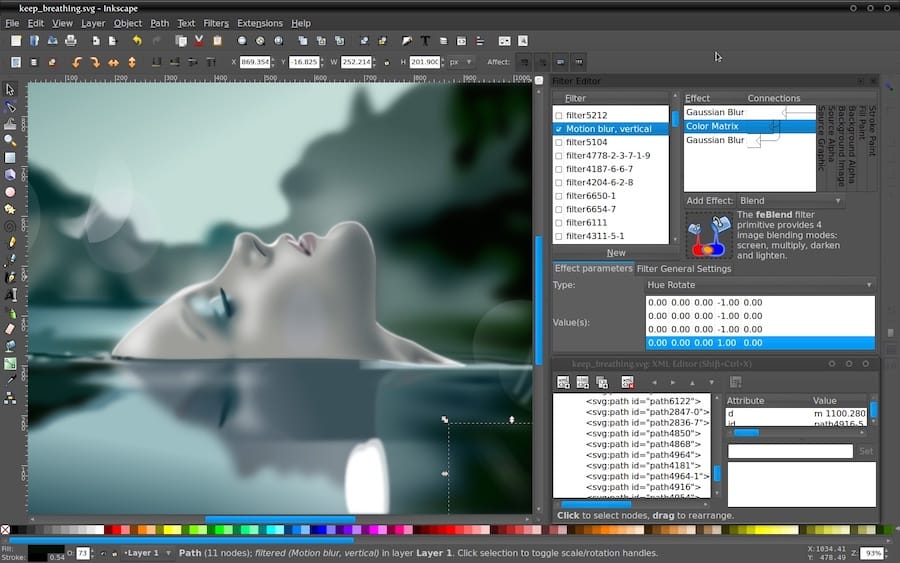
Launching from the GNOME Activities Menu
- Press the Super key (Windows key) to open the Activities overlay
- Type Inkscape in the search bar
- Click the Inkscape icon to launch it
For Flatpak installs, the desktop launcher may not appear immediately after installation. Either log out and back in or restart the GNOME shell (Alt+F2, type r, press Enter on X11).
How to Update and Remove Inkscape
Knowing how to maintain a package is just as important as knowing how to install it. Here is how to handle both for each installation method.
Updating Inkscape
APT and PPA:
sudo apt update && sudo apt install --only-upgrade inkscape -ySnap:
sudo snap refresh inkscapeFlatpak:
sudo flatpak update org.inkscape.Inkscape -yWhy stay updated? Inkscape 1.4.3 shipped with over 100 bug and crash fixes compared to 1.4.2. Staying current reduces exposure to known SVG rendering bugs and export issues that can corrupt files silently.
Removing Inkscape
APT:
sudo apt remove inkscape -y
sudo apt autoremove -y
Use sudo apt purge inkscape -y if you also want to delete configuration files from /etc. Note that personal settings stored in ~/.config/inkscape/ are not removed by either command. Delete that directory manually if you want a clean slate:
rm -rf ~/.config/inkscapeSnap:
sudo snap remove inkscapeFlatpak:
sudo flatpak uninstall org.inkscape.Inkscape -y
sudo flatpak uninstall --unused -y
Flatpak leaves user data at ~/.var/app/org.inkscape.Inkscape/. Remove it manually if needed:
rm -rf ~/.var/app/org.inkscape.InkscapePost-Installation: First-Run Configuration Tips
A fresh Inkscape install works out of the box, but a few settings make a real difference in daily use.
Set your default document units: Go to Edit > Preferences > Interface > Units and set the unit to px for web work or mm for print. By default, Inkscape uses SVG user units, which cause unexpected scaling when you export files for web or print if left unconfigured.
Enable GPU acceleration: Go to Edit > Preferences > Rendering and check Use OpenGL. Ubuntu 26.04 ships with improved GTK4 and Mesa drivers that make OpenGL rendering noticeably smoother on complex files with many nodes.
Set Inkscape as your default SVG editor: Right-click any .svg file in the Files app, choose Open With, select Inkscape, and click Set as Default. Without this step, .svg files open in a browser, which renders them but does not allow editing.
Troubleshooting Common Inkscape Installation Issues
Error 1: “inkscape: command not found” After APT Install
Cause: The installation failed silently due to a broken dependency or interrupted download.
Fix:
sudo apt install -f
sudo apt install inkscape -y
The -f flag tells APT to fix broken packages before retrying. This resolves most incomplete install states caused by network interruptions.
Error 2: Snap Shows an Outdated Inkscape Version
Cause: You may be subscribed to the candidate or edge channel, which can sometimes trail the stable channel in terms of tested releases.
Fix:
sudo snap refresh inkscape --channel=stableWhy specify the channel? Snap channels operate independently. Explicitly switching to stable ensures you are on the fully tested release track, not a pre-release build.
Error 3: Flatpak Inkscape Cannot Access System Fonts
Cause: Flatpak’s bubblewrap sandbox intentionally blocks access to /usr/share/fonts on the host system. Inkscape falls back to bundled fonts, which may look different from your system font stack.
Fix: Install Flatseal (a Flatpak permissions manager) and grant Inkscape read access to the host filesystem font directories:
sudo flatpak install flathub com.github.tchx84.Flatseal -yThen open Flatseal, select Inkscape, and add /usr/share/fonts and ~/.local/share/fonts under Filesystem permissions.
Error 4: “Remote flathub already exists” When Adding Flathub
Cause: Flathub was already added to your system from a previous session or a prior software install.
Fix: This is not an error that needs fixing. Check your existing remotes:
flatpak remotesIf flathub is already listed, skip the remote-add step and proceed directly to flatpak install.
Error 5: Inkscape Crashes on Launch with GPU Errors
Cause: Outdated or unsupported Mesa/OpenGL drivers, common on older hardware or VMs with software rendering.
Fix: Launch Inkscape with GPU acceleration disabled:
inkscape --disable-gpuTo make this permanent, create a shell alias in your ~/.bashrc:
alias inkscape='inkscape --disable-gpu'Then reload your shell:
source ~/.bashrcCongratulations! You have successfully installed Inkscape. Thanks for using this tutorial for installing the Inkscape open-source vector graphics editor on the Ubuntu 26.04 LTS (Resolute Raccoon) system. For additional help or useful information, we recommend you check the official Inkscape website.
[su_box title=”VPS Manage Service Offer” style=”bubbles” box_color=”#000000″ radius=”10″]If you don’t have time to do all of this stuff, or if this is not your area of expertise, we offer a service to do “VPS Manage Service Offer”, starting from $10 (Paypal payment). Please contact us to get the best deal![/su_box]

