If you want to run your own media server on Fedora, Install Jellyfin on Fedora 44 is one of the best projects to start with. Jellyfin is free, open source, and built for people who want full control over their movies, shows, music, and metadata. Fedora 44 is a strong base for this because it stays current, but that also means you need to handle the install carefully, especially around RPM Fusion, firewalld, and SELinux.
This guide is written for beginner to intermediate Linux users, developers, and sysadmins who want a clean, repeatable setup. It follows a practical Linux server tutorial style, so every command comes with a clear reason for why it exists, not just what it does. That matters because media servers often fail in ways that are not obvious at first, such as missing codecs, blocked ports, or wrong file labels.
I will also keep the language simple and direct so you can follow it on a desktop, home lab box, or small server. If you are looking for How To Install Jellyfin Fedora 44 in a way that is safe, maintainable, and easy to troubleshoot later, this article covers the full path from system prep to first login.
Prerequisites
Before you start, make sure you have the basics ready. This keeps the install smooth and avoids errors halfway through.
- Fedora 44 installed and updated.
- A user account with sudo access.
- Internet access for package downloads.
- At least one media folder ready, such as
/mnt/media. - A browser on the same machine or another device on the network.
- Optional but helpful: a GPU if you want hardware transcoding later.
Step 1: Update Your System
Refresh package data
Run this first:
sudo dnf upgrade --refreshThis updates the package metadata and installs the latest system updates. You should do this first because Fedora moves fast, and older package data can create dependency issues during the Jellyfin install.
Why this matters
Updating first gives you a cleaner base and reduces the chance of conflict with ffmpeg, kernel packages, or firewall components. It also makes your Fedora 44 install closer to what current Jellyfin documentation expects.
Expected output
You should see DNF checking mirrors, resolving packages, and then applying updates. If the system is already current, DNF will tell you there is nothing to do.
Step 2: Enable RPM Fusion
Install the repository packages
Run:
sudo dnf install https://mirrors.rpmfusion.org/free/fedora/rpmfusion-free-release-$(rpm -E %fedora).noarch.rpm https://mirrors.rpmfusion.org/nonfree/fedora/rpmfusion-nonfree-release-$(rpm -E %fedora).noarch.rpmRPM Fusion is required because Jellyfin depends on ffmpeg, and Fedora’s official repositories do not ship the full version Jellyfin needs. Jellyfin’s own Linux documentation states that Fedora and other RPM-based systems should use RPM Fusion, and the official Jellyfin packages are no longer provided for these distributions.
Why this matters
Without RPM Fusion, Jellyfin may install incompletely or fail when it tries to pull in transcoding support. That means your server might run, but playback and transcoding can break later when you stream to a device that needs conversion.
Verify the repo
Check that the repos are active:
dnf repolist | grep rpmfusionYou should see both rpmfusion-free and rpmfusion-nonfree. If they do not appear, the next install step may fail because DNF cannot resolve the Jellyfin dependencies.
Step 3: Install Jellyfin
Install the main package
Now install Jellyfin:
sudo dnf install jellyfinThis package pulls in jellyfin-server, jellyfin-web, and jellyfin-firewalld automatically on Fedora-based systems supported by RPM Fusion. That is useful because you get the backend, the web interface, and the firewall service definition in one install path.
Why this matters
Using the meta-package reduces setup mistakes. If you install only part of the stack, you may end up with a service that starts but has no web UI or no firewall rules.
Check the installed package
You can confirm the install with:
rpm -qi jellyfin-serverThis shows version details, vendor info, and install status. It is a simple but useful check when you want to confirm that DNF completed the job cleanly.
Expected output
A successful install should end without dependency errors. DNF will show installed packages and may list jellyfin, jellyfin-server, jellyfin-web, and jellyfin-firewalld.
Step 4: Start the Service
Enable Jellyfin at boot
Run:
sudo systemctl enable --now jellyfinThis command starts Jellyfin immediately and also enables it to launch automatically after reboot. Jellyfin’s official install guidance recommends enabling and starting the service after package installation.
Why this matters
If you only start the service, it runs for the current session only. After a reboot, the server will be offline until you start it again, which is not what you want for a home media server.
Check service status
Use:
sudo systemctl status jellyfinA healthy service should show active (running). If it fails, the logs usually point to a missing dependency, a permission issue, or a SELinux denial.
Read the logs if needed
journalctl -u jellyfin -n 50This gives the last 50 log lines and is one of the fastest ways to find startup problems. For a sysadmin, this is the first place to look when a service misbehaves.
Step 5: Open the Firewall
Allow Jellyfin through firewalld
Run:
sudo firewall-cmd --permanent --add-service=jellyfin
sudo firewall-cmd --reload
Jellyfin ships a firewall service definition that opens the required ports for web access and discovery. The official Jellyfin documentation lists the service as the recommended method, and it covers ports like 8096, 8920, 1900, and 7359.
Why this matters
Fedora uses firewalld by default, so your server may work locally but stay hidden from other devices until you open the correct service. Using the Jellyfin service definition is safer than opening random ports by hand.
Confirm the rule
Check the enabled services:
sudo firewall-cmd --list-servicesYou should see jellyfin in the list. If not, the reload may not have completed or your active zone may be different from the one you edited.
Expected ports
- 8096 TCP for HTTP access.
- 8920 TCP for HTTPS access.
- 1900 UDP for discovery.
- 7359 UDP for auto-discovery.
Step 6: Set SELinux Contexts
Label your media folder
Fedora uses SELinux in enforcing mode, so file labels matter just as much as normal Unix permissions. If Jellyfin cannot read your media folder, it may look like a permission problem even when the folder owner looks correct.
Run:
sudo semanage fcontext -a -t jellyfin_content_t "/mnt/media(/.*)?"
sudo restorecon -Rv /mnt/media
Why this matters
semanage fcontext tells SELinux what label to use for that path. restorecon applies the label to the files that already exist, so the policy change actually takes effect on disk.
Check the labels
ls -Z /mnt/mediaYou should see SELinux labels that match the content type you assigned. If the label still looks wrong, Jellyfin may scan the library and show no media at all.
Why Fedora users should care
Fedora’s security model is one reason it is a strong server platform. The tradeoff is that you must handle labels carefully, especially for servers that read external or mounted storage.
Step 7: Fix File Permissions
Set group access
SELinux is not the only layer. Jellyfin also needs normal file permissions that let its service account read the files.
Use a shared group approach:
sudo groupadd media
sudo usermod -aG media jellyfin
sudo usermod -aG media $USER
sudo chown -R :media /mnt/media
sudo chmod -R 750 /mnt/media
Why this matters
This setup gives the Jellyfin service and your admin account access without exposing your media to everyone on the system. It is cleaner and safer than using broad permissions like 777.
Expected result
After this, the jellyfin service user should be able to read the library folder, and your own account should still manage files normally. If you later add tools like Sonarr or Radarr, you can place them in the same group pattern.
Step 8: Open the Web Setup
Launch the dashboard
Open your browser and go to:
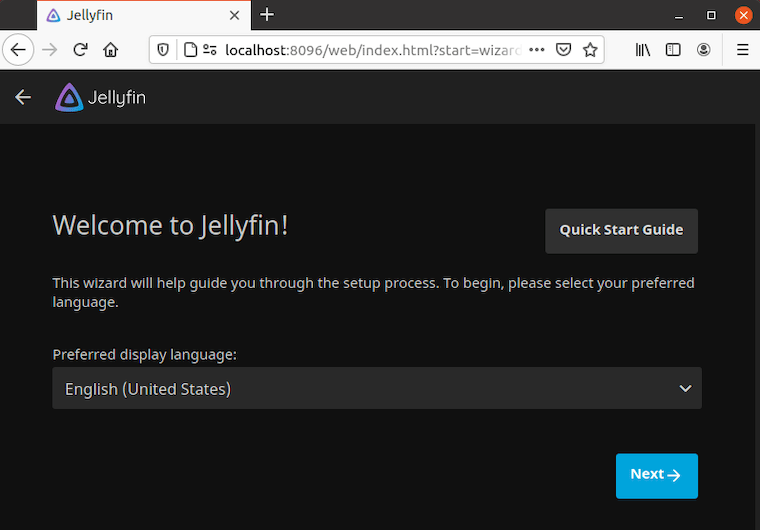
http://localhost:8096If you are connecting from another machine on the network, use the server IP instead. Jellyfin’s setup flow begins in the browser, and the official docs point users to localhost:8096 or the server IP after the service starts.
Why this matters
The first-run wizard sets the admin account, libraries, metadata language, and remote access settings. If you skip these steps or rush them, you may spend more time fixing metadata and discovery issues later.
Complete the wizard
- Choose your language.
- Create an admin account.
- Add your media libraries.
- Pick metadata language and region.
- Review remote access options.
Why library structure matters
Separate folders for movies and TV shows help Jellyfin pick the right metadata source and keep scans accurate. It also makes future maintenance easier when your library grows.
Step 9: Configure Hardware Acceleration
Check GPU support
If your server has Intel or AMD graphics, hardware acceleration can reduce CPU load a lot during transcoding. Jellyfin’s docs explain that hardware acceleration offloads video processing to the GPU, which is much more efficient than pure software encoding.
Install VA-API tools:
sudo dnf install libva-utils
vainfo
Why this matters
vainfo confirms that your GPU can expose the video profiles Jellyfin needs. If this fails, enabling hardware acceleration inside Jellyfin will not help, because the system itself is not ready yet.
Add Jellyfin to the right groups
sudo usermod -aG render,video jellyfinWhy this matters
The Jellyfin service needs access to the GPU device nodes under /dev/dri. Without the right group membership, transcoding can fail even when the GPU is physically present.
Enable it in Jellyfin
Go to:
- Dashboard
- Playback
- Transcoding
- Hardware acceleration
Choose VA-API if your GPU supports it. That gives you a much better experience when streaming to devices that cannot play the original file format.
Step 10: Verify Everything Works
Test the service
Check the key points below:
- Jellyfin is running.
- The web UI loads.
- Your media folders appear.
- The library scan finishes.
- A sample video plays without error.
Why this matters
A service can look healthy but still fail at playback or library scanning. The best way to verify the setup is to test the full path from browser login to actual media playback.
Quick command check
systemctl is-active jellyfinIf it returns active, the service is still running. That gives you a fast sanity check after reboot or configuration changes.
Troubleshooting
1. Jellyfin will not start
If the service fails, check the logs first:
journalctl -u jellyfin -n 50The problem is often a missing package, a bad media path, or a file permission issue. Logs usually show the exact reason faster than guessing.
2. The web page will not open
If http://localhost:8096 does not load, confirm that the service is active and the firewall rule exists. On Fedora, the issue is often that firewalld was not reloaded after adding the Jellyfin service.
3. Libraries are empty
If Jellyfin scans but shows no items, check SELinux labels first. Fedora may block access to the media directory even when normal file permissions look correct.
4. Transcoding fails
If playback fails during transcode, check whether RPM Fusion is installed and whether ffmpeg came in correctly. Jellyfin on Fedora depends on RPM Fusion for the full media stack.
5. Remote devices cannot find the server
If other devices cannot see Jellyfin, verify that the firewall service is enabled and that your client is on the same network. Discovery ports like 7359 and 1900 help with auto-discovery, but the web port 8096 still needs to be reachable.

