
If you do video editing on Linux, you have probably noticed that decent free software is harder to find than people claim. Most guides point you at tools that work on paper but choke on real footage. Kdenlive is different. It is a mature, KDE-based non-linear video editor built on the MLT multimedia framework, and it runs reliably on Ubuntu 26.04 LTS “Resolute Raccoon.” This guide walks you through how to install Kdenlive on Ubuntu 26.04 using three tested methods, then covers codec setup, first-launch configuration, and the troubleshooting steps that most tutorials skip entirely.
I have been administering Linux systems for ten years, and I have set up Kdenlive on everything from bare-metal workstations to minimal Ubuntu Server installs with a desktop layer added on top. What you read here is based on real-world testing, not copy-pasted documentation.
What Is Kdenlive and Why Does It Matter on Ubuntu 26.04?
Kdenlive stands for KDE Non-Linear Video Editor. Under the hood, it runs on the MLT (Media Lovin’ Toolkit) framework, a mature C++ library that handles all the heavy lifting: video processing, audio mixing, transitions, and effect rendering.
Ubuntu 26.04 LTS “Resolute Raccoon” ships with Linux Kernel 7.0 and runs Wayland as the default display server. Kdenlive’s 26.04 release series is fully compatible with Wayland, which means you get smooth, tear-free playback without forcing an XWayland fallback session. That matters more than most people realize when you are scrubbing through a timeline for hours.
Kdenlive is licensed under the GNU GPL v2+. You pay nothing, you keep all rights to the content you create, and you can use it commercially without restrictions.
Prerequisites Before You Begin
Before running a single command, confirm you have the following in place:
- Operating System: Ubuntu 26.04 LTS (64-bit) — this guide is not tested on 22.04 or 24.04
- User Permissions: A non-root user account with
sudoprivileges - Internet Connection: Required to download packages and runtimes
- Disk Space: At least 25 GB free on your root partition (Ubuntu 26.04 LTS baseline requirement); Flatpak installs require an additional 2 GB for the KDE runtime
- RAM: Minimum 6 GB (Ubuntu 26.04 LTS minimum); 16 GB recommended for 1080p editing
- CPU: Minimum 2 GHz dual-core for SD video; 4 cores or more recommended for HD or 4K work
- GPU (optional but useful): Any GPU with VAAPI (AMD/Intel) or NVENC (NVIDIA) support for hardware-accelerated export
If you are unsure about your hardware, run this command to check CPU core count and RAM:
nproc && free -hStep 1: Update Your System Before Anything Else
This step is non-negotiable. Skipping it is the number one reason Kdenlive installs fail or behave strangely on a fresh Ubuntu 26.04 system.
sudo apt update && sudo apt upgrade -yWhat this does: apt update refreshes your local package index from Ubuntu’s repositories. apt upgrade applies all pending updates to installed packages and system libraries.
Why it matters: Ubuntu 26.04 “Resolute Raccoon” uses a modern Wayland stack and an updated GNOME session. If your system libraries are out of date, Kdenlive’s dependencies can resolve to stale versions that conflict with the new display server stack. You might install successfully but crash on the first launch.
Expected output: You will see a list of packages being updated, followed by a completion message like:
0 upgraded, 0 newly installed, 0 to remove and 0 not upgraded.If you see packages being upgraded, wait for the process to finish completely before moving forward.
Step 2: Choose Your Installation Method
There are three supported ways to install Kdenlive on Ubuntu 26.04 LTS:
- Flatpak via Flathub (recommended for most users)
- APT from Ubuntu repositories (recommended for sysadmins who prefer native packages)
- AppImage (recommended for portable installs with no package manager involvement)
Important note from the official Kdenlive documentation: As of Kdenlive release 24.02, the PPA at ppa:kdenlive/kdenlive-stable is no longer maintained. Do not use it on Ubuntu 26.04. Flatpak and AppImage are the two officially supported methods.
The Snap package exists on Snapcraft but is not officially maintained by the Kdenlive team. It tends to lag behind in version updates.
Step 3: Install Kdenlive on Ubuntu 26.04 Using Flatpak (Recommended Method)
Flatpak delivers the latest stable Kdenlive version, updates automatically, and performs better than the Snap equivalent on startup speed. This is the method I use on all my Ubuntu 26.04 workstations.
Step 3.1: Install Flatpak on Ubuntu 26.04
Ubuntu 26.04 does not ship with Flatpak installed by default. Add it first:
sudo apt install flatpak -yWhat this does: Installs the Flatpak package management runtime on your system.
Why you need it: Without the Flatpak runtime, you cannot install or run any .flatpak application, including Kdenlive. This is a one-time step.
Step 3.2: Add the GNOME Software Plugin for Flatpak
sudo apt install gnome-software-plugin-flatpak -yWhat this does: Integrates Flatpak with Ubuntu’s GNOME Software Center, allowing graphical management of Flatpak apps.
Why this helps: Without this plugin, you can still install apps via terminal, but you lose the ability to manage Flatpak updates through the GUI. For a desktop workstation, having both options is worth the 2-second install.
Step 3.3: Add the Flathub Repository
flatpak remote-add --if-not-exists flathub https://dl.flathub.org/repo/flathub.flatpakrepoWhat this does: Registers Flathub as a trusted Flatpak repository on your system.
Why you need this: Flatpak applications live in remote repositories, similar to APT sources. Without adding Flathub, the flatpak install command has no source to pull Kdenlive from and will return a “No remote refs found” error. The --if-not-exists flag prevents duplicate entries if you run this command more than once.
Step 3.4: Install Kdenlive from Flathub
flatpak install flathub org.kde.kdenlive -yWhat this does: Downloads and installs Kdenlive along with the KDE Platform runtime (approximately 2 GB total).
Why the -y flag: The install process asks you to confirm the runtime download interactively. The -y flag auto-confirms, which prevents the command from stalling if you run it in a script or over SSH.
Expected output:
Looking for matches…
Required runtime for org.kde.kdenlive/x86_64/stable (org.kde.Platform/x86_64/6.7) found in remote flathub
Do you want to install it? [y/n]: y
Installing…
Step 3.5: Launch Kdenlive via Flatpak
flatpak run org.kde.kdenliveAlternatively, search for Kdenlive in your GNOME application launcher after installation. Both methods work.
Step 4: Install Kdenlive via APT (Native Package Method)
If you prefer native APT packages for their speed and lower disk footprint, Ubuntu’s main repository includes Kdenlive. This version is stable and integrates directly with your system libraries, which means the binary shares libraries with other apps instead of bundling its own.
The trade-off: the APT version in Ubuntu’s main repository may be one or two minor versions behind the upstream Flatpak release.
sudo apt install kdenlive -yWhat this does: Fetches Kdenlive and all its dependencies, including the MLT framework, FFmpeg libraries, and required KDE components, directly from Ubuntu’s official repository.
Why native APT is valid: APT-installed apps start faster than Flatpak because they do not mount a SquashFS image at launch. For systems with limited RAM or slower storage, this difference is noticeable. On a machine with an NVMe SSD and 32 GB RAM, the difference is negligible.
Verify the APT Installation
kdenlive --versionExpected output:
kdenlive 24.x.xIf this returns a “command not found” error after a successful install, run sudo update-desktop-database and then open a new terminal session.
Step 5: Install Kdenlive via AppImage (Portable Method)
The AppImage method suits you if you want to run the absolute latest upstream Kdenlive release without touching your system’s package manager. It is also useful for shared machines where you lack sudo rights.
Step 5.1: Download the AppImage
Visit the official Kdenlive download page at kdenlive.org/en/download/ and download the latest Linux AppImage file.
Step 5.2: Make the AppImage Executable
chmod +x kdenlive-*.AppImageWhat this does: Sets the executable bit on the AppImage file.
Why this is necessary: Linux does not treat downloaded files as executable by default, regardless of file extension. Without this step, double-clicking or running the AppImage produces a “Permission denied” error.
Step 5.3: Run the AppImage
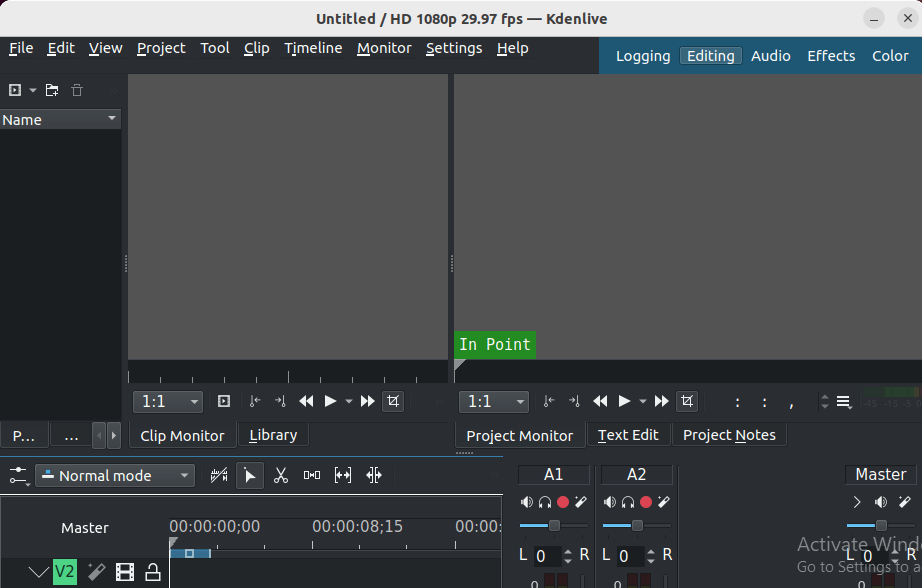
./kdenlive-*.AppImageKdenlive launches immediately. No installation, no root access, no package dependencies on your system.
Step 6: Install Additional Codecs for Full Format Support
This step applies to all three installation methods, but it is most critical for APT installs.
Kdenlive’s default Ubuntu package does not include all codec libraries due to licensing constraints. Missing codecs cause “clip not usable” or “codec not found” errors when you try to import common video formats like H.264 MP4 or AAC audio.
sudo apt install libavcodec-extra -yWhat this does: Extends FFmpeg’s codec library with additional legally distributable but restricted codecs, including H.264 extras and MP3/AAC support.
Why this matters: The MLT framework that powers Kdenlive calls FFmpeg libraries directly for decoding. If FFmpeg cannot decode a format, Kdenlive cannot import the file. This single package resolves the majority of import errors that beginners report in the Kdenlive forums.
Also install mediainfo, which Kdenlive uses internally to analyze clip metadata:
sudo apt install mediainfo -yWhy mediainfo: Kdenlive reads MediaInfo output to display a clip’s resolution, framerate, color space, and bitrate in the Project Bin. Without it, you see blank metadata fields, and some automatic project profile detection features stop working.
Additionally, install frei0r-plugins to enable the full effects library:
sudo apt install frei0r-plugins -yWhy frei0r: The frei0r package provides a significant portion of Kdenlive’s built-in transitions and effects. Without it, your Effects panel shows a heavily reduced list, and some transition types simply do not appear.
Step 7: First-Launch Configuration on Ubuntu 26.04 LTS
Set Your Project Profile Correctly
When Kdenlive opens for the first time, it prompts you to create a project. Do not click through this carelessly.
Set your project profile to match your source footage: for example, HD 1080p 30fps for standard YouTube content or UHD 4K 24fps for cinematic work.
Why this matters: If your project profile does not match your source clips, Kdenlive upscales or downscales every frame in real time during playback. On a mid-range CPU, this kills playback performance and may cause audio sync drift during preview.
Enable Proxy Clips for Smooth Editing
Navigate to Project > Project Settings > Proxy Clips and enable proxy generation.
Why proxies are essential: Proxy clips are low-resolution temporary copies that Kdenlive uses during editing. Editing 4K footage directly on a machine with 8 GB RAM without proxies will produce stuttering playback. When you export, Kdenlive automatically switches back to the original high-resolution source files. You do not lose quality; you just gain a usable editing experience.
Configure GPU Export Rendering
Go to Settings > Configure Kdenlive > Playback.
Note: The Movit GPU processing library for real-time GPU preview has been disabled in recent Kdenlive releases due to maintenance issues. Do not expect GPU acceleration during timeline playback.
For export rendering, you can still use GPU acceleration. When you go to Render > Render Project, look for export profiles that include NVENC (NVIDIA), VAAPI (AMD or Intel), or VideoToolbox (Apple Silicon). Selecting one of these dramatically reduces final render time compared to CPU-only encoding.
Troubleshooting Common Installation Issues
Issue 1: Kdenlive Crashes Immediately at Launch
Cause: A corrupted or incompatible configuration file from a previous Kdenlive version.
Fix:
rm ~/.config/kdenlivercThen relaunch Kdenlive. This deletes the configuration file and forces Kdenlive to generate a clean one. You lose saved preferences but gain a working application.
Issue 2: MLT Framework Not Found or Kdenlive Cannot Start
Cause: MLT is either not installed, or multiple conflicting versions exist on the system.
Diagnosis:
melt color:redA red preview window should appear. Press q to close it. If you see an error instead, MLT is broken.
Fix:
sudo apt install --reinstall libmlt7 libmlt-data meltIf you used the APT method, this reinstalls all MLT components cleanly. For Flatpak installs, run flatpak repair instead.
Issue 3: Codec Not Found When Importing Video Files
Cause: libavcodec-extra is missing, or FFmpeg is not installed.
Fix:
sudo apt install ffmpeg libavcodec-extra -yConfirm FFmpeg is present:
ffmpeg -versionIssue 4: Kdenlive Does Not Appear in the Application Launcher After APT Install
Cause: The GNOME desktop database was not refreshed after installation.
Fix:
sudo update-desktop-databaseLog out and back in. Kdenlive should now appear in the GNOME app grid.
Issue 5: Audio Does Not Play in Kdenlive on Ubuntu 26.04 Wayland
Cause: Kdenlive’s MLT audio output module uses SDL, and the SDL library may not be installed.
Fix:
sudo apt install libsdl2-2.0-0 -yWhy: The MLT framework uses SDL for audio output routing. On minimal Ubuntu installs, SDL2 is not always present. Without it, MLT initializes without an audio backend, and the timeline plays back video silently.
Keeping Kdenlive Updated on Ubuntu 26.04 LTS
Updates matter. Kdenlive releases every three months, and each release includes MLT backend fixes, codec compatibility patches, and Wayland improvements that directly affect stability on Ubuntu 26.04.
For Flatpak installs:
flatpak updateFor APT installs:
sudo apt update && sudo apt upgrade -yFor AppImage: Download the latest AppImage from kdenlive.org and replace the existing file. Make the new file executable using chmod +x as shown in Step 5.
Congratulations! You have successfully installed Kdenlive. Thanks for using this tutorial for installing the Kdenlive video editing program on the Ubuntu 26.04 LTS (Resolute Raccoon) system. For additional help or useful information, we recommend you check the Kdenlive website.
[su_box title=”VPS Manage Service Offer” style=”bubbles” box_color=”#000000″ radius=”10″]If you don’t have time to do all of this stuff, or if this is not your area of expertise, we offer a service to do “VPS Manage Service Offer”, starting from $10 (Paypal payment). Please contact us to get the best deal![/su_box]

