
If you shoot RAW files and you want a lightweight, professional-grade editor that runs natively on Linux, LightZone is worth your attention. Most guides online point you toward Darktable or RawTherapee, which are excellent tools, but they have steep learning curves and bloated interfaces for users who just need solid, non-destructive tonal control. LightZone takes a different approach: it uses the Zone System developed by photographer Ansel Adams, giving you intuitive luminance-based exposure control without needing a degree in color science to get results. In this guide, you will learn how to install LightZone on Linux Mint 22 step by step, configure it correctly, verify the installation, and troubleshoot the most common issues you will actually encounter in practice.
What Is LightZone and Why Does It Work Well on Linux Mint 22?
LightZone is a free, open-source, professional-level digital darkroom and photo editor written in Java. The project is actively maintained on GitHub under the ktgw0316/LightZone repository and distributed through an official PPA on Canonical’s Launchpad infrastructure.
Unlike GIMP or Krita, which use layer-based editing models, LightZone processes adjustments as a reorderable tool stack. Each tool sits above the previous one and the stack processes bottom-to-top. You can reorder, toggle, or delete individual tools without touching your original image file.
This non-destructive workflow means LightZone writes its edits to a separate .lzn sidecar file alongside your RAW. Your original file stays untouched, permanently. That distinction matters enormously if you are managing a photography archive where the originals have no redundant backup.
Linux Mint 22 is built on Ubuntu 24.04 LTS (Noble Numbat), and the official LightZone PPA ships packages specifically compiled for this base. This means you get first-class compatibility, signed packages, and automatic updates through Linux Mint’s built-in Update Manager, without manually compiling anything from source.
LightZone Key Features at a Glance
- Non-destructive editing via
.lznsidecar files — original RAW files are never modified - Zone Mapper tool based on the Ansel Adams Zone System for intuitive exposure and tonal control
- RAW file support for a wide range of Canon, Nikon, Sony, Fuji, and other major camera manufacturers via LibRaw
- Reusable style presets for one-click batch consistency across large photo shoots
- Batch processing support across multiple images in the Browser view
- Cross-platform codebase: Windows, macOS, and Linux
- Completely free with no subscriptions, premium tiers, or feature locks
Prerequisites Before You Begin
Before you start the Linux Mint 22 setup process, confirm that your system meets these requirements. Skipping this check is the number one reason installations fail silently.
Operating System:
- Linux Mint 22 (based on Ubuntu 24.04 LTS “Noble Numbat”), 64-bit only
User Permissions:
- A user account with
sudoprivileges. You cannot install PPA packages as a standard non-sudo user.
Hardware Minimums:
- 64-bit x86 (AMD64) processor. The LightZone PPA does not publish ARM packages.
- Minimum 2 GB RAM. Recommend 4 GB or more for comfortable RAW file processing.
- At least 500 MB free disk space to accommodate LightZone binaries and OpenJDK dependencies.
Network:
- Active internet connection during installation to pull packages from the Launchpad PPA.
Tools You Need:
- A terminal emulator (Xterm, MATE Terminal, or the default Linux Mint terminal)
software-properties-commonpackage (covered in Step 1 below)
Step 1: Update Your Linux Mint 22 System
The first thing you do before adding any external PPA is refresh your existing package index and apply pending upgrades. This is not optional or ceremonial, it is a hard dependency of a clean installation.
sudo apt update && sudo apt upgrade -yWhat this does: apt update fetches updated metadata from all currently configured repositories. apt upgrade -y applies all pending package upgrades without prompting for confirmation.
Why this matters: When you later add the LightZone PPA, APT must reconcile the new repository’s packages against your existing installed software. If your package metadata is stale, APT can produce false dependency conflicts or silently install older versions. Running the update first eliminates that risk entirely.
You will see a list of packages being upgraded scroll past the terminal. Once the process completes and returns you to the prompt, you are ready to proceed.
Verify software-properties-common Is Installed
sudo apt install software-properties-common -yWhat this does: Installs the package that provides the add-apt-repository command, which you need in the next step.
Why this matters: On a minimal or freshly provisioned Linux Mint 22 install, software-properties-common is sometimes absent. If you skip this and add-apt-repository is not found, you will get a “command not found” error in the next step that has nothing to do with LightZone itself and can confuse beginners into thinking the PPA does not exist.
Step 2: Add the Official LightZone PPA Repository
With your system updated, add the official LightZone PPA. This repository is maintained directly by the LightZone development team and published on Launchpad under the lightzone-team namespace.
sudo add-apt-repository ppa:lightzone-team/lightzone -yWhat this does: Registers the PPA URL in your APT sources, imports the repository’s GPG signing key, and runs a package index refresh automatically.
Why this matters: Linux Mint 22 does not include LightZone in its default repositories. The PPA is the official, developer-maintained channel for receiving signed, tested LightZone packages. Using an unofficial source such as random GitHub releases or third-party .deb files introduces security risks and breaks automatic update integration. The -y flag suppresses the confirmation prompt, which is safe here since this is an official PPA.
On Linux Mint specifically, the add-apt-repository command may not automatically refresh the package index after adding the PPA. That is why the next step runs apt update manually.
Step 3: Refresh the Package Index
After adding the PPA, force a package index refresh so APT becomes aware of LightZone’s available packages.
sudo apt updateWhat this does: Re-reads all configured repository sources, including the newly added LightZone PPA, and builds an updated list of available packages.
Why this matters: Without this step, APT’s package cache still does not know LightZone exists. Running apt install lightzone immediately after adding the PPA, without refreshing first, returns this error:
E: Unable to locate package lightzoneThat error does not mean the PPA was added incorrectly. It means the cache is stale. This step fixes it.
Step 4: Install LightZone on Linux Mint 22
Now install LightZone using APT. This single command handles everything including Java dependency resolution.
sudo apt install lightzone -yWhat this does: Downloads LightZone and all required dependencies, including OpenJDK runtime components if not already installed on your system.
Why this matters: LightZone is a Java application. APT resolves and installs the correct OpenJDK version automatically during this step. You do not need to manually install Java beforehand. The total download is typically 50 to 120 MB depending on how much of the Java runtime is already present from other applications.
During the installation, you will see output similar to this:
Reading package lists... Done
Building dependency tree... Done
The following additional packages will be installed:
  openjdk-17-jre openjdk-17-jre-headless libraw23t64 ...
Preparing to unpack .../lightzone_5.0.0~beta3...
Unpacking lightzone ...
Setting up lightzone ...
Processing triggers for desktop-file-utils ...
When the terminal returns to the prompt without errors, the installation is complete.
Step 5: Verify the Installation
Never assume the installation succeeded because it did not throw errors. Verify it explicitly.
apt-cache policy lightzoneWhat this does: Queries APT’s package policy for LightZone, showing the installed version, the candidate version, and the source repository URL.
Why this matters: This command confirms two critical facts. First, LightZone is installed. Second, it was pulled from the correct PPA source and not from a local cache or a conflicting repository. A professional sysadmin always verifies before moving on.
Expected output on Linux Mint 22 (Ubuntu 24.04 base):
lightzone:
  Installed: 5.0.0~beta3+202505261334+1126~ubuntu24.04.1
  Candidate: 5.0.0~beta3+202505261334+1126~ubuntu24.04.1
  Version table:
 *** 5.0.0~beta3+202505261334+1126~ubuntu24.04.1 500
        500 https://ppa.launchpadcontent.net/lightzone-team/lightzone/ubuntu noble/main amd64 Packages
        100 /var/lib/dpkg/status
Confirm that the source URL contains ppa.launchpadcontent.net/lightzone-team/lightzone. If it shows a different source, you have a repository conflict that needs to be resolved.
Step 6: Launch LightZone on Linux Mint 22
You have two ways to start the application. Use the terminal method first for the initial launch.
Launch from the Terminal
lightzoneWhy start from the terminal first: Java applications write exception traces and error messages directly to stdout/stderr. If LightZone fails to open when launched from the desktop menu, you will see a blank screen with no indication of what went wrong. Launching from the terminal the first time shows you any warnings or Java errors in real time, which is the fastest path to diagnosing a problem.
Launch from the Application Menu
For day-to-day use, open the Linux Mint application menu and search for LightZone. The PPA package automatically creates a .desktop entry, so LightZone appears in the Graphics or Photography category of your application menu without any manual configuration.
Click the LightZone icon. The application opens to the Browser view, which shows a folder navigation panel on the left and image thumbnails in the center.
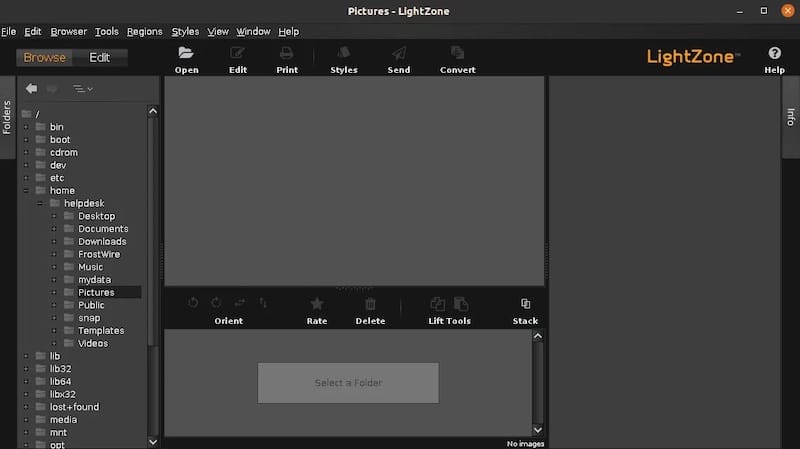
How To Configure LightZone on Linux Mint 22 for Your Workflow
Once LightZone is running, three configuration steps will make your workflow significantly more efficient.
Set Your Default Image Folder
Go to Edit > Preferences and set your default image library folder to the directory where you store RAW files. This saves you from navigating manually every session. For a sysadmin managing a team workflow or a mounted NAS share, this also works with network paths accessible as local mount points.
Understand the Tool Stack Model
LightZone does not use layers. It uses a tool stack where each adjustment tool processes the image in sequence from bottom to top. You can drag tools to reorder them, disable individual tools with a toggle, or delete them entirely.
This is the single concept that trips up users coming from GIMP or Photoshop. Reordering tools changes the visual output. Always add your Zone Mapper at the bottom of the stack and color corrections above it for the most predictable results.
Create and Save Custom Styles
After you build an adjustment combination you like, go to Styles > Save Style and give it a descriptive name. Saved styles appear in the Styles panel on the right side and apply to any image with a single click. For anyone processing a photo shoot with consistent lighting, this feature alone saves hours of manual editing time.
Troubleshooting Common LightZone Issues on Linux Mint 22
These are the real-world problems you will hit, not hypothetical edge cases.
Problem 1: “Unable to Locate Package lightzone”
Symptom: Running sudo apt install lightzone returns E: Unable to locate package lightzone.
Cause: The package index was not refreshed after adding the PPA.
Fix:
sudo apt update
sudo apt install lightzone -y
Always run apt update immediately after add-apt-repository. The PPA cannot be used until APT’s local cache includes it.
Problem 2: LightZone Fails to Start with Java Errors
Symptom: The terminal shows java.lang.UnsupportedClassVersionError or JVM not found when you run lightzone.
Cause: Java was not installed correctly as a dependency, or a conflicting JDK version is set as the system default.
Fix:
java -version
sudo apt reinstall lightzone
Check that java -version returns OpenJDK 17 or later. If another JDK is installed and set as default, reinstalling LightZone forces APT to re-evaluate and install the correct runtime.
Problem 3: Blank or Black Window on Wayland Sessions
Symptom: LightZone launches but shows a completely blank, white, or black window with no interface content.
Cause: Java’s AWT rendering engine was designed for X11. Wayland handles window decorations differently, which causes Java applications to misrender.
Fix (immediate):
_JAVA_AWT_WM_NONREPARENTING=1 lightzoneFix (permanent):
echo 'export _JAVA_AWT_WM_NONREPARENTING=1' >> ~/.bashrc
source ~/.bashrc
This environment variable instructs Java’s AWT not to reparent its windows, which resolves the Wayland rendering conflict.
Problem 4: RAW Files Not Recognized or Camera Not Supported
Symptom: LightZone opens the file browser but cannot decode a specific RAW format. The thumbnail shows a broken icon.
Cause: LightZone uses LibRaw for RAW decoding. Newer camera models released after the LibRaw version bundled with LightZone will not be recognized.
Fix — Check your LibRaw version:
apt-cache policy libraw23t64Workaround for unsupported cameras: Convert your RAW files to DNG format using a DNG converter before opening them in LightZone. DNG is an open Adobe standard that LightZone handles reliably regardless of camera origin.
Problem 5: PPA Throws 404 Error During apt update
Symptom: Running sudo apt update produces a 404 Not Found error referencing the LightZone PPA URL.
Cause: The PPA repository structure occasionally changes during beta release cycles, causing cached metadata to point to a URL that no longer exists.
Fix:
sudo add-apt-repository --remove ppa:lightzone-team/lightzone -y
sudo add-apt-repository ppa:lightzone-team/lightzone -y
sudo apt update
Remove and re-add the PPA to force a fresh key import and URL resolution.
How To Update LightZone on Linux Mint 22
Because LightZone was installed via the official PPA, it integrates with Linux Mint’s Update Manager automatically. Whenever a new release is published to the PPA, Update Manager will flag it for you.
For manual control from the terminal:
sudo apt update && sudo apt install --only-upgrade lightzoneWhy use --only-upgrade: Without this flag, apt install lightzone would reinstall the package from scratch if it had been removed. The --only-upgrade flag makes the command idempotent: it only acts when an upgrade is available for an already-installed package. This is the safer behavior for scripting or cron-based update workflows.
How To Uninstall LightZone from Linux Mint 22
Follow all three steps for a complete, clean removal.
Step 1: Remove the Application
sudo apt remove lightzone && sudo apt autoremoveapt remove removes the LightZone binary. autoremove cleans up OpenJDK packages and any other auto-installed dependencies that no other application on your system still needs.
Step 2: Remove the PPA
sudo add-apt-repository --remove ppa:lightzone-team/lightzone -y
sudo apt update
Leaving an inactive PPA configured causes unnecessary network requests during every apt update. Removing it keeps your repository list clean and prevents future 404 warnings.
Step 3: Delete Configuration Data (Optional)
rm -rf ~/.config/LightZoneapt remove does not touch your user configuration data. The ~/.config/LightZone directory stores your preferences, saved styles, and workspace layout. Delete it if you want a clean slate on reinstall. Leave it intact if you plan to reinstall LightZone later and want to keep your custom styles.
Congratulations! You have successfully installed LightZone. Thanks for using this tutorial to install the latest version of the LightZone photo editor on Debian 13 “Trixie”. For additional help or useful information, we recommend you check the official LightZone website.
[su_box title=”VPS Manage Service Offer” style=”bubbles” box_color=”#000000″ radius=”10″]If you don’t have time to do all of this stuff, or if this is not your area of expertise, we offer a service to do “VPS Manage Service Offer”, starting from $10 (Paypal payment). Please contact us to get the best deal![/su_box]

