
Ubuntu 26.04 LTS, codenamed “Resolute Raccoon,” shipped on April 22, 2026, and it is the most significant LTS release in years. It runs GNOME 50 on a fully Wayland-native desktop, ships with Linux Kernel 7.0, and drops the Xorg option entirely from the default install. That last point matters more than most tutorials acknowledge: some video editors built against older X11 assumptions behave differently on a pure Wayland session, so knowing which installation method you pick for Shotcut directly affects your experience.
Shotcut is a free, open-source, cross-platform video editor that runs on Linux, Windows, and macOS. It is built on top of the MLT Multimedia Framework and uses FFmpeg under the hood, which means it handles an enormous range of video and audio formats without needing extra codecs. Whether you are a developer editing screencasts, a content creator cutting YouTube videos, or a sysadmin documenting lab walkthroughs, Shotcut is a solid, no-cost solution that runs well on Ubuntu.
In this guide, you will learn how to install Shotcut on Ubuntu 26.04 LTS using four different methods: Snap, Flatpak, AppImage, and APT. For each method, this tutorial explains not just the commands, but the specific reason each step exists. That way, if something breaks, you understand what went wrong and why, instead of blindly copying commands from another tab.
By the end of this article, you will have Shotcut installed, verified, and ready to use on Ubuntu 26.04 “Resolute Raccoon.” You will also have a clear troubleshooting reference for the most common installation errors that trip up Linux users on this release.
Prerequisites
Before you start the Shotcut on Ubuntu 26.04 LTS setup, make sure your system meets these requirements:
- Operating System: Ubuntu 26.04 LTS “Resolute Raccoon” (64-bit, x86-64 or ARM64)
- User Permissions: A non-root user with
sudoprivileges - Internet Connection: Required for all download-based methods
- Terminal Access: GNOME Terminal, or any terminal emulator installed on your system
- Disk Space: At least 1 GB free for the application and its runtime dependencies
- GPU Driver: A GPU with working OpenGL 2.0 support (Intel, AMD, or NVIDIA with proper drivers installed)
- RAM: 4 GB minimum for SD video; 8 GB recommended for HD; 16 GB for 4K workflows
If you are unsure whether you are on Ubuntu 26.04, run this command in the terminal:
lsb_release -aYou should see Release: 26.04 and Codename: resolute in the output. If you see anything else, the steps in this guide may not apply directly to your system.
Step 1: Update Your Ubuntu 26.04 System
This is the most skipped step in almost every Linux tutorial, and it is the one that causes the most problems.
Why Updating Matters Before Any Install
Ubuntu’s package manager works from a local index, which is a database that maps package names to their current versions and download locations. If that index is stale, apt may try to install an older version of a dependency, or worse, reference a package version that no longer exists on the mirror servers.
Run the following two commands before doing anything else:
sudo apt updatesudo apt upgrade -yThe apt update command refreshes the local package metadata from all configured sources in /etc/apt/sources.list.d/. The apt upgrade -y command installs any pending updates for installed packages, including critical system libraries like libc, libGL, and PipeWire audio components that Shotcut depends on at runtime.
Expected output from apt update:
Hit:1 http://archive.ubuntu.com/ubuntu resolute InRelease
Get:2 http://archive.ubuntu.com/ubuntu resolute-updates InRelease [109 kB]
...
Reading package lists... Done
If you see errors like 404 Not Found for any repository, that repository’s URL is outdated. Fix it before continuing.
Step 2: Choose Your Installation Method
There are four supported ways to install Shotcut on Ubuntu 26.04 LTS. Each method has genuine trade-offs. This table breaks them down clearly so you can pick the right one before running a single command:
| Method | Auto-Updates | ARM64 Support | Latest Version | Root Required |
|---|---|---|---|---|
| Snap | Yes (automatic) | Yes | Yes | Yes |
| Flatpak | Manual | Yes | Yes | Yes (setup only) |
| AppImage | No | x86-64 only | Yes | No |
| APT | Via apt upgrade |
Depends on repo | Often older | Yes |
Recommendation: If you are on a standard x86-64 Ubuntu 26.04 desktop, use Snap. It integrates natively, updates automatically, and requires zero additional setup. If you are on ARM64 hardware like a Raspberry Pi 5 or a Snapdragon X device, use Flatpak. If you need portability or want to test Shotcut without touching your system, use AppImage.
Step 3: Install Shotcut on Ubuntu 26.04 LTS via Snap (Recommended)
The Snap method is the fastest path to a fully working Shotcut install on Ubuntu 26.04 “Resolute Raccoon.” Canonical ships snapd pre-installed on Ubuntu 26.04, and the Snap ecosystem received major improvements in this release, including faster startup times and better memory deduplication.
Verify That snapd Is Running
snap versionThis command queries the local snapd daemon and returns its version alongside the underlying OS version. If snapd is missing or stopped, this command returns an error. On a stock Ubuntu 26.04 install, you should see output similar to:
snap    2.63
snapd   2.63
series  16
ubuntu  26.04
kernel  7.0.0-15-generic
If snapd is somehow missing, reinstall it:
sudo apt install snapdInstall Shotcut Using Snap
sudo snap install shotcut --classicThe --classic flag is critical here, and it is worth understanding why. By default, Snap uses strict confinement, which means the application runs in a tightly restricted sandbox. Shotcut needs access to your filesystem to open video files, your GPU hardware for rendering, and system audio through PipeWire. Strict confinement blocks all of these. The --classic flag grants Shotcut the same level of filesystem access as a traditionally installed application, similar to how you would install software via apt.
Expected output:
shotcut 26.xx.xx from Meltytech LLC installedLaunch Shotcut
shotcutRunning Shotcut from the terminal on first launch is deliberate. If there is a missing library, a Wayland compositor issue, or a GPU driver problem, the terminal shows you the exact error message. The GNOME Activities launcher silently absorbs those errors and may just show you a blank window with no explanation.
Step 4: Install Shotcut via Flatpak (Best for ARM64 and Wayland Sandboxing)
Flatpak is the right choice if you are on ARM64 hardware, prefer stronger application sandboxing, or want to avoid Snap’s daemon overhead.
Install Flatpak on Ubuntu 26.04
Ubuntu 26.04 does not ship Flatpak by default. You need to install it manually:
sudo apt install flatpak -yThis installs the Flatpak runtime and the flatpak CLI tool. The -y flag auto-confirms the installation prompt so you do not need to type “yes” interactively.
Add the Flathub Repository
flatpak remote-add --if-not-exists flathub https://dl.flathub.org/repo/flathub.flatpakrepoFlatpak separates the runtime tool from the app source. Without adding Flathub, the flatpak command has nowhere to download applications from. Flathub is the official, community-maintained repository for Linux Flatpak apps. The --if-not-exists flag makes the command safe to re-run: if Flathub is already configured, it does nothing instead of throwing an error.
Install Shotcut from Flathub
flatpak install flathub org.shotcut.ShotcutFlatpak uses reverse-DNS app identifiers like org.shotcut.Shotcut to avoid name collisions between different publishers. This is the same pattern you see in Android app IDs. When prompted to confirm, type y and press Enter.
Run Shotcut via Flatpak
flatpak run org.shotcut.ShotcutOn first run, use the terminal. It reveals any Wayland socket permission errors or GPU driver issues that would otherwise be invisible from the app launcher.
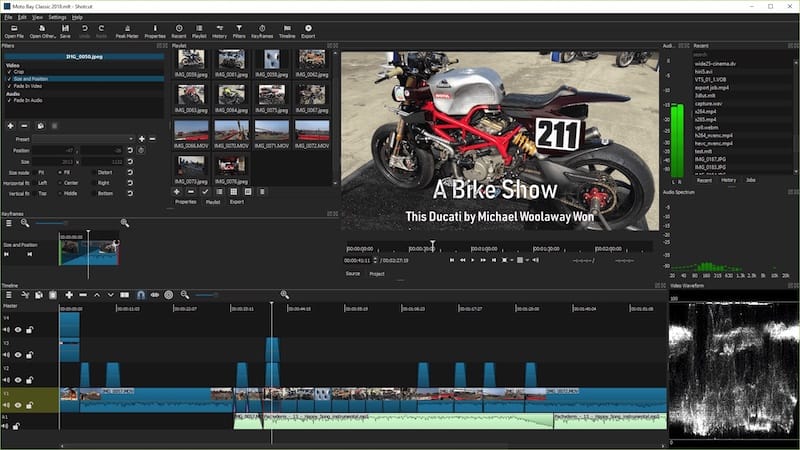
Step 5: Install Shotcut via AppImage (No Root, Maximum Portability)
AppImage is the most portable Linux software format. There is no installation, no package manager, and no root privileges required. The entire application lives inside a single executable file.
Install the Required FUSE Library
sudo apt install libfuse2 -yThis step trips up most Ubuntu users because it is not obvious. AppImage uses FUSE (Filesystem in Userspace) to mount itself as a virtual filesystem at runtime. Ubuntu 26.04 ships with libfuse3 by default, but AppImages built on older runtimes still require libfuse2. If libfuse2 is missing, running an AppImage produces a cryptic error like fuse: failed to exec fusermount or just silently fails with no output. Both libraries can coexist on the same system without conflict.
Download the Shotcut AppImage
Go to shotcut.org/download and download the latest .AppImage file for Linux x86-64. Alternatively, use wget from the terminal:
wget https://github.com/mltframework/shotcut/releases/latest/download/shotcut-linux-x86_64.AppImageReplace the filename with the actual release filename shown on the download page, since version numbers change with each release.
Make the AppImage Executable
chmod +x shotcut-linux-x86_64.AppImageDownloaded files on Linux are not executable by default. This is a deliberate security design: you cannot accidentally run a downloaded file as a program without explicitly granting permission. The chmod +x command sets the executable bit for the current user. Without this step, running the file returns Permission denied.
Run the AppImage
./shotcut-linux-x86_64.AppImageThe ./ prefix tells the shell to look for the file in the current working directory. Linux does not search the current directory for executables by default (unlike Windows), so without ./ the shell returns command not found even if the file is sitting right there.
Step 6: Install Shotcut via APT (Ubuntu Repository Version)
The APT method is the simplest but comes with one honest caveat: the version in the Ubuntu 26.04 repository may lag behind the official Shotcut release by several months. If you need the latest features, including the hardware decoder support introduced in Shotcut 26.1, stick with Snap or Flatpak.
Install Shotcut from the Ubuntu Repository
sudo apt update && sudo apt install shotcut -yChaining apt update with && ensures the package index is fresh before installation begins. The && operator only runs the second command if the first one succeeds, which prevents installing from a stale cache.
Check the Installed Version
shotcut --versionCompare the output to the latest version listed at shotcut.org/download. If the repo version is more than two releases behind, consider uninstalling it and switching to Snap:
sudo apt remove shotcut
sudo snap install shotcut --classic
Step 7: Verify Your Shotcut Installation
After installing via any method, confirm the install registered correctly.
For Snap:
snap list | grep shotcutsnap list queries the locally installed snap database. The grep shotcut filters output to show only the Shotcut entry. A successful output looks like this:
shotcut 26.xx.xx xxxx latest/stable meltytech classicFor Flatpak:
flatpak list | grep ShotcutFor APT:
dpkg -l shotcutThe dpkg -l command queries the low-level Debian package database directly. Look for ii at the start of the Shotcut line, which means “installed correctly.” If you see rc, the package was removed but its configuration files are still present.
Troubleshooting Common Errors on Ubuntu 26.04
Even on a clean Ubuntu 26.04 install, a handful of errors show up consistently. Here are the five most common ones and exactly how to fix them.
Error 1: AppImage Fails to Launch (“fuse: failed to exec fusermount”)
Cause: libfuse2 is not installed. Ubuntu 26.04 ships libfuse3 by default, and AppImages built against older runtimes need both.
Fix:
sudo apt install libfuse2After installing, try running the AppImage again. This resolves the error in nearly every case.
Error 2: Snap-Installed Shotcut Cannot Open Files on External Drives
Cause: Snap’s sandbox blocks access to /media and /mnt mount points by default.
Fix:
sudo snap connect shotcut:removable-mediaThe removable-media interface grants the Shotcut snap explicit permission to read and write files under /media and /mnt. Without this connection, Shotcut simply does not show those directories in its file browser, which can make it look like a bug in Shotcut itself.
Error 3: Shotcut UI Appears Blurry or Oversized (HiDPI Wayland)
Cause: Ubuntu 26.04’s Wayland compositor uses fractional scaling by default in GNOME 50, and Qt applications like Shotcut can double-scale under certain configurations.
Fix: Launch Shotcut with the QT_SCALE_FACTOR environment variable set:
QT_SCALE_FACTOR=1 shotcutTo make this permanent for the Snap version, wrap it in a shell alias in your ~/.bashrc:
alias shotcut='QT_SCALE_FACTOR=1 shotcut'Then reload your shell config:
source ~/.bashrcError 4: No Audio Output in Shotcut
Cause: Ubuntu 26.04 uses PipeWire as its audio server, and Shotcut on Linux uses JACK for audio routing. If pipewire-jack is not installed, Shotcut may open silently with no audio device found.
Fix:
sudo apt install pipewire-jackAfter installation, restart Shotcut. PipeWire’s JACK compatibility layer makes it appear to Shotcut as a standard JACK audio server without requiring a dedicated JACK daemon.
Error 5: Flatpak Install Hangs or Fails with “error: No remote refs found”
Cause: The Flathub remote was not added correctly, or a network issue interrupted the repository metadata fetch.
Fix: Remove and re-add the Flathub remote:
flatpak remote-delete flathub
flatpak remote-add --if-not-exists flathub https://dl.flathub.org/repo/flathub.flatpakrepo
Then retry the install command. If you are behind a proxy or firewall, ensure dl.flathub.org is reachable from your network.
How To Configure Shotcut on Ubuntu 26.04 After Installation
Once Shotcut launches, two settings make an immediate difference in performance on Ubuntu 26.04 hardware.
Enable Hardware Decoding (VA-API)
Shotcut 26.1 introduced hardware-accelerated video decoding via VA-API on Linux, which reduces CPU usage during preview playback and export rendering. This feature is enabled by default for Intel and AMD GPUs on Linux, but disabled for NVIDIA.
To verify it is active:
- Open Shotcut
- Go to Settings > Preview Scaling
- Check that Use Hardware Decoder is checked
If you have an NVIDIA GPU, Shotcut disables VA-API by default because NVIDIA’s VA-API support on Linux has historically been inconsistent. You can test enabling it manually, but be prepared to revert if you see corrupted preview frames.
Enable Proxy Editing for Lower-End Hardware
If your machine has less than 8 GB of RAM or a CPU with fewer than 4 cores, enable proxy editing:
- Go to Settings > Proxy
- Enable Use Proxy
Proxy editing creates low-resolution proxy files for your source footage. Shotcut uses these proxies for timeline preview, then switches back to the original files at export time. This is the single biggest performance improvement available on budget hardware, regardless of installation method.
Keeping Shotcut Updated on Ubuntu 26.04 LTS
Keeping software current matters on a long-term-support release like Ubuntu 26.04. Here is how to update Shotcut depending on your installation method.
Snap (automatic, no action needed):
Ubuntu 26.04’s improved Snap daemon checks for updates four times per day and applies them automatically in the background. To trigger an immediate update manually:
sudo snap refresh shotcutFlatpak (manual):
Flatpak does not auto-update by default. Run this command periodically:
flatpak update org.shotcut.ShotcutAPT:
sudo apt update && sudo apt upgrade shotcutAppImage:
AppImage has no built-in updater. Download the new .AppImage file from shotcut.org/download, apply chmod +x, and replace your old file. Keep a copy of the old one until you confirm the new version works correctly on your system.
Congratulations! You have successfully installed Shotcut. Thanks for using this tutorial for installing the Shotcut video editor on your Ubuntu 26.04 LTS (Resolute Raccoon) system. For additional or useful information, we recommend you check the official Shotcut website.
[su_box title=”VPS Manage Service Offer” style=”bubbles” box_color=”#000000″ radius=”10″]If you don’t have time to do all of this stuff, or if this is not your area of expertise, we offer a service to do “VPS Manage Service Offer”, starting from $10 (Paypal payment). Please contact us to get the best deal![/su_box]
