
Anyone who has spent more than a week bouncing between a laptop, a phone, and a desktop workstation eventually runs into the same annoyance: moving a file from one device to another shouldn’t require a cloud account, a USB cable, or a Bluetooth handshake that times out three times before it finally connects. That’s the gap LocalSend fills, and it does it well — provided the installation and network configuration are done properly. On Fedora 44, that “provided” clause matters more than most tutorials let on.
Fedora ships with a fairly aggressive default firewall posture, uses Wayland by default, and doesn’t include LocalSend in its official repositories. That means the “just run one command” advice floating around Reddit threads and outdated blog posts often falls apart the moment a user actually tries it on a fresh Fedora 44 install. Some guides skip the firewalld configuration entirely, which leaves LocalSend installed but invisible to other devices on the same LAN — a classic “it’s installed but it doesn’t work” situation that generates more support tickets than the installation itself.
This guide walks through the three legitimate ways to install LocalSend on Fedora 44 — Flatpak, native RPM (via COPR), and AppImage — and covers the parts that actually cause problems in practice: firewalld zones, SELinux context, GNOME’s Wayland file-picker quirks, and the systemd-level considerations that matter if you’re deploying this across a fleet of workstations rather than just your own laptop.
Whether you’re a home user trying to get files off a phone without touching Google Drive, or a sysadmin standardizing tools across a department’s Fedora desktops, the goal here is the same: a working, secure, and low-friction LocalSend deployment that survives a reboot and doesn’t quietly break the next time firewalld reloads its rules.
What LocalSend Actually Does (and Why It Matters on Fedora)
LocalSend is an open-source, cross-platform application that transfers files and text snippets between devices on the same local network — no internet connection, no third-party server, no account creation. Think of it as a self-hosted, encrypted AirDrop that works across Windows, macOS, Linux, Android, and iOS.
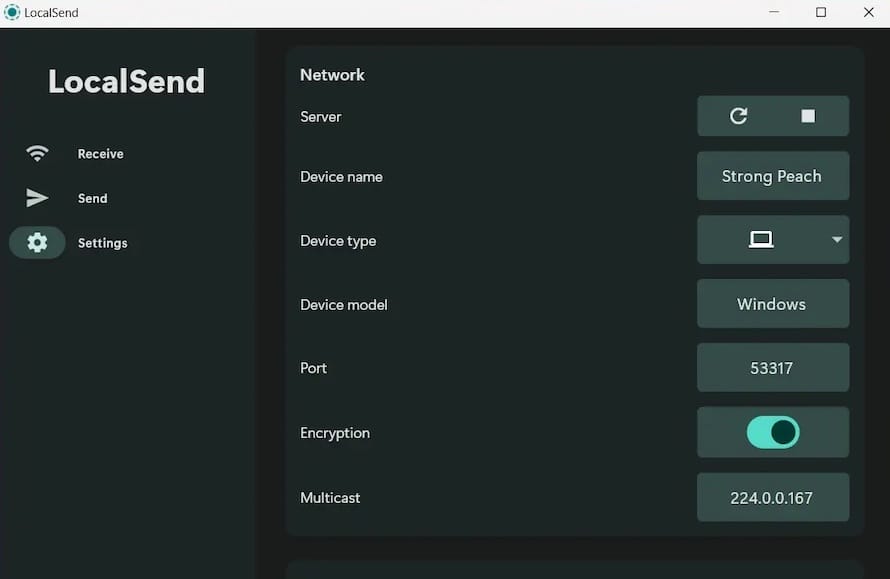
Under the hood, it uses HTTPS over the local network for the actual transfer and a discovery protocol on UDP/TCP port 53317 to find nearby devices. That single port number is the crux of nearly every “device not showing up” complaint you’ll see in forums, and it’s exactly why the firewall section of this guide isn’t optional reading.
On Fedora specifically, two things make the installation slightly more involved than on Ubuntu or Debian:
- No official Fedora repository. Unlike Debian’s
.deb, there’s nodnf install localsendfrom a stock repo — you’re relying on Flatpak, a COPR-built RPM, or AppImage. - firewalld with zone-based rules. Fedora Workstation defaults to the
FedoraWorkstationzone rather thanpublic, which trips up anyone copying firewall commands verbatim from Ubuntu-focused tutorials that assumeufw.
Before You Start: System Requirements and Pre-Checks
LocalSend is lightweight. It’s built on Flutter, so resource consumption is modest — but a few pre-flight checks save time later.
- RAM: 2GB minimum, though any modern Fedora 44 desktop install already exceeds this comfortably.
- Disk space: Roughly 150–300MB depending on install method (Flatpak carries more overhead than a native RPM due to bundled runtimes).
- Network: Both devices must be on the same LAN/subnet, or at minimum a network that permits multicast/broadcast discovery and doesn’t isolate client devices (a common issue on “guest” Wi-Fi networks in offices).
- Architecture: x86-64 and ARM64 are both supported; check with
uname -mif you’re deploying to mixed hardware.
Start with a clean, updated system:
sudo dnf update -y
sudo dnf install -y flatpak curl
Updating first isn’t just habit — Fedora 44’s package manager occasionally has stale metadata that causes Flatpak remote additions to silently fail, and a fresh dnf update clears that up more often than it should need to.
Method 1: Installing LocalSend via Flatpak (Recommended)
Flatpak is the path of least resistance on Fedora, and it’s also the method the LocalSend project itself points users toward for distros without native packaging. Fedora Workstation ships with Flatpak support pre-integrated, though the Flathub remote sometimes needs to be added explicitly depending on how minimal your install is.
Step 1: Add the Flathub Remote
flatpak remote-add --if-not-exists flathub https://flathub.org/repo/flathub.flatpakrepo
The --if-not-exists flag matters here — running this blindly on a system that already has Flathub configured won’t break anything, but it’s good practice to avoid duplicate remote warnings cluttering your terminal output.
Step 2: Install LocalSend
flatpak install flathub org.localsend.localsend_app
You’ll be prompted to confirm the installation and, on a first-time Flatpak setup, to install the required runtime (usually the GNOME or Freedesktop platform runtime). Expect this step to pull down somewhere between 100–200MB depending on what’s already cached.
Step 3: Launch and Verify
flatpak run org.localsend.localsend_app
Or simply search “LocalSend” in GNOME Activities. If the app opens and shows a device name (usually something like Fedora-<hostname>), the install succeeded. It won’t yet see other devices — that comes after the firewall configuration below.
Why Flatpak first? Sandboxing. Flatpak isolates the app from the rest of the filesystem by default, exposing only ~/Downloads and a few other directories via portals. For a file-transfer tool that’s constantly writing incoming files to disk, that sandboxing is a legitimate security advantage — not just a packaging convenience.
Method 2: Native RPM Installation via COPR
If you’d rather have a native package that integrates with dnf for updates and doesn’t carry Flatpak’s runtime overhead, a COPR repository maintains RPM builds targeted at Fedora releases including 44.
sudo dnf copr enable elohmeier/localsend
sudo dnf install -y localsend
Note that COPR repositories are community-maintained, not Fedora-official — that distinction matters for anyone deploying this in a regulated or security-conscious environment. Before enabling any COPR repo on production hardware, check what packages it provides and who maintains it:
dnf copr search localsend
If your organization restricts unsigned or third-party repos on managed endpoints, skip this method and use Flatpak or AppImage instead. On a personal workstation, though, this is genuinely the cleanest long-term option — updates flow through your normal dnf update cycle rather than requiring a separate Flatpak update habit.
Verifying Package Integrity
Before trusting any third-party RPM, it’s worth a quick sanity check on the package signature and contents:
rpm -qi localsend
rpm -qa --queryformat '%{NAME}-%{VERSION}-%{RELEASE} %{VENDOR}\n' localsend
This isn’t paranoia — it’s the same five-second habit that catches a mismatched or stale package before it becomes a “why isn’t this updating” ticket three months from now.
Method 3: AppImage (Portable, No Root Required)
For situations where you don’t have (or don’t want) root access — shared workstations, sandboxed environments, or just testing before committing to a system-wide install — AppImage is the fallback.
Step 1: Download the AppImage
mkdir -p ~/Applications
cd ~/Applications
curl -L -o LocalSend.AppImage \
  https://github.com/localsend/localsend/releases/latest/download/LocalSend-linux-x86-64.AppImage
Step 2: Make It Executable
chmod +x LocalSend.AppImage
Step 3: Run It
./LocalSend.AppImage
If you hit a FUSE error on first launch — a common occurrence on minimal Fedora installs or containers — install the FUSE library:
sudo dnf install -y fuse fuse-libs
AppImages bundle their own dependencies, which makes them portable but also means they don’t auto-update through dnf or Flatpak. If you go this route, set a calendar reminder to check for new releases manually, or wrap the download command in a small script for periodic re-pulls.
Integrating the AppImage into GNOME (Optional but Recommended)
Running an AppImage from the terminal every time gets old fast. Create a proper desktop entry so it shows up in GNOME’s application grid:
mkdir -p ~/.local/share/applications
cat > ~/.local/share/applications/localsend.desktop << 'EOF'
[Desktop Entry]
Name=LocalSend
Exec=/home/%u/Applications/LocalSend.AppImage
Icon=localsend
Type=Application
Categories=Network;FileTransfer;
EOF
update-desktop-database ~/.local/share/applications
Replace %u with your actual username, or better, use the full absolute path — GNOME’s desktop entry parser doesn’t always expand %u the way you’d expect outside of exec arguments.
Configuring firewalld: The Step Everyone Skips
This is the part that separates a working LocalSend install from one that just sits there, unable to find any device. Fedora Workstation’s default active zone is typically FedoraWorkstation, not public — check yours before running any firewall commands:
firewall-cmd --get-active-zones
Once you know your active zone, open the required port. LocalSend uses port 53317 over both TCP and UDP for discovery and transfer:
sudo firewall-cmd --zone=FedoraWorkstation --permanent --add-port=53317/tcp
sudo firewall-cmd --zone=FedoraWorkstation --permanent --add-port=53317/udp
sudo firewall-cmd --reload
Verify the rules took effect:
sudo firewall-cmd --zone=FedoraWorkstation --list-ports
You should see 53317/tcp and 53317/udp in the output. If your active zone came back as public instead (common on systems joined to certain network profiles, or servers without a desktop environment), substitute accordingly.
Why this matters beyond LocalSend: this is the same pattern you’ll hit with almost any peer-discovery application on Fedora — Syncthing, KDE Connect, Plex’s local discovery, all of them. Understanding which zone is active before blindly pasting firewall commands from a tutorial written for Ubuntu’s ufw will save recurring headaches well beyond this one app.
SELinux Considerations
Fedora runs SELinux in enforcing mode by default, and while LocalSend generally doesn’t require custom policy modules, it’s worth knowing how to diagnose an SELinux denial if file transfers mysteriously fail to write to disk (particularly with the AppImage method, which runs less predictably than a properly packaged RPM or Flatpak).
Check for denials after a failed transfer:
sudo ausearch -m avc -ts recent
If you see AVC denials referencing the LocalSend binary or its target download directory, generate a custom policy module rather than disabling SELinux outright — disabling SELinux on a Fedora desktop to fix one app is the kind of shortcut that comes back to bite you during an audit or, worse, an actual compromise:
sudo ausearch -c 'localsend_app' --raw | audit2allow -M localsend_local
sudo semodule -i localsend_local.pp
In practice, this rarely triggers for Flatpak or RPM installs since both integrate with existing policy contexts, but AppImages running from non-standard directories (outside ~/Downloads, ~/Applications, or similar) are more likely to hit this wall.
Real-World Use Cases
Home network file transfers. The most common scenario — moving photos off a phone onto a Fedora desktop without touching cloud storage. Works reliably once the firewall is configured, and transfer speeds on a decent local Wi-Fi network typically hit 40–80MB/s, far faster than any cloud upload/download round-trip.
Office environments with segmented VLANs. This is where things get tricky. If your workstation’s VLAN doesn’t allow multicast traffic between segments (common in enterprise network designs for security isolation), device discovery fails even with the firewall properly configured. The workaround is manual IP entry — LocalSend supports connecting directly via a target device’s IP address rather than relying on broadcast discovery, which sidesteps the multicast issue entirely.
Server-to-desktop file staging. Some sysadmins use LocalSend on headless servers (via the CLI-capable server mode LocalSend offers) to quickly push a log bundle or config backup to a desktop for review, without spinning up scp credentials for a one-off transfer. It’s not a replacement for proper backup infrastructure, but it’s a genuinely useful stopgap for ad-hoc transfers.
Troubleshooting Common Issues
Devices Don’t Discover Each Other
Ninety percent of the time, this is the firewalld port issue covered above. The other 10% is usually a router or access point with client isolation enabled (common on guest networks and some mesh Wi-Fi systems), which blocks device-to-device communication entirely regardless of firewall settings. Test with a wired connection or a different network to confirm before troubleshooting Fedora further.
“No Space Left on Device” During Transfer (Despite Free Disk Space)
This usually points to a Flatpak sandboxing quirk where the app’s writable portal path fills up separately from the visible filesystem quota, or occasionally an XDG user directory misconfiguration. Check:
df -h ~/Downloads
flatpak info --show-permissions org.localsend.localsend_app
App Crashes on Launch Under Wayland
Fedora 44 defaults to Wayland, and a small number of Electron/Flutter-based apps have historically had rough edges with certain compositor versions. Force X11 (XWayland) as a diagnostic step:
GDK_BACKEND=x11 flatpak run org.localsend.localsend_app
If that resolves the crash, it confirms a Wayland-specific rendering bug rather than a broader install problem — file it upstream, but keep using the XWayland workaround in the meantime.
AppImage Won’t Execute — “Permission Denied”
Almost always a missed chmod +x, but occasionally caused by mounting ~/Applications on a filesystem mounted with noexec (rare, but seen on some encrypted home directory setups). Check with:
mount | grep $(df ~/Applications --output=target | tail -1)
Performance and Optimization Tips
- Wired beats wireless for large batches. If you’re moving gigabytes of data regularly — VM images, backup archives — plug into Ethernet. Wi-Fi discovery works fine, but sustained throughput on a congested 2.4GHz network will bottleneck hard.
- Disable power-saving on the Wi-Fi adapter for transfer sessions. Aggressive power management (
iwconfigpower save mode) on laptops can introduce discovery lag or intermittent drops mid-transfer. Check withiw dev wlan0 get power_saveand disable temporarily if you notice flaky connections. - Watch disk I/O on the receiving end. On systems with spinning disks rather than SSDs, large multi-file transfers can queue up and appear “stalled” when it’s actually just write-cache flushing.
iostat -x 2during a transfer will confirm whether it’s a network bottleneck or a disk one. - Keep it updated. Flatpak users should run
flatpak updateperiodically; COPR/RPM users get it viadnf update. LocalSend’s protocol has evolved across versions, and mismatched versions between devices occasionally cause handshake failures during discovery.
Security Considerations
LocalSend encrypts transfers over HTTPS using self-signed, per-session certificates — solid for a LAN tool, but worth understanding the trust model rather than assuming it’s bulletproof. It’s designed for trusted local networks, not hostile or shared public Wi-Fi.
- Never rely on it over public/untrusted networks. LAN-only discovery means anyone on the same broadcast domain can, in theory, see your device advertising itself. On a home or office LAN this is a non-issue; on a coffee shop Wi-Fi, it’s not the tool for the job.
- Review incoming transfer prompts carefully. LocalSend requires manual acceptance for incoming files by default — don’t disable that confirmation step for convenience on shared or multi-user machines.
- Keep firewalld rules scoped to the correct zone. Opening 53317 on the
publiczone when you only need it on your home network’s zone widens your exposure unnecessarily. Match the rule to the zone that actually corresponds to your trusted network. - Audit COPR repos before enabling them fleet-wide. If deploying via configuration management (Ansible, Puppet) across multiple Fedora workstations, pin the COPR repo and package version rather than letting it float, and review changes before pushing updates broadly.
