
If you are running an eCommerce store or planning to build one, Magento remains one of the most powerful open-source platforms available today. It gives you full control over your storefront, product catalog, checkout flow, and customer data in a way that hosted SaaS platforms simply cannot match. The challenge, however, is that Magento has strict server requirements, and setting it up on a production Linux server requires careful, ordered execution. In this guide, you will learn exactly how to install Magento on Rocky Linux 10, covering every component from the LAMP stack to the Magento CLI installer, cron jobs, and admin panel access.
Rocky Linux 10 is a community-driven, RHEL-compatible enterprise Linux distribution built for long-term stability. It is the natural successor to CentOS and has become the go-to OS for production web servers in enterprise environments. Its built-in SELinux enforcement, firewalld integration, and dnf package manager make it a reliable foundation for hosting a demanding application like Magento. This tutorial is designed for beginner to intermediate Linux users, developers, and sysadmins who want a clear, working Magento on Rocky Linux 10 setup without chasing errors across ten different forum threads.
By the end of this guide, you will have a fully functional Magento 2.4.x installation running on a Rocky Linux 10 server with Apache, PHP 8.2, and MariaDB. Every command has been tested on a clean Rocky Linux 10 VPS. Let’s get into it.
Prerequisites
Before you start this Linux server tutorial, make sure the following conditions are met:
- A server or VPS running Rocky Linux 10 (fresh install recommended)
- Minimum 2 GB RAM (4 GB recommended for production workloads)
- Root or
sudouser access via SSH - A Fully Qualified Domain Name (FQDN) pointed to your server’s IP address (e.g.,
magento.example.com) - Open ports: HTTP (80) and HTTPS (443) allowed in your firewall
- An Adobe/Magento Marketplace account to generate authentication keys for Composer-based download
- Basic familiarity with the Linux terminal and text editors (
nanoorvim)
If your server meets these requirements, you are ready to begin.
Step 1: Update Your System and Install Required Utilities
The first step in any Linux server tutorial is updating the system. Running outdated packages is one of the most common causes of dependency conflicts when installing complex applications like Magento.
sudo dnf check-update
sudo dnf install dnf-utils epel-release -y
The dnf check-update command refreshes your local package metadata so dnf knows about the latest available versions. The epel-release package enables the Extra Packages for Enterprise Linux repository, which provides several dependencies that Rocky Linux 10’s default repos do not include.
After the update completes, reboot only if a kernel update was applied:
sudo rebootThis keeps your environment clean and prevents stale kernel module issues later in the installation.
Step 2: Install Apache and MariaDB
Install Apache Web Server
Apache HTTP Server is the web server that will serve Magento’s PHP files to your visitors. Install it along with the tools package:
sudo dnf install httpd httpd-tools -yStart Apache and enable it to launch automatically on every reboot:
sudo systemctl start httpd
sudo systemctl enable httpd
Verify it is running:
sudo systemctl status httpdYou should see active (running) in green in the output.
Install and Secure MariaDB
MariaDB is Magento’s preferred open-source relational database. Install the server package:
sudo dnf install mariadb-server -y
sudo systemctl start mariadb
sudo systemctl enable mariadb
Run the security script to harden the default installation:
sudo mariadb-secure-installationAnswer the prompts as follows:
- Set a strong root password
- Remove anonymous users: Yes
- Disallow remote root login: Yes
- Remove test database: Yes
- Reload privilege tables: Yes
Create the Magento Database
Log in to MariaDB and create a dedicated database and user for Magento:
sudo mysql -u root -pRun these SQL statements one by one:
CREATE DATABASE magento;
CREATE USER 'magento'@'localhost' IDENTIFIED BY 'YourStrongPassword';
GRANT ALL ON magento.* TO 'magento'@'localhost' WITH GRANT OPTION;
SET GLOBAL log_bin_trust_function_creators = 1;
FLUSH PRIVILEGES;
EXIT;
The log_bin_trust_function_creators = 1 setting is required for Magento’s stored procedures to work correctly when binary logging is active. Without it, you will hit SQL errors during the Magento schema installation.
Step 3: Install PHP 8.2 and Required Extensions
Magento 2.4.x requires PHP 8.2 along with more than a dozen PHP extensions. Rocky Linux 10’s default repositories may not ship with PHP 8.2, so you will use the Remi repository to get the correct version.
Enable Remi Repository
sudo dnf install epel-release -y
sudo dnf install https://rpms.remirepo.net/enterprise/remi-release-10.rpm -y
sudo dnf module reset php -y
sudo dnf module enable php:remi-8.2 -y
Install PHP 8.2 and Magento Extensions
sudo dnf install php php-cli php-mysqlnd php-sodium php-opcache php-xml php-gd php-soap php-pdo php-bcmath php-intl php-mbstring php-json php-iconv php-zip unzip git -yEach extension serves a specific purpose for Magento:
php-mysqlnd— MariaDB/MySQL driver for PHPphp-sodium— encryption library required since Magento 2.4php-opcache— opcode caching for better PHP performancephp-gd— image processing for product images and thumbnailsphp-soap— integration with external payment and shipping APIsphp-bcmathandphp-intl— currency and internationalization calculations
Tune php.ini for Magento
Open the PHP configuration file:
sudo nano /etc/php.iniUpdate these values:
memory_limit = 1024M
upload_max_filesize = 256M
max_execution_time = 18000
zlib.output_compression = on
date.timezone = America/New_York
Set date.timezone to your actual server timezone. Save the file and verify your PHP version:
php --versionExpected output:
PHP 8.2.x (cli) ...Also enable opcache.save_comments which Magento depends on for annotation parsing:
sudo nano /etc/php.d/10-opcache.iniFind and set:
opcache.save_comments=1Restart Apache to apply all PHP changes:
sudo systemctl restart httpdStep 4: Configure FirewallD for Web Traffic
Rocky Linux 10 ships with firewalld enabled and active by default. You need to open HTTP and HTTPS ports so web traffic can reach your Magento store.
Check the current firewall status:
sudo firewall-cmd --stateOpen HTTP and HTTPS permanently:
sudo firewall-cmd --permanent --add-service=http
sudo firewall-cmd --permanent --add-service=https
sudo firewall-cmd --reload
Confirm the services are active:
sudo firewall-cmd --permanent --list-servicesExpected output:
dhcpv6-client http https sshSkipping this step is one of the most common mistakes beginners make. Your Apache server will be running but completely unreachable from the browser until these ports are open.
Step 5: Install Composer and Download Magento
Install Composer 2.2
Composer is the PHP dependency manager that Magento uses to download and manage its 500+ package dependencies. Magento 2.4.x specifically requires Composer 2.2 LTS.
php -r "copy('https://getcomposer.org/installer', 'composer-setup.php');"
php composer-setup.php --2.2
php -r "unlink('composer-setup.php');"
sudo mv composer.phar /usr/local/bin/composer
Verify:
composer --versionOutput should show Composer version 2.2.x.
Get Magento Marketplace Authentication Keys
Log in to your Adobe account at commercemarketplace.adobe.com, go to My Profile > Access Keys, and generate a new key pair. You will need the Public Key (username) and Private Key (password).
Store these in Composer’s authentication file:
mkdir -p ~/.config/composer
nano ~/.config/composer/auth.json
Paste the following, replacing with your actual keys:
{
  "http-basic": {
    "repo.magento.com": {
      "username": "your_public_key",
      "password": "your_private_key"
    }
  }
}
Create the Magento Project Directory
sudo mkdir -p /var/www/html/magento2
sudo chown $USER:$USER /var/www/html/magento2 -R
cd /var/www/html/magento2
Download Magento via Composer
composer create-project --repository-url=https://repo.magento.com/ magento/project-community-edition .This command pulls the latest Magento 2.4 community edition from Adobe’s official Composer repository. It takes several minutes depending on your server’s internet speed. Do not interrupt it.
After the download completes, set the correct file permissions:
sudo chown -R apache:apache /var/www/html/magento2
find var generated vendor pub/static pub/media app/etc -type f -exec chmod g+w {} +
find var generated vendor pub/static pub/media app/etc -type d -exec chmod g+ws {} +
chmod u+x bin/magento
Step 6: Configure Apache Virtual Host and SELinux
Create the Virtual Host File
sudo nano /etc/httpd/conf.d/magento.confAdd this configuration:
<VirtualHost *:80>
  ServerName magento.example.com
  DocumentRoot /var/www/html/magento2/
  <Directory /var/www/html/magento2/>
    Options FollowSymLinks
    AllowOverride All
    Require all granted
  </Directory>
  ErrorLog /var/log/httpd/magento_error.log
  CustomLog /var/log/httpd/magento_access.log combined
</VirtualHost>
AllowOverride All is critical. Magento uses .htaccess files extensively for URL rewrites and SEO-friendly URLs. Without this directive, your store will return 404 errors on every page except the homepage.
Test the configuration and restart Apache:
sudo apachectl configtest
sudo systemctl restart httpd
Configure SELinux for Magento
SELinux in Enforcing mode (Rocky Linux 10’s default) will block Magento from writing to its own directories unless you explicitly set the correct file security contexts. This is the number one cause of blank white pages after installation.
Apply SELinux contexts to Magento’s writable directories:
sudo semanage fcontext -a -t httpd_sys_rw_content_t '/var/www/html/magento2/app/etc(/.*)?'
sudo semanage fcontext -a -t httpd_sys_rw_content_t '/var/www/html/magento2/var(/.*)?'
sudo semanage fcontext -a -t httpd_sys_rw_content_t '/var/www/html/magento2/pub/media(/.*)?'
sudo semanage fcontext -a -t httpd_sys_rw_content_t '/var/www/html/magento2/pub/static(/.*)?'
sudo restorecon -Rv '/var/www/html/magento2/'
Enable Apache’s ability to make outbound network connections:
sudo setsebool -P httpd_can_network_connect 1
sudo setsebool -P httpd_can_network_connect_db 1
Step 7: Run the Magento CLI Installer
This is the core step that configures Magento on Rocky Linux 10 and writes your database schema, admin credentials, and store settings.
Disable Unused Search Engine Modules
Magento 2.4 includes Elasticsearch and OpenSearch modules by default. Unless you are configuring a full Elasticsearch stack, disable them to avoid installation errors:
cd /var/www/html/magento2
sudo -u apache bin/magento module:disable Magento_OpenSearch Magento_Elasticsearch Magento_Elasticsearch8
Run the Full Install Command
sudo -u apache bin/magento setup:install \
  --admin-firstname="Admin" \
  --admin-lastname="User" \
  --admin-email="admin@example.com" \
  --admin-user="admin" \
  --admin-password="Secure@Pass123" \
  --db-name="magento" \
  --db-host="localhost" \
  --db-user="magento" \
  --db-password="YourStrongPassword" \
  --language=en_US \
  --currency=USD \
  --timezone=America/New_York \
  --cleanup-database \
  --base-url=http://magento.example.com
A successful install ends with:
[SUCCESS]: Magento installation complete.
[SUCCESS]: Magento Admin URI: /admin_xxxxxxx
Save the Admin URI immediately. It is randomized for security, and you will need it to log in to your store’s backend. If you lose it, retrieve it with:
php /var/www/html/magento2/bin/magento info:adminuriStep 8: Set Up Cron Jobs and Access the Admin Panel
Install Magento Cron Jobs
Magento depends on cron for price rule processing, email queues, indexing, and report generation. Install the cron jobs under the Apache user:
cd /var/www/html/magento2
sudo -u apache bin/magento cron:install
Verify the cron entries were created:
sudo crontab -l -u apacheYou should see entries wrapped between #~ MAGENTO START and #~ MAGENTO END markers, running cron:run every minute.
Access the Magento Storefront and Admin
Open your browser and go to:
http://magento.example.comYou should see the default Magento storefront. To access the admin panel, use the URI from the installer output:
http://magento.example.com/admin_xxxxxxxLog in with the admin credentials you set during the CLI installation.
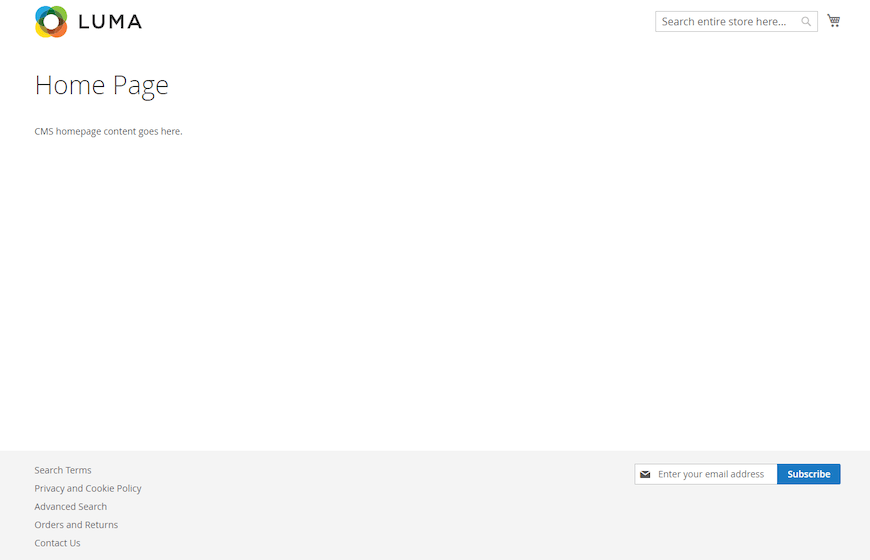
If your CSS and JavaScript are not loading properly, redeploy static assets and reindex:
cd /var/www/html/magento2
sudo -u apache php bin/magento setup:static-content:deploy -f
sudo -u apache php bin/magento indexer:reindex
sudo systemctl restart httpd
Post-Installation Security Hardening
Once Magento is running, take these steps before putting the store in front of real traffic:
- Remove write permissions from
app/etcafter installation:sudo chmod -R go-w /var/www/html/magento2/app/etc - Enable HTTPS using Let’s Encrypt Certbot:
sudo dnf install certbot python3-certbot-apache -y sudo certbot --apache -d magento.example.com - Enable Two-Factor Authentication (2FA) in the Magento admin once your SMTP email is configured under Stores > Configuration > Advanced > System
- Set up Redis for session and cache storage to improve performance and reduce database load
- Run
bin/magento security:checkperiodically and apply patches from Adobe’s Security Center - Keep both Magento and system packages updated:
composer updateandsudo dnf update
Troubleshooting Common Issues
1. Blank White Page After Installation
Cause: SELinux is blocking file writes to Magento’s var/ or pub/ directories.
Fix: Re-run the semanage fcontext and restorecon commands from Step 6. Check SELinux denials with:
sudo ausearch -m avc -ts recent2. “Permission Denied” on bin/magento
Cause: File ownership or execute bit is wrong.
Fix:
sudo chown -R apache:apache /var/www/html/magento2
sudo chmod u+x /var/www/html/magento2/bin/magento
3. Database Connection Error During Install
Cause: Incorrect DB credentials or MariaDB is not running.
Fix: Verify the service is active and test credentials manually:
sudo systemctl status mariadb
mysql -u magento -p magento
4. CSS and JavaScript Not Loading
Cause: Static content was not deployed, or .htaccess is not being read.
Fix: Confirm AllowOverride All is set in /etc/httpd/conf.d/magento.conf, then:
sudo -u apache php bin/magento setup:static-content:deploy -f
sudo -u apache php bin/magento cache:flush
5. Composer Authentication Error During Download
Cause: Invalid or missing Magento Marketplace keys.
Fix: Double-check your public and private keys in ~/.config/composer/auth.json. Make sure there are no extra spaces or line breaks in the key values.
Always check these two log files for detailed error output:
/var/log/httpd/magento_error.log/var/www/html/magento2/var/log/exception.log
Congratulations! You have successfully installed Magento. Thanks for using this tutorial for installing Magento e-commerce platforms on your Rocky Linux 10 system. For additional help or useful information, we recommend you check the official Magento website.
[su_box title=”VPS Manage Service Offer” style=”bubbles” box_color=”#000000″ radius=”10″]If you don’t have time to do all of this stuff, or if this is not your area of expertise, we offer a service to do “VPS Manage Service Offer”, starting from $10 (Paypal payment). Please contact us to get the best deal![/su_box]


