
Magento stands as one of the most powerful and flexible e-commerce platforms available today, powering thousands of online stores worldwide. Installing Magento on Fedora 43, a cutting-edge Linux distribution known for its stability and security features, provides an excellent foundation for building robust e-commerce websites. This comprehensive guide walks you through the entire installation process, from system preparation to post-deployment optimization, ensuring your Magento store runs smoothly and securely. Whether you’re a seasoned system administrator or new to Linux server management, this tutorial provides clear, actionable steps to get your Magento 2.4.7 installation up and running.
Prerequisites and System Requirements
Before diving into the installation process, ensure your server meets the necessary specifications for running Magento effectively.
Hardware Requirements
Your Fedora 43 server should have at least 2GB of RAM, though 4GB is strongly recommended for development environments and 8GB for production stores. Allocate a minimum of 5GB free disk space to accommodate Magento files, database growth, and future updates. A modern multi-core processor enhances performance, especially during compilation and indexing operations.
Software Requirements
This tutorial requires a fresh or existing Fedora 43 installation with root or sudo privileges. Magento 2.4.7 demands specific software versions for optimal compatibility:
- PHP 8.2 or 8.3 with essential extensions
- MySQL 8.0 or MariaDB 10.6 or higher
- Apache 2.4 or Nginx web server
- Composer 2.2 or later for dependency management
- Elasticsearch or OpenSearch for product search functionality
Step 1: Update Fedora 43 System
Begin by ensuring your system has the latest security patches and package updates. Open your terminal and execute:
sudo dnf update -yThis command refreshes package repositories and installs available updates. The process may take several minutes depending on your internet connection and the number of packages requiring updates. If kernel updates are installed, reboot your system:
sudo rebootWait for the system to restart before proceeding. Keeping your Fedora installation current prevents compatibility issues and security vulnerabilities.
Step 2: Install Apache Web Server
Apache serves as the web server handling HTTP requests for your Magento store.
Installing Apache
Install Apache using Fedora’s DNF package manager:
sudo dnf install httpd -yOnce installation completes, start the Apache service and enable it to launch automatically on system boot:
sudo systemctl start httpd
sudo systemctl enable httpd
Verify Apache is running correctly:
sudo systemctl status httpdYou should see an “active (running)” status message.
Configuring Apache for Magento
Enable essential Apache modules required by Magento:
sudo sed -i 's/#LoadModule rewrite_module/LoadModule rewrite_module/' /etc/httpd/conf.modules.d/00-base.confConfigure your firewall to allow web traffic:
sudo firewall-cmd --permanent --add-service=http
sudo firewall-cmd --permanent --add-service=https
sudo firewall-cmd --reload
These commands open ports 80 (HTTP) and 443 (HTTPS), making your web server accessible from external networks.
Step 3: Install PHP 8.3 and Required Extensions
Magento requires numerous PHP extensions to function properly.
Adding PHP Repository
Fedora’s default repositories may not include the latest PHP versions. Install the Remi repository for access to PHP 8.3:
sudo dnf install https://rpms.remirepo.net/fedora/remi-release-43.rpm -yEnable the PHP 8.3 module:
sudo dnf module reset php -y
sudo dnf module enable php:remi-8.3 -y
Installing PHP and Extensions
Install PHP along with all extensions required by Magento 2.4.7:
sudo dnf install php php-mysqlnd php-cli php-common php-opcache php-gd php-mbstring php-intl php-xml php-soap php-bcmath php-json php-zip php-curl php-xsl php-devel php-sodium unzip wget -yEach extension serves specific purposes: php-gd handles image processing, php-intl manages internationalization, php-bcmath performs precise mathematical calculations for pricing, and php-opcache accelerates PHP performance by caching compiled scripts.
Verify your PHP installation:
php -vYou should see PHP 8.3.x displayed in the output.
Step 4: Configure PHP Settings for Magento
Magento requires specific PHP configuration adjustments for optimal operation.
Edit the PHP configuration file:
sudo nano /etc/php.iniLocate and modify these settings:
memory_limit = 2G
upload_max_filesize = 256M
max_execution_time = 1800
zlib.output_compression = On
date.timezone = Asia/Jakarta
The memory_limit setting is crucial for Magento’s resource-intensive operations like compilation and indexing. Set date.timezone to your appropriate region. Save the file and exit the editor (Ctrl+X, then Y, then Enter in nano).
Restart Apache to apply changes:
sudo systemctl restart httpdStep 5: Install and Configure MySQL 8.0
MySQL serves as Magento’s database management system, storing products, customers, orders, and configuration data.
Installing MySQL Server
Add the MySQL 8.0 repository to Fedora 43:
sudo dnf install https://dev.mysql.com/get/mysql80-community-release-fc43-1.noarch.rpm -yInstall MySQL Community Server:
sudo dnf install mysql-community-server -yStart MySQL and enable it to run on boot:
sudo systemctl start mysqld
sudo systemctl enable mysqld
MySQL generates a temporary root password during installation. Retrieve it:
sudo grep 'temporary password' /var/log/mysqld.logSecuring MySQL Installation
Run the security script to harden your MySQL installation:
sudo mysql_secure_installationEnter the temporary root password when prompted, then set a strong new password. Answer “Y” to remove anonymous users, disallow root login remotely, remove the test database, and reload privilege tables.
Creating Magento Database
Log into MySQL as root:
mysql -u root -pCreate a dedicated database and user for Magento:
CREATE DATABASE magento_db;
CREATE USER 'magento_user'@'localhost' IDENTIFIED BY 'StrongPassword123!';
GRANT ALL PRIVILEGES ON magento_db.* TO 'magento_user'@'localhost';
FLUSH PRIVILEGES;
EXIT;
Replace StrongPassword123! with a secure password. Document these credentials for later use during Magento installation.
Step 6: Install Composer
Composer manages PHP dependencies and facilitates Magento installation.
Download and install Composer globally:
cd /tmp
curl -sS https://getcomposer.org/installer | php
sudo mv composer.phar /usr/local/bin/composer
sudo chmod +x /usr/local/bin/composer
Verify Composer installation:
composer --versionYou should see the Composer version number displayed, confirming successful installation.
Step 7: Download and Install Magento 2.4.7
Now comes the core Magento installation process.
Obtaining Magento Authentication Keys
Before downloading Magento, create a free account at the Magento Marketplace (marketplace.magento.com). Navigate to your account settings and generate access keys under “Access Keys”. You’ll receive a public key (username) and private key (password). Save these credentials securely.
Downloading Magento via Composer
Navigate to Apache’s document root:
cd /var/www/htmlUse Composer to create your Magento project:
sudo composer create-project --repository-url=https://repo.magento.com/ magento/project-community-edition=2.4.7 magentoWhen prompted, enter your public key as the username and private key as the password. Composer downloads Magento and all its dependencies, which may take 10-15 minutes depending on your connection speed.
Setting Permissions
Proper file permissions ensure Apache can read and write necessary files:
sudo chown -R apache:apache /var/www/html/magento
sudo chmod -R 755 /var/www/html/magento
sudo find /var/www/html/magento/var /var/www/html/magento/generated /var/www/html/magento/pub/static /var/www/html/magento/pub/media -type d -exec chmod 777 {} \;
Make the Magento CLI executable:
sudo chmod +x /var/www/html/magento/bin/magentoStep 8: Configure Apache Virtual Host for Magento
Create a dedicated virtual host configuration for your Magento installation.
Create a new configuration file:
sudo nano /etc/httpd/conf.d/magento.confAdd the following configuration:
<VirtualHost *:80>
    ServerAdmin admin@yourdomain.com
    ServerName yourdomain.com
    ServerAlias www.yourdomain.com
    DocumentRoot /var/www/html/magento/pub

    <Directory /var/www/html/magento/pub>
        Options Indexes FollowSymLinks MultiViews
        AllowOverride All
        Require all granted
    </Directory>

    ErrorLog /var/log/httpd/magento_error.log
    CustomLog /var/log/httpd/magento_access.log combined
</VirtualHost>
Replace yourdomain.com with your actual domain name or server IP address. For local testing, you can use localhost or your server’s IP.
Save the file and test Apache configuration:
sudo apachectl configtestIf you see “Syntax OK,” restart Apache:
sudo systemctl restart httpdStep 9: Install Magento via Command Line
Execute the Magento installation command with all necessary parameters.
Running Magento Setup Command
Navigate to the Magento directory:
cd /var/www/html/magentoRun the installation command as the Apache user:
sudo -u apache bin/magento setup:install \
--base-url=http://yourdomain.com \
--db-host=localhost \
--db-name=magento_db \
--db-user=magento_user \
--db-password=StrongPassword123! \
--admin-firstname=Admin \
--admin-lastname=User \
--admin-email=admin@yourdomain.com \
--admin-user=admin \
--admin-password=Admin123! \
--language=en_US \
--currency=USD \
--timezone=America/New_York \
--use-rewrites=1 \
--backend-frontname=admin
Replace the database credentials, admin details, and URL with your actual values. The installation process takes 5-10 minutes. Upon completion, Magento displays your admin URI and encryption key. Save these details immediately.
Post-Installation Commands
Install Magento cron jobs for scheduled tasks:
sudo -u apache bin/magento cron:installFor development environments, disable two-factor authentication:
sudo -u apache bin/magento module:disable Magento_TwoFactorAuthRun indexers and clear cache:
sudo -u apache bin/magento indexer:reindex
sudo -u apache bin/magento cache:flush
Step 10: Configure SELinux for Magento
Fedora 43 includes SELinux (Security-Enhanced Linux) by default, which may restrict Apache’s access to Magento files.
Check SELinux status:
getenforceIf enabled, configure appropriate contexts for Magento directories:
sudo semanage fcontext -a -t httpd_sys_rw_content_t "/var/www/html/magento/app/etc(/.*)?"
sudo semanage fcontext -a -t httpd_sys_rw_content_t "/var/www/html/magento/var(/.*)?"
sudo semanage fcontext -a -t httpd_sys_rw_content_t "/var/www/html/magento/pub/media(/.*)?"
sudo semanage fcontext -a -t httpd_sys_rw_content_t "/var/www/html/magento/pub/static(/.*)?"
sudo restorecon -Rv /var/www/html/magento
Allow Apache to make network connections:
sudo setsebool -P httpd_can_network_connect 1These commands ensure SELinux permits necessary Magento operations while maintaining security.
Step 11: Configure Firewall
Verify firewall rules allow web traffic:
sudo firewall-cmd --list-allConfirm HTTP and HTTPS services appear in the output. If not, add them:
sudo firewall-cmd --permanent --add-service=http
sudo firewall-cmd --permanent --add-service=https
sudo firewall-cmd --reload
These commands ensure external users can access your Magento store.
Step 12: Install and Configure Redis Cache
Redis significantly improves Magento performance by caching session data and backend operations.
Install Redis server:
sudo dnf install redis -yStart and enable Redis:
sudo systemctl start redis
sudo systemctl enable redis
Configure Magento to use Redis for cache and sessions:
sudo -u apache bin/magento setup:config:set --cache-backend=redis --cache-backend-redis-server=127.0.0.1 --cache-backend-redis-db=0
sudo -u apache bin/magento setup:config:set --session-save=redis --session-save-redis-host=127.0.0.1 --session-save-redis-db=1
Redis caching reduces database load and accelerates page loading times, especially for high-traffic stores.
Step 13: Access Magento Admin Panel
Open your web browser and navigate to your Magento store URL:
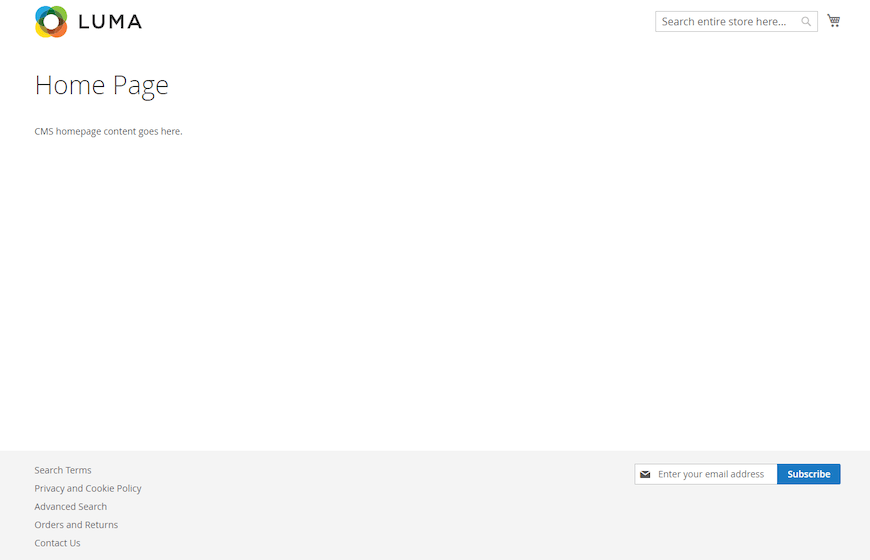
http://yourdomain.comYou should see the default Magento storefront. Access the admin panel using the backend frontname specified during installation:
http://yourdomain.com/adminLog in with the admin username and password you created. The Magento dashboard displays key metrics, recent orders, and quick access to configuration settings.
Step 14: Post-Installation Configuration
Complete these essential configurations to prepare your store for operation.
Magento Configuration
Navigate through the admin panel to configure:
- Store Information: Set your store name, address, and contact details under Stores > Configuration > General
- Email Settings: Configure SMTP settings for transactional emails
- Payment Methods: Enable payment gateways like PayPal, Stripe, or credit card processors
- Shipping Options: Set up shipping carriers and rates
- URL Rewrites: Ensure clean URLs are working properly
Security Hardening
Implement these security measures immediately:
- SSL Certificate: Install an SSL certificate and enable HTTPS for secure connections
- Admin URL: Change the default admin path to something unique
- Strong Passwords: Enforce complex password requirements for admin users
- Regular Backups: Schedule automated database and file backups
- File Permissions: Review and tighten permissions for production environments
Step 15: Performance Optimization
Optimize your Magento installation for better speed and efficiency.
Enable production mode when your store goes live:
sudo -u apache bin/magento deploy:mode:set productionDeploy static content:
sudo -u apache bin/magento setup:static-content:deploy -fEnable flat catalog for improved database performance:
sudo -u apache bin/magento config:set catalog/frontend/flat_catalog_category 1
sudo -u apache bin/magento config:set catalog/frontend/flat_catalog_product 1
Configure PHP OPcache for enhanced script execution. Edit /etc/php.d/10-opcache.ini:
opcache.enable=1
opcache.memory_consumption=512
opcache.max_accelerated_files=60000
opcache.validate_timestamps=0
Troubleshooting Common Issues
Permission Errors
If you encounter permission denied errors, verify ownership and permissions:
sudo chown -R apache:apache /var/www/html/magento
sudo find /var/www/html/magento -type d -exec chmod 755 {} \;
sudo find /var/www/html/magento -type f -exec chmod 644 {} \;
Database Connection Issues
Test database connectivity manually:
mysql -u magento_user -p magento_dbIf connection fails, verify credentials in /var/www/html/magento/app/etc/env.php.
PHP Memory Limit Errors
Increase memory allocation in /etc/php.ini:
memory_limit = 4GRestart Apache after changes:
sudo systemctl restart httpdSELinux Blocking Access
Check SELinux audit logs for denials:
sudo ausearch -m avc -ts recentUse audit2allow to create custom policies for legitimate operations.
Congratulations! You have successfully installed Magento. Thanks for using this tutorial for installing the Magento e-commerce Marketing Platform on your Fedora 43 Linux system. For additional help or useful information, we recommend you check the official Magento website.
[su_box title=”VPS Manage Service Offer” style=”bubbles” box_color=”#000000″ radius=”10″]If you don’t have time to do all of this stuff, or if this is not your area of expertise, we offer a service to do “VPS Manage Service Offer”, starting from $10 (Paypal payment). Please contact us to get the best deal![/su_box]


