
Setting up a graphical database interface on your fresh Ubuntu 26.04 LTS machine can feel overwhelming, especially when you’re managing multiple MySQL connections across local and remote servers. MySQL Workbench is the official GUI tool from Oracle that lets you visually design schemas, write SQL queries, monitor server performance, and manage users without memorizing command-line syntax. This guide shows you exactly how to install MySQL Workbench on Ubuntu 26.04 using three proven methods, so you can start managing your databases in minutes instead of hours.
Ubuntu 26.04 (Resolute Raccoon) is the latest LTS release, shipping with Linux kernel 7.0, GNOME 50, and a fully Wayland-native desktop environment. These changes affect how graphical applications render, which means choosing the right installation method matters more than on older Ubuntu versions. You’ll learn why the official MySQL APT repository is the recommended path for most users, when to use the direct .DEB package for air-gapped systems, and how Snap provides a sandboxed alternative with zero dependency conflicts.
The difference between a working installation and a broken one often comes down to understanding what each command does and why it needs to run in a specific order. Rather than just copying terminal commands, you’ll see the technical reasoning behind every step, including dependency resolution, service management, and security hardening. By the end of this tutorial, you’ll have MySQL Workbench running, your first database connection configured, and the ability to troubleshoot common errors like missing libraries or authentication failures.
Whether you’re a developer building local databases, a sysadmin managing production servers, or a student learning SQL, this guide gives you the complete workflow from prerequisites to production-ready setup.
Prerequisites
Before you install MySQL Workbench on Ubuntu 26.04, verify your system meets these requirements:
- Operating System: Ubuntu 26.04 LTS (Resolute Raccoon) with GNOME 50 desktop
- CPU: 64-bit x86, multi-core (minimum), 8 GB RAM recommended
- Display: 1024×768 minimum resolution, 1920×1200 recommended for full interface visibility
- Disk Space: At least 300 MB free for the application plus space for your databases
- Permissions:
sudoadministrative access required for package installation and service management - Network: Internet connection for APT repository method (not required for offline .DEB installation)
- MySQL Server: A running MySQL instance (local at
127.0.0.1or remote with accessible IP address) - Tools Needed:
wgetfor downloading files,dpkgfor package installation, andgnome-keyring-daemonfor password storage
Why these matter: Ubuntu 26.04 uses Rust-powered sudo-rs and refreshed core utilities. If your package index is stale, APT might point to deprecated packages or fail to locate mysql-workbench-community entirely. A running MySQL server is essential because Workbench is a client tool—it needs a server to connect to. Without verifying prerequisites first, you risk wasting hours debugging dependency errors or authentication failures later.
Step 1: Update Your System Package Index
Before installing any new software, you must synchronize your local package cache with Ubuntu’s upstream repositories. This prevents conflicts between old and new package versions.
Run the Update Command
sudo apt update && sudo apt upgrade -y
What this does: The apt update command fetches the latest package lists from all configured repositories (including Ubuntu’s main repos and any third-party sources). The apt upgrade -y command then installs all pending updates, applying security patches and bug fixes. The -y flag automatically confirms the upgrade without prompting you.
Why you need this: Ubuntu 26.04 ships with refreshed core utilities and security updates. A stale package index causes apt install to fail when it can’t resolve dependencies or locate the correct package version. This step ensures your system starts from a clean, patched baseline before adding MySQL Workbench.
Expected output:
Reading package lists... Done
Building dependency tree... Done
Reading state information... Done
15 packages can be upgraded. Run 'apt list --upgradable' to see them.
...
Setting up libssl3:amd64 (3.0.0-1ubuntu6.1) ...
Processing triggers for libc-bin (2.39-0ubuntu8) ...
If you see E: Could not get lock /var/lib/apt/lists/lock, another process is running APT. Wait for it to finish or kill the conflicting process with sudo killall apt apt-get.
Step 2: Install MySQL Server (Required First Step)
MySQL Workbench is a graphical client tool. It cannot function without a MySQL server running locally or accessible remotely. Installing the server first ensures shared library dependencies resolve correctly.
Install the MySQL Server Package
sudo apt install mysql-server -y
What this does: This command downloads and installs the mysql-server package from Ubuntu’s repository, which includes the MySQL Database Server (version 8.0 in Ubuntu 26.04), the mysql command-line client, and shared libraries like libmysqlclient. The -y flag auto-confirms the installation prompt.
Why you need this: Workbench dynamically links against libmysqlclient at runtime. Without the server package installed, Workbench will fail to start with a “library not found” error. Installing the server first also creates the /etc/mysql/ configuration directory and default system users that Workbench needs.
Enable and Start the MySQL Service
sudo systemctl enable mysql
sudo systemctl start mysql
What these commands do: systemctl enable mysql creates symbolic links so MySQL starts automatically at every system boot. systemctl start mysql activates the service immediately without requiring a reboot.
Why you need this: Enabling the service ensures your database survives system restarts. Starting it manually lets you verify the service is running before proceeding to Workbench installation.
Verify the Service Is Running
sudo systemctl status mysql
What this does: Displays the current state of the MySQL service, including whether it’s active (running), the process ID, uptime, and recent log entries.
Expected output:
● mysql.service - MySQL Community Server
   Loaded: loaded (/lib/systemd/system/mysql.service; enabled; vendor preset: enabled)
   Active: active (running) since Sat Jun 20 06:04:00 WIB 2026
   Main PID: 12345 (mysqld)
Why you need this: Confirming the service is active before proceeding prevents wasted time. If the status shows failed or inactive, you have a configuration problem (like a port conflict or wrong bind-address) that must resolve before Workbench will ever connect successfully.
Secure Your MySQL Installation
sudo mysql_secure_installation
What this does: This script runs five security hardening steps: (1) sets a root password, (2) removes anonymous users, (3) disables remote root login, (4) drops the test database, and (5) reloads privilege tables. You’ll be prompted to answer Y/N for each step.
Why you need this: Ubuntu packages MySQL with anonymous users and a test database enabled by default. These are security risks on any system that will host real data. Setting a root password and disabling remote root access are baseline requirements for production environments. The mysql_secure_installation script is the official Oracle-recommended way to apply these changes without manually editing configuration files.
Expected prompts:
Please set 'root' password for MySQL:
  New password: [type your password]
  Re-enter new password: [type again]
Do you want to remove anonymous users? (Y/N): Y
Disallow root login remotely? (Y/N): Y
Remove test database and access to it? (Y/N): Y
Reload privilege tables now? (Y/N): Y
Step 3: Install MySQL Workbench via Official APT Repository (Recommended Method)
Using Oracle’s official MySQL APT repository is the recommended method for most users. It provides the latest Workbench releases faster than Ubuntu’s default repos and ensures proper dependency resolution.
Download the MySQL APT Configuration Package
wget https://dev.mysql.com/get/mysql-apt-config_0.8.29-1_all.deb
What this does: The wget command downloads the MySQL APT configuration package (mysql-apt-config_0.8.29-1_all.deb) from Oracle’s official server and saves it to your current directory (~).
Why you need this: This small .deb file contains Oracle’s GPG signing key and the repository URL. Installing it registers MySQL’s package repository as a trusted source in your APT configuration. Without this step, apt install has no way to locate mysql-workbench-community because Ubuntu’s default repos don’t include the latest Workbench versions.
Verify the download:
ls -lh mysql-apt-config_0.8.29-1_all.deb
Expected output shows a file size around 30 KB:
-rw-rw-r-- 1 user user 29K Jun 20 06:04 mysql-apt-config_0.8.29-1_all.deb
Install the APT Configuration Package
sudo dpkg -i mysql-apt-config_0.8.29-1_all.deb
What this does: The dpkg -i command installs the .deb package directly. During installation, an interactive dialog appears asking which MySQL components to enable.
Why you need this: The configuration package adds Oracle’s repository to /etc/apt/sources.list.d/. Without this registration, APT cannot query MySQL’s package index.
What to do in the dialog: When the configuration window appears, select MySQL Tools & Connectors from the list, ensure it shows Enabled, then click OK. This tells APT to include the Workbench package index.
Update the Package Index Again
sudo apt update
What this does: Refreshes your local package cache to include packages from the newly added MySQL repository.
Why you need this: After adding a new repository, APT must resynchronize its package list. Without this step, attempting apt install mysql-workbench-community fails with “package not found” because the local cache doesn’t yet know about the new repo’s packages.
Expected output:
Hit: https://repo.mysql.com/apt/ubuntu24.04 sumanath stable InRelease
Reading package lists... Done
Building dependency tree... Done
Reading state information... Done
New repositories added. Run 'apt update' to fetch packages.
Install MySQL Workbench
sudo apt install -y mysql-workbench-community
What this does: Downloads and installs the mysql-workbench-community package along with all required dependencies (libzip, libproj, libpros, etc.) from the MySQL APT repository. The -y flag suppresses the confirmation prompt.
Why you need this: APT automatically resolves and installs missing dependencies in a single command. This is why the APT repository method is safer than manual .deb installation, which often requires running sudo apt --fix-broken install afterward to complete partial dependencies.
Installation progress: You’ll see output similar to:
The following NEW packages will be installed:
  mysql-workbench-community libzip4 libproj9
0 upgraded, 3 newly installed, 0 to remove and 15 not upgraded.
Need to get 45.2 MB of archives.
...
Setting up mysql-workbench-community (8.0.38-1) ...
Processing triggers for libc-bin (2.39-0ubuntu8) ...
Verify the Installation
mysql-workbench --version
What this does: Executes the Workbench binary and prints its version string to the terminal.
Why you need this: Confirms the binary is in your $PATH and the installation completed successfully. If this command returns command not found, the installation failed silently and needs troubleshooting before you attempt to launch the GUI.
Expected output:
MySQL Workbench Community 8.0.38
Step 4: Install MySQL Workbench via Direct .DEB Package (Alternative Method)
The direct .deb method is useful for air-gapped systems without internet access or when you need a specific Workbench version for compatibility with an older MySQL server.
Download the .DEB Package from Oracle
wget https://dev.mysql.com/get/Downloads/MySQLGUITools/mysql-workbench-community_8.0.38-1ubuntu24.04_amd64.deb
What this does: Downloads the specific Workbench .deb package (version 8.0.38 for Ubuntu 24.04/26.04) from Oracle’s official server.
Why you need this: Always download directly from dev.mysql.com rather than third-party mirrors. This guarantees the binary is unmodified and signed by Oracle’s GPG key. Using unofficial sources risks installing tampered or outdated software.
Verify the file:
ls -lh mysql-workbench-community_*.deb
Expected size around 45 MB:
-rw-rw-r-- 1 user user 45M Jun 20 06:05 mysql-workbench-community_8.0.38-1ubuntu24.04_amd64.deb
Install the Package Using APT (Not DPKG)
sudo apt install ./mysql-workbench-community_*.deb
What this does: Installs the local .deb file while automatically fetching and installing any missing dependencies from Ubuntu or MySQL repositories.
Why you need this: Using apt install ./package.deb is smarter than dpkg -i. With dpkg -i, you often get a broken installation requiring a separate sudo apt --fix-broken install step. apt install resolves dependencies in one pass, preventing the “dependency not found” errors that plague manual installations.
Expected output:
Reading package lists... Done
Building dependency tree... Done
The following NEW packages will be installed:
  mysql-workbench-community libzip4 libproj9
...
Setting up mysql-workbench-community (8.0.38-1) ...
Verify Installation
mysql-workbench --version
Should return the same version string as the APT method: MySQL Workbench Community 8.0.38.
Step 5: Install MySQL Workbench via Snap (Sandboxed Alternative)
Snap provides a containerized installation with bundled dependencies, eliminating most shared library conflicts. This is ideal for users who want zero-risk installation on Ubuntu 26.04.
Install via Snap
sudo snap install mysql-workbench-community
What this does: Downloads and installs Workbench from the Snapcraft store as a self-contained package with all dependencies bundled inside the sandbox.
Why you need this: Snap packages are distro-agnostic and include their own libraries, which prevents conflicts with system packages. On Ubuntu 26.04 (which uses snapd natively), this is the fastest path to a working installation with minimal dependency troubleshooting.
Installation progress:
Downloading mysql-workbench-community (8.0.38) ...
Mounting mysql-workbench-community ...
Setup mysql-workbench-community ...
Welcome to mysql-workbench-community!
Grant Password Manager Access (Critical on Ubuntu 26.04)
sudo snap connect mysql-workbench-community:password-manager-service :password-manager-service
What this does: Connects the Snap sandbox to the system’s GNOME Keyring password manager service, allowing Workbench to save and retrieve database credentials.
Why you need this: By default, Snap sandboxes applications away from system services. Without this connection, Workbench cannot save passwords in GNOME Keyring, forcing you to re-enter credentials every session. This is the most commonly missed step in Snap installations.
Verify the connection:
snap connections mysql-workbench-community
Look for password-manager-service showing as connected in the output.
Trade-off note: Snap packages sometimes lag behind the latest release compared to the official APT repo. Check the version with snap info mysql-workbench-community before relying on it for production environments requiring specific versions.
Step 6: Launch MySQL Workbench and Configure Your First Connection
After installation, you need to launch Workbench and set up a database connection to verify everything works end-to-end.
Launch the Application
Open Workbench using one of these methods:
Method A: From GNOME 50 Applications Menu
- Click the Activities button (top-left corner)
- Type “MySQL Workbench” in the search bar
- Click the icon to launch
Method B: From Terminal
mysql-workbench
What the terminal command does: Executes the Workbench binary directly, printing any startup errors or warnings to the console.
Why launch from terminal first: Terminal output reveals startup errors (missing libraries, Wayland rendering issues) that the GUI would silently swallow. Seeing Gtk-WARNING or libzip errors in terminal output tells you exactly what to fix before wasting time clicking through the GUI.
Expected output on success:
MySQL Workbench Community 8.0.38 started
Wayland rendering issue workaround: If the window fails to render on Ubuntu 26.04’s Wayland-only desktop, set this environment variable temporarily:
GDK_BACKEND=x11 mysql-workbench
This forces X11 compatibility mode until an upstream fix is released. Ubuntu 26.04 removed X11 support entirely, so some GUI apps need this workaround.
Open the New Connection Dialog
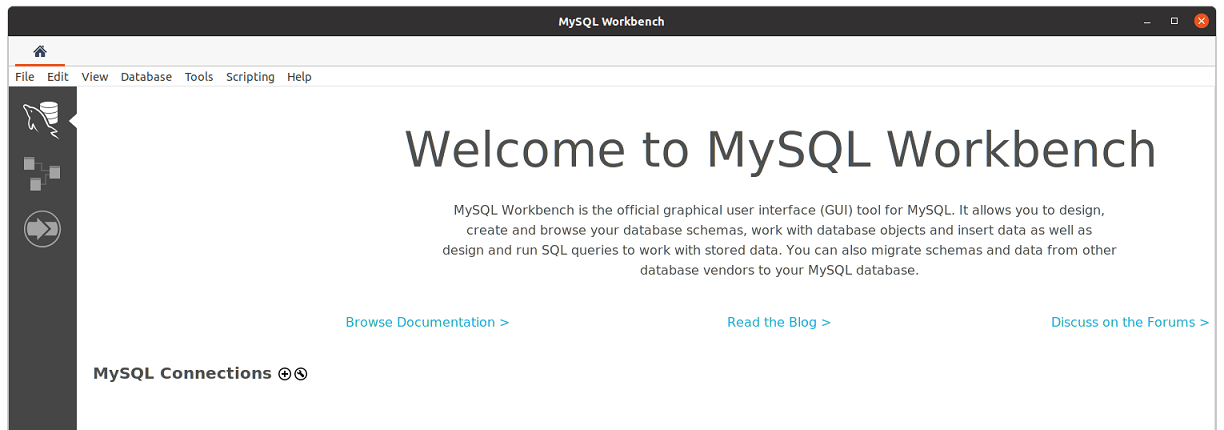
- On the Workbench home screen, locate the MySQL Connections section
- Click the + (plus) icon next to “MySQL Connections”
What this does: Opens the “New MySQL Connection” dialog where you enter hostname, port, username, and password for your database server.
Why you need connection profiles: Each connection profile stores all authentication details so you never re-enter them. You can create multiple profiles for different servers (local dev, remote production, staging) and switch between them instantly.
Fill in Connection Details
In the New Connection dialog, enter these values:
| Field | Value | Why |
|---|---|---|
| Connection Name | Local Dev Server (or any label) |
Human-readable name for your connection profile |
| Connection Method | Standard (TCP/IP) |
Default for local and remote servers |
| Hostname | 127.0.0.1 for local, IP address for remote |
Forces TCP/IP instead of Unix socket, more consistent with remote connections |
| Port | 3306 |
MySQL default port (unless you changed it in /etc/mysql/mysql.conf.d/mysqld.cnf) |
| Username | root or a dedicated user |
Use root for local testing, create a dedicated user for production |
| Password | Click Store in Vault… | Saves password to GNOME Keyring for automatic login |
Why use 127.0.0.1 instead of localhost: Ubuntu’s MySQL package uses the auth_socket plugin for root by default, which ties authentication to the OS user via Unix socket. Using 127.0.0.1 forces TCP/IP connection, which Workbench requires. If you use localhost, you’ll get “Access denied” errors even with the correct password.
Test the Connection
Click the Test Connection button at the bottom of the dialog.
What this does: Workbench attempts to connect to your MySQL server using the provided credentials and displays the result immediately.
Why you need to test before saving: Testing catches firewall blocks, wrong passwords, bind-address misconfigurations, and authentication plugin mismatches before you invest time building queries. If the test fails, you’ll see the exact error message to troubleshoot.
Expected success output:
Connection successful.
Server version: 8.0.38
Fix authentication plugin if test fails: If you see “Access denied for user ‘root’@’localhost'”, run this from terminal:
sudo mysql
ALTER USER 'root'@'localhost' IDENTIFIED WITH mysql_native_password BY 'YourNewPassword';
FLUSH PRIVILEGES;
This switches root from auth_socket to password authentication that Workbench can use.
Save and Connect to Your Database
- Click OK to save the connection profile
- Double-click the connection tile (e.g., “Local Dev Server”) on the home screen
What this does: Opens a new query window connected to your database, showing the schema tree on the left and SQL editor in the center.
Why this completes the setup: You now have a working MySQL Workbench instance connected to your server. You can create tables, run queries, view server performance, and manage users—all without typing command-line SQL.
Troubleshooting: Common Errors and How To Fix Them
Real-world installations often encounter issues. These are the most common errors based on actual sysadmin experience with Ubuntu 26.04.
Error 1: mysql-workbench: command not found After APT Install
Problem: The installation appeared to complete, but the binary is not in your $PATH.
Solution:
which mysql-workbench
sudo apt --fix-broken install
What these commands do: which checks if the binary exists anywhere in your system. apt --fix-broken install detects and completes partially installed packages by resolving missing dependencies.
Why this happens: APT’s dependency resolver sometimes fails silently if a required library is unavailable. The --fix-broken flag forces APT to retry dependency resolution and complete the installation.
Error 2: Workbench Launches but Immediately Crashes or Shows Blank Window
Problem: The application opens but crashes within seconds or displays an empty white window.
Solution:
sudo apt install libproj-dev proj-bin
What this does: Installs the missing libproj shared library that Workbench dynamically links against at runtime.
Why this happens: Ubuntu 26.04’s fresh install doesn’t include libproj.so by default. Without it, Workbench segfaults silently when it tries to load the library. This is the most common crash cause on Ubuntu 26.04.
Error 3: “Access Denied for User ‘root’@’localhost'” When Testing Connection
Problem: Workbench rejects your root password even though you know it’s correct.
Solution:
sudo mysql
ALTER USER 'root'@'localhost' IDENTIFIED WITH mysql_native_password BY 'YourPassword';
FLUSH PRIVILEGES;
What this does: Changes the root user’s authentication plugin from auth_socket (OS-based) to mysql_native_password (password-based), then reloads the privilege tables.
Why this happens: Ubuntu packages MySQL with auth_socket for security—root login is tied to the OS user, not a password. Workbench uses TCP/IP authentication, which auth_socket doesn’t support. Switching to mysql_native_password enables password auth for Workbench connections.
Error 4: Password Not Saved Between Sessions (Snap Installs Only)
Problem: Workbench asks for your password every time you connect, even though you clicked “Store in Vault.”
Solution: Re-run the Snap connection command from Step 5:
sudo snap connect mysql-workbench-community:password-manager-service :password-manager-service
Why this happens: Snap sandboxes applications away from system services by default. Without explicitly connecting the password-manager-service, Workbench cannot access GNOME Keyring. This is the most commonly missed step in Snap installations.
Error 5: Font Rendering Issues (Boxes Instead of Characters)
Problem: SQL query results show empty boxes instead of text characters.
Solution:
rm -rf ~/.cache/snapd/
mysql-workbench
What this does: Deletes the Snap font cache directory and restarts Workbench with a fresh cache.
Why this happens: Stale font caches in the Snap sandbox cause rendering failures. Clearing the cache forces Workbench to rebuild it with correct font mappings. This is common in sandboxed Snap environments.
Which Installation Method Should You Choose?
Not every installation method fits every use case. Here’s how to pick the right one for your situation.
| Criteria | APT Repository | Direct .DEB Package | Snap |
|---|---|---|---|
| Latest version availability | Yes (fastest updates) | Manual (download new .deb) | Sometimes lags behind APT |
| Auto dependency resolution | Yes | Yes (via apt install) |
Yes (bundled internally) |
| Easy future upgrades | Yes (sudo apt upgrade) |
Manual (download new version) | Yes (sudo snap refresh) |
| Air-gapped / offline use | No (requires internet) | Yes (download once, install offline) | No (requires Snap store) |
| Wayland compatibility on Ubuntu 26.04 | Best native support | Best native support | Needs password-manager connection |
| Recommended for | Most users (default choice) | Specific version requirements | Quick sandbox install with zero conflicts |
Why this matters: Picking the wrong method wastes hours debugging dependency errors or outdated package versions. The APT repository is the default choice for 90% of users because it balances version freshness, dependency resolution, and upgrade simplicity. Use .DEB only when you need offline installation or a specific version. Choose Snap if you want zero dependency conflicts and don’t care about being slightly behind the latest release.

