
Navidrome is a solid choice if you want a self-hosted music server that feels lightweight on the surface but scales surprisingly well in real use. On Ubuntu 26.04, the setup is straightforward, but the difference between a toy install and a dependable production service comes down to details: proper permissions, ffmpeg, systemd hardening, reverse proxying, and a sane storage layout. Navidrome’s own documentation recommends using a dedicated non-root user, giving it read-only access to the music folder, and placing the writable data directory somewhere separate from your media library.
That distinction matters more than most quick-start guides admit. A music server seems harmless until you put it on a VPS, expose it through a domain name, connect mobile clients, and let it scan a library with tens of thousands of files. Then the small things start to matter: whether the database lives on fast storage, whether your reverse proxy passes the right headers, whether ffmpeg is installed, and whether the service can restart cleanly after a reboot. Ubuntu 26.04 LTS is a good base for this because it is a long-term support release with five years of security updates, and the server edition can run with modest resources, starting as low as 1.5 GB RAM and 4 GB disk space for the OS itself.
What follows is a real deployment-style walkthrough. It favors the binary install method on Ubuntu over Docker for the main guide, because that tends to be simpler to troubleshoot on production servers and aligns well with standard Linux administration practices. I’ll also cover Docker briefly later, along with reverse proxying, security hardening, common failure points, and tuning ideas for larger libraries.
Why Navidrome
Navidrome is a modern Subsonic-compatible music server that works well with a wide range of clients, from mobile apps to web players. It is especially attractive if you already maintain your own music archive and want a clean, efficient streaming layer without pulling in a heavyweight media stack. In practice, it fits neatly into the same mental model many sysadmins use for other self-hosted services: one dedicated service account, one writable app-data directory, one read-only content directory, and one reverse proxy in front of it.
The other reason it is popular is that it is not fussy about infrastructure. It does not need a huge server just to start, and it does not demand a complicated database server for basic usage. That makes it a good fit for home servers, VPS instances, and small production-style deployments where reliability matters more than features you will never use. If you are the kind of admin who values clean logs, predictable restarts, and not having to babysit a container every week, Navidrome is a comfortable tool to run.
Ubuntu 26.04 prerequisites
Before installing Navidrome, update the system and install the tools you will need. Navidrome’s documentation explicitly notes that ffmpeg is required, and Ubuntu 26.04 supports the usual apt-based workflow for installing system packages.
sudo apt update
sudo apt upgrade -y
sudo apt install -y curl tar ffmpeg
If you plan to use Nginx as a reverse proxy, install it now as well:
sudo apt install -y nginxA few practical notes are worth keeping in mind. Ubuntu 26.04 LTS is a long-term support release, so it is a sensible base for a service you intend to keep online for years. For production use, it is also worth confirming that your music files are stored on reliable disk media, because Navidrome will scan metadata and may create cache/database activity during library updates. If the library is large, putting /var/lib/navidrome on faster storage than the media volume can make interface responsiveness feel noticeably better.
Create service users
Do not run Navidrome as root. That is not just a best-practice slogan; it is part of Navidrome’s own security guidance, which recommends running it under its own user and enabling non-root enforcement.
Create a dedicated user and directories:
sudo useradd --system --home /var/lib/navidrome --shell /usr/sbin/nologin navidrome
sudo mkdir -p /opt/navidrome
sudo mkdir -p /var/lib/navidrome
sudo mkdir -p /srv/music
sudo chown -R navidrome:navidrome /var/lib/navidrome /opt/navidrome
sudo chown -R navidrome:navidrome /srv/music
You may already have a music directory elsewhere, such as /mnt/media/music or /data/music. That is fine. The important part is that Navidrome should be able to read the music folder, but not write to it, and it should write only to its own data directory. If your library lives on a mounted NAS share or external disk, make sure mount permissions are stable before you continue. A service that starts too early at boot and sees an unmounted media path is one of the most common self-hosted-service headaches.
Download Navidrome
Navidrome’s installation docs direct you to the latest release for your platform, and they also note that Docker users can skip the binary download entirely. For a standard Ubuntu installation, use the latest Linux amd64 tarball from the Navidrome GitHub releases page.
A typical install looks like this:
cd /tmp
curl -L -o navidrome.tar.gz https://github.com/navidrome/navidrome/releases/latest/download/navidrome_linux_amd64.tar.gz
sudo tar -xzf navidrome.tar.gz -C /opt/navidrome
sudo chown -R navidrome:navidrome /opt/navidrome
sudo chmod 755 /opt/navidrome/navidrome
If you are on ARM hardware, download the appropriate ARM build instead. Navidrome’s docs say to check the ARM build for your platform using /proc/cpuinfo, and the official releases include Linux builds for Intel and ARM systems. For a Raspberry Pi or ARM server, do not blindly grab the amd64 tarball and expect it to work. That mistake wastes time in a way every Linux admin recognizes immediately.
Verify the binary exists:
/opt/navidrome/navidrome --versionIf that returns version information, the binary is in place and ready for systemd.
Configure Navidrome
Navidrome supports configuration through a TOML file or environment variables, and its Docker documentation shows the same core idea: keep the media path read-only, keep the data path writable, and define options explicitly. For a native install, a config file is easier to audit and easier to maintain.
Create a configuration file:
sudo nano /var/lib/navidrome/navidrome.tomlUse something like this:
MusicFolder = "/srv/music"
DataFolder = "/var/lib/navidrome"
Address = "127.0.0.1"
Port = 4533
ScanSchedule = "@every 1h"
LogLevel = "info"
EnableTranscodingConfiguration = false
Here is why each setting matters.
MusicFolderpoints to your library.DataFolderstores Navidrome’s database, cache, and service data.Address = "127.0.0.1"keeps the service bound to localhost when you plan to use a reverse proxy.Port = 4533uses Navidrome’s default port.ScanSchedulecontrols how often the library is rescanned.LogLevelis set toinfofor normal production visibility.EnableTranscodingConfigurationstays disabled unless you actually need to edit transcoding settings in the UI, which Navidrome disables by default for security reasons.
If you want Navidrome directly reachable on the network during initial testing, you can temporarily change Address to 0.0.0.0. For production, localhost plus a reverse proxy is the cleaner pattern. Navidrome’s security docs specifically encourage using a reverse proxy like Nginx, Caddy, Traefik, or Apache for added protection and SSL.
Set the config file permissions:
sudo chown navidrome:navidrome /var/lib/navidrome/navidrome.toml
sudo chmod 640 /var/lib/navidrome/navidrome.toml
Systemd service
This is the part that makes the install feel like a real server service instead of a manual binary launch. Systemd gives you automatic startup at boot, clean restarts, journaling, and a single place to inspect service health.
Create the unit file:
sudo nano /etc/systemd/system/navidrome.serviceAdd:
[Unit]
Description=Navidrome Music Server
After=network-online.target
Wants=network-online.target
AssertPathExists=/opt/navidrome/navidrome

[Service]
User=navidrome
Group=navidrome
Type=simple
WorkingDirectory=/opt/navidrome
ExecStart=/opt/navidrome/navidrome --configfile /var/lib/navidrome/navidrome.toml
Restart=on-failure
RestartSec=5
NoNewPrivileges=true
ProtectSystem=full
ProtectHome=true
PrivateTmp=true
ProtectControlGroups=true
ProtectKernelModules=true
ProtectKernelTunables=true

[Install]
WantedBy=multi-user.target
Reload systemd and start the service:
sudo systemctl daemon-reload
sudo systemctl enable --now navidrome
sudo systemctl status navidrome
If the service is healthy, you should see it listening on port 4533 on localhost. Check logs with:
journalctl -u navidrome -fThat command is one of the first things to reach for when troubleshooting, because service start failures often show up there before they are visible anywhere else.
First login
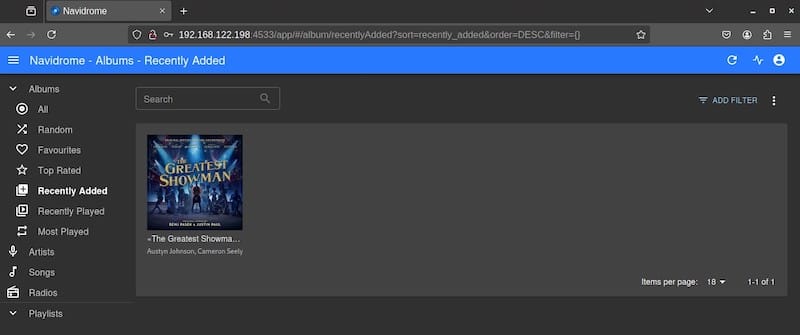
Once the service is up, open the web UI in a browser:
http://SERVER_IP:4533At first launch, Navidrome will ask you to create an administrator account and scan the music directory. If your library is large, that first scan can take a while, especially if your storage is slow or your metadata is messy. This is normal. In the real world, the first scan is usually where people discover whether their tagging is clean or whether they have a jungle of badly named files, duplicate albums, and nested artist folders that were never standardized.
If the UI loads but the library is empty, check three things first:
- The
MusicFolderpath is correct. - The Navidrome user can read that folder.
- The service has actually completed a scan.
Nginx reverse proxy
Navidrome can run on its own port, but in a production setup it is smarter to put Nginx in front of it. Navidrome’s security guidance recommends using a reverse proxy with SSL, and it also suggests binding Navidrome to localhost when doing so.
Create a site file:
sudo nano /etc/nginx/sites-available/navidromeUse:
server {
    listen 80;
    server_name music.example.com;

    location / {
        proxy_pass http://127.0.0.1:4533;
        proxy_http_version 1.1;
        proxy_set_header Host $host;
        proxy_set_header X-Real-IP $remote_addr;
        proxy_set_header X-Forwarded-For $proxy_add_x_forwarded_for;
        proxy_set_header X-Forwarded-Proto $scheme;

        proxy_set_header Upgrade $http_upgrade;
        proxy_set_header Connection "upgrade";
    }
}
Enable the site and test Nginx:
sudo ln -s /etc/nginx/sites-available/navidrome /etc/nginx/sites-enabled/navidrome
sudo nginx -t
sudo systemctl reload nginx
If you want HTTPS, add Let’s Encrypt using Certbot:
sudo apt install -y certbot python3-certbot-nginx
sudo certbot --nginx -d music.example.com
That gives you TLS encryption, better browser trust, and less risk if you expose the server over the public internet. For a home server behind a VPN or private network, HTTPS is still a smart move because clients and browsers behave more predictably when transport security is in place.
Docker option
Docker is a legitimate alternative if your environment already standardizes on containers. Navidrome’s Docker docs show a straightforward compose-based deployment with /data for app state and a read-only /music mount for the library.
A minimal docker-compose.yml looks like this:
services:
  navidrome:
    image: deluan/navidrome:latest
    container_name: navidrome
    ports:
      - "4533:4533"
    restart: unless-stopped
    user: "1000:1000"
    environment:
      ND_LOGLEVEL: info
      ND_SCANSCHEDULE: "1h"
    volumes:
      - "./data:/data"
      - "/srv/music:/music:ro"
Run it with:
docker compose up -dThe container approach is convenient if you already use Docker for other self-hosted apps. The tradeoff is that when something goes wrong, you now debug both the app and the container layer. On a busy server, a native systemd service is often simpler to observe and easier to integrate into existing monitoring, log rotation, and backup workflows. Navidrome’s Docker guidance also notes that production containers should not run as root, and the user ID should ideally match the owner of the mounted volumes to avoid permission problems.
Security hardening
Security is where many guides become hand-wavy, but Navidrome’s own documentation is quite explicit. It recommends a dedicated non-root user, read-only access to the music folder, and using a reverse proxy with SSL.
A practical hardening checklist looks like this:
- Keep Navidrome bound to
127.0.0.1and expose it only through Nginx. - Use a firewall such as UFW or your cloud provider’s security groups to allow only 80/443 externally.
- Keep
/srv/musicread-only for the Navidrome user. - Keep
/var/lib/navidromewritable only by the Navidrome user. - Patch Ubuntu regularly with
apt update && apt upgrade. - Review logs after updates or scans.
- Use strong, unique admin credentials.
Navidrome also includes a login rate limiter by default to reduce brute-force risk, and the security docs note that it uses a sliding-window algorithm for this purpose. That is helpful, but it is not a substitute for sensible perimeter controls. If the service is public-facing, you still want TLS, a reverse proxy, and basic firewall discipline.
For UFW:
sudo ufw allow OpenSSH
sudo ufw allow 'Nginx Full'
sudo ufw enable
sudo ufw status
Performance tuning
For a small library, Navidrome does not need much. For a large library, the operational bottlenecks usually show up in metadata scanning, transcoding, disk I/O, and reverse-proxy behavior rather than CPU saturation alone. The music server itself is lightweight, but the environment around it often is not.
A few tuning ideas are worth considering:
- Put the database/cache directory on SSD if the media library is on slower storage.
- Increase scan intervals if the library changes infrequently.
- Avoid unnecessary transcoding unless clients really need it.
- Keep ffmpeg installed and current, because Navidrome depends on it for proper media handling.
- Watch load during initial scans and schedule the first import during low-traffic hours.
- Use
iotop,htop,free -h, andjournalctlto see where the service is spending time.
If you have a very large collection, the first scan can hammer disk I/O long before CPU becomes the real problem. That is one of those details that anyone who has managed production servers learns quickly: the bottleneck is often where the software meets the filesystem, not inside the app itself. If the library lives on network storage, latency matters just as much as bandwidth.
Common problems
Several issues show up repeatedly in real deployments.
Navidrome does not start
Check the service logs:
journalctl -u navidrome -xeCommon causes include a bad config file, a missing binary, wrong file permissions, or a wrong music path. If the config file contains a typo in the TOML syntax, Navidrome may exit immediately. In that case, simplify the config and test again.
Empty library after setup
This usually means one of three things: the path is wrong, the service user cannot read the directory, or the folder has not been scanned yet. Confirm permissions with:
sudo -u navidrome ls -la /srv/musicIf that fails, fix the ownership or group permissions before trying anything else.
Port 4533 already in use
Check what is holding the port:
sudo ss -ltnp | grep 4533If another instance is running, stop it or change the port in the Navidrome config.
FFmpeg errors
Navidrome’s docs explicitly state that ffmpeg should be installed. If transcoding fails or client playback has strange gaps, install or reinstall it:
sudo apt install --reinstall -y ffmpegThen restart Navidrome.
Reverse proxy issues
If the web UI loads but assets or login behavior act strangely behind Nginx, verify the forwarded headers. The proxy configuration should pass X-Forwarded-Proto, Host, and upgrade headers correctly. Missing proxy headers are a frequent source of weirdness when an app is placed behind TLS termination.
Backup strategy
A music server is not just a playlist engine. It usually becomes a catalog of years of tagged files, playlists, favorites, and user data. That means backup planning is not optional.
Back up at least these pieces:
/var/lib/navidrome- Your music library
- Your Nginx configuration
- Any TLS certificates or renewal automation details
- Systemd unit files and custom environment files
For the app data, a simple rsync-based backup can be enough:
rsync -aH --delete /var/lib/navidrome/ /backup/navidrome/For the music library, back up the source of truth rather than trying to reconstruct it later from the app database. Navidrome is excellent at indexing and serving, but your original collection is still the asset that matters most.
