
Ubuntu 26.04 LTS does not ship with a GUI archive manager capable of handling every format you will encounter on a real Linux workstation or server. If you have ever tried to open a .rar, .7z, or a password-protected archive and hit a dead end, you already know this problem firsthand. Learning how to install PeaZip on Ubuntu 26.04 LTS solves that problem completely, and this guide walks you through every step with clear commands and honest explanations of why each one matters.
PeaZip is a free, open-source archive manager licensed under LGPLv3. It supports over 200 archive formats, strong AES-256 encryption, file integrity verification, and secure deletion. It runs on every major desktop environment Ubuntu supports, including GNOME, KDE Plasma, MATE, and XFCE. Most importantly, it gives you the right-click context menu integration that makes daily archive work fast and frictionless.
This guide covers three installation methods (native DEB package, Flatpak from Flathub, and Portable tarball), GNOME Nautilus context menu setup, installation verification, common errors with solutions, and clean uninstall steps. Each command comes with a plain-English explanation of what it does and why you need to run it.
What Is PeaZip and Why Use It on Ubuntu 26.04
Before you run a single command, it helps to understand what PeaZip actually is under the hood. This is not just another file manager wrapper. PeaZip is a frontend that coordinates multiple proven open-source backends: 7-Zip/p7zip for 7Z and ZIP operations, Brotli for modern web-optimized compression, FreeArc for high-ratio compression, Zstandard (ZST) for fast modern archives, and its own PEA engine for encrypted, multi-volume splits.
Ubuntu’s default Nautilus file manager handles basic ZIP files without any extra tools. However, it fails completely on RAR, 7Z, ISO, WIM, CAB, DMG, and dozens of other formats you will regularly encounter when working with Linux servers, development environments, and cross-platform file transfers. PeaZip fills that gap while staying fully open-source and free.
Key Features Worth Knowing Before You Install
- Reads and writes 200+ archive formats including 7Z, RAR (extract), ZIP, TAR, ZST, GZ, BR, ISO, WIM, ZPAQ, and the native PEA format
- Strong encryption: AES-256, Serpent, Twofish, and Blowfish with optional two-factor authentication
- File hash and checksum verification (MD5, SHA-1, SHA-256, SHA-512) for confirming download integrity
- Secure file deletion that overwrites data before removal
- Split and join archives across multiple volumes
- Right-click context menu integration for GNOME Nautilus and KDE Dolphin
- Available in a GTK2 build (best for GNOME, MATE, XFCE) and a Qt6 build (best for KDE Plasma, LXQt)
Prerequisites Before You Install PeaZip on Ubuntu 26.04
Make sure you have the following ready before opening your terminal:
- Ubuntu 26.04 LTS installed and booted (Noble Numbat successor release)
- A user account with sudo privileges — you need this because package installation writes to protected system directories
- An active internet connection for downloading the package or Flatpak runtime
- At least 200 MB of free disk space to accommodate the app and any optional Flatpak runtime files
- Know your CPU architecture — run
uname -min the terminal before downloading. If the output saysx86_64, download the AMD/Intel builds. If it saysaarch64, download the ARM build. Installing the wrong architecture silently breaks the app - Basic comfort with the terminal (press Ctrl+Alt+T to open it)
Step 1: Update Your System Before Installing PeaZip
Always update your package index and installed packages before adding new software. This one step prevents the majority of dependency errors people hit during installation.
sudo apt update && sudo apt upgrade -yWhat apt update does: It refreshes your local package database by pulling the latest metadata from all configured repositories. Without this, apt works from a stale index and may try to satisfy PeaZip’s dependencies with outdated package versions.
What apt upgrade -y does: It upgrades all currently installed packages to their latest available versions. This matters because PeaZip links against system libraries like libgtk2.0-0 and libgdk-pixbuf2.0-0. If those libraries are outdated, PeaZip either crashes on launch or throws shared library errors on startup.
Why do this before downloading PeaZip: If you install PeaZip first and then run a system upgrade, the library upgrade can break the dependency links that PeaZip already resolved during its install, forcing a full reinstall.
Expected output:
Reading package lists... Done
Building dependency tree... Done
Reading state information... Done
Calculating upgrade... Done
0 upgraded, 0 newly installed, 0 to remove and 0 not changed.
If upgrades are available, apt lists them and installs them. This is normal and expected.
Step 2: Choose and Run Your Installation Method
There are three supported ways to install PeaZip on Ubuntu 26.04 LTS. The right method depends on your hardware architecture, whether you want context menu integration, and whether you have sudo access.
| Method | Best For | Needs sudo | Context Menu | Sandboxed |
|---|---|---|---|---|
| Native DEB Package | AMD/Intel GNOME users | Yes | Yes | No |
| Flatpak (Flathub) | Any architecture, isolation | Yes (first time) | Manual only | Yes |
| Portable Tarball | No-admin, testing, USB | No | Manual only | No |
Method 1: Install PeaZip via Native DEB Package (Recommended for Most Users)
This method gives you the deepest Ubuntu integration, the most reliable context menu support, and the best performance. Use this if you are running a standard AMD/Intel x86_64 Ubuntu 26.04 system with GNOME.
Step 2.1.1 — Download the latest PeaZip DEB package
wget https://github.com/peazip/PeaZip/releases/download/11.0.0/peazip_11.0.0.LINUX.GTK2-1_amd64.debWhy use wget: Downloading directly in the terminal avoids partial browser downloads and puts the file in a predictable location (your current working directory) for the next command. Browser downloads sometimes corrupt large binary files on slow connections.
Why the GTK2 build: Ubuntu 26.04 defaults to the GNOME desktop, which is GTK-based. The GTK2 PeaZip build integrates with your system theme correctly, including dark mode support. If you are running KDE Plasma, download the Qt6 build instead from the same GitHub releases page.
Step 2.1.2 — Install the DEB package using apt
sudo apt install ./peazip_11.0.0.LINUX.GTK2-1_amd64.debWhy apt install instead of dpkg -i: When you use apt to install a local .deb file, it automatically identifies and downloads any missing dependencies from Ubuntu’s repositories. If you use dpkg -i, it installs the package but leaves broken dependencies unresolved. You would then need to run sudo apt --fix-broken install as a second step anyway. Using apt skips that extra step entirely.
Why the ./ prefix matters: Without the ./, the apt command searches your configured online repositories for a package named “peazip.” It finds nothing and exits with an error. The ./ explicitly tells apt to treat the argument as a local file path, not a repository package name.
Step 2.1.3 — Verify the installation completed
peazip --versionExpected output:
PeaZip 11.0.0You can also open PeaZip through the GNOME Activities overview by pressing the Super key and typing PeaZip.
Method 2: Install PeaZip via Flatpak from Flathub
Use this method if you are on an ARM-based machine (Raspberry Pi, ARM workstation), if you prefer keeping applications isolated from your system libraries, or if you are running a non-standard Ubuntu flavor.
Step 2.2.1 — Install Flatpak support
sudo apt install flatpakWhy this step is necessary: Ubuntu 26.04 does not ship the Flatpak daemon by default. Installing it adds the Flatpak runtime manager and the flatpak command-line tool to your system.
Step 2.2.2 — Add the Flathub remote repository
flatpak remote-add --if-not-exists flathub https://flathub.org/repo/flathub.flatpakrepoWhy add Flathub: PeaZip’s Flatpak package lives on Flathub, not on Ubuntu’s default Flatpak remote. Without pointing Flatpak at Flathub, the install command in the next step returns “No remote refs found.”
Why --if-not-exists: This flag prevents the command from throwing a “remote already exists” error if you have already added Flathub in a previous session. It makes the command safe to re-run.
Step 2.2.3 — Install PeaZip
flatpak install flathub io.github.peazip.PeaZipWhy the full application ID: Flatpak uses reverse-domain-style application IDs to avoid naming collisions between apps from different developers. Using just “peazip” fails because Flatpak does not search by short names.
Step 2.2.4 — Launch PeaZip
flatpak run io.github.peazip.PeaZipImportant limitation of the Flatpak build: The sandbox environment prevents automatic Nautilus context menu integration. If right-click archive support matters to your workflow, use Method 1 instead.
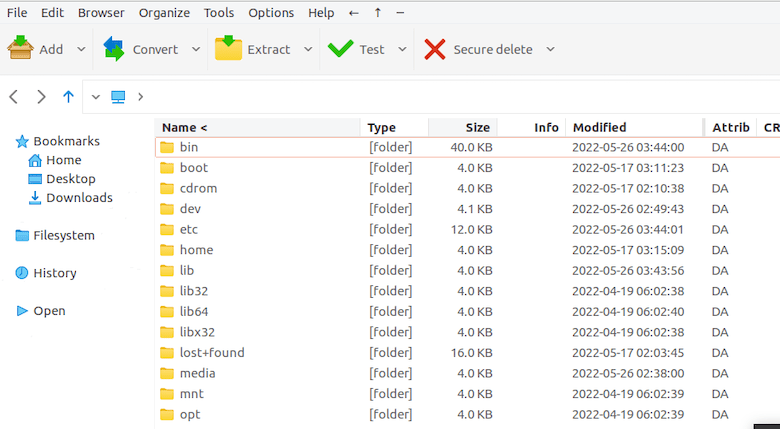
Method 3: Install PeaZip Portable (No Admin Access Required)
This method suits shared machines, testing environments, or situations where you want to run PeaZip from a USB drive across multiple systems without leaving anything behind.
Step 2.3.1 — Download the portable tarball
wget https://github.com/peazip/PeaZip/releases/download/11.0.0/peazip_portable-11.0.0.LINUX.GTK2.x86_64.tar.gzStep 2.3.2 — Extract the tarball
tar -xzvf peazip_portable-11.0.0.LINUX.GTK2.x86_64.tar.gzWhy each flag: -x extracts the archive contents, -z handles the gzip decompression layer, -v shows verbose output so you can see each file as it extracts, and -f tells tar which file to work with. Omitting -z on a .tar.gz file throws a “not in gzip format” error.
Step 2.3.3 — Run PeaZip directly
cd peazip_portable-11.0.0.LINUX.GTK2.x86_64
./peazip
Why ./ before the binary name: The bash shell searches the directories listed in your $PATH variable when you type a command. Your current directory is not in $PATH by default for security reasons. The ./ prefix bypasses $PATH and tells bash to run the binary in the current directory directly.
Step 3: Configure PeaZip on Ubuntu 26.04 with GNOME Nautilus Context Menu
Context menu integration is what transforms PeaZip from a useful tool into an essential one. Once configured, right-clicking any file in Nautilus reveals options like Extract Here, Add to Archive, and Open in PeaZip. This section covers PeaZip on Ubuntu 26.04 setup for DEB-installed users.
Why context menu integration matters: Without it, you launch PeaZip manually and navigate to your target file every time. With it, a two-click workflow replaces a six-step process. On a server or development workstation where you handle archives daily, that time adds up fast.
Enable Context Menu for the Native DEB Install
Step 3.1 — Copy the PeaZip Nautilus scripts to the correct location
cp -R /usr/share/peazip/batch/freedesktop_integration/Nautilus-scripts/PeaZip ~/.local/share/nautilus/scripts/Why PeaZip ships these scripts: Rather than making you write shell scripts from scratch, PeaZip includes pre-built Nautilus scripts in its package. You only need to move them to the directory Nautilus reads for custom context menu entries.
Step 3.2 — Fix file ownership
chown -R $USER:$USER ~/.local/share/nautilus/scripts/PeaZipWhy fix ownership: If you used sudo during any part of the copy, the files land with root as the owner. Nautilus runs as your regular user account and silently ignores scripts it does not own. This chown command transfers ownership to your account.
Step 3.3 — Set executable permissions
chmod -R u+x ~/.local/share/nautilus/scripts/PeaZipWhy set executable permissions: Script files are plain text by default. The operating system refuses to execute any file without the executable bit set, regardless of content. Without this step, Nautilus finds the scripts but cannot run them, so the context menu entries appear greyed out or not at all.
Step 3.4 — Restart Nautilus to apply changes
nautilus -qWhy restart Nautilus: Nautilus builds its scripts menu at startup and caches it. Running nautilus -q sends a quit signal to the running instance. The next time you open a folder, Nautilus re-reads the scripts directory and picks up all your new PeaZip entries.
Now right-click any file in Nautilus. You should see a Scripts submenu containing PeaZip options.
Step 4: Verify Your PeaZip Installation Is Working Correctly
Never skip verification. A successful install command does not always mean a working application. Here are four quick checks to confirm everything is healthy.
Check 1 — Confirm the binary is accessible from the terminal:
which peazipExpected output: /usr/bin/peazip
Check 2 — Confirm the correct version installed:
peazip --versionExpected output: PeaZip 11.0.0
Check 3 — Test archive creation: Open PeaZip from the Activities menu, drag a folder into the interface, select 7Z format, set a password, and click OK. If this works, your p7zip backend is healthy and encryption is functional.
Check 4 — Test Nautilus context menu: Right-click a .zip or .tar.gz file in the Nautilus file manager. Confirm the Scripts submenu shows PeaZip options. Select Extract Here and verify the extraction completes correctly.
Step 5: Troubleshooting Common PeaZip Installation Errors on Ubuntu 26.04
Even with clean steps, errors happen. Here are the five most common problems and how to fix each one.
Error 1: “Dependency problems prevent configuration of peazip”
What it means: The apt or dpkg installer found that one or more system libraries PeaZip requires are missing or have version conflicts.
Fix:
sudo apt --fix-broken installWhy this works: This command tells apt to scan your system for unsatisfied dependencies across all installed packages and automatically fetch and install whatever is missing. In most cases, it resolves the issue in a single run.
Error 2: PeaZip Launches But the Interface Looks Broken or Unstyled
What it means: You are running the GTK2 build on a Qt-heavy desktop (such as KDE Plasma 6), or your GTK theme packages are missing.
Fix for KDE users: Switch to the Qt6 build. Download it from the official PeaZip GitHub releases page and reinstall using the same apt install ./ method. The Qt6 build picks up KDE Plasma theming natively.
Fix for GNOME users:
sudo apt install libgtk2.0-0 libgdk-pixbuf2.0-0Then relaunch PeaZip.
Error 3: Context Menu Entries Do Not Appear After Setup
Run this diagnostic before anything else:
ls -la ~/.local/share/nautilus/scripts/PeaZip/Check two things in the output:
- The owner column should show your username, not
root. If it showsroot, re-run thechowncommand from Step 3.2. - The permissions column should show
-rwxfor each script file. If it shows-rw-, re-run thechmodcommand from Step 3.3.
After fixing either issue, run nautilus -q again and reopen a folder window.
Error 4: Flatpak PeaZip Cannot Access Folders Outside Home
What it means: Flatpak sandboxes applications by default. PeaZip inside the sandbox cannot read or write files on mount points, external drives, or directories outside your home folder.
Fix:
flatpak override --user --filesystem=home io.github.peazip.PeaZipFor external drives, replace home with /run/media or the specific mount path:
flatpak override --user --filesystem=/run/media io.github.peazip.PeaZipWhy this works: The flatpak override command modifies the sandbox policy for a specific app without affecting other Flatpak applications. The --filesystem= flag grants file system access beyond the default sandbox boundary.
Error 5: dpkg Lock Error During Installation
What it means: Another package management process (Software Center, Update Manager, or another apt session) is running simultaneously and holding the dpkg lock.
Expected error:
E: Could not get lock /var/lib/dpkg/lock - open (11: Resource temporarily unavailable)Fix: Close all Software Center and Update Manager windows. Wait 30 seconds, then re-run your install command. If the lock persists after a reboot, run:
sudo rm /var/lib/dpkg/lock-frontend
sudo dpkg --configure -a
Only remove the lock file after a reboot confirms no other package manager is running.
Step 6: How To Uninstall PeaZip from Ubuntu 26.04 LTS
Clean uninstallation is as important as clean installation. Here is how to remove PeaZip completely for each method.
Uninstall the DEB Package Version
sudo apt remove --autoremove peazipWhy --autoremove: This flag tells apt to remove PeaZip and then scan for any packages that were installed solely as PeaZip dependencies and are no longer needed by anything else. Without it, those orphaned libraries stay on your system and consume disk space.
Remove context menu scripts (if you set them up):
rm -rf ~/.local/share/nautilus/scripts/PeaZip
nautilus -q
Uninstall the Flatpak Version
flatpak uninstall --delete-data io.github.peazip.PeaZip
flatpak uninstall --unused
Why --delete-data: Flatpak deliberately keeps user application data (settings, recent files, configuration) even after you uninstall an app. If you want a clean slate, --delete-data removes that stored user data along with the app.
Why --unused: The second command removes any Flatpak runtimes that no other installed Flatpak application requires. This recovers disk space from orphaned runtime environments.
Remove the Portable Version
rm -rf ~/peazip_portable-11.0.0.LINUX.GTK2.x86_64If you created a .desktop shortcut manually:
rm ~/.local/share/applications/peazip.desktop
rm ~/.local/share/icons/peazip.png
Congratulations! You have successfully installed PeaZip. Thanks for using this tutorial for installing the PeaZip file archiver utility on Ubuntu 26.04 LTS (Resolute Raccoon) system. For additional help or useful information, we recommend you check the official PeaZip website.
[su_box title=”VPS Manage Service Offer” style=”bubbles” box_color=”#000000″ radius=”10″]If you don’t have time to do all of this stuff, or if this is not your area of expertise, we offer a service to do “VPS Manage Service Offer”, starting from $10 (Paypal payment). Please contact us to get the best deal![/su_box]
