
You need a reliable BitTorrent client that works smoothly on your Ubuntu 26.04 LTS system, but finding clear instructions for Install Transmission on Ubuntu 26.04 can be frustrating. Many guides mix outdated commands with vague explanations that leave you guessing about what actually works on the latest LTS release. This guide walks you through installing Transmission on Ubuntu 26.04 using proven methods that work on desktop and server environments, with every step explained so you understand the logic behind the commands.
Transmission is a lightweight, open-source BitTorrent client that ships in Ubuntu’s official repositories and works perfectly on Ubuntu 26.04 LTS (Resolute Raccoon). Whether you want a graphical desktop client or a headless daemon for remote access, this tutorial covers both approaches with practical sysadmin-level details that prevent common mistakes. You will learn not just the commands but the reasoning behind each configuration choice.
Prerequisites
Before you begin installing Transmission on Ubuntu 26.04, ensure you have the following ready:
- Operating System: Ubuntu 26.04 LTS (Resolute Raccoon) installed and running
- User Permissions: A user account with
sudoprivileges to install packages - Internet Connection: Active connection to download packages and data
- Terminal Access: Open terminal via
Ctrl+Alt+Tor SSH access for headless servers - Storage Space: At least 500 MB free space for the application and initial downloads
- Download Directory: Optional dedicated folder for torrents (recommended for organization)
These requirements prevent permission errors and package installation failures later in the setup process.
Step 1: Update Your System Package Lists
Why Update First
Updating your system ensures the package manager has current metadata about available software versions and dependencies. This step prevents installation failures caused by outdated package information and reduces the risk of breaking your system with conflicting library versions.
Execute the Update Commands
Open your terminal and run these commands in order:
sudo apt updateThis command refreshes the package index from Ubuntu’s repositories without modifying any installed software. You should see output listing repository URLs and progress indicators like:
Hit:1 http://archive.ubuntu.com/ubuntu noble InRelease
Get:2 http://security.ubuntu.com/ubuntu noble-security InRelease [126 kB]
Fetched 1,234 kB in 2s (617 kB/s)
Reading package lists... Done
Building dependency tree... Done
sudo apt upgrade -yThe -y flag automatically confirms the upgrade prompt, installing all available security patches and dependency updates. This ensures your base system is stable before adding new software like Transmission on Ubuntu 26.04.
What this achieves: Your system now has the latest package metadata and security updates, creating a clean foundation for Transmission installation.
Step 2: Install Transmission Using APT (Desktop Method)
Why APT is the Best Choice for Desktop Users
APT (Advanced Package Tool) is Ubuntu’s native package manager, and Transmission ships in Ubuntu’s official Universe repository. This method integrates seamlessly with system updates, requires no third-party repositories, and is the approach recommended on the official Transmission download page.
Install the Desktop Client
Run this command to install Transmission with its graphical interface:
sudo apt install transmission transmission-common -yThis command installs the main Transmission package along with common files needed for the GTK-based desktop client. The transmission-common package provides shared resources that the GUI requires to function properly.
Expected output:
Reading package lists... Done
Building dependency tree... Done
The following additional packages will be installed:
  libtransmission0 libgtk-3-0
The following NEW packages will be installed:
  transmission transmission-common libtransmission0
0 upgraded, 3 newly installed, 0 to remove and 0 not upgraded.
Need to get 1,234 kB of archives.
After this operation, 4,567 kB of additional disk space will be used.
Get:1 http://archive.ubuntu.com/ubuntu noble/universe amd64 transmission amd64 [123 kB]
...
Unpacking transmission (4.0.5-1ubuntu1) ...
Setting up transmission-common (4.0.5-1ubuntu1) ...
Setting up transmission (4.0.5-1ubuntu1) ...
Processing triggers for man-db ...
Launch the Application
After installation completes, start Transmission from your application menu by searching for “Transmission” or run:
transmission-gtk &The ampersand (&) runs the application in the background, returning control to your terminal immediately.
Why this works: Ubuntu 26.04 includes Transmission version 4.0.5 in its default repositories, which is stable and fully compatible with the latest GNOME desktop environment.
Step 3: Install Transmission Daemon for Headless Servers
Why Use Daemon Mode on Servers
The transmission-daemon package runs Transmission as a background service without a graphical interface, making it ideal for remote servers, headless systems, and seedboxes. This approach lets you manage torrents through a web interface accessible from any browser, which is essential for Linux server tutorial workflows where you lack a desktop environment.
Install the Daemon Package
sudo apt install transmission-daemon -yThis installs the daemon binary, systemd service files, and configuration directories. The package automatically creates a dedicated system user named debian-transmission with restricted permissions for security.
Expected output:
Reading package lists... Done
Building dependency tree... Done
The following NEW packages will be installed:
  transmission-daemon
0 upgraded, 1 newly installed, 0 to remove and 0 not upgraded.
Need to get 987 kB of archives.
After this operation, 2,345 kB of additional disk space will be used.
Get:1 http://archive.ubuntu.com/ubuntu noble/universe amd64 transmission-daemon amd64 [987 kB]
Fetched 987 kB in 1s (987 kB/s)
Selecting previously selected package transmission-daemon.
(Reading database ... 123456 files and directories currently installed.)
Preparing to unpack .../transmission-daemon_4.0.5-1ubuntu1_amd64.deb ...
Unpacking transmission-daemon (4.0.5-1ubuntu1) ...
Setting up transmission-daemon (4.0.5-1ubuntu1) ...
invoke-rc.d: could not determine current runlevel
invoke-rc.d: policy-rc.d denied execution of start.
Processing triggers for man-db ...
Stop the Service Before Configuring
sudo systemctl stop transmission-daemonWhy this is critical: Transmission only reads its configuration file (settings.json) when it starts. If you edit settings while the daemon is running, your changes will be ignored or overwritten on the next restart. Stopping the service first ensures your configuration takes effect immediately.
Verify the Service Status
sudo systemctl status transmission-daemonYou should see output indicating the service is inactive (stopped):
● transmission-daemon.service - Transmission BitTorrent daemon
     Loaded: loaded (/lib/systemd/system/transmission-daemon.service; enabled)
     Active: inactive (dead) since Wed 2026-06-03 16:05:00 WIB; 10s ago
Step 4: Configure Transmission Daemon Settings
Why Configuration Matters
The default configuration restricts web access to localhost only and uses a randomly generated password. Without modifying these settings, you cannot access the web interface from another device, and your download folder permissions may prevent torrents from saving correctly.
Locate the Configuration File
The main configuration file lives at:
sudo nano /etc/transmission-daemon/settings.jsonWhat this file does: settings.json controls all daemon behavior, including download paths, RPC settings for the web interface, bandwidth limits, and peer connections. Editing this file directly is more reliable than using the web UI for initial setup because the daemon won’t overwrite your changes during startup.
Modify Key Settings
Find and change these specific values in the JSON file:
{
  "rpc-password": "YourSecurePasswordHere",
  "rpc-username": "transmission",
  "rpc-whitelist-enabled": false,
  "download-dir": "/home/youruser/Downloads/Torrents",
  "incomplete-dir": "/home/youruser/Downloads/Torrents-Incomplete",
  "incomplete-dir-enabled": true
}
Why each setting matters:
- rpc-password: Sets authentication for the web interface. Use a strong password to prevent unauthorized access to your server.
- rpc-username: Defines the login username for the web UI.
- rpc-whitelist-enabled: Disabling this allows connections from any IP address. Keep it enabled and add your IP instead if you want stricter security.
- download-dir: Specifies where completed torrents save. Use a path your regular user can access to avoid permission headaches later.
- incomplete-dir: Stores partially downloaded files separately, keeping your download folder organized.
Fix Download Directory Permissions
Before starting the daemon, ensure the debian-transmission user can write to your download folder:
sudo mkdir -p /home/youruser/Downloads/Torrents
sudo chown debian-transmission:debian-transmission /home/youruser/Downloads/Torrents
sudo chmod 750 /home/youruser/Downloads/Torrents
Why permissions are essential: Transmission runs as the debian-transmission user, not your regular user account. If this user lacks write access to the download directory, torrents will fail silently without saving any data. The chown command changes ownership, and chmod 750 grants read/write/execute permissions to the owner while allowing read/execute for the group.
Save and Exit
Press Ctrl+O, then Enter to save the file, and Ctrl+X to exit nano.
Step 5: Start the Daemon and Access Web Interface
Start the Service
sudo systemctl start transmission-daemonWhat happens: This launches the Transmission daemon as a systemd service, running it in the background at system startup automatically since the service is enabled by default.
Verify the Service is Running
sudo systemctl status transmission-daemonLook for Active: active (running) in the output:
● transmission-daemon.service - Transmission BitTorrent daemon
     Loaded: loaded (/lib/systemd/system/transmission-daemon.service; enabled)
     Active: active (running) since Wed 2026-06-03 16:10:00 WIB; 5s ago
   Main PID: 12345 (transmission-da)
      Tasks: 8 (limit: 4915)
     Memory: 45.6M
     CGroup: /system.slice/transmission-daemon.service
             └─12345 /usr/bin/transmission-daemon -f
Access the Web Interface
Open your browser and navigate to:
http://your-server-ip:9091Replace your-server-ip with your server’s actual IP address (use 127.0.0.1 for localhost access only).
Why port 9091: Transmission’s web interface uses TCP port 9091 by default for RPC communication. This is the standard port documented in the official Transmission wiki and Ubuntu community guides.
Log In with Your Credentials
Enter the username and password you set in settings.json. The default username is transmission unless you changed it.
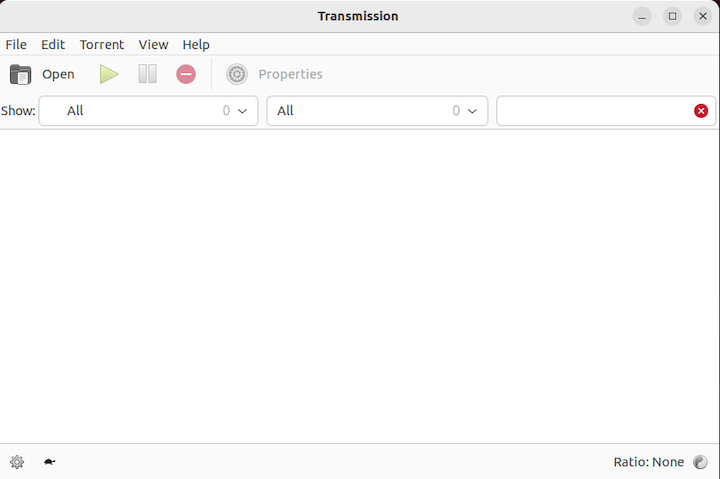
What you see: The Transmission web UI displays a clean dashboard showing active downloads, upload speeds, and torrent management controls. This interface works identically across desktop and server installations once configured.
Step 6: Optional – Install Transmission via Snap
Why Consider Snap Installation
Snap provides a self-contained package that includes all dependencies, making it convenient if you want the latest upstream version or prefer centralized package management. However, APT remains the recommended approach for Ubuntu 26.04 because it integrates better with system updates and uses official Ubuntu repositories.
Install Using Snap
sudo snap install transmissionWhat this does: Snap downloads and installs Transmission from the Snap Store, automatically handling all dependencies in an isolated environment. The command installs the latest version available upstream, which may be newer than Ubuntu’s repository version.
Verify Snap Installation
snap list transmissionExpected output:
Name         Version  Rev   Tracking       Publisher    Notes
transmission 4.0.6    1234  latest/stable  transmission  -
Access the Snap Version
Snap-installed Transmission stores configuration in ~/snap/transmission/common/.config/transmission-daemon/ instead of /etc/transmission-daemon/. This sandboxed approach is cleaner but less traditional for sysadmin workflows.
Step 7: Configure Firewall for Remote Access
Why Firewall Configuration is Necessary
Ubuntu 26.04 often has UFW (Uncomplicated Firewall) enabled by default, which blocks incoming connections to ports like 9091. Without opening these ports, you cannot access the web interface from another device even if the daemon runs correctly.
Check UFW Status
sudo ufw statusYou should see output like:
Status: active

To                         Action      From
--                         ------      ----
22/tcp                     ALLOW       Anywhere
22/tcp (v6)                ALLOW       Anywhere (v6)
Open Port 9091 for Web Interface
sudo ufw allow 9091/tcpWhy this port: Port 9091 handles HTTP communication between your browser and the Transmission web UI. Opening it allows remote management while keeping other ports closed for security.
Open Port 51413 for BitTorrent Traffic
sudo ufw allow 51413/tcp
sudo ufw allow 51413/udp
Why these ports: Transmission uses port 51413 for incoming peer connections. Allowing this port improves download speeds by enabling more connections to other torrent clients. The UDP protocol supports DHT (Distributed Hash Table) for peer discovery without a tracker.
Reload UFW
sudo ufw reloadThis applies the new firewall rules without restarting the firewall service, ensuring no disruption to existing SSH connections.
Verify Rules Applied
sudo ufw status verboseYou should see your new rules listed:
9091/tcp                     ALLOW       Anywhere
9091/tcp (v6)                ALLOW       Anywhere (v6)
51413/tcp                    ALLOW       Anywhere
51413/tcp (v6)               ALLOW       Anywhere (v6)
51413/udp                    ALLOW       Anywhere
51413/udp (v6)               ALLOW       Anywhere (v6)
What this achieves: Your Transmission daemon is now accessible from remote devices while maintaining firewall protection against unauthorized access to other services.
Troubleshooting Common Issues
Issue 1: Web Interface Shows “Unauthorized IP Address”
Problem: You see an error saying your IP address is not authorized when accessing the web UI.
Cause: The rpc-whitelist-enabled setting is true, and your IP is not in the whitelist.
Solution: Edit settings.json and either disable the whitelist or add your IP:
"rpc-whitelist-enabled": false,Or keep it enabled and add your IP range:
"rpc-whitelist": "127.0.0.1,192.168.1.*",Restart the daemon after saving:
sudo systemctl restart transmission-daemonWhy this happens: Transmission defaults to whitelisting only localhost for security. Disabling the whitelist is convenient for home networks, but enterprise environments should specify allowed IP ranges.
Issue 2: Downloads Fail to Save to Your Folder
Problem: Torrents show as “Downloading” but no files appear in your download directory.
Cause: The debian-transmission user lacks write permissions to the download folder.
Solution: Fix ownership and permissions:
sudo chown -R debian-transmission:debian-transmission /path/to/downloads
sudo chmod -R 750 /path/to/downloads
Restart the daemon:
sudo systemctl restart transmission-daemonWhy this occurs: Linux enforces strict file permissions. Transmission runs as a separate system user, so it cannot write to folders owned by your regular user without explicit permission changes.
Issue 3: Daemon Won’t Start After Configuration Changes
Problem: systemctl status transmission-daemon shows the service failed to start.
Cause: JSON syntax error in settings.json (missing comma, extra brace, or invalid value).
Solution: Check the system log for errors:
sudo journalctl -u transmission-daemon -n 30 --no-pagerLook for messages like Error parsing settings.json or JSON parse error. Fix the syntax in:
sudo nano /etc/transmission-daemon/settings.jsonUse a JSON validator to check for syntax errors, then restart:
sudo systemctl start transmission-daemonWhy JSON is strict: Configuration files in JSON format require exact syntax. A single missing comma breaks the entire file, preventing the daemon from reading any settings.
Issue 4: Cannot Connect to Web Interface from Another Device
Problem: The web UI works on the server but fails when accessed remotely.
Cause: Firewall blocks port 9091 or the service binds only to localhost.
Solution: Verify UFW allows port 9091:
sudo ufw status | grep 9091Check if the daemon listens on all interfaces:
sudo ss -tlnp | grep 9091You should see 0.0.0.0:9091 (all interfaces) instead of 127.0.0.1:9091 (localhost only).
Why binding matters: If Transmission binds to localhost only, external devices cannot reach it even with the firewall open. The rpc-bind-address setting in settings.json controls this behavior.
Security Best Practices for Transmission
Use Strong RPC Passwords
Never use the default password or weak passwords like “password”. Generate a strong password using:
openssl rand -base64 16Store it securely and change it in settings.json.
Why this matters: The web interface controls your entire torrent system. A weak password lets attackers start malicious downloads, use your bandwidth, or access sensitive files.
Enable RPC Whitelisting on Public Servers
On servers accessible from the internet, keep rpc-whitelist-enabled true and specify only your trusted IP addresses.
Why whitelist over disabling: Disabling the whitelist exposes your control panel to the entire internet. Whitelisting limits access to known devices, reducing attack surface significantly.
Run Transmission as a Non-Root User
Transmission already runs as debian-transmission, which is correct. Never modify the daemon to run as root, even if documentation suggests it.
Why this protects you: Running as root gives the application full system access. If a vulnerability is exploited, attackers gain complete control over your server. The dedicated user limits potential damage.
Keep Ubuntu and Transmission Updated
Run regular updates:
sudo apt update && sudo apt upgrade -yWhy updates matter: Security vulnerabilities in BitTorrent clients can allow remote code execution. Ubuntu 26.04 LTS receives security patches for five years, so keeping packages updated is essential for long-term safety.
How to Remove Transmission Completely
If you decide Transmission is not what you need, remove it cleanly:
sudo apt remove --purge transmission-daemon -y
sudo apt autoremove -y
sudo rm -rf /etc/transmission-daemon
sudo rm -rf ~/snap/transmission
Why purge: The --purge flag removes configuration files in addition to the application binary. autoremove cleans up unused dependencies installed with Transmission.
What remains: Downloaded torrent files stay in your download directory and must be deleted manually if you no longer need them.
[su_box title=”VPS Manage Service Offer” style=”bubbles” box_color=”#000000″ radius=”10″]If you don’t have time to do all of this stuff, or if this is not your area of expertise, we offer a service to do “VPS Manage Service Offer”, starting from $10 (Paypal payment). Please contact us to get the best deal![/su_box]

