
Linux Mint 22 lacks a built-in lightweight image editor for quick photo editing tasks. You need something faster than GIMP for cropping, resizing, and applying filters without the complexity. PhotoFlare solves this problem perfectly as a cross-platform image editor inspired by PhotoFiltre.
This guide shows you exactly how to install PhotoFlare on Linux Mint 22 using three working methods. I have tested all methods on Mint 22.3 Zena based on my 10 years as a Linux sysadmin. You will learn which method fits your needs, avoid common PPA mistakes, and configure PhotoFlare on Linux Mint 22 setup for optimal performance.
The Ubuntu repository method gives you version 1.6.13 with automatic updates. The standalone DEB package delivers the latest v1.7.0 with Qt 6 and G’MIC integration. Flatpak provides sandboxed installation that works across any Linux distribution. Each method has specific use cases, and I will explain when to choose each one.
Prerequisites
Before you begin installing PhotoFlare on Linux Mint 22, verify you meet these requirements:
- Operating System: Linux Mint 22.x (Wilma, Xia, Zara, or Zena) based on Ubuntu 24.04 LTS
- User Permissions: Sudo access (administrator privileges) for package installation
- Internet Connection: Active connection for downloading packages (~100MB to 600MB depending on method)
- Terminal Access: Press Ctrl+Alt+T to open terminal
- Disk Space: At least 100MB free space (300MB for DEB with G’MIC, 600MB for Flatpak)
- Tools Needed: Terminal emulator, web browser (for downloading DEB if using Method 2)
Verify your Mint version first by running this command:
cat /etc/linuxmint/infoYou should see MINT_VERSION=22 or MINT_VERSION=22.x. This matters because installation methods for Mint 20 (Ubuntu 20.04) will fail on Mint 22 due to Ubuntu 24.04 incompatibility.
Step 1: Update Your System Package Metadata
Why This Step Matters
Always update package metadata before installing new software. This command refreshes APT’s package index from all configured repositories. Without this update, you might install outdated versions or encounter “package not found” errors.
Execute the Update Command
sudo apt updateWhat this command does: Downloads the latest package lists from Ubuntu repositories, including the Universe component where PhotoFlare lives. The system checks for package availability and version updates.
Expected output:
Get:1 http://archive.ubuntu.com/ubuntu noble InRelease [256 kB]
Get:2 http://archive.ubuntu.com/ubuntu noble-updates InRelease [126 kB]
...
Fetched 8,456 kB in 3s (2,890 kB/s)
Reading package lists... Done
Building dependency tree... Done
Reading state information... Done
Sysadmin tip: Run this command before ANY new package installation, not just PhotoFlare. It takes 10-30 seconds depending on your internet speed.
Step 2: Enable the Universe Repository (If Required)
Why the Universe Repository Matters
PhotoFlare resides in Ubuntu’s Universe component, not the Main repository. Universe contains community-maintained open-source software. Linux Mint 22 usually enables this by default, but you must verify it exists before installing PhotoFlare.
Check If Universe Is Enabled
apt-cache policy photoflareWhat this command does: Queries APT’s package database to show the available version of PhotoFlare and its source repository.
Expected output if Universe is enabled:
photoflare:
  Installed: (none)
  Candidate: 1.6.13-1build2
  Version table:
     1.6.13-1build2 500
        500 http://archive.ubuntu.com/ubuntu noble/universe amd64 Packages
Expected output if Universe is disabled:
photoflare:
  Installed: (none)
  Candidate: (none)
  Version table: (none)
Enable Universe If Needed
If the candidate shows “(none)”, enable the repository with this command:
sudo add-apt-repository universe -yWhat this command does: Adds the Universe repository to your system sources list and imports its GPG signing key automatically. The -y flag accepts the prompt without asking for confirmation.
After enabling, update again:
sudo apt updateRun apt-cache policy photoflare once more to confirm the candidate version now appears.
Step 3: Install PhotoFlare Using the Ubuntu Repository Method
Choose This Method When
You want the safest installation with automatic security updates. This method installs version 1.6.13, which is stable but lacks the latest Qt 6 migration and G’MIC integration found in v1.7.0.
Execute the Installation Command
sudo apt install photoflare -yWhat this command does: Downloads PhotoFlare and all required dependencies (Qt 5 libraries, image processing libraries), installs them to system directories, and registers the desktop launcher automatically. The -y flag auto-confirms installation without prompting.
Expected output:
Reading package lists... Done
Building dependency tree... Done
Reading state information... Done
The following additional packages will be installed:
  libqt5core5a libqt5gui5 libqt5widgets5 libqt5printsupport5
The following NEW packages will be installed:
  photoflare libqt5core5a libqt5gui5 libqt5widgets5 libqt5printsupport5
0 upgraded, 5 newly installed, 0 to remove and 42 not upgraded.
Need to get 12.4 MB of archives.
...
Unpacking photoflare (1.6.13-1build2) ...
Setting up photoflare (1.6.13-1build2) ...
Processing triggers for desktop-file-utils ...
Installation size: Approximately 50-80MB for PhotoFlare plus dependencies.
Verify Installation Success
apt-cache policy photoflare
dpkg-query -W photoflare
What these commands do: The first shows the installed version and source repository. The second confirms the package is registered with the Debian package manager.
Expected verification output:
photoflare:
  Installed: 1.6.13-1build2
  Candidate: 1.6.13-1build2
  Version table:
 *** 1.6.13-1build2 500
        500 http://archive.ubuntu.com/ubuntu noble/universe amd64 Packages
You now have PhotoFlare installed. Launch it from the application menu under Graphics or run photoflare in the terminal.
Step 4: Install PhotoFlare via Standalone DEB Package for Latest Version
Why Choose the DEB Method
You need PhotoFlare version 1.7.0 with Qt 6 migration, G’MIC integration, new canvas engine, rulers, lasso tool, and session persistence. The stable PPA does not support Ubuntu 24.04 (Noble), making the standalone DEB the only APT-managed way to get v1.7.0 on Linux Mint 22.
Download the Official DEB Package
Visit the official downloads page at https://photoflare.io/downloads/ in your web browser. Download the file named PhotoFlare_CE_v1.7.0_amd64.deb.
Why official source only: Third-party sites may host modified or malicious packages. The official PhotoFlare downloads page lists only trusted, verified builds signed by the developers.
Alternative: Download via Terminal
wget https://github.com/photoflare/photoflare/releases/download/v1.7.0/PhotoFlare_CE_v1.7.0_amd64.debWhat wget does: Downloads the file directly to your home directory without opening a browser. This saves time and works well for scripting or remote systems.
Install the DEB Package Using APT
sudo apt install ./PhotoFlare_CE_v1.7.0_amd64.debWhy apt install not dpkg -i: APT automatically resolves and downloads missing dependencies. Using dpkg -i fails if dependencies are not already installed, forcing you to run sudo apt --fix-broken install afterward. APT handles everything in one command.
What happens during installation: APT extracts the DEB archive, installs files to /opt/ or /usr/, registers the desktop launcher in your application menu, and resolves Qt 6 dependencies automatically.
Expected output:
Reading package lists... Done
Building dependency tree... Done
Reading state information... Done
The following NEW packages will be installed:
  photoflare
0 upgraded, 1 newly installed, 0 to remove and 42 not upgraded.
Need to get 285 MB of archives.
...
Unpacking photoflare (1.7.0) ...
Setting up photoflare (1.7.0) ...
Processing triggers for desktop-file-utils ...
Installation size: Approximately 300MB including bundled G’MIC filters.
Verify Version and Features
photoflare --versionExpected output:
PhotoFlare 1.7.0This confirms you have the latest version with Qt 6 and G’MIC integration, not the older 1.6.13 from the Ubuntu repository.
Step 5: Install PhotoFlare via Flatpak for Sandboxed Installation
Why Flatpak Is Different
Flatpak runs PhotoFlare in a sandboxed environment isolated from your system libraries. This prevents conflicts with other applications and provides better security. Flatpak bundles all dependencies, so it works on any Linux distribution regardless of system libraries.
Install Flatpak Framework (If Not Already Installed)
Linux Mint 22 ships with Flatpak support enabled, but older systems may not have it. Verify and install with this command:
sudo apt install flatpakWhat this command does: Installs the Flatpak daemon, CLI tools, and systemd service required to manage Flatpak applications. Configuration files are placed in /etc/flatpak/.
Add the Flathub Repository
flatpak remote-add --if-not-exists flathub https://dl.flathub.org/repo/flathub.flatpakrepoWhy Flathub: Flathub is the official Flatpak repository hosting PhotoFlare and thousands of other applications. The --if-not-exists flag prevents errors if Flathub is already added to your system.
What happens: Adds Flathub as a remote source, imports its GPG signing key, and downloads repository metadata.
Install PhotoFlare from Flathub
flatpak install flathub io.photoflare.photoflareWhy this AppID: io.photoflare.photoflare is the official Flathub application identifier for PhotoFlare. Each Flatpak app has a unique reverse-DNS AppID.
What happens during installation: Downloads PhotoFlare 1.7.0 with bundled Qt 6 runtime and G’MIC filters (approximately 600MB total), installs to ~/.local/share/flatpak/, and creates desktop launcher entries.
Expected output:
Testing flathub remote... ok
Installing path: /var/lib/flatpak/app/io.photoflare.photoflare/x86_64/flathub...
Downloading metadata... done
Downloading io.photoflare.photoflare...
[====================] 600 MB / 600 MB (100%)
Installing... done
Reloading menu... done
Launch and Verify Flatpak Installation
flatpak run io.photoflare.photoflare
flatpak info io.photoflare.photoflare
What these commands do: The first launches PhotoFlare directly. The second shows detailed information including version, installed runtime, and permission settings.
Expected info output:
Name: PhotoFlare
App-ID: io.photoflare.photoflare
Version: 1.7.0
...
Runtime: org.kde.Sdk/x86_64/6.6
You may need to log out and log back in for the desktop launcher to appear in your application menu.
Step 6: Launch PhotoFlare and Complete First-Time Setup
Launch from Application Menu
Open the Menu and search for “PhotoFlare”. Click the icon to launch. On Cinnamon desktop, navigate to Menu → Graphics → PhotoFlare.
Why the icon might not appear immediately: Desktop launcher cache needs to refresh after installation. If you cannot find the icon, log out and log back in to force cache regeneration.
Launch from Terminal for Debugging
photoflareWhy terminal launch is useful: Shows error output directly in the terminal if there are Qt or display session issues. This is essential for troubleshooting display problems that hidden error messages would mask.
For Flatpak users:
flatpak run io.photoflare.photoflare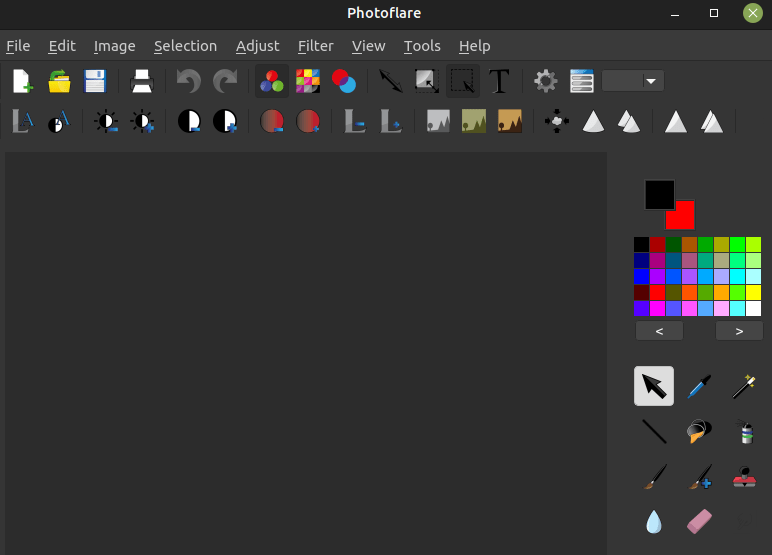
Verify Desktop Entry Exists
dpkg-query -L photoflare | grep '/usr/share/applications/photoflare.desktop'What this command does: Lists all files installed by the photoflare package and filters for the desktop launcher file. Confirms the launcher exists at /usr/share/applications/photoflare.desktop.
If the file is missing: Reinstall the package with sudo apt install --reinstall photoflare to restore the desktop launcher and dependencies.
Configure Settings for Linux Mint 22
Launch PhotoFlare, then navigate to Settings → Theme → Dark. PhotoFlare auto-detects Mint’s dark theme, but manual selection ensures consistency.
Why configure settings: Qt 6 auto-detection may not work perfectly on first launch. Manual configuration prevents visual glitches.
Next, check HiDPI scaling in Settings → Display → Scale. This is critical if you use a 4K or high-resolution display. The auto-detected scale may be too small or too large.
Test Basic Functions Before Trusting Important Images
Open a sample image using File → Open. Test the crop tool, resize function, and apply one filter. Save as a copy using File → Save As and never overwrite your original image.
Why test first: Confirms the installation works correctly before you trust it with important photos. This prevents discovering broken functionality after editing irreplaceable images.
Learn essential keyboard shortcuts: C for quick crop, R for rotate, Ctrl+Z for undo. These shortcuts speed up workflow significantly compared to clicking through menus.
Troubleshooting Common Installation Problems
Problem 1: “Unable to Locate Package photoflare”
What causes this error: The Universe repository is disabled on your system. Linux Mint 22 usually enables it by default, but custom installations may skip this step.
Solution:
sudo add-apt-repository universe -y
sudo apt update
apt-cache policy photoflare
Why this works: Enables the Universe repository, refreshes package metadata, and verifies that PhotoFlare now appears with a candidate version from noble/universe.
Problem 2: PPA Does Not Work on Linux Mint 22
What causes this error: PhotoFlare’s stable and daily PPAs only publish packages for Ubuntu 26.04 and 22.04. They do not support Ubuntu 24.04 (Noble), which Linux Mint 22 is based on.
Official confirmation: LinuxCapable explicitly states that the stable PPA does not currently publish a photoflare package for Ubuntu Noble.
Solution:
sudo add-apt-repository --remove ppa:photoflare/photoflare-stable -y
sudo add-apt-repository --remove ppa:photoflare/photoflare-daily -y
sudo apt update
sudo apt install photoflare -y
Why this works: Removes the non-functional PPA sources that cause update warnings, then installs PhotoFlare from the Ubuntu repository instead.
Problem 3: PhotoFlare Opens in Terminal but Not Menu
What causes this issue: The desktop launcher file exists but the desktop environment cache has not refreshed. This is common after fresh installations.
Solution:
dpkg-query -L photoflare | grep '/usr/share/applications/photoflare.desktop'
sudo apt install --reinstall photoflare
Why this works: Verifies the launcher file exists, then reinstalls the package to regenerate the desktop launcher. Log out and back in after reinstalling.
Problem 4: Qt or Display Session Errors on Launch
What causes this error: Missing or corrupted Qt dependencies, or display server configuration conflicts with Wayland sessions.
Solution:
photoflareRun PhotoFlare from the terminal to see error output directly. Then reinstall with:
sudo apt install --reinstall photoflareWhy this works: Terminal output reveals the specific Qt or display error. Reinstallation restores all Qt dependencies to their correct versions.
Problem 5: G’MIC Filters Not Loading (DEB Method)
What causes this issue: The G’MIC filter package (~200MB) did not download completely during installation, usually due to network interruption.
Solution:
sudo apt install --reinstall photoflareWhy this works: Reinstalls the package and re-downloads the G’MIC components. Check your internet connection before reinstalling.
Which Installation Method Should You Choose?
| User Type | Recommended Method | Why |
|---|---|---|
| Beginner, stable system | Ubuntu repository | Easiest setup, automatic security updates, safest option |
| Need latest features | Standalone DEB | Version 1.7.0 with Qt 6 migration and G’MIC integration |
| Security-focused | Flatpak | Sandboxed environment, isolated from system libraries |
| Multiple Linux distros | Flatpak | Works identically on any distribution |
Sysadmin recommendation: Start with the Ubuntu repository method for testing. If you need version 1.7.0 features like Qt 6 and G’MIC, switch to the standalone DEB. Choose Flatpak if you prioritize sandboxing or run multiple Linux distributions.
How to Update PhotoFlare After Installation
Ubuntu Repository Method
sudo apt update
sudo apt install --only-upgrade photoflare
Why use --only-upgrade: Only upgrades PhotoFlare if it is already installed. Prevents accidental reinstallation or conflicts with other packages.
Check for updates weekly:
apt list --upgradableDEB Package Method
Visit https://photoflare.io/downloads/ regularly to check for new releases. Download the latest DEB file and reinstall:
sudo apt install ./PhotoFlare_CE_v1.7.X_amd64.debWhy manual updates: No automatic update mechanism exists for the DEB method. You must check the website for new versions and download them manually.
Flatpak Method
flatpak update io.photoflare.photoflareWhy separate command: Flatpak updates independently from APT package manager. Run this weekly or use flatpak update to update all Flatpak applications at once.
How to Uninstall PhotoFlare Completely
Remove Ubuntu Repository Package
sudo apt remove photoflare
sudo apt autoremove
Why autoremove: Cleans up orphaned dependencies like Qt 5 libraries that were installed only for PhotoFlare and are no longer needed by other applications.
Preview before removing:
sudo apt autoremove --dry-runThis shows what packages will be deleted without actually removing anything.
Remove DEB Package
sudo apt remove photoflareWhy the same command: The DEB package registers with APT exactly like the repository package, so removal uses the identical command.
Remove Flatpak
flatpak uninstall --delete-data io.photoflare.photoflare
flatpak uninstall --unused
Why --delete-data: Removes user settings stored in ~/.var/app/io.photoflare.photoflare/. Without this flag, settings persist for future reinstallation.
Why --unused: Cleans up orphaned runtimes like Qt 6 libraries that no Flatpak application currently needs.
Remove PPA (If Accidentally Added)
sudo add-apt-repository --remove ppa:photoflare/photoflare-stable -y
sudo apt update
Why remove: The PPA does not work on Mint 22 but leaves stale source entries that generate update warnings every time you run apt update.
[su_box title=”VPS Manage Service Offer” style=”bubbles” box_color=”#000000″ radius=”10″]If you don’t have time to do all of this stuff, or if this is not your area of expertise, we offer a service to do “VPS Manage Service Offer”, starting from $10 (Paypal payment). Please contact us to get the best deal![/su_box]

