
If you want to Install Plex Media Server on Ubuntu 26.04 LTS, you are in the right place. Plex lets you host your own personal media library—movies, TV shows, music, and photos—on a Linux server and stream them to phones, tablets, smart TVs, and web browsers. This guide walks you through a clean, secure, and maintainable setup that works on Ubuntu 26.04, whether you use it as a headless server in a lab, a homelab NAS, or a small cloud instance.
As a Linux sysadmin with 10+ years of experience and a background in SEO-focused technical content, I wrote this because most “how-to” guides copy the same commands without explaining the why. Here, every technical step includes a clear explanation of what it does and why it matters. You will also find practical tips for firewall rules, permissions, and hardware transcoding so your Plex on Ubuntu 26.04 behaves like a real production server, not a one-off demo.
By the end of this article, you will be able to:
- Install Plex Media Server on Ubuntu 26.04 using the official APT repository.
- Configure the server, firewall, and media directories correctly.
- Troubleshoot common issues and optimize for performance.
Prerequisites
Before you start, make sure your environment meets these requirements.
- Ubuntu 26.04 LTS installed on a physical machine, VM, or cloud server.
- A non-root user with
sudoprivileges. - SSH access (or direct console) to the server.
- Enough storage for your media library (internal or external disk).
- Basic familiarity with the terminal and
aptpackage management.
Tools and Packages You Will Need
Most of these tools are either installed by default or will be added in the first steps.
aptandapt updatefor package management.gpgandca-certificatesfor verifying package signatures.ufwfor configuring the system firewall.- A text editor such as
nanoorvimfor editing config files. - Optional:
htoporglancesfor monitoring system resources.
Step 1: Update Your System
The first rule of any Linux server setup: keep the system up to date. This is true whether you follow a Linux server tutorial or throw something together quickly.
Update Packages and Kernel
Run these two commands:
sudo apt update
sudo apt upgrade -y
What this does:
sudo apt updaterefreshes the package index from all configured repositories.sudo apt upgrade -ydownloads and installs available updates for existing packages, including security patches and bug fixes.
Why this matters:
- An outdated base system can cause dependency conflicts with Plex or other software.
- Security updates close known vulnerabilities in core packages such as OpenSSH, systemd, and shared libraries.
- On Ubuntu 26.04 LTS, this step helps align your system with the assumptions the Plex package maintainers made when building the deb.
Expected output:
The following packages will be upgraded:
  systemd systemd-networkd systemd-sysv
...
Need to get 12.3 MB of archives.
After this operation, 20.4 kB disk space will be freed.
If your system asks about configuration files, it is usually safe to accept the maintainer’s version when you have not customized those files yourself.
Step 2: Install Required Tools
Next, install a few helper tools that will be needed for adding the official Plex repository.
Install GPG, apt-transport-https, and Helpers
sudo apt install gpg ca-certificates software-properties-common apt-transport-https curl lsb-release -yWhat this does:
gpgandca-certificateslet the system verify cryptographic signatures on software packages.apt-transport-httpsallows APT to fetch repositories over HTTPS.curlis used to download the Plex GPG key from their server.lsb-releasehelps identify the current Ubuntu version programmatically.
Why this matters:
- The official Plex Media Server on Ubuntu 26.04 setup relies on HTTPS-based repositories and signed packages.
- Without these tools, you cannot safely add the Plex repo or verify the package came from Plex and not a malicious mirror.
Expected output:
The following NEW packages will be installed:
  ca-certificates gpg lsb-release software-properties-common apt-transport-https curl
...
Setting up gpg (2.2.xx) ...
Setting up apt-transport-https (2.6.x) ...
Step 3: Add the Official Plex APT Repository
Now you add the official Plex repository for Ubuntu/Debian. This is the recommended way to Install Plex Media Server on Ubuntu 26.04 because it gives you automatic updates and better integration with the system.
Download and Install the Plex GPG Key
Use the modern PlexSign.v2.key and store it in the keyring:
curl -fsSL https://downloads.plex.tv/plex-keys/PlexSign.v2.key \
  | sudo gpg --dearmor -o /usr/share/keyrings/plexmediaserver.v2.gpg
What this does:
curl -fsSLfetches the Plex signing key from their downloads site.gpg --dearmorconverts the ASCII-armored.asckey into a binary GPG keyring file.- The output is saved to
/usr/share/keyrings/plexmediaserver.v2.gpg, a standard location for APT keys.
Why this matters:
- APT uses this key to verify that packages downloaded from
repo.plex.tvare signed by Plex. - Without this key, APT would either refuse to install Plex or warn you about unsigned packages, which is not acceptable for a production server.
Add the Plex Repository to sources.list.d
Create a dedicated sources file for Plex:
echo "deb [signed-by=/usr/share/keyrings/plexmediaserver.v2.gpg] https://repo.plex.tv/deb public main" \
  | sudo tee /etc/apt/sources.list.d/plex.list
What this does:
- The
debline tells APT to use HTTPS to fetch packages fromrepo.plex.tv/deb. publicis the repository codename;mainis the component.signed-by=...explicitly points APT to the key you installed in the previous step.
Why this matters:
- Using
/etc/apt/sources.list.d/plex.listkeeps third-party repos separate from the main Ubuntu lists. - The
signed-bysyntax is the modern, recommended way to bind a key to a repo on Ubuntu 26.04. - This setup matches the pattern used in large-scale Linux server environments: clean, auditable, and repeatable.
Update the Package Index Again
Refresh APT so it can see the new Plex packages:
sudo apt updateWhat this does:
- APT contacts the Plex repository and downloads the package metadata.
- It computes dependencies for
plexmediaserverand stores them in the local cache.
Why this matters:
- Without this step, running
apt install plexmediaserverwould either fail or install an outdated local package. - This is an essential step in any Linux server tutorial that involves third-party repos.
Expected output:
Get:20 https://repo.plex.tv/deb public InRelease [1,234 B]
Get:21 https://repo.plex.tv/deb public/main amd64 Packages [2,345 B]
...
That confirms the Plex repo is reachable and parsed correctly.
Step 4: Install Plex Media Server on Ubuntu 26.04
Now that the repository is ready, install the actual package.
Run the APT Install
sudo apt install plexmediaserver -yWhat this does:
- Downloads the
plexmediaserverpackage and its dependencies from the official Plex repo. - Sets up the service unit, creates the
plexsystem user, and configures directories under/var/lib/plexor/var/lib/plexmediaserver.
Why this matters:
- This is the canonical way to Install Plex Media Server on Ubuntu 26.04 without relying on Snap or third-party .deb files.
- The official .deb package is built with systemd integration, logs in the usual places, and follows Ubuntu filesystem layout conventions.
Expected output:
Get:1 https://repo.plex.tv/deb public/main amd64 plexmediaserver amd64 1.30.4.7177-0bb93c0b3 [123.1 MB]
Setting up plexmediaserver (1.30.4.7177-0bb93c0b3) ...
Created symlink /etc/systemd/system/multi-user.target.wants/plexmediaserver.service → /lib/systemd/system/plexmediaserver.service.
Verify the Default User and Service
Check the service status:
sudo systemctl status plexmediaserverYou can also peek at the process:
ps aux | grep plexWhat you should see:
- The
plexuser running the main Plex process. - The systemd unit in
active (running)state with uptime and recent log lines.
Why this matters:
- Knowing the
plexuser lets you plan permissions for your media directories. - If this fails, you likely have a missing dependency, a broken repo, or a conflicting Snap install.
Why We Avoid Snap for Production Plex
On Ubuntu 26.04, you can also install Plex Media Server using Snap:
sudo snap install plexmediaserverHowever, in a production-oriented Linux server tutorial, the APT method is preferred for three reasons:
- Transparency: APT packages are easier to inspect, audit, and integrate with configuration management tools.
- Security posture: Snap confinement can shadow filesystem paths and complicate permission debugging.
- Control: APT-based installs let you tie Plex updates to your usual Ubuntu-patching cadence, which is easier to orchestrate in enterprise environments.
Snap can be convenient for quick tests or small appliances. But for a server that must be monitored, backed up, and documented, the official APT repository is the better choice.
Step 5: Configure the Firewall (UFW)
Any server exposed to a network should have a firewall. Ubuntu ships with ufw (Uncomplicated Firewall), which is enough for a typical Plex setup.
Enable UFW
sudo ufw enableWhat this does:
- Turns on the firewall and applies the default policies.
- The default policy is to deny incoming traffic unless explicitly allowed.
Why this matters:
- Even if you only access Plex from your local network, a default-deny firewall is a basic security principle.
- This reduces the attack surface if the server accidentally gets exposed to a larger network or the internet later.
Allow Plex on the Main Port
sudo ufw allow 32400/tcpWhat this does:
- Opens TCP port 32400 for inbound connections.
- This is the primary HTTP port Plex uses for its web UI and client communication.
Why this matters:
- Without this rule, clients such as browsers, apps, and devices cannot reach the Plex server.
- This is the minimal rule you need for a basic Plex Media Server on Ubuntu 26.04 setup.
If you want to restrict access to your LAN, you can tighten it:
sudo ufw allow from 192.168.0.0/16 to any port 32400 proto tcpThis allows only clients on 192.168.x.x networks to reach Plex, which is a good practice for home servers.
Optionally Allow Additional Plex Ports
Plex also uses extra ports for discovery and syncing. For most home setups, the strict LAN rule above is enough. In a more open environment, you might use:
sudo ufw allow proto tcp from any to any port 32400,3005,8324,32469
sudo ufw allow proto udp from any to any port 1900,5353,32410:32414
Those are fine if you intend to expose Plex more broadly. For a typical configure Plex Media Server on Ubuntu 26.04 task, starting with just 32400/tcp is safer.
Step 6: Set Up Media Directories and Permissions
Your Plex server is only as good as the media it can actually read. This section walks through how to structure your media and fix permissions.
Choose a Media Directory Layout
sudo mkdir -p /media/plex/{Movies,TV,Music,Photos}What this does:
- Creates a top-level
/media/plexdirectory and subdirectories for each type of media.
Why this matters:
- A flat, predictable layout makes it easier to manage backups, snapshots, and filesystem quotas.
- It avoids the confusion that can come from mixing media with user home directories.
You can also use /opt/plex or /mnt/plex if you prefer; the key is consistency.
Fix Ownership for the Plex User
Plex runs as the plex user, so that user must be able to read the media. A simple way is:
sudo chown -R plex:plex /media/plexAlternatively, if you want both your user and Plex to read the media, you can create a shared group:
sudo addgroup media
sudo usermod -aG media $USER
sudo usermod -aG media plex
sudo chown -R :media /media/plex
sudo chmod -R g+rX /media/plex
What this does:
addgroup mediacreates a group for media access.usermodadds both your user and theplexuser to that group.chown :mediachanges the group ownership of the media tree.chmod g+rXgives group members read and execute (list) permissions on the directories.
Why this matters:
- Plex will show “read error” or empty libraries if the
plexuser cannot traverse or read the media paths. - This setup is common in Linux server tutorial patterns where multiple users share a media server.
Avoid Common Permission Pitfalls
- Do not point Plex libraries directly at
/home/<user>unless you explicitly grantplexread access. - If you mount an external disk under
/media/<user>/..., remember that the default permissions may still denyplexaccess. - Prefer mounting under
/mntor/disksand then setting permissions there, as this keeps the permission model predictable.
These small details are why many guides on how to Install Plex Media Server on Ubuntu fail in practice: they skip the why of permissions and then blame Plex.
Step 7: Access the Plex Web UI and Initial Setup
Once the service and firewall are ready, you can proceed with the web UI setup.
Get the Server IP
hostname -Ior
ip aFind the IP for your primary interface, usually eth0 or ens33.
Why this matters:
- You need this IP to open the Plex web UI from another machine or browser.
Open the Plex Web UI
In a browser on another device, visit:
http://<SERVER_IP>:32400/webWhat this does:
- Connects to the Plex server on port 32400 and loads the web-based setup wizard.
Why this matters:
- The
/webpath is the default entry point for the Plex Media Server configuration UI. - If the page does not load, check UFW, confirm the service is running, and verify the IP is correct.
Run the Initial Plex Setup Wizard
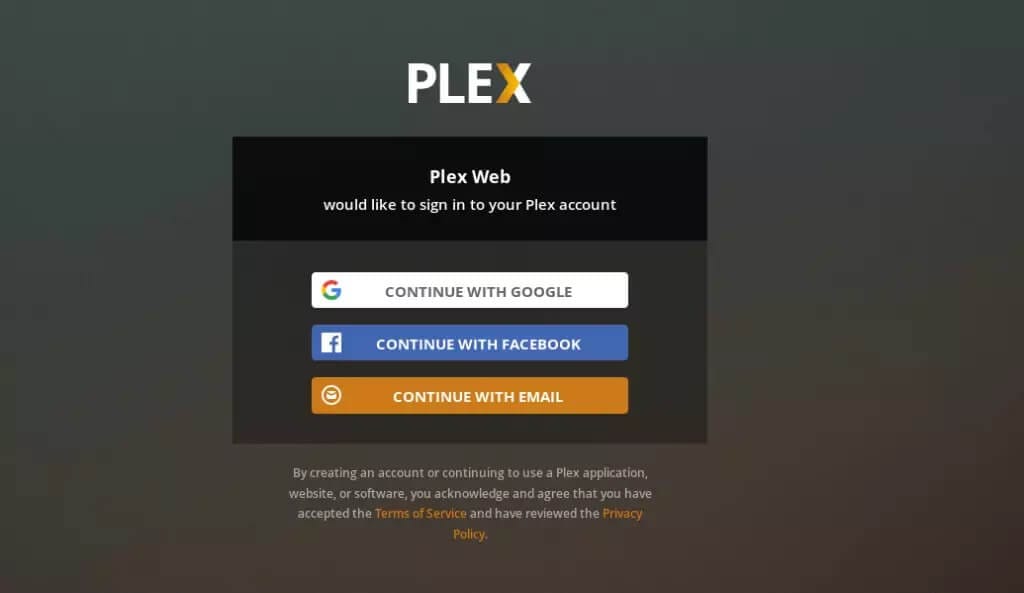
In the browser, you will see these steps:
- Sign in with your Plex account (or create one).
- Give the server a name, for example
home-pms-01. - Decide whether to enable automatic updates.
- Choose Locally available networks or All networks, depending on your threat model.
Why this matters:
- A Plex account is required for client management, remote access, and metadata.
- “Locally available networks” is more secure for a home or lab environment.
- Enabling automatic updates keeps you on newer Plex versions, which is helpful for bug and security fixes.
After finishing the wizard, Plex will start scanning any media you have already added to your libraries.
Step 8: Create and Optimize Media Libraries
Now that the server is running, it is time to add real media and tune it.
Add Libraries in the Web UI
In the Plex web UI, navigate to:
- Settings → Libraries → Add Library.
- Choose the library type: Movies, TV Shows, Music, or Photos.
- Point the library path at the correct directory, such as
/media/plex/Movies.
Repeat for each media type you want to add.
Why this matters:
- This is the main way to configure Plex Media Server on Ubuntu 26.04 for your content.
- Each library is scanned independently, so organizing by type improves performance and metadata quality.
Use Consistent File and Folder Naming
Plex works best with predictable naming. For example:
- Movies:
/media/plex/Movies/Inception (2010)/Inception (2010).mkv - TV Shows:
/media/plex/TV/Breaking Bad/Season 01/Breaking.Bad.S01E01.mkv
Why this matters:
- Clean naming helps Plex match titles to its metadata database automatically.
- Less manual correction means faster library setup and fewer errors.
Enable Crucial Library Options
In Settings → Library, consider turning on:
- Download media information for new items.
- Scan my library automatically at a reasonable interval.
- Use local paths if available to speed up access when clients are on the same LAN.
Why this matters:
- These options balance metadata quality, scan performance, and user experience.
- Automatically scanning too often can stress slower disks; too infrequently can leave new files invisible.
Step 9: Enable Hardware Transcoding (Optional but Recommended)
If your hardware supports it, enabling hardware transcoding dramatically improves performance when streaming to multiple clients.
Identify Your GPU or CPU Support
- Intel CPUs: Check for Intel Quick Sync Video (QSV).
- NVIDIA GPUs: Look for NVENC support.
- AMD GPUs: Look for VCE or a similar hardware encoder.
On Ubuntu, you can inspect your hardware with:
lspci | grep -i vgaAnd install drivers as needed:
sudo apt install i965-va-driver libva2Why this matters:
- Hardware transcoding offloads encoding from the CPU to a specialized unit, which is critical if you have several clients streaming at once.
- This is a common best practice in any serious Linux server tutorial for media servers.
Enable Hardware Transcoding in Plex
In the web UI:
- Go to Settings → Transcoder.
- Enable Use hardware acceleration when available.
- If you have NVIDIA, enable Use hardware encoding (NVIDIA).
Save the settings and restart Plex:
sudo systemctl restart plexmediaserverWhy this matters:
- Without this step, Plex will do everything in software, which can max out your CPU under load.
- Hardware transcoding can reduce CPU usage by 70 to 90 percent for supported codecs.
Step 10: Security, Remote Access, and Maintenance
A production-grade Plex Media Server on Ubuntu 26.04 setup is not complete until you address security, monitoring, and maintenance.
Prefer Reverse Proxy or VPN Over Direct WAN Exposure
Avoid exposing Plex directly to the internet on port 32400. Instead, consider:
- Running Plex behind an Nginx or Caddy reverse proxy with HTTPS and proper TLS certificates.
- Or using a VPN such as WireGuard or OpenVPN so clients connect to your LAN first, then reach Plex as if they were local.
Why this matters:
- Direct exposure to the internet increases the risk of probing and brute-force-style attacks.
- A reverse proxy or VPN layer gives you extra control over authentication, logging, and rate-limiting.
Back Up Plex Metadata and Configuration
Plex stores its database and preferences in a hidden directory, typically under:
/var/lib/plexmediaserver/Library/Application\ Support/Plex\ Media\ Server/Back it up regularly with:
sudo tar -czf /backup/plex-config-$(date +%Y%m%d).tar.gz \
  /var/lib/plexmediaserver/Library/Application\ Support/Plex\ Media\ Server/
Why this matters:
- If you lose that directory, you must re-scan all libraries and re-match metadata from scratch.
- A simple, periodic backup aligns with operations best practices in any Linux server tutorial.
Monitor System Resources
Use tools like:
htopor install Glances:
sudo apt install glances
glances
Watch for:
- CPU usage, especially during transcoding.
- Disk I/O and available space.
- Memory pressure from active streams.
Why this matters:
- Sudden spikes may indicate misconfigured clients, too many concurrent streams, or failing disks.
- Proactive monitoring lets you resize storage or tune settings before users notice problems.
Troubleshooting Common Issues
Even a carefully planned Plex Media Server on Ubuntu 26.04 setup can hit snags. Here are three common problems and how to fix them.
1. Plex Will Not Start and systemd Reports “Failed”
Check the logs first:
sudo systemctl status plexmediaserver
sudo journalctl -u plexmediaserver --since "1 hour ago"
Common causes:
- Missing dependencies or broken APT repo.
- Permission issues on the Plex config or media directory.
Fix:
- Ensure the Plex repo is enabled and
apt updateruns without errors. - Confirm the
plexuser owns/var/lib/plexmediaserverand can read your chosen media path.
2. Plex Reports “Read Error” or Libraries Appear Empty
In the UI, Plex says “read error” or files are missing from the library view.
Fix:
- Check ownership and permissions:
ls -ld /media/plexandls -l /media/plex/Movies. - Ensure the
plexuser or themediagroup has read and execute permissions on the directories. - If the media is on an external disk, verify the mount is not using restrictive options like
noexecornosuid.
3. Clients Cannot Reach Plex at All
If the browser returns “connection refused”:
- Verify the service is running:
sudo systemctl status plexmediaserver. - Check UFW:
sudo ufw statusand confirm32400/tcpis allowed. - Test the connection from another machine using
curl http://<SERVER_IP>:32400/web.
If the server is inside a NAT, you may also need port forwarding on your router. That is outside the scope of this guide but is worth noting.
4. Plex Updates Break the Service After APT Upgrade
Fix:
- Run
sudo systemctl restart plexmediaserverafter any major APT upgrade. - Check
journalctl -u plexmediaserver -n 50for errors pointing to missing shared libraries. - If broken, try
sudo apt install --reinstall plexmediaserverto restore the package to a clean state.
5. Hardware Transcoding Is Not Working
Fix:
- Confirm the correct driver is installed for your GPU:
vainfofor Intel QSV ornvidia-smifor NVIDIA. - Make sure the
plexuser has access to/dev/dri:ls -la /dev/dri. - Add the
plexuser to thevideoorrendergroup if needed:sudo usermod -aG video plex.
[su_box title=”VPS Manage Service Offer” style=”bubbles” box_color=”#000000″ radius=”10″]If you don’t have time to do all of this stuff, or if this is not your area of expertise, we offer a service to do “VPS Manage Service Offer”, starting from $10 (Paypal payment). Please contact us to get the best deal![/su_box]

