
If you have been searching for a real-time document database that does not require a complicated setup or a heavy ecosystem, RethinkDB is worth your attention. Unlike databases that make your application constantly poll for new data, RethinkDB pushes live updates directly to your connected clients the moment data changes. That single feature makes it a solid choice for dashboards, collaboration tools, real-time feeds, and multiplayer game backends.
Installing RethinkDB on Ubuntu 24.04 LTS (Noble Numbat) is the right move if you want a stable, long-term-support foundation for your database server. Ubuntu 24.04 LTS ships with a predictable OpenSSL version, a modern APT toolchain, and five years of security support, which means your dependencies stay consistent and your server stays patchable without breaking your database setup.
This guide walks you through the exact process to install RethinkDB on Ubuntu 24.04 from the official repository, create a working server instance, lock down access to localhost, set an admin password, and verify that everything is running correctly. Every command comes with a clear explanation of what it does and why it matters, so you understand the system you are building, not just how to copy and paste.
By the end of this tutorial, you will have a fully functional RethinkDB instance running as a managed service on Ubuntu 24.04 LTS, with all three default ports listening on loopback only, the web admin UI accessible through a safe browser path, and your admin account protected by a password.
Prerequisites
Before you begin, make sure the following conditions are in place:
- Ubuntu 24.04 LTS (Noble Numbat) installed on a server, virtual machine, or cloud instance
- A non-root user account with
sudoprivileges (running database services directly as root is a known security risk) - Minimum hardware: 1 vCPU and 1 GB RAM for testing; 2 GB RAM recommended for any real workload
- A working internet connection to reach
download.rethinkdb.com - Basic comfort with the terminal,
apt, andsystemctl - Awareness of these three default RethinkDB ports before you start:
28015— client driver connections from your application8080— browser-based web administration UI29015— intracluster traffic between nodes
If your server uses a firewall, do not open any of these ports publicly until you finish the security steps in this guide.
Step 1: Update Your System and Install Required Tools
Why This Step Matters
Running a database server on top of outdated packages is one of the most common causes of subtle, hard-to-debug failures. An old OpenSSL version can cause TLS handshake problems when RethinkDB fetches encrypted packages. An outdated gpg binary might silently produce a malformed keyring file that breaks package authentication later.
Start by refreshing your package index and applying all pending updates:
sudo apt update && sudo apt upgrade -yThis command does two things. apt update fetches the latest package lists from all enabled repositories. apt upgrade -y installs any available updates without asking for confirmation. Run both together before installing anything new.
Next, install the three tools you need for the next steps:
sudo apt install ca-certificates curl gpg -yHere is what each package does and why it is required:
ca-certificates: Provides the trusted root certificate authority bundle. Without it,curlcannot verify the HTTPS certificate ofdownload.rethinkdb.com, and the key download may fail or be silently compromised.curl: Used to download the RethinkDB signing key from the official server.gpg: Used to convert the ASCII-armored key file into a binary keyring format that APT understands on Ubuntu 22.04 and later.
All three are likely already installed on a standard Ubuntu 24.04 server, but the command is safe to run regardless since APT will skip packages that are already present.
Step 2: Import the Official RethinkDB GPG Signing Key
Why Signing Keys Are Non-Negotiable
APT uses GPG signatures to verify that every package it installs was signed by the software publisher, not modified in transit or on a third-party mirror. Without a valid trusted key, APT will refuse to install the package. More importantly, skipping this step or trusting an unverified key opens your server to supply-chain attacks.
Ubuntu 22.04 and later deprecated the old apt-key add method. Tutorials that still use apt-key add will throw deprecation warnings on Ubuntu 24.04. The modern approach stores the key in a dedicated file under /usr/share/keyrings/ and links it directly to the RethinkDB source. This scopes the trust so the key only authorizes packages from the RethinkDB repository, not from every repository on your system.
Run these commands to download, convert, and install the key:
curl -fsSLo rethinkdb-pubkey.asc https://download.rethinkdb.com/repository/raw/pubkey.gpg
gpg --dearmor --yes -o rethinkdb-archive-keyring.gpg rethinkdb-pubkey.asc
sudo install -m 0644 rethinkdb-archive-keyring.gpg /usr/share/keyrings/rethinkdb-archive-keyring.gpg
rm -f rethinkdb-pubkey.asc rethinkdb-archive-keyring.gpg
What each line does:
curl -fsSLo: Downloads the key file. The-fflag fails silently on HTTP errors,-ssuppresses progress output,-Sshows actual errors, and-Lfollows redirects.gpg --dearmor: Converts the ASCII text key (.ascformat) into a binary keyring (.gpgformat) that APT can read.sudo install -m 0644: Places the keyring at the correct path with permissions that prevent unauthorized modification.rm -f: Cleans up the temporary working files.
Verify the Key Fingerprint
Before you proceed, confirm the key fingerprint matches the official RethinkDB public key:
gpg --quiet --show-keys --with-fingerprint /usr/share/keyrings/rethinkdb-archive-keyring.gpgExpected output:
pub   rsa4096 2019-08-13 [SC] [expires: 2029-08-10]
      539A 3A8C 6692 E6E3 F69B 3FE8 1D85 E93F 801B B43F
uid           RethinkDB <packaging@rethinkdb.com>
If the fingerprint does not match, stop immediately and repeat the download. Never continue with an unverified key.
Step 3: Add the Official RethinkDB APT Repository
Why the Repository Format Matters on Ubuntu 24.04
Many older tutorials still use the one-line .list format:
echo "deb ... " | sudo tee /etc/apt/sources.list.d/rethinkdb.listThat format works, but it stores the repository reference without an explicit Signed-By field, which means APT may pull the keyring from the global trusted store. On Ubuntu 24.04, this triggers warnings and can cause unexpected package authentication behavior.
The DEB822 .sources format is the current standard. It keeps the keyring path, suite name, architecture, and URL in one structured file. It also makes it trivial to verify or update the configuration later.
Run this block to auto-detect your Ubuntu codename and write the source file:
. /etc/os-release
printf '%s\n' \
  'Types: deb' \
  "URIs: https://download.rethinkdb.com/repository/ubuntu-$VERSION_CODENAME" \
  "Suites: $VERSION_CODENAME" \
  'Components: main' \
  "Architectures: $(dpkg --print-architecture)" \
  'Signed-By: /usr/share/keyrings/rethinkdb-archive-keyring.gpg' \
  | sudo tee /etc/apt/sources.list.d/rethinkdb.sources > /dev/null
Why each line matters:
. /etc/os-release: Sources your Ubuntu release variables, including$VERSION_CODENAME, which equalsnobleon Ubuntu 24.04.URIs:: Points APT to the correct RethinkDB repository for your Ubuntu version. Pointing Ubuntu 24.04 at thejammyorfocalsuite installs binaries compiled for a different libc version, which causes silent failures.Architectures:: Locks the repo to your system’s CPU architecture (amd64orarm64), preventing APT from accidentally attempting to pull packages for unsupported platforms.Signed-By:: Explicitly links this source to the keyring file you installed in Step 2.
Verify and Refresh
Check that the file was written correctly:
cat /etc/apt/sources.list.d/rethinkdb.sourcesExpected output on Ubuntu 24.04:
Types: deb
URIs: https://download.rethinkdb.com/repository/ubuntu-noble
Suites: noble
Components: main
Architectures: amd64
Signed-By: /usr/share/keyrings/rethinkdb-archive-keyring.gpg
Then refresh APT and confirm the package candidate comes from the official RethinkDB source:
sudo apt update
apt-cache policy rethinkdb
Expected output:
rethinkdb:
  Installed: (none)
  Candidate: 2.4.4~0noble
  Version table:
     2.4.4~0noble 500
        500 https://download.rethinkdb.com/repository/ubuntu-noble noble/main amd64 Packages
The candidate must show 2.4.4~0noble and must point to download.rethinkdb.com. If the candidate is missing or points to a different host, the source file contains an error and needs to be recreated.
Step 4: Install RethinkDB on Ubuntu 24.04
With the repository configured and verified, installation is a single command:
sudo apt install rethinkdb -yOnce APT finishes, confirm the binary is present and check the installed package state:
rethinkdb --version
dpkg-query -W -f='${db:Status-Abbrev} ${binary:Package} ${Version}\n' rethinkdb
Expected output:
rethinkdb 2.4.4~0noble (x86_64-linux-gnu) (GCC 13.2.0)
ii  rethinkdb  2.4.4~0noble
The ii status prefix means the package is installed and in a clean state.
What the Package Installs
The rethinkdb package places these key files on your system:
/usr/bin/rethinkdb— the main server binary/etc/rethinkdb/default.conf.sample— a reference configuration file with all available options/etc/rethinkdb/instances.d/— the directory where instance config files live/etc/init.d/rethinkdb— the SysV init script that Ubuntu 24.04’s systemd compatibility layer manages
Important: The package deliberately does not start a database node after installation. RethinkDB requires at least one instance configuration file inside /etc/rethinkdb/instances.d/ before it will serve any data. This design prevents an unprotected, unconfigured database from accepting connections the moment you install the package.
Step 5: Create the Data Directory and Configure Your RethinkDB Instance on Ubuntu 24.04
Create a Dedicated Data Directory
RethinkDB stores all table data, indexes, write-ahead logs, and internal state inside a single directory. This directory must be owned by the rethinkdb system user that the package creates.
sudo install -d -o rethinkdb -g rethinkdb -m 0750 /var/lib/rethinkdb/instance1
sudo -u rethinkdb rethinkdb create -d /var/lib/rethinkdb/instance1
Why ownership matters here: the rethinkdb process runs as the rethinkdb system user, not as root. If the data directory is owned by root or another user, the process cannot write to it and will fail to start. Using a system user also limits the blast radius if the database process is ever exploited — the attacker gains access to a restricted account, not your entire system.
Write the Instance Configuration File
Now create the configuration file that tells RethinkDB which data directory to use, which ports to listen on, and — critically — which network interface to bind to:
printf '%s\n' \
'directory=/var/lib/rethinkdb/instance1' \
'bind=127.0.0.1' \
'driver-port=28015' \
'cluster-port=29015' \
'http-port=8080' \
| sudo tee /etc/rethinkdb/instances.d/instance1.conf > /dev/null

sudo chmod 0644 /etc/rethinkdb/instances.d/instance1.conf
Here is what each directive controls and why it is set this way:
| Directive | Value | Why It Matters |
|---|---|---|
directory |
/var/lib/rethinkdb/instance1 |
Tells RethinkDB exactly where to read and write all database files |
bind |
127.0.0.1 |
Binds all three ports to loopback only — the single most critical security setting in this entire guide |
driver-port |
28015 |
The port your application code connects to when running ReQL queries |
cluster-port |
29015 |
Used only when adding other RethinkDB nodes to a cluster; keep on localhost for single-node setups |
http-port |
8080 |
The web admin UI port; has no authentication built in |
Why bind=127.0.0.1 is non-negotiable for first setup: If you skip this or set bind=all, RethinkDB immediately exposes the admin UI on every network interface, including your public IP. The web UI has no username-password screen. Anyone who reaches port 8080 gets full database access. Keep it on localhost until you have a complete security plan.
Step 6: Start RethinkDB and Verify It Is Running
Start the Service
Restart the RethinkDB init script so it picks up the new instance configuration:
sudo /etc/init.d/rethinkdb restartCheck both the systemd compatibility status and the instance-level status:
systemctl is-active rethinkdb
sudo /etc/init.d/rethinkdb status
Expected output:
active
rethinkdb: instance1: start/running
Verify All Three Ports Are Listening
Use ss to confirm that RethinkDB is listening only on loopback for all three ports:
ss -lnt | grep -E ':(28015|29015|8080)\b'Expected output:
LISTEN  0  256  127.0.0.1:28015   0.0.0.0:*
LISTEN  0  256  127.0.0.1:8080    0.0.0.0:*
LISTEN  0  256  127.0.0.1:29015   0.0.0.0:*
If any line shows 0.0.0.0:8080 instead of 127.0.0.1:8080, the bind= setting in your config file was not applied. Stop the service, fix the config, and restart before continuing.
Confirm the Web UI Responds
Use a GET request to check the web UI. Do not use curl -I here because RethinkDB returns 405 Method Not Allowed to HEAD requests, which incorrectly makes the service appear down:
curl -fsS -o /dev/null -w '%{http_code}\n' http://127.0.0.1:8080/Expected output:
200Step 7: Access the Web Admin UI and Run Your First Query
Open the Admin Panel Safely
On a local machine, open your browser and navigate to:
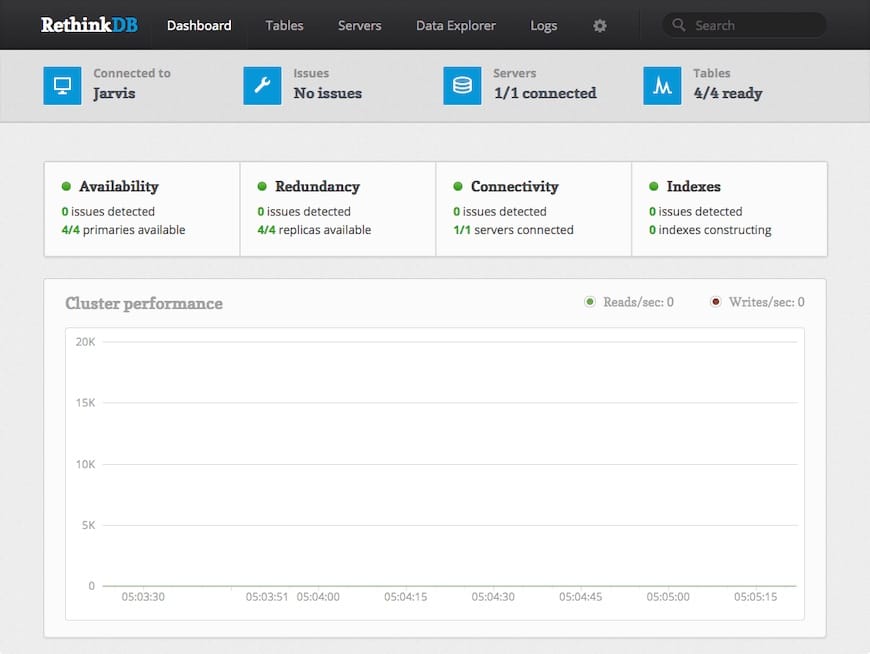
http://127.0.0.1:8080On a remote server, never bind port 8080 to a public interface. Instead, use an SSH tunnel to reach it securely:
ssh -L 8080:127.0.0.1:8080 your_user@your-server-ipThen open http://127.0.0.1:8080 in your local browser. The SSH tunnel forwards the connection securely. Once you close the SSH session, the tunnel closes.
Run Your First ReQL Query
In the Data Explorer tab, paste this sequence to create a test table, insert a document, and verify the insert:
r.db('test').tableCreate('events')
r.table('events').insert([{name: 'first-check', status: 'ok'}])
r.table('events').count()
The final count() should return 1, confirming the database is writing and reading data correctly.
Step 8: Set an Admin Password
Why the Default Account Is a Security Risk
RethinkDB creates an admin account with full cluster permissions and no password the moment the database starts. Any process on the machine that can reach port 28015 can read, write, drop, or modify any table with zero authentication. This is acceptable for a sandbox on a developer laptop — it is not acceptable on any server that runs real workloads.
From the Data Explorer, run this command to set a password for the admin user:
r.db('rethinkdb').table('users').get('admin').update({password: 'your_strong_password_here'})Replace your_strong_password_here with a real, randomly generated password and store it in a password manager.
Two important things to know about this:
- The web UI browser session does not use this password. The UI always connects as admin without password authentication — which is why keeping
bind=127.0.0.1and using an SSH tunnel is mandatory. - Any driver connection from your application code will now require this password. Update your connection code accordingly.
Step 9: Configure UFW Firewall for RethinkDB on Ubuntu 24.04
Why UFW Is a Second Line of Defense
Since all three RethinkDB ports are already bound to 127.0.0.1, the firewall is not the primary protection here. But it adds a safety net: if someone accidentally changes bind= to all and restarts the service, UFW will block external access until you notice the mistake and fix it.
Enable UFW if it is not already active:
sudo ufw allow OpenSSH
sudo ufw enable
sudo ufw status
Do not add a rule for port 8080. There is no scenario where ufw allow 8080 is the right choice for a single-node RethinkDB setup. That rule would expose the unauthenticated admin UI to the public internet.
If a separate application server on a known IP address needs to reach the driver port, restrict the rule to that specific host:
sudo ufw allow from 192.168.1.50 to any port 28015Replace 192.168.1.50 with the actual trusted IP address of your application server.
Troubleshooting Common Issues
1. APT Cannot Find the rethinkdb Package
Symptom: apt install rethinkdb returns “Unable to locate package rethinkdb”.
Cause: The repository source file is missing, uses the wrong Ubuntu codename, or sudo apt update was not run after adding the source.
Fix: Run cat /etc/apt/sources.list.d/rethinkdb.sources and verify the Suites: line says noble for Ubuntu 24.04. If the file is missing or wrong, repeat Step 3 and run sudo apt update.
2. GPG Public Key Error During apt update
Symptom: APT shows “The following signatures couldn’t be verified because the public key is not available”.
Cause: The keyring file at /usr/share/keyrings/rethinkdb-archive-keyring.gpg is missing, corrupted, or the Signed-By: path in the source file points to the wrong filename.
Fix: Repeat the full key import from Step 2. Then check that the filename in Signed-By: exactly matches the file you placed in /usr/share/keyrings/. A common mistake is a typo like rethinkdb-archive-keyrings.gpg (with an extra s) versus rethinkdb-archive-keyring.gpg.
3. RethinkDB Installed But No Port Is Listening
Symptom: ss -lnt | grep 28015 returns nothing after restarting the service.
Cause: No instance configuration file exists in /etc/rethinkdb/instances.d/. The RethinkDB init script looks for .conf files in that directory at startup and does nothing if the directory is empty.
Fix:
ls -l /etc/rethinkdb/instances.d/If the directory is empty, create instance1.conf as shown in Step 5, then restart:
sudo /etc/init.d/rethinkdb restartIf the file exists but the service still does not listen, check the log:
sudo tail -n 50 /var/lib/rethinkdb/instance1/log_file4. received invalid clustering header in Logs
Symptom: RethinkDB’s log file shows repeated “received invalid clustering header” messages.
Cause: A browser, application driver, or monitoring tool is connecting to the wrong port. The three ports have distinct protocols and are not interchangeable.
Fix: Check where your application is connecting:
- Browsers go to port
8080 - Application drivers (Python, Node.js, Ruby, etc.) go to port
28015 - Only other RethinkDB cluster nodes use port
29015
5. rethinkdb dump Fails With “No Such File or Directory”
Symptom: Running rethinkdb dump produces an error about rethinkdb-dump not being found.
Cause: The backup and restore utilities depend on the RethinkDB Python client driver, which is not included in the server package.
Fix:
pip3 install rethinkdbAfter installing the Python driver, rethinkdb dump and rethinkdb restore should work correctly. Always validate your backup and restore workflow before relying on it for production data.
How to Update RethinkDB on Ubuntu 24.04
Since you installed from the official APT repository, updates are handled through the standard APT workflow. Use the --only-upgrade flag to update only if RethinkDB is already installed:
sudo apt update
sudo apt install --only-upgrade rethinkdb
The --only-upgrade flag is a safety measure. Without it, running apt install rethinkdb on a server where RethinkDB was previously removed would reinstall it, which may not be what you want.
After any major version update, check the official RethinkDB release notes before restarting production instances. Some version increments change on-disk storage formats, which require a migration step.
How to Uninstall RethinkDB from Ubuntu 24.04
To completely remove RethinkDB, work through these steps in order:
Step 1: Stop running instances
sudo /etc/init.d/rethinkdb stopStep 2: Remove the package
sudo apt purge rethinkdbStep 3: Remove the APT source and keyring
sudo rm -f /etc/apt/sources.list.d/rethinkdb.sources
sudo rm -f /usr/share/keyrings/rethinkdb-archive-keyring.gpg
sudo apt update
Step 4: Delete data directories (only after backing up)
apt purge leaves data in /var/lib/rethinkdb intentionally. This protects against accidental data loss during package reinstalls. Only delete the data directory after you have confirmed your backup is complete:
sudo rm -rf /var/lib/rethinkdb /var/log/rethinkdb /etc/rethinkdb[su_box title=”VPS Manage Service Offer” style=”bubbles” box_color=”#000000″ radius=”10″]If you don’t have time to do all of this stuff, or if this is not your area of expertise, we offer a service to do “VPS Manage Service Offer”, starting from $10 (Paypal payment). Please contact us to get the best deal![/su_box]

