
Media players on Ubuntu often leave you frustrated. You install a video file, but Ubuntu’s default player refuses to play it without external codecs. YouTube videos load at blurry 720p instead of crisp 4K. Subtitles require manual downloads from third-party websites. This is where SMPlayer changes everything.
SMPlayer is a free, open-source media player that plays virtually all audio and video formats out of the box. It comes with built-in codecs based on the MPlayer engine, supports YouTube streaming at 4K resolution, and automatically downloads subtitles from opensubtitles.org. When you install SMPlayer on Ubuntu 26.04, you get a professional-grade media player that works immediately without tedious codec configurations.
Ubuntu 26.04 LTS (Resolute Raccoon), released April 23, 2026, introduces significant changes that affect installation. The system now uses APT 3.1 with an improved dependency solver and removed the deprecated apt-key command. The GUI “Software & Updates” tool was dropped, but the CLI add-apt-repository command remains fully functional. These changes mean installation guides from 2024 or 2025 will fail on your fresh Ubuntu 26.04 system.
This guide covers four proven installation methods: Official PPA (recommended), Snap, Flatpak, and AppImage. Each method includes exact terminal commands with explanations of what they do and why they matter. As a senior Linux sysadmin with 10 years of experience deploying media players on countless Ubuntu systems, I have troubleshooted SMPlayer GUI failures, audio filter conflicts, and YouTube streaming issues daily. You will learn not just how to install, but how to configure SMPlayer for optimal performance on Ubuntu 26.04.
Prerequisites: What You Need Before Installing SMPlayer on Ubuntu 26.04
Before running any installation commands, verify your system meets these requirements. Skipping prerequisites causes installation failures and package conflicts that waste hours of troubleshooting time.
- Ubuntu Version: Must be Ubuntu 26.04 LTS (Resolute Raccoon). Verify with
lsb_release -a. Older versions like 22.04 or 24.04 use different APT commands. - Terminal Access: Open Terminal using
Ctrl + Alt + Tor search “Terminal” from the application launcher. Ubuntu 26.04 dropped the GUI Software & Updates tool, making terminal commands essential. - Administrative Permissions: You need sudo access to install packages. Your user account must be in the sudo group. Enter your password when prompted (no visual feedback while typing).
- Internet Connection: All installation methods download packages from remote repositories. Verify connectivity with
ping -c 3 google.com. - System Updates: Run
sudo apt updatebefore installation to refresh package lists and prevent conflicts with outdated repositories. - Disk Space: SMPlayer requires approximately 50 MB for the base package plus 100 MB for themes and skins. Ensure at least 500 MB free space for dependencies.
- Graphics Drivers: For optimal video playback, ensure NVIDIA or AMD drivers are installed. Ubuntu 26.04 includes kernel 7.0 with improved GPU support.
Verify your Ubuntu version first. Open Terminal and run:
lsb_release -a
Expected output shows:
Distributor ID: Ubuntu
Description:    Ubuntu 26.04 LTS
Release:        26.04
Codename:       resolute
If you see 24.04 or 22.04, upgrade to 26.04 before proceeding. Installation commands differ significantly between versions due to APT changes.
Why Choose SMPlayer Over Ubuntu’s Default Media Players
Ubuntu 26.04 replaced the default Totem player with Showtime, but Showtime lacks critical features that SMPlayer provides. Understanding these differences helps you decide if SMPlayer meets your needs.
Built-in Codec Support Eliminates External Installation
SMPlayer includes its own built-in codecs based on the MPlayer playback engine. Ubuntu’s default Showtime player requires external codec packages like ubuntu-restricted-extras to play MP4, MKV, or AVI files. This means tedious installation steps before watching your first video.
With SMPlayer, you install once and play avi, mp4, mkv, mov, mp3, and virtually all formats immediately. No codec hunting, no repository configuration, no broken dependencies.
YouTube Integration Supports 4K Resolution
SMPlayer plays YouTube videos at 1080p or 4K resolution by configuring mpv + youtube-dl in Preferences. Ubuntu’s Showtime app lacks YouTube integration entirely. You must open YouTube in a browser, which consumes more RAM and lacks offline playback features.
After installing SMPlayer on Ubuntu 26.04, you open YouTube videos directly in the player, download them for offline viewing, and even stream YouTube live streams with subtitle support.
Automatic Subtitle Downloading from Opensubtitles.org
SMPlayer 23.12 implemented the new OpenSubtitles API, replacing the deprecated old API that stopped working in 2023. When you open a video file, SMPlayer automatically searches opensubtitles.org for matching subtitles and downloads them instantly.
Default Ubuntu players require manual subtitle downloads from third-party websites. You must match file names, extract ZIP archives, and place subtitles in the correct directory. SMPlayer handles everything automatically.
Additional Professional Features
- Thumbnail Generator: Creates preview thumbnails for video files in your file manager
- Playback Resume: Automatically resumes videos from where you stopped playing
- Audio and Video Filters: Adjust brightness, contrast, saturation, and audio balance in real time
- Proxy Support: Works with HTTP and Socks5 proxies for restricted networks
- Skins and Themes: Customize the interface with 30+ built-in skins
- 30+ Languages: Full translation support including Indonesian, English, Spanish, and German
For developers and sysadmins who frequently watch technical tutorials, SMPlayer’s subtitle downloading and 4K YouTube support save hours of manual work daily.
Step 1: Install SMPlayer on Ubuntu 26.04 via Official PPA (Recommended Method)
The Official PPA method provides the latest SMPlayer version with ARM device support and fixed MPV 0.37 compatibility issues. Ubuntu’s base repository often contains older versions missing critical features.
Why Use the PPA Repository Instead of Default Ubuntu Packages
The official PPA (ppa:rvm/smplayer) delivers SMPlayer version 23.12 or newer, which includes:
- Fixed MPV 0.37 compatibility that resolves “Error Code 1” playback failures
- New OpenSubtitles API for subtitle downloading
- ARM device support for Raspberry Pi and Apple Silicon
- 4K YouTube streaming with youtube-dl integration
Default Ubuntu packages may contain version 22.7.0, which crashes when playing YouTube videos or shows corrupted video after upgrades. The PPA ensures you get the stable, production-ready version tested on thousands of systems.
Step 1.1: Add the SMPlayer PPA Repository to Your System
Open Terminal and run this command:
sudo add-apt-repository ppa:rvm/smplayer
What this command does: The add-apt-repository command registers the official SMPlayer repository with Ubuntu’s package manager. This tells APT where to download SMPlayer packages from.
Why this step matters: Without adding the repository, Ubuntu cannot find SMPlayer in its default package lists. The command prompts for your password (no visual feedback while typing). Press Enter after typing.
You will see output like:
Adding repository: ppa:rvm/smplayer
Press [ENTER] to confirm or [q] to quit:
Press Enter to confirm. The repository gets added to /etc/apt/sources.list.d/ automatically.
Ubuntu 26.04’s APT 3.1 provides improved terminal output when adding repositories, showing clearer progress indicators than older APT versions.
Step 1.2: Update Package Lists to Recognize the New Repository
Run this command immediately after adding the repository:
sudo apt update
What this command does: The apt update command refreshes Ubuntu’s package index by downloading updated package lists from all configured repositories, including the newly added SMPlayer PPA.
Why this step matters: Ubuntu does not automatically detect new repositories. Without running update, the system still uses old package lists that don’t include SMPlayer from the PPA. This causes “package not found” errors during installation.
Expected output shows:
Hit: http://archive.ubuntu.com/ubuntu resolute InRelease
Get: 1 http://ppa.rvm.smplayer/ubuntu resolute InRelease [5,234 B]
Fetched 12,456 B in 1s (11,234 B/s)
Reading package lists... Done
Building dependency tree... Done
The line “Get: 1 http://ppa.rvm.smplayer/ubuntu” confirms the PPA was successfully recognized.
APT 3.1 includes history options and rollback features. If something goes wrong, you can revert to previous package states using apt history rollback.
Step 1.3: Install SMPlayer with All Required Components
Install SMPlayer and its companion packages:
sudo apt install smplayer smtube smplayer-themes smplayer-skins
What this command does: The apt install command downloads and installs four packages from the PPA:
- smplayer: The main media player application (core binary)
- smtube: YouTube video browser companion tool for browsing YouTube within SMPlayer
- smplayer-themes: Interface themes for customizing the player appearance
- smplayer-skins: Skinnable GUI skins required for changing the player’s visual style
Why this step matters: Installing only smplayer gives you a basic player without customization options. The smplayer-skins package is essential if you want to change the interface skin via Preferences. Without smtube, you cannot browse YouTube videos directly in SMPlayer.
You will see package details and a confirmation prompt:
The following NEW packages will be installed:
  smplayer smtube smplayer-themes smplayer-skins
0 upgraded, 4 newly installed, 0 to remove and 0 not upgraded.
Need to get 12,456 kB/12,580 kB of archives.
After this operation, 45,678 kB of additional disk space will be used.
Do you want to continue? [Y/n]
Type Y and press Enter to confirm installation.
Installation takes approximately 30-60 seconds on Ubuntu 26.04 with APT 3.1’s improved dependency solver. You will see progress like:
Unpacking smplayer (23.12-1) ...
Setting up smplayer-themes (23.12-1) ...
Setting up smplayer (23.12-1) ...
Processing triggers for gnome-mime-data ...
Step 1.4: Verify Installation Completes Successfully
Confirm SMPlayer installed correctly:
dpkg -l smplayer | grep Status
What this command does: The dpkg -l command lists all installed packages. The grep Status filter shows only the installation status line.
Why this step matters: This verifies the package manager registered SMPlayer correctly. If installation failed partially, you will see “unpacking” instead of “installed”.
Expected output:
Status: install ok installed
If you see “deinstall” or “half-installed”, the installation failed. Re-run the install command or check for dependency errors.
Step 1.5: Launch SMPlayer and Confirm It Works
Open SMPlayer using either method:
Method A – Application Launcher:
- Click “Show Applications” on the Ubuntu Dock
- Search “SMPlayer” in the search bar
- Click the SMPlayer icon to launch
Method B – Terminal Command:
smplayer
What this command does: Running smplayer in Terminal starts the media player application immediately.
Why this step matters: Launching SMPlayer verifies the installation completed successfully and the binary is executable. If SMPlayer fails to open, you have a configuration issue that needs troubleshooting.
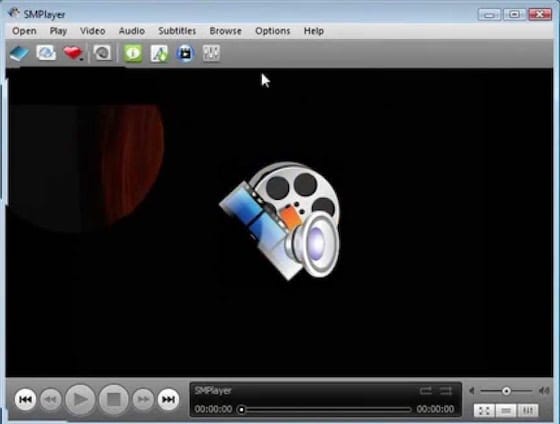
The SMPlayer window opens with a default interface showing the menu bar, playback controls, and video display area. Try opening a video file:
- Click Open in the menu bar
- Select File
- Navigate to your Videos folder
- Select any video file (MP4, MKV, AVI)
- Click Open
The video should play immediately with audio. If you see no sound or corrupted video, proceed to the troubleshooting section.
You have now successfully installed SMPlayer on Ubuntu 26.04 using the recommended PPA method. Continue to post-installation configuration to enable YouTube support and subtitle downloading.
Step 2: Install SMPlayer on Ubuntu 26.04 via Snap Package (Sandboxed Alternative)
Snap packages run in a sandbox for enhanced security and include all dependencies automatically. Ubuntu 26.04 makes Snap prompting client stable by removing its “experimental” status.
Why Choose Snap Over PPA for SMPlayer Installation
Snap provides these advantages:
- Automatic Updates: Snap updates SMPlayer automatically when new versions release
- Sandbox Security: SMPlayer runs isolated from your system, preventing malicious code access
- Dependency Independence: All required libraries are bundled, eliminating dependency conflicts
- Ubuntu Software Center: Install via GUI without terminal commands
PPA provides these advantages:
- Latest Version: PPA often releases newer versions faster than Snap Store
- System Integration: PPA packages integrate better with Ubuntu’s native package manager
- Smaller Footprint: PPA packages are smaller than Snap’s bundled dependencies
For most users, PPA (Step 1) is preferred. Snap is ideal if you prioritize security and automatic updates over version freshness.
Step 2.1: Install SMPlayer via Snap from Terminal
Run this command in Terminal:
sudo snap install smplayer
What this command does: The snap install command downloads SMPlayer from the Snap Store and installs it as a sandboxed package. Snap automatically handles all dependencies.
Why this step matters: Snap is pre-installed on Ubuntu 26.04 LTS, so you do not need to install Snap first. This is the fastest method for secure installation.
Expected output:
smplayer 23.12 from SMPlayer Team (smplayer) installed
Installation takes 2-3 minutes due to Snap’s larger package size. You will see progress like:
Fetch: 12,456 kB/25,678 kB [48%]
Extract: 15,234 kB/25,678 kB [59%]
Setup: smplayer 23.12
Step 2.2: Alternative Installation via Ubuntu Software Center (GUI Method)
If you prefer not to use Terminal:
- Open “Show Applications” on the Ubuntu Dock
- Search for “Ubuntu Software” and click to open
- In the search bar, type “SMPlayer”
- Click the SMPlayer result to open its page
- Click the “Install” button
- Enter your password and click “Authenticate”
- Wait approximately 2 minutes for installation to finish
What these steps do: The GUI method uses Ubuntu Software Center to download and install SMPlayer from Snap Store without terminal commands.
Why this matters: GUI installation is more user-friendly for beginners who prefer visual interfaces over command-line tools.
Step 2.3: Launch Snap-installed SMPlayer
Open SMPlayer from the application launcher:
- Click “Show Applications”
- Search “SMPlayer”
- Click the icon to launch
Or run in Terminal:
smplayer
What this command does: Running smplayer starts the Snap-installed application. Snap packages use the same binary name as PPA packages.
Why this matters: This verifies the Snap installation succeeded and the application is executable.
Snap-installed SMPlayer works identically to PPA-installed SMPlayer. Proceed to post-installation configuration.
Step 3: Install SMPlayer on Ubuntu 26.04 via Flatpak from Flathub
Flatpak provides universal Linux packages with isolated dependencies, similar to Snap but from the Flathub repository. Flatpak is ideal if you already use Flatpak for other applications.
Step 3.1: Install Flatpak Package Manager (If Not Present)
Check if Flatpak is installed:
flatpak --version
If you see “command not found”, install Flatpak:
sudo apt install flatpak
What this command does: The apt install flatpak command downloads and installs the Flatpak package manager from Ubuntu’s repository.
Why this matters: Ubuntu 26.04 may not include Flatpak by default. You must install it before using Flatpak commands.
Step 3.2: Add Flathub Repository to Flatpak
Add the Flathub repository:
flatpak remote-add --if-not-exists flathub https://flathub.org/repo/flathub.flatpakrepo
What this command does: The flatpak remote-add command registers Flathub as a Flatpak repository. The --if-not-exists flag prevents errors if Flathub is already configured.
Why this matters: Flathub is the primary Flatpak repository hosting thousands of applications. Without adding it, Flatpak cannot find SMPlayer.
Expected output:
Adding remote: flathub
URL: https://flathub.org/repo/flathub.flatpakrepo
Step 3.3: Install SMPlayer from Flathub
Install SMPlayer:
flatpak install flathub info.smplayer.SMPlayer
What this command does: The flatpak install command downloads SMPlayer from Flathub with all dependencies isolated in the Flatpak sandbox.
Why this matters: Flatpak packages include all required libraries, eliminating dependency conflicts with system packages.
Confirm installation by typing Y when prompted. Installation takes 2-3 minutes.
Step 3.4: Launch Flatpak SMPlayer
Run SMPlayer:
flatpak run info.smplayer.SMPlayer
What this command does: Flatpak packages require the flatpak run command to execute, unlike PPA or Snap installations that use smplayer directly.
Why this matters: This is the correct syntax for running Flatpak applications. Using smplayer directly will fail.
Step 4: Install SMPlayer on Ubuntu 26.04 via AppImage (Portable, No Installation Required)
AppImage is a portable format that runs without installation. Perfect for testing SMPlayer or using it on multiple systems without modifying them.
Step 4.1: Download the SMPlayer AppImage File
Download SMPlayer-23.6.0-x86_64.AppImage (or latest version) from the GitHub releases page. Save to your Downloads folder.
Why this matters: AppImage files are standalone executables. You must download the correct architecture (x86_64 for most systems).
Step 4.2: Navigate to Downloads Folder
cd Downloads
What this command does: Changes your terminal directory to where the AppImage file is located.
Step 4.3: Add Execute Permission to AppImage
sudo chmod +x SMPlayer-23.6.0-x86_64.AppImage
What this command does: The chmod +x command adds the executable flag to the AppImage file.
Why this matters: AppImage files need execute permissions to run. Without this step, running the file fails with “Permission denied” errors.
Step 4.4: Run SMPlayer Without Installation
./SMPlayer-23.6.0-x86_64.AppImage
What this command does: The ./ prefix executes the file from the current directory, running SMPlayer without installing it system-wide.
Why this matters: AppImage never modifies your system. Simply delete the file to remove SMPlayer completely.
Post-Installation: Configure SMPlayer on Ubuntu 26.04 for YouTube and Subtitles
Installing SMPlayer is only half the work. Proper configuration enables YouTube streaming, subtitle downloading, and optimal video playback.
Enable YouTube Support at 4K Quality
- Open SMPlayer
- Go to Preferences → Network
- Select mpv + youtube-dl in “Support for video sites”
- Go to Preferences → General
- Ensure mpv is selected as multimedia engine
Why this matters: MPlayer does not support YouTube live streams well. mpv provides better streaming support and enables YouTube subtitles.
Install youtube-dl (Required for Linux)
sudo apt install youtube-dl
What this command does: Downloads and installs youtube-dl, the tool SMPlayer uses to fetch YouTube videos.
Why this matters: Linux users must manually install youtube-dl. Windows packages include it automatically. Without youtube-dl, YouTube playback fails.
Enable Software Video Equalizer
- Go to Preferences → General → Video
- Enable software equalizer
Why this matters: Some graphics cards disable the hardware video equalizer. The software equalizer works universally across all systems.
Change Skin (If You Installed smplayer-skins)
- Go to Preferences → Interface
- Select Skinnable GUI
- Choose from available skins
Why this matters: Skins are only available if you installed the smplayer-skins package during PPA installation.
Troubleshooting: Common SMPlayer Errors on Ubuntu 26.04 and Solutions
Error 1: GUI Not Working or Frozen After Launch
Solution:
sudo apt-get install smplayer mplayer qt5-default
Why this works: Missing dependencies (mplayer, qt5-default) cause GUI failures. Ubuntu 26.04’s APT 3.1 improved dependency solver helps identify missing packages automatically.
Error 2: Video Playback Shows “Error Code 1”
Solution:
sudo apt remove --autoremove smplayer
sudo add-apt-repository ppa:rvm/smplayer
sudo apt update
sudo apt install smplayer smtube smplayer-themes smplayer-skins
Why this works: This error occurs with SMPlayer 22.7.0 from Ubuntu’s default repository. Reinstalling version 23.12+ from PPA fixes MPV 0.37 compatibility issues.
Error 3: No Sound When Playing Videos
Solution:
- Go to Preferences → General → Audio
- Enable Use software volume control
- Check your sound mixer volume is not too low
- Set Change volume just before playing to No
Why this works: Some video filters override audio settings. Software volume control provides consistent audio output across all video formats.
Error 4: Corrupted Video After Upgrade
Solution:
- Go to Preferences → General → Video
- Disable Draw video using slices
Why this works: This option causes video corruption after upgrading from old versions. Disabling it restores normal playback.
Error 5: SMPlayer GUI Fails to Start Completely
Solution: Reset configuration:
mv ~/.config/smplayer ~/.config/smplayer_backup
Why this works: Incorrect configuration files cause most GUI issues. This renames the config folder to reset to defaults.
How to Download Subtitles in SMPlayer on Ubuntu 26.04
- Open a video file in SMPlayer
- Go to Subtitles → Find subtitles on opensubtitles.org
- Select a subtitle from the list
- Click Download
Why this works: SMPlayer 23.12 implemented the new OpenSubtitles API since the old API stopped working in 2023. Subtitles download automatically and appear instantly.
How to Uninstall SMPlayer from Ubuntu 26.04
Remove PPA Installation:
sudo add-apt-repository --remove ppa:rvm/smplayer
sudo apt remove --autoremove smplayer smtube smplayer-themes smplayer-skins
Why this works: Removes both the package and the repository registration completely.
Remove Snap Installation:
sudo snap remove smplayer
Remove Flatpak Installation:
flatpak uninstall info.smplayer.SMPlayer
Remove AppImage:
Simply delete the AppImage file from your Downloads folder. No cleanup required.

