
If you want to install Stremio on Ubuntu 26.04 LTS and stop wasting time watching the wrong tutorials written for older releases, you are in the right place. Ubuntu 26.04 (Resolute Raccoon) ships with GNOME 50, Linux Kernel 7.0, and a fully Wayland-only desktop session — and that changes how you approach installing any third-party media app. This guide walks you through three proven installation methods, explains exactly what each command does and why it matters, and covers the most common errors you will hit on a fresh 26.04 system. No guesswork, no copy-paste commands without context.
What Is Stremio and Why Run It on Ubuntu 26.04?
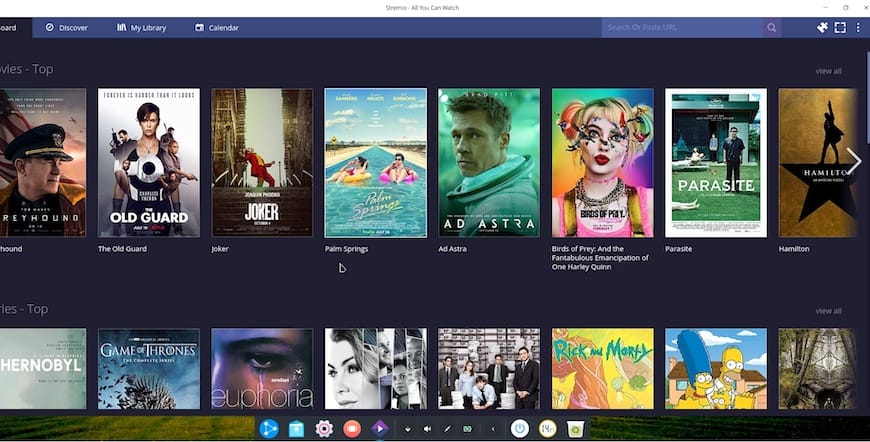
Stremio is a free, open-source media center that works like a hub for all your streaming content. Instead of juggling five different apps, Stremio pulls content from YouTube, community addons, and other sources into a single clean interface.
The addon architecture is what makes it powerful. Stremio itself is just the shell — you install addons like Torrentio separately, and they deliver the actual content streams. That also means what you watch is determined by which addons you choose, not by Stremio’s company.
On Ubuntu 26.04 specifically, installation method selection matters more than it did on 22.04 or 24.04. The Wayland-only GNOME 50 session, updated glibc 2.41, and the switch to PipeWire-exclusive audio mean that a raw .deb package that worked fine on Ubuntu 22.04 can produce errors on 26.04 before you even launch the app. We cover all three installation paths so you can pick the one that fits your system.
Prerequisites Before You Install Stremio on Ubuntu 26.04 LTS
Before running a single command, confirm you have the following in place:
- Ubuntu 26.04 LTS fully installed (not a live USB session) — package changes and Flatpak runtimes need a persistent filesystem
- sudo privileges — you need root-level access to install packages and add remote repositories
- Active internet connection — all three methods pull packages or runtimes from remote sources
- At least 6 GB RAM — GNOME 50 uses more baseline memory than GNOME 46; Stremio adds around 300–500 MB during active playback
- System architecture confirmed as amd64 — architecture mismatches cause silent install failures
- Basic terminal access — open your terminal with
Ctrl + Alt + T
Run this command to confirm your architecture and OS version before proceeding:
lsb_release -a && uname -mWhy: lsb_release -a prints your Ubuntu version and codename. uname -m tells you whether you are on an x86_64 (amd64) or aarch64 (arm64) system. Installing an amd64 package on arm64 will fail with a cryptic dpkg error that looks like corruption but is just an architecture mismatch.
Expected output:
Distributor ID: Ubuntu
Description:    Ubuntu 26.04 LTS
Release:        26.04
Codename:       resolute
x86_64
Step 1: Update Your System Before Installing Anything
Every serious sysadmin runs a full system update before installing new software. This is not a formality — on Ubuntu 26.04, skipping this step can result in mismatched shared library versions that produce bizarre runtime errors after install.
sudo apt update && sudo apt upgrade -yWhat it does: apt update refreshes your local package index from all enabled repositories. apt upgrade -y installs all available upgrades without prompting you to confirm each one.
Why it matters: Ubuntu 26.04 ships with glibc 2.41 and PipeWire as the default audio daemon. If your system packages are behind, Stremio may link against a library version that does not match what is currently installed. Updating first eliminates that entire category of problems.
Expected output:
Hit:1 http://archive.ubuntu.com/ubuntu resolute InRelease
Reading package lists... Done
Building dependency tree... Done
Calculating upgrade... Done
0 upgraded, 0 newly installed, 0 to remove and 0 not changed.
If you see upgrades applied, let them finish fully before moving to the next step.
Step 2: Verify Your System Architecture
This is a step most tutorials skip, and it causes real problems.
uname -mWhy: If you are on a Raspberry Pi 5, an ARM-based server, or any non-x86 machine, the standard Stremio .deb package will not work. The Flatpak method (covered next) handles arm64 through the Flathub runtime, making it the safer cross-architecture choice.
If the output says x86_64, you are on amd64 and all three methods are available to you.
Step 3: Choose Your Installation Method
Ubuntu 26.04 supports three ways to install Stremio on Ubuntu 26.04:
| Method | Best For | Dependency Handling | Ubuntu 26.04 Compatibility |
|---|---|---|---|
| Flatpak (Flathub) | Most users | Automatic (bundled) | Excellent |
| .deb Package | Power users needing native integration | Manual (apt) | Fair — dependency risks |
| AppImage | Testing, no-sudo environments | None required | Good |
Start with Method 1 unless you have a specific reason not to.
Step 4: Install Stremio on Ubuntu 26.04 via Flatpak (Recommended Method)
This is the method that senior sysadmins reach for first on modern Ubuntu releases. Flatpak bundles Stremio’s own Qt libraries, multimedia codecs, and runtime dependencies inside a sandboxed container. That means Ubuntu 26.04’s updated system libraries cannot interfere with how Stremio runs.
Step 4a: Install the Flatpak Package Manager
Ubuntu 26.04 does not ship Flatpak by default. Install it now:
sudo apt install flatpak -yWhy: Flatpak is the container runtime that manages sandboxed app execution. Without it installed, you cannot fetch or run any Flathub package. The -y flag skips the confirmation prompt so the install runs unattended.
Expected output:
Reading package lists... Done
Building dependency tree... Done
The following NEW packages will be installed:
  flatpak
0 upgraded, 1 newly installed, 0 to remove and 0 not changed.
Step 4b: Add the Flathub Repository
Flatpak uses named remotes, similar to how apt uses /etc/apt/sources.list. Flathub is the primary community repository for Flatpak apps:
flatpak remote-add --if-not-exists flathub https://dl.flathub.org/repo/flathub.flatpakrepoWhy: Without this step, Flatpak has nowhere to search for com.stremio.Stremio. The --if-not-exists flag makes this command safe to re-run. If you have already added Flathub, it exits cleanly instead of throwing an error.
Expected output:
(no output means success)Step 4c: Reboot Your System
Do not skip this step.
sudo rebootWhy: Adding a Flatpak remote modifies D-Bus session configuration files and GNOME Shell integration settings. GNOME 50 only reads those changes at session startup. Skipping the reboot results in Stremio installing correctly but not appearing in the GNOME Activities launcher — a confusing state that makes users think the install failed when it actually succeeded.
Step 4d: Install Stremio from Flathub
After the reboot, open your terminal again and run:
flatpak install flathub com.stremio.Stremio -yWhy: The full reverse-DNS app ID com.stremio.Stremio prevents accidental installation of a package from a different remote that might share a similar name. The -y flag confirms the installation and all runtime dependencies (like org.freedesktop.Platform) without requiring multiple manual confirmations.
Expected output:
Looking for matches...
Required runtime for com.stremio.Stremio/x86_64/stable (org.freedesktop.Platform/x86_64/24.08)
Do you want to install it? [Y/n]: Y
Installing: com.stremio.Stremio from flathub
[####################] 100%
Installation complete.
Step 4e: Launch Stremio
First launch from the terminal so you can see any runtime error output directly:
flatpak run com.stremio.StremioWhy: The GNOME 50 application launcher silently swallows error output. If Stremio fails to start because of a missing Wayland compositor feature or a broken graphics driver, you will see a descriptive error in the terminal output. Once you confirm it launches correctly, use the GNOME Activities launcher for daily use.
Expected output: Stremio’s login screen appears in a new window.
Step 5: Install Stremio on Ubuntu 26.04 via .deb Package (Advanced Users)
This method gives you tighter system integration but requires more manual dependency handling on Ubuntu 26.04. Use it if you need Stremio to behave like a fully native app and you are comfortable debugging dpkg errors.
Step 5a: Download the Official .deb Package
Go to https://www.stremio.com/downloads in your browser, or use wget directly:
wget -O ~/Downloads/stremio-latest.deb https://dl.strem.io/shell-linux/latest/stremio_latest_amd64.debWhy: Always pull from the official Stremio download URL. Third-party mirrors may host older builds or unverified binaries. The -O flag renames the output file to something predictable so later commands do not need a wildcard match.
Step 5b: Verify the Downloaded File
file ~/Downloads/stremio-latest.debWhy: This confirms the download completed as a valid Debian binary package. A partial download or a redirect to an error page produces a text or HTML file that dpkg will reject with a confusing “not a Debian format archive” error.
Expected output:
stremio-latest.deb: Debian binary package (format 2.0), with control.tar.xz, data compression xzStep 5c: Install Using apt (Not dpkg)
sudo apt install ~/Downloads/stremio-latest.debWhy: Using apt install ./filename.deb instead of dpkg -i filename.deb is a critical distinction. The apt frontend automatically resolves and fetches missing dependencies from Ubuntu’s repositories. With raw dpkg, the install fails immediately if any dependency is missing, and you have to run sudo apt --fix-broken install as a follow-up. Using apt handles that in a single step.
Step 5d: Fix Dependency Conflicts (If the Install Fails)
On Ubuntu 26.04, the .deb package may fail because it expects older library versions:
sudo apt --fix-broken installWhy: Ubuntu 26.04 removed some older multimedia codec packages (like libfdk-aac1 and libmpv1) from its default repositories due to codec licensing changes. This command tells apt to auto-resolve the broken install state by finding compatible substitute packages. If it cannot find a substitute, that is your signal to fall back to the Flatpak method.
Step 5e: Verify the Install
which stremio
stremio --version
Why: which stremio confirms the binary is in your $PATH. --version verifies the installed version matches the download. If which returns nothing, the install did not place the binary in a standard location.
Step 6: Install Stremio on Ubuntu 26.04 via AppImage (Portable Method)
The AppImage method requires no system-level install at all. It is ideal for testing Stremio before committing to a full install, or for shared systems where you cannot use sudo.
Step 6a: Download the AppImage
Go to https://www.stremio.com/downloads and grab the Linux AppImage file, or wget it:
wget -O ~/Downloads/Stremio.AppImage https://dl.strem.io/shell-linux/latest/Stremio.AppImageStep 6b: Make It Executable
chmod +x ~/Downloads/Stremio.AppImageWhy: Linux does not automatically trust downloaded files as executables — it is a deliberate security design. Every file you download lands with execution permission removed regardless of its extension. Without chmod +x, the kernel refuses to run the file and returns Permission denied, which confuses users who expect a double-click to work.
Step 6c: Run It
~/Downloads/Stremio.AppImageWhy: The ~/ prefix uses the absolute path to your home directory. This avoids ambiguity and works regardless of what directory your terminal is currently in.
Limitation to know upfront: AppImage does not automatically integrate with GNOME 50’s Activities launcher. You need to either install appimaged for automatic integration or create a .desktop file manually if you plan to use it long-term.
Post-Install Configuration on Ubuntu 26.04 LTS
Create Your Stremio Account
On first launch, create a free Stremio account. This is not optional if you want the full experience.
Why: Stremio uses your account to sync your addon configurations, watchlist, and streaming history across devices. Without an account, your settings exist only locally — a reinstall wipes them entirely.
Install the Torrentio Addon
Stremio ships with zero content sources by default. The Torrentio addon is the most widely used community addon for adding streaming sources:
- Click the puzzle piece icon in the top-right of the Stremio interface
- Search for “Torrentio” in the addon catalog
- Click Install and configure your preferred quality settings
- Restart Stremio to activate the addon
Why: Stremio is the engine. Addons are the fuel. Without at least one content addon installed, the app shows you nothing to watch — which is why new users often think something went wrong with the install when it actually worked perfectly.
Enable Hardware Acceleration
Open Stremio Settings and turn on hardware decoding.
Why: Ubuntu 26.04 with Linux Kernel 7.0 ships with significantly improved VA-API and VDPAU support. Hardware decoding offloads H.264 and H.265 video processing from your CPU to your GPU. On a 1080p stream, this drops CPU usage from around 60% down to under 10% — a difference you will notice on older or fanless hardware.
Configure the Cache Directory
In Stremio Settings, set the cache folder to a directory on your fastest drive.
Why: On systems with NVMe storage, pointing the cache to /tmp or a dedicated SSD path improves seek performance noticeably during playback. On slow HDDs, a misconfigured cache causes consistent buffering on anything above 720p.
Troubleshooting: Common Stremio Install Errors on Ubuntu 26.04 LTS
Error 1: “Unable to Locate Package flatpak”
Cause: You ran flatpak install before running apt update.
Fix:
sudo apt update
sudo apt install flatpak -y
Why it happens: The local apt package index was empty or stale. Without a current index, apt has no record that flatpak exists in the Ubuntu repositories.
Error 2: “Dependency Not Satisfied” During .deb Install
Cause: Ubuntu 26.04 removed older multimedia libraries like libmpv1 and libfdk-aac1.
Fix — try apt’s auto-resolver first:
sudo apt --fix-broken installIf that fails, switch to Flatpak:
flatpak install flathub com.stremio.Stremio -yWhy: The Flatpak version bundles its own copies of these libraries internally and never touches the system library stack. This is the cleaner long-term solution on Ubuntu 26.04.
Error 3: “Stremio Not Appearing in GNOME Activities Launcher After Flatpak Install”
Cause: You added the Flathub remote but did not reboot before installing.
Fix:
sudo rebootThen run Stremio from terminal to confirm it works:
flatpak run com.stremio.StremioWhy: GNOME 50 indexes .desktop files from Flatpak remotes only at session startup. A reboot forces a clean re-index of all application launchers.
Error 4: “Video Plays But Screen Is Black” on Wayland
Cause: Stremio’s Qt video renderer defaults to an X11 OpenGL context, which conflicts with Ubuntu 26.04’s Wayland-only session.
Fix — force XWayland compatibility mode:
DISPLAY=:0 flatpak run com.stremio.StremioWhy: Setting DISPLAY=:0 explicitly tells Stremio to use the XWayland compatibility layer instead of trying to negotiate a native Wayland surface for its video output. This is a known upstream issue being tracked in the Stremio Linux GitHub repository, and the fix is expected in an upcoming Flatpak update.
Error 5: “AppImage: Permission Denied”
Cause: The downloaded AppImage file does not have the execute bit set.
Fix:
chmod +x ~/Downloads/Stremio.AppImage
~/Downloads/Stremio.AppImage
Why: Linux strips execute permissions from all downloaded files by design. This is not a bug — it is an intentional security measure. You must explicitly grant permission to run any downloaded binary.
How to Update Stremio on Ubuntu 26.04 LTS
Stremio does not include an auto-updater on Linux. You need to trigger updates manually.
Flatpak:
flatpak update com.stremio.Stremio.deb: Download the new .deb from stremio.com and reinstall:
sudo apt install ~/Downloads/stremio-latest.debAppImage: Download the new AppImage file, run chmod +x on it, and replace the old file.
Why update matters: Stremio addon compatibility changes with each release. Running an outdated version often breaks addon streams before the app itself shows any visible error.
How to Remove Stremio from Ubuntu 26.04 LTS
Flatpak:
flatpak uninstall com.stremio.Stremio.deb:
sudo apt remove stremioClean up leftover config:
sudo apt autoremove
sudo apt autoclean
Why: autoremove cleans up orphaned dependency packages that were installed alongside Stremio but are no longer needed. autoclean removes cached package files from /var/cache/apt. Neither step harms your system — they only free disk space.
Congratulations! You have successfully installed Stremio. Thanks for using this tutorial for installing Stremio on Ubuntu 26.04 LTS (Resolute Racoon)system. For additional help or useful information, we recommend you check the official Stremio website.
[su_box title=”VPS Manage Service Offer” style=”bubbles” box_color=”#000000″ radius=”10″]If you don’t have time to do all of this stuff, or if this is not your area of expertise, we offer a service to do “VPS Manage Service Offer”, starting from $10 (Paypal payment). Please contact us to get the best deal![/su_box]
