
If you want to Install TeXworks on Ubuntu 26.04, this guide shows the cleanest way to do it and explains why each step matters. TeXworks is a lightweight LaTeX editor with a built-in PDF preview, so it is a strong fit for beginners, developers, and sysadmins who want a simple writing workflow on Ubuntu 26.04 LTS.
TeXworks is not the full LaTeX toolchain, so many install problems happen when people install the editor but skip the compiler stack. That is why this tutorial covers both installation and basic setup, plus a quick test file so you can verify that everything works end to end.
For a TeXworks on Ubuntu 26.04 setup, I recommend the Ubuntu repository first, then the TeXworks stable PPA, and then Flatpak if you prefer sandboxed desktop apps. The goal is not only to show How To Install TeXworks on Ubuntu 26.04, but also how to configure TeXworks on Ubuntu 26.04 in a way that is stable, easy to maintain, and suitable for real work.
Prerequisites
Before you start, make sure you have the following in place:
- Ubuntu 26.04 LTS installed and updated.
- Sudo privileges or an account with administrative access.
- Internet access to download packages and metadata.
- A terminal application, because the cleanest install path uses command line tools.
- Optional: TeX Live packages if you want to compile
.texfiles immediately. TeXworks itself is the editor, not the compiler.
Step 1: Update Your System
Refresh the Package Index
Run this first:
sudo apt updateThis command refreshes Ubuntu’s package lists so your system can see the latest available software versions. It matters because stale package metadata can cause install errors or pull older dependencies than expected.
Upgrade Installed Packages
sudo apt upgrade -yThis updates existing packages before you add new software. It reduces the chance that TeXworks or its dependencies will conflict with older libraries already on the system.
Expected Output
You should see package list downloads, then a summary of upgrades, and finally a completion message with no fatal errors. If Ubuntu reports packages held back or phased updates, that usually is not a TeXworks problem and can be handled later if needed.
Step 2: Install TeXworks from Ubuntu Repository
Install the Editor
sudo apt install texworks -yThis installs TeXworks from Ubuntu’s official repositories, which is the simplest and most maintainable path for most users. It is usually the best first choice because it keeps updates aligned with the Ubuntu package system.
Install a LaTeX Engine
sudo apt install texlive-latex-extra -yThis adds a working LaTeX toolchain so TeXworks can actually compile documents. Without a compiler like TeX Live, the editor may open fine but fail when you try to build a PDF.
Check the Install
texworks --version
pdflatex --version
These commands confirm that both the editor and the compiler stack are available. This step matters because it separates a successful package install from a usable TeX workflow.
Step 3: Launch and Configure TeXworks
Open the App
You can start TeXworks from the app menu or from terminal:
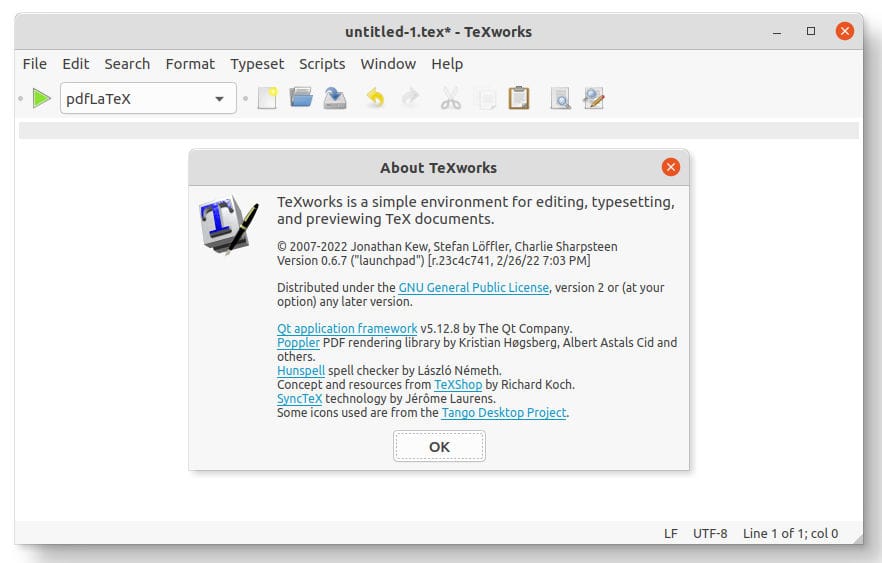
texworksLaunching it once is important because it lets you confirm that desktop integration works and that the application starts cleanly on Ubuntu 26.04. This is also the right time to check whether the PDF preview panel and toolbars load correctly.
Set the Default Compiler
Inside TeXworks, choose the typesetting engine you want, usually pdfLaTeX for most basic documents. This matters because the editor can only send jobs to the compiler you select, and the wrong engine may fail on documents that rely on standard LaTeX packages.
Why This Step Matters
A lot of first-time users think installation is complete when the app opens, but TeXworks is only half the job. The real test is whether the editor can talk to the compiler and render a PDF preview without errors.
Step 4: Test with a Simple LaTeX File
Create a Test Document
Make a file called test.tex:
nano test.texPaste this sample:
\documentclass{article}
\begin{document}
Hello from TeXworks on Ubuntu 26.04.
\end{document}
This tiny document is useful because it removes extra variables and tells you whether the editor, compiler, and PDF viewer all work together. If this file compiles, your basic TeX setup is healthy.
Compile the File
Open the file in TeXworks, then click the typeset button or use the compile shortcut.
pdflatex test.texThis command generates a PDF from your source file. It matters because a successful PDF build proves that your TeX toolchain is installed correctly, not just the editor.
Expected Result
You should get a test.pdf file in the same directory. TeXworks should also show the preview and let you jump between source and output if SyncTeX is enabled.
Step 5: Install TeXworks with the Stable PPA
Add the PPA
Use this when you want the TeXworks stable repository instead of Ubuntu’s default package source:
sudo add-apt-repository ppa:texworks/stableThis adds the TeXworks team’s package source to your system. It matters because PPAs can sometimes provide newer or more focused builds than the default Ubuntu repository.
Refresh Package Data
sudo apt updateAPT needs a fresh index after adding a new repository, otherwise it cannot see the package offered by the PPA. Skipping this step is a common reason users think the PPA did not work.
Install or Upgrade TeXworks
sudo apt install texworks -yThis will install TeXworks from the PPA if it offers the selected candidate version. The reason this is useful is simple: it gives you a second trusted install path when you want to compare repository versions or upgrade a previous install.
Check the Active Source
apt policy texworksThis shows which repository will provide the installed version. It is worth checking because on Ubuntu 26.04 the official repository may already be the best choice, and you should know exactly where your packages come from.
Step 6: Install TeXworks with Flatpak
Install Flatpak Support
sudo apt install flatpak -yFlatpak gives you a sandboxed app format that keeps desktop apps more isolated from the base system. This is useful if you want a cleaner separation between TeXworks and your core Ubuntu packages.
Add Flathub
flatpak remote-add --if-not-exists flathub https://flathub.org/repo/flathub.flatpakrepoFlathub is the main app source for Flatpak desktop software. This step matters because the app ID alone is not enough without a remote repository that provides the package.
Install TeXworks
flatpak install flathub org.tug.texworksThis installs the official Flathub package for TeXworks. The app ID is important because it ensures you are installing the correct program, not a similarly named package.
Run TeXworks
flatpak run org.tug.texworksUsing the Flatpak launcher verifies that the sandboxed app starts correctly. If you prefer desktop isolation or multiple runtime versions, Flatpak can be a good option for a Linux server tutorial style workflow on a workstation that also serves as a dev box.
Step 7: Optional AppImage Approach
When to Use AppImage
Use AppImage if you want portability and do not want to touch APT or Flatpak. This can be useful for testing a release quickly or keeping a separate copy of TeXworks for a specific workflow.
Why It Matters
AppImage is simpler to move around, but it is also more manual to update. That tradeoff matters if you care more about convenience and reproducibility than tight system integration.
Basic Flow
Download the release file, make it executable, and run it:
chmod +x TeXworks-*.AppImage
./TeXworks-*.AppImage
This works because AppImage packages the app into a portable executable. The downside is that updates are not handled by Ubuntu’s package manager, so you must manage them yourself.
Step 8: Configure TeXworks on Ubuntu 26.04
Set the Compiler Path
Open TeXworks preferences and confirm that it can find pdfLaTeX or your preferred TeX engine. This is important because TeXworks depends on the system compiler path, and a missing path causes compile failures even when the editor opens normally.
Check PDF Preview Behavior
Make sure the PDF panel updates after each compile. This matters because the built-in preview is one of TeXworks’ biggest advantages, especially when you want fast edit-compile-review loops.
Adjust the Default Tool
If you work with XeLaTeX or LuaLaTeX, set that engine as your preferred tool. This keeps your workflow consistent and reduces avoidable mistakes when you switch between document types.
Troubleshooting
1. pdflatex: command not found
This means the compiler stack is missing, not necessarily TeXworks itself. Install a TeX Live package such as texlive-latex-extra and try again.
2. TeXworks Opens but Will Not Compile
Check whether TeXworks can find the engine in its settings. This usually happens when the editor is installed but the TeX distribution is incomplete or misconfigured.
3. Blank PDF Preview
A blank preview often means the document failed to compile or generated an empty output file. Open the log output in TeXworks and fix the first real error, because later messages are often just follow-on failures.
4. AppImage Will Not Launch
If the AppImage fails, check permissions and desktop runtime dependencies. This matters because portable Linux apps still depend on the host system for some libraries and execution settings.
5. PPA Install Does Not Show a New Version
Run sudo apt update, then verify with apt policy texworks. This helps you confirm whether APT is still using Ubuntu’s repository instead of the PPA or whether package phasing is delaying the update.
[su_box title=”VPS Manage Service Offer” style=”bubbles” box_color=”#000000″ radius=”10″]If you don’t have time to do all of this stuff, or if this is not your area of expertise, we offer a service to do “VPS Manage Service Offer”, starting from $10 (Paypal payment). Please contact us to get the best deal![/su_box]
