
A fresh Fedora workstation feels empty for about ten minutes. Then you need mail, and the question of which Thunderbird to install shows up. The answer is not the same for a laptop, a shared office desktop and an admin’s jump box.
Many install guides stop at dnf install. That works, but it skips things you will hit later. Your Thunderbird version may differ from what Mozilla’s site advertises. A Flatpak may not see your mounted drives. A profile migrated from another distro may open empty. IMAP may fail because of one authentication setting.
Most of these problems cost more time than the install itself. On a production-adjacent machine, such as an admin’s workstation that reads alert mail, a broken mail client also means missed alerts.
This guide covers the three realistic ways to install Thunderbird on Fedora 44 and when each one fits. It also covers account setup, profile backup, hardening, performance tuning and the errors that come up most often. The commands work on Fedora 44 with DNF5. The Debian, Ubuntu and AlmaLinux equivalents are noted where they differ, since many admins juggle several distros.
Which Install Method Fits You?
Before you type anything, decide which method matches how you work. Switching later is possible, but it means moving profiles around.
| Method | Update path | Sandboxed | Best for |
|---|---|---|---|
| Fedora DNF package | dnf upgrade with the rest of the system |
No | Most desktop users |
| Flatpak (Flathub) | flatpak update |
Yes | Users who want isolation or a vendor-built binary |
| Official tarball | Thunderbird’s built-in updater | No | Testing a specific build, or running side by side |
The Fedora package
Fedora packages Thunderbird directly, and the package page lists a maintainer mailing list for it. Fedora 44 currently shows version 155.0-4.fc44 as the stable build, with 156.0-1.fc44 following through updates [5]. Versions move fast because upstream releases roughly every four weeks.
This is the method to use if you want one update workflow for everything. Kernel, browser and mail client all update in the same transaction. Fedora’s security tooling also sees it.
The Flatpak
Thunderbird’s Flatpak is maintained directly by the Thunderbird team, along with the upstream tarballs [2]. It runs in a sandbox, so it only sees the parts of your filesystem you allow. That is a real security benefit, and it is also the source of the most common Flatpak complaint (attachments not opening).
One thing to check: LinuxCapable’s Fedora 44 guide reported that Flathub was serving an ESR build while DNF had a newer release build [9]. Flathub’s channel setup has changed several times, so confirm which channel you actually get, using the commands later in this guide.
The official tarball
Mozilla also offers a tarball. It suits people who want to run a beta or test a specific build without touching the system package. It does not integrate with DNF and needs a manual desktop entry. For daily mail on a machine you rely on, it is usually not the right choice.
Prerequisites and Pre-Flight Checks
A few minutes here saves debugging later.
Confirm you are on Fedora 44 and see the architecture:
cat /etc/fedora-release
uname -m
Check that you have working network access and enough disk space. Thunderbird itself is small, but a mail profile grows. A five-year IMAP archive with offline sync can reach tens of gigabytes.
df -h /homeIf the machine is freshly installed, refresh metadata and update first. Installing on top of stale metadata is a common reason for odd dependency errors.
sudo dnf upgrade --refreshReboot if the kernel or glibc updated. It sounds fussy, but a half-updated system is a bad base for troubleshooting anything.
Method 1: Install Thunderbird with DNF
This is the shortest path and the one most people should take.
Step 1: Check what the repository offers
dnf info thunderbirdLook at the version and repository fields. On Fedora 44 it should come from fedora or updates. If you see a newer version in updates, DNF will install that one automatically.
Step 2: Install
sudo dnf install thunderbirdDNF resolves dependencies, shows the transaction and asks for confirmation. Type y. Fedora’s GPG-signed packages are verified automatically. Never disable gpgcheck just to get past an error.
Step 3: Verify
thunderbird --version
rpm -q thunderbird
You can also launch it from the GNOME or KDE application menu, or from a terminal:
thunderbird &Step 4: Add your language pack, if needed
Fedora ships language support as separate packages. If your interface is English, you can skip this. For Indonesian or other locales, search first:
dnf search thunderbird-langpacks
sudo dnf install thunderbird-langpacks
Then set the language in Settings under General, in the Language section. The langpacks are a single bundle, so you do not have to hunt for individual locales.
Why DNF is usually the right call
Updates arrive with your normal dnf upgrade. Removal is clean. If an update breaks something, you can inspect and roll back through DNF history:
dnf history list
sudo dnf history undo <ID>
Test a rollback before you need it under pressure. Rolling back a mail client is more delicate than it sounds. Thunderbird may refuse to open a profile last used by a newer version, and that is covered in the troubleshooting section.
Method 2: Install Thunderbird as a Flatpak
Choose this if you want sandboxing, or if you prefer the Thunderbird team’s own build over the distribution’s.
Step 1: Confirm Flatpak and Flathub
Fedora Workstation normally includes Flatpak. Flathub may be filtered or disabled depending on how the install was done. Check remotes:
flatpak remotesIf Flathub is missing, add it:
flatpak remote-add --if-not-exists flathub https://dl.flathub.org/repo/flathub.flatpakrepoStep 2: Install Thunderbird
Mozilla’s documentation gives this command for the standard Flatpak install [2]:
flatpak install flathub org.mozilla.thunderbirdA recent naming change matters here. According to Mozilla’s channel notes, the Flathub application ID moved from org.mozilla.Thunderbird (capital T) to lowercase org.mozilla.thunderbird for the Beta channel on March 30, 2026 [3]. The ESR channel moved to org.mozilla.thunderbird_esr on May 25, 2026 [3]. Old guides that use the capitalized ID may fail or point at the wrong app.
Before confirming, check what you are about to install:
flatpak remote-info flathub org.mozilla.thunderbirdCheck the version and branch in the output. If you want the annual ESR line for long-term stability instead, Mozilla documents this command [2]:
flatpak install flathub org.mozilla.thunderbird_esrStep 3: Run it
flatpak run org.mozilla.thunderbirdIt also appears in the application menu after install.
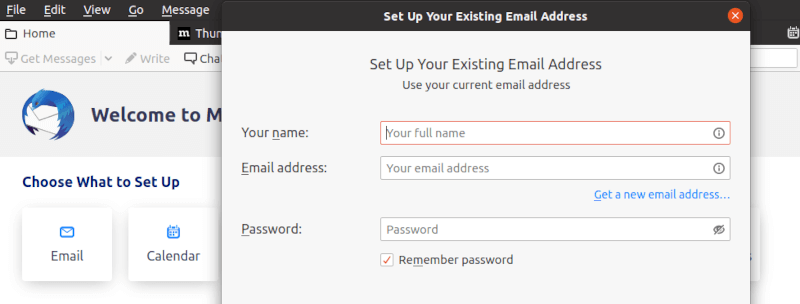
Step 4: Fix filesystem access
The sandbox is why an attachment saved to a second drive may not appear in the file picker. Give access only where needed. Example for a mounted data disk:
flatpak override --user --filesystem=/mnt/data org.mozilla.thunderbirdReview overrides at any time:
flatpak override --user --show org.mozilla.thunderbirdAvoid --filesystem=host unless you have a reason. Granting full host access removes most of the benefit of the sandbox. Grant specific paths instead.
Migrating an existing profile into the Flatpak
The Flatpak keeps its data under ~/.var/app/. A native profile lives in ~/.thunderbird. To move one over, close Thunderbird completely, then copy the directory:
mkdir -p ~/.var/app/org.mozilla.thunderbird/.thunderbird
cp -a ~/.thunderbird/. ~/.var/app/org.mozilla.thunderbird/.thunderbird/
If Thunderbird opens a fresh empty profile, start the profile manager:
flatpak run org.mozilla.thunderbird -PSelect the migrated profile, and tick the option to use it without asking at startup. The older Flathub repository documentation describes this same procedure [11].
If you had the previous capitalized ID installed, Flatpak may offer to rebase you to the new ID during flatpak update. In that case, Mozilla says to rename ~/.var/app/org.mozilla.Thunderbird to ~/.var/app/org.mozilla.thunderbird to keep your data reachable [3].
Method 3: Install from the Official Tarball
This method is for testing or side-by-side setups. It bypasses DNF entirely, so you own the update story.
Step 1: Download
Get the Linux 64-bit build from the official Thunderbird download page, at thunderbird.net. Pick the channel you want (Release, ESR or Beta). Save it to ~/Downloads.
Step 2: Extract to /opt
cd ~/Downloads
sudo mkdir -p /opt/thunderbird
sudo tar -xjf thunderbird-*.tar.xz -C /opt/thunderbird --strip-components=1
If the archive is .tar.xz, use -xJf instead of -xjf. Check the filename first with ls. This is one of those details that older guides get wrong, because Mozilla has changed compression formats over time.
Step 3: Create a launcher
mkdir -p ~/.local/share/applications
cat > ~/.local/share/applications/thunderbird-tarball.desktop <<'EOF'
[Desktop Entry]
Name=Thunderbird (Tarball)
Exec=/opt/thunderbird/thunderbird %u
Icon=/opt/thunderbird/chrome/icons/default/default128.png
Type=Application
Categories=Network;Email;
MimeType=x-scheme-handler/mailto;
StartupNotify=true
EOF
update-desktop-database ~/.local/share/applications
Step 4: Keep profiles separate
If DNF Thunderbird is also installed, launch the tarball build with a dedicated profile. Mixing versions on one profile is how you get downgrade errors.
/opt/thunderbird/thunderbird -PCreate a new profile named something obvious, like tb-test.
First Launch and Account Setup
Thunderbird’s account wizard works well for major providers. It queries autoconfiguration data and fills in server settings. For self-hosted mail, you may need to enter servers manually.
Typical IMAP and SMTP settings
| Setting | Recommended value |
|---|---|
| Incoming protocol | IMAP |
| Incoming port | 993, SSL/TLS |
| Outgoing port | 465 (SSL/TLS) or 587 (STARTTLS) |
| Authentication | Normal password or OAuth2, depending on provider |
Prefer IMAP over POP3 for any account you read from more than one device. POP3 pulls messages down and often deletes them from the server, which becomes painful the first time a laptop dies.
Why authentication trips people up
Many providers now require OAuth2 or app-specific passwords. If your regular password gets rejected, check the provider’s security settings first. Thunderbird supports OAuth2 for common providers. For a self-hosted Dovecot and Postfix stack, plain authentication over TLS is normal, and the server certificate matters more than anything else.
A quick sanity check from the terminal before blaming the client:
openssl s_client -connect mail.example.com:993 -crypto_ignore_unexpected_eofIf that handshake fails or shows a certificate mismatch, Thunderbird will complain too. Fix the server side rather than clicking through warnings. Depending on your OpenSSL version, the extra flag may not be needed, so drop it if you see an error about unknown options.
Set Thunderbird as the Default Mail Handler
Installing does not always make it the default for mailto: links. On GNOME, open Settings, then Default Applications, and set Mail. From a terminal:
xdg-mime default org.mozilla.thunderbird.desktop x-scheme-handler/mailto
xdg-settings get default-url-scheme-handler mailto
The desktop file name depends on your install method. The RPM uses thunderbird.desktop, and the Flatpak uses the app ID. List what you have:
ls /usr/share/applications | grep -i thunderbird
ls ~/.local/share/flatpak/exports/share/applications 2>/dev/null | grep -i thunderbird
ls /var/lib/flatpak/exports/share/applications 2>/dev/null | grep -i thunderbird
Then use the matching name in the xdg-mime command.
Keeping Thunderbird Updated
Thunderbird handles untrusted content all day. Attachments, HTML mail and links are a steady attack surface. Update discipline matters.
DNF
sudo dnf upgrade --refreshOr update just Thunderbird:
sudo dnf upgrade thunderbirdFedora does push Thunderbird through its security update channel. In September 2026, for example, Fedora 43 and 44 received a batch of security updates that included Thunderbird 155.0, though that particular advisory carried a security tag without a specific CVE listed [14]. Because Thunderbird follows upstream’s fast cadence, expect several package updates a quarter.
To enable unattended installs of updates on a machine you rarely touch, use DNF Automatic:
sudo dnf install dnf5-plugin-automatic
sudo systemctl enable --now dnf5-automatic.timer
Package and timer names have shifted between DNF4 and DNF5. If those names fail, run dnf search automatic to see what your release calls them. Review /etc/dnf/automatic.conf (or the DNF5 equivalent) and decide between download-only and full apply. On a personal workstation, full apply is fine. On a shared machine, download-only with a scheduled review is safer.
Flatpak
flatpak updateOr for one app:
flatpak update org.mozilla.thunderbirdTarball
The built-in updater handles it, provided /opt/thunderbird is writable by the running user. Since it was extracted with sudo, updates may fail silently. Either make the directory writable for your user or plan on manual replacement.
Back Up Your Profile Before Anything Else
Email is the one dataset people tend to discover they cared about after it is gone. Back up before upgrades, migrations and experiments.
Locate the profile
- DNF and tarball installs:
~/.thunderbird/ - Flatpak:
~/.var/app/org.mozilla.thunderbird/.thunderbird/
Make a backup
Close Thunderbird first. Copying a live profile risks corrupt SQLite files.
tar -czf ~/thunderbird-profile-$(date +%F).tar.gz -C ~ .thunderbirdFor automated backups, rsync works well:
rsync -a --delete ~/.thunderbird/ /backup/thunderbird/The --delete flag mirrors deletions, so use it only for a true mirror. For history, pair it with snapshots on Btrfs (which is Fedora’s default filesystem on Workstation) or with a tool like restic or borg.
Note that IMAP mail is also on the server. The profile holds settings, filters, address books, calendars and locally stored mail. Local Folders and POP3 accounts are the parts that exist only on your disk.
Troubleshooting Common Errors
“No match for argument: thunderbird”
DNF cannot find the package. Usual causes: stale metadata, disabled repositories or a typo.
sudo dnf clean all
sudo dnf makecache
dnf repolist
dnf search thunderbird
If fedora and updates do not show in repolist, something changed your repo configuration.
Thunderbird opens a blank profile or asks to create a new account
This happens after a migration, or after switching between RPM and Flatpak. The profile is in a different path than the one the app is reading. Run the profile manager:
thunderbird -PFor Flatpak, use flatpak run org.mozilla.thunderbird -P. Select the right profile and tick the option to use it at startup.
“You have launched an older version of Thunderbird”
Thunderbird protects profiles from being opened by an older version than the one that last touched them. It happens when you roll back a package or switch from Release to ESR. The safest fix is to restore a profile backup made before the upgrade, or use a fresh profile and re-add accounts. Mozilla’s channel-switching documentation notes that moving to a lower version needs the --allow-downgrade flag on first start [6]. Use it only if you have a backup, because a downgrade can leave profile data in a state the older version cannot fully read.
Flatpak cannot open attachments or save to a drive
That is sandboxing at work. Grant access to the path you need, as shown earlier with flatpak override. If external links fail to open in a browser, confirm that the Flatpak portal packages are installed:
rpm -q xdg-desktop-portal xdg-desktop-portal-gnomeReplace -gnome with -kde on KDE spins.
Old Flatpak ID stops updating
If flatpak update org.mozilla.Thunderbird no longer behaves, the ID has changed. Update with the lowercase ID, and accept the rebase if Flatpak offers it [3]. Then move the data directory as described earlier.
Authentication failed for a Gmail or Microsoft account
Use OAuth2 from the account wizard rather than a saved password. If the browser window for sign-in does not appear, check that xdg-open works and that a default browser is set.
xdg-open https://example.comCertificate errors for self-hosted mail
Do not add a permanent exception for a mismatched certificate on a server you manage. Fix the certificate, or use a proper Let’s Encrypt cert with the correct hostname in SAN. Check the chain from the server side:
openssl s_client -connect mail.example.com:993 -servername mail.example.com </dev/null 2>/dev/null | openssl x509 -noout -subject -issuer -datesWayland and rendering glitches
Modern Fedora defaults to Wayland, and Thunderbird generally runs well there. If you see blank windows or flicker, try forcing the X11 backend for a test:
GDK_BACKEND=x11 thunderbirdIf that fixes it, the cause is graphics-related. Update Mesa and your GPU drivers before making it permanent. Also try disabling hardware acceleration in Settings, General, Performance.
Thunderbird freezes on startup
Try safe mode:
thunderbird --safe-modeIf it starts, a misbehaving add-on or a corrupt setting is the likely cause. Disable add-ons one at a time. If it still fails, rename prefs.js and extensions.json inside the profile to force a rebuild, keeping the originals as backups.



