
If you want to Install Tor Browser on Ubuntu 26.04 the right way, the main job is not just getting the app on your system. The real goal is to install it safely, verify it properly, and launch it in a way that protects your privacy instead of weakening it.
Tor Browser gives you access to the Tor network, which routes traffic through multiple relays so sites cannot easily tie activity back to your normal IP address. On Ubuntu 26.04, you can install it in a few clean ways, and each one has a different tradeoff between simplicity, control, and security.
In this guide, I will show you how to install Tor Browser on Ubuntu 26.04, how to configure Tor Browser on Ubuntu 26.04 for the first connection, and how to avoid the common mistakes I see on Linux desktops every week. I will also explain the WHY behind each step, because a good sysadmin does not just run commands, they understand what those commands protect.
Prerequisites
Before you start, make sure you have the basics in place.
- Ubuntu 26.04 LTS installed on a desktop or laptop system. Tor Browser works on modern 64-bit Linux systems, and Ubuntu 26.04 is a solid LTS base for long-term use.
- sudo access on your user account. You need it for package installation and system updates.
- A stable internet connection. Tor Browser must download its browser bundle from the Tor Project during setup or first launch.
- A correct system clock. Tor can fail to connect if your clock is off, so time sync matters more than many users expect.
- GnuPG tools if you plan to verify the downloaded archive manually. That step adds a strong trust check before you run the browser.
Step 1: Update Your System
Refresh Package Lists
Run the package index refresh first.
sudo apt updateThis command updates Ubuntu’s local package metadata so APT knows what is available in your configured repositories. You do this first because stale package lists often cause install errors or outdated installs.
Upgrade Installed Packages
If your system has pending updates, apply them.
sudo apt upgrade -yThis brings your installed software up to date before you add a privacy tool. That matters because a clean, current system reduces dependency issues and lowers the chance of launch errors.
Expected output usually ends with lines like these:
Reading package lists...
Building dependency tree...
The following packages will be upgraded:
...
Done
Step 2: Enable the Right Repository
Turn On Universe If Needed
On some Ubuntu installs, the package you need lives in Universe.
sudo add-apt-repository universe
sudo apt update
This matters because torbrowser-launcher is not always present in the default minimal package set. If Universe is disabled, APT may simply say the package does not exist.
Why This Step Matters
You are not installing Tor itself here. You are installing a launcher that downloads and manages the Tor Browser bundle for you. That keeps the browser current without you manually hunting for archives every time a release comes out.
Step 3: Install Tor Browser on Ubuntu 26.04 the Easy Way
Install the Launcher
Now install the package most Ubuntu users should start with.
sudo apt install torbrowser-launcherThis installs the launcher plus its support tools. It helps you download, keep updated, and run Tor Browser without having to manually manage the browser bundle every time.
Why This Method Is Smart
This method is simple, clean, and good for beginners to intermediate users. The launcher fetches the browser from Tor Project sources instead of relying on a random third-party download. That reduces the risk of tampering and keeps your install path easy to maintain.
What to Expect
A successful install usually ends with a message that the package was installed and is ready to use. You may also see a note about downloading the Tor Browser bundle on first launch.
Step 4: Start Tor Browser
Launch the App
Open Tor Browser from the application menu or run it from terminal.
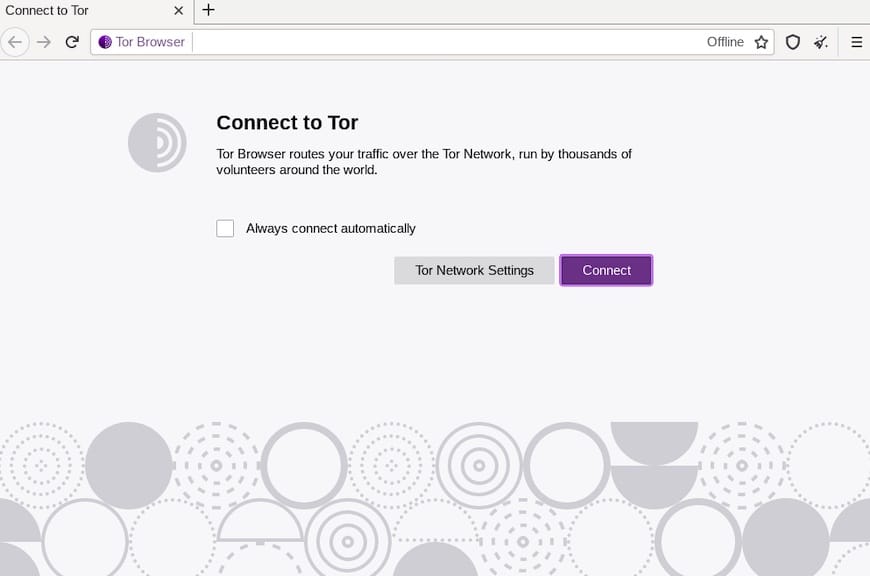
torbrowser-launcherThe launcher starts by downloading the browser bundle from the Tor Project. It then verifies the package before it opens the browser, which is one of the main reasons this launcher is useful on Linux.
Why Launch Time Matters
Tor Browser is not just another Firefox clone. It is a privacy-hardened browser with extra protections, and those protections only help if the browser comes from a trusted source and starts with a clean setup.
Expected first-run behavior looks like this:
Downloading Tor Browser...
Verifying signature...
Launching Tor Browser...
Step 5: Complete the First-Time Tor Browser Setup
Connect Directly
When the browser opens, you usually see a connect screen.
- Choose Connect if Tor is not blocked on your network.
- Choose Configure Connection if your network filters Tor traffic.
Why This Step Matters
Direct connection is the fastest route for most users. Bridges matter when an ISP, campus network, or country blocks Tor relay access. That gives you a backup path when normal Tor traffic gets filtered.
Set Up Bridges If Needed
If you need censorship resistance, configure bridges during setup.
- obfs4 works well in many restricted networks.
- Snowflake helps disguise traffic in some cases.
- meek-azure may help where direct Tor traffic is blocked.
Why Bridges Help
Bridges are not listed like normal Tor relays, which makes them harder to block. They give you a practical way to reach Tor when regular nodes are filtered by network policy or deep packet inspection.
Step 6: Verify the Installation Properly
Check That Tor Browser Is Running Correctly
After it opens, confirm the browser loads and connects. You should see the Tor Browser start page and a connection status indicating that the Tor network is active.
Why Verification Matters
Security tools deserve verification. A browser that looks installed but is not properly connected will not give you the privacy you expected. It is better to check now than to assume you are protected later.
If You Installed From Archive
If you use the manual archive method, verify the signature before you run anything.
gpg --auto-key-locate nodefault,wkd --locate-keys torbrowser@torproject.org
gpg --verify tor-browser-linux-x86_64-*.tar.xz.asc tor-browser-linux-x86_64-*.tar.xz
This checks that the download was signed by the Tor Browser developers. That step protects you from a fake archive or a modified binary.
Step 7: Manual Install for Advanced Users
Download the Linux Archive
If you want full manual control, download the Linux .tar.xz file from the Tor Project download page.
Extract the Archive
Use the command-line method after the download finishes.
tar -xf tor-browser-linux-x86_64-*.tar.xzThis unpacks the browser files into a directory you can run directly. You use this method when you want a portable install without depending on the distro package launcher.
Register It as an App
Go into the extracted folder and register the desktop entry.
cd tor-browser
./start-tor-browser.desktop --register-app
This creates a launcher entry so the browser appears in your app menu. It also makes future launches easier and more desktop friendly.
Why Manual Install Still Matters
A manual install gives you more control over where the browser lives and how you verify it. That is useful for sysadmins, privacy-focused users, and people who prefer upstream release files over distro wrappers.
Step 8: Tune Privacy Settings
Keep the Browser Lean
After you connect, avoid adding extra extensions unless you truly need them. Tor Project warns that plugins and add-ons can weaken privacy or reveal identifying data.
Adjust Security Level
Use Tor Browser’s built-in security controls for a safer session when needed. Higher security settings reduce attack surface by limiting some web features.
Why This Matters
Your browser fingerprint matters almost as much as your IP address. A clean, default Tor Browser setup is usually safer than a heavily customized one.
Step 9: Update Tor Browser When Needed
Update Through the Launcher
If you installed with torbrowser-launcher, keep your system updated and relaunch the browser periodically.
sudo apt update
sudo apt upgrade -y
This updates the launcher and any supporting packages. Tor Browser itself will also handle its own updates when launched in normal use.
Why Updates Matter
Privacy software must stay current. Browser vulnerabilities get fixed quickly, and old versions can expose your traffic or fingerprinting surface.
Manual Install Updates
If you used the archive method, replace the folder with the latest signed release and repeat the verification process. That keeps your install tied to a trusted upstream source.
Troubleshooting
Tor Browser Will Not Connect
This is often a clock issue.
timedatectl
sudo timedatectl set-ntp true
Tor Project notes that an incorrect system clock is one of the common reasons Tor fails to connect. A bad clock can break the handshake with Tor relays.
Package Not Found
If APT says it cannot find torbrowser-launcher, enable Universe and refresh package lists again.
sudo add-apt-repository universe
sudo apt update
This usually fixes the problem because the launcher package often comes from Universe on Ubuntu.
Download or Signature Verification Fails
If the archive does not verify, stop and re-download it from the Tor Project site.
gpg --verify tor-browser-linux-x86_64-*.tar.xz.asc tor-browser-linux-x86_64-*.tar.xzA failed signature means the file may be incomplete, altered, or simply mismatched with the signature file. Do not run it until you get a good signature.
Bridge Setup Does Not Work
Try a different bridge type.
- Switch from obfs4 to Snowflake.
- Try a different network if your current one blocks all Tor-related traffic.
This helps because some filters block one bridge style but not another. Network conditions vary, so a second option often solves the problem.
Browser Opens but Feels Slow
That is normal at times. Tor routes traffic through multiple relays, which adds latency by design.
The tradeoff is the point of the network. You gain privacy and censorship resistance at the cost of speed.
[su_box title=”VPS Manage Service Offer” style=”bubbles” box_color=”#000000″ radius=”10″]If you don’t have time to do all of this stuff, or if this is not your area of expertise, we offer a service to do “VPS Manage Service Offer”, starting from $10 (Paypal payment). Please contact us to get the best deal![/su_box]

