
Setting up a virtual machine should feel simple, but on Fedora it rarely is. Most guides skip the details that actually break your setup, like Secure Boot conflicts or mismatched kernel headers. This guide walks you through how to install VirtualBox on Fedora 44 using a method that survives kernel updates instead of breaking after the next dnf upgrade. By the end, you will have a working VirtualBox setup on Fedora 44 with the Extension Pack installed and your first virtual machine ready to boot.
Fedora does not ship VirtualBox in its default repositories. That is intentional. Oracle’s software has licensing terms that do not fit Fedora’s open source policy, so the community relies on RPM Fusion to fill the gap. This means the install process needs a few extra steps compared to something like Ubuntu, but none of them are hard once you understand why each one exists.
This tutorial is written from a sysadmin’s point of view. You will not just copy commands. You will understand what each one does and why skipping it causes problems later.
Why VirtualBox on Fedora 44 Needs a Different Approach
Fedora 44 ships frequent kernel updates. Every time the kernel changes, VirtualBox’s driver files need to be rebuilt against the new kernel headers. If you install VirtualBox the wrong way, it will work fine on day one and then fail silently after your next system update.
There are two main install paths people use: Oracle’s official RPM repo with DKMS, or RPM Fusion’s akmod-VirtualBox package. This guide uses RPM Fusion, because akmods rebuilds kernel modules automatically in the background whenever a new kernel installs. DKMS technically does the same job, but it integrates less cleanly with Fedora’s update cycle and tends to leave stale modules behind.
Fedora also runs a separate virtualization stack called KVM through libvirtd. VirtualBox and KVM can exist on the same machine, but they cannot both grab exclusive access to your CPU’s virtualization extensions at the same time. We will cover how to handle that conflict later in this guide.
Prerequisites
Before you start the VirtualBox on Fedora 44 setup, make sure you have the following ready:
- Fedora 44 installed (Workstation, Server, or any official spin)
- A user account with sudo privileges
- Secure Boot disabled in your UEFI/BIOS settings, or be ready to sign kernel modules manually (covered in troubleshooting)
- At least 4 GB of free disk space under
/varfor module build files - A CPU with hardware virtualization support (Intel VT-x or AMD-V)
- A stable internet connection for downloading packages
- Basic comfort using a terminal
You can check if your CPU supports virtualization with this command:
egrep -c '(vmx|svm)' /proc/cpuinfoIf the output is 0, your CPU or BIOS does not support virtualization, and VirtualBox will not run 64-bit guest operating systems.
Step 1: Update Your System and Install Kernel Headers
The first move in any Linux server tutorial involving kernel modules is making sure your system and headers match. Skipping this step is the most common reason VirtualBox installs fail.
sudo dnf upgrade --refresh
sudo dnf install kernel kernel-devel kernel-headers dkms elfutils-libelf-devel make gcc
sudo reboot
What this command does
dnf upgrade --refresh pulls the newest metadata from Fedora’s repos and updates every installed package, including the kernel. The second command installs the development headers and build tools that VirtualBox needs to compile its kernel modules.
Why this matters
VirtualBox modules are built against the exact kernel version you are running, not just any installed kernel headers. If your headers are newer or older than your active kernel, the build fails with a confusing error about missing symbols. Rebooting after the upgrade loads the newest kernel, so the header version and the running kernel version match before you continue.
Check that they match after reboot:
uname -r
rpm -q kernel-devel
Both commands should print the same version string, something like 7.0.9-205.fc44.x86_64.
Step 2: Enable the RPM Fusion Repository
Fedora’s official repos will not give you VirtualBox. You need RPM Fusion Free to unlock the package.
sudo dnf install "https://mirrors.rpmfusion.org/free/fedora/rpmfusion-free-release-$(rpm -E %fedora).noarch.rpm"What this command does
rpm -E %fedora reads your installed Fedora version and inserts it into the URL automatically, so this exact command works whether you’re on Fedora 44 or a future release. The dnf install command then adds the RPM Fusion repo configuration to your system.
Why this matters
RPM Fusion packages VirtualBox with the akmod-VirtualBox dependency chain, which is built specifically to survive Fedora’s fast kernel release cycle. Downloading a raw binary installer from virtualbox.org instead would skip your package manager entirely, making future updates a manual chore and increasing the risk of library conflicts down the road.
Confirm the repo is active:
dnf repo list --enabled | grep -i rpmfusionYou should see both rpmfusion-free and rpmfusion-free-updates listed.
Step 3: Install VirtualBox and Build the Kernel Modules
This is the core step in the entire VirtualBox on Fedora 44 setup process.
sudo dnf install VirtualBox akmod-VirtualBox
sudo akmods --kernels "$(uname -r)"
sudo systemctl restart vboxdrv
What this command does
The first line installs the VirtualBox application along with akmod-VirtualBox, a small package that knows how to rebuild VirtualBox’s driver source code against your current kernel. The second line manually triggers that build process right away instead of waiting for the background timer. The third line reloads the host kernel modules that VirtualBox depends on: vboxdrv, vboxnetflt, and vboxnetadp.
Why this matters
akmod-VirtualBox is what makes RPM Fusion’s approach better than a plain binary install. Every time your kernel updates, this package quietly rebuilds the driver in the background so VirtualBox keeps working. Running akmods manually right after install confirms the build succeeds immediately, rather than discovering a build failure the first time you try to launch a virtual machine.
Verify the service loaded correctly:
sudo systemctl status vboxdrv --no-pagerA healthy result shows Active: active (exited). This looks odd at first, but it is normal. It means the modules loaded once and the service has nothing left to do.
Step 4: Add Your User to the vboxusers Group
VirtualBox restricts certain features, like USB device access, to members of a special system group.
sudo usermod -aG vboxusers $USER
newgrp vboxusers
What this command does
usermod -aG vboxusers $USER adds your current user account to the vboxusers group. The -a flag means “append,” so your existing group memberships, like wheel for sudo access, stay intact.
Why this matters
Without this group membership, VirtualBox launches fine but USB passthrough silently fails, even after installing the Extension Pack. Skipping the -a flag and using -G alone would wipe out all your other groups, which could lock you out of sudo. Running newgrp vboxusers refreshes your current terminal session’s group list right away, so you do not need to log out and back in just to test it.
Confirm your group membership:
groups $USERYou should see vboxusers in the output.
Step 5: Install the VirtualBox Extension Pack
The base VirtualBox install covers most needs, but USB 2.0/3.0 support, RDP, and PXE boot require the separate Extension Pack.
VER=$(curl -s https://download.virtualbox.org/virtualbox/LATEST.TXT)
wget "https://download.virtualbox.org/virtualbox/${VER}/Oracle_VirtualBox_Extension_Pack-${VER}.vbox-extpack"
sudo VBoxManage extpack install --replace "Oracle_VirtualBox_Extension_Pack-${VER}.vbox-extpack"
What this command does
The first line fetches the latest official VirtualBox version number directly from Oracle’s servers. The second downloads the matching Extension Pack file. The third installs it using VBoxManage, VirtualBox’s command line tool.
Why this matters
Version mismatches between VirtualBox and the Extension Pack cause real problems, including USB driver conflicts inside running virtual machines. Always match the Extension Pack version to your installed VirtualBox version exactly. Check your installed version first with VBoxManage --version if you are unsure which file to grab.
Confirm the pack installed correctly:
VBoxManage list extpacksNote that the Extension Pack is free for personal and educational use only. Commercial use requires a separate Oracle license.
Step 6: Launch VirtualBox and Create Your First VM
Now it is time to open VirtualBox and confirm everything actually works.
lsmod | grep ^vbox
virtualbox &
What this command does
lsmod | grep ^vbox lists which VirtualBox kernel modules are currently loaded. Running virtualbox & opens the GUI application in the background so your terminal stays free.
Why this matters
Checking loaded modules before opening the GUI catches networking problems early. If vboxnetflt or vboxnetadp are missing from the list, host-only and bridged networking will fail later inside your virtual machines, and that error is much harder to diagnose from inside the GUI.
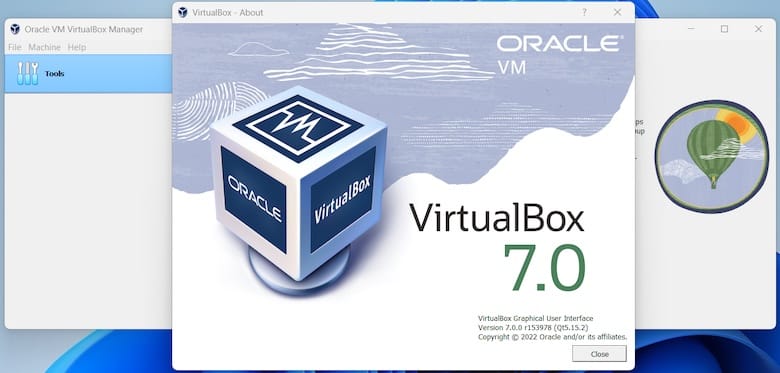
Once VirtualBox opens, click New, name your virtual machine, choose your guest operating system, and assign at least 2 GB of RAM and one CPU core to start. You can always adjust these settings later.
Handling Conflicts with KVM
If you have ever used GNOME Boxes or virt-manager, Fedora may already be running libvirtd in the background.
sudo systemctl stop libvirtd
sudo systemctl disable libvirtd
Why this matters
libvirtd and VirtualBox both want exclusive access to your CPU’s virtualization hardware. When both are active, VirtualBox virtual machines often fail to start with a vague hardware error. Stopping libvirtd frees up that access. You can always re-enable it later if you switch back to KVM-based tools.
Troubleshooting Common Errors
Even with a clean install, a few errors show up often enough to cover directly.
“Kernel driver not installed (rc=-1908)”
This means the kernel modules did not finish building before you launched VirtualBox.
sudo akmods --force --kernels "$(uname -r)"
sudo systemctl restart vboxdrv
“Key was rejected by service” with Secure Boot enabled
Secure Boot blocks unsigned kernel modules by default. RPM Fusion’s modules are unsigned out of the box.
sudo mokutil --import /etc/pki/akmods/certs/public_key.der
sudo reboot
After rebooting, your firmware will show a blue MOK Management screen. Select Enroll MOK, then Continue, then enter the password you set during the import step. Once enrolled, rebuild the modules again with sudo akmods --force.
VirtualBox stops working after a kernel update
This usually means akmods has not finished rebuilding for the new kernel yet.
sudo journalctl -b -u akmods.service -g VirtualBox --no-pagerCheck this log for the actual build error, then run sudo akmods --force --kernels "$(uname -r)" again.
USB devices missing inside a guest VM
This happens when the Extension Pack is installed but your user’s group membership has not refreshed in the running VirtualBox process.
VBoxManage list extpacks
groups $USER
If vboxusers shows up in groups but USB still fails, fully quit VirtualBox and relaunch it. The running process needs to pick up the new group membership fresh.
Extension Pack version mismatch causing USB or network errors
If VirtualBox updated but the Extension Pack did not, uninstall and reinstall the matching version.
sudo VBoxManage extpack uninstall "Oracle VirtualBox Extension Pack"
sudo VBoxManage extpack install --replace "Oracle_VirtualBox_Extension_Pack-${VER}.vbox-extpack"
This resolves driver name clashes between mismatched versions.

