
Are you looking for a lightweight, open-source image editor that works perfectly on Ubuntu 26.04 LTS? Installing PhotoFlare on Ubuntu 26.04 gives you access to Qt6-powered image editing with HiDPI support, G’MIC filters, and batch processing capabilities.
PhotoFlare 1.7.0 just released with native Qt6 port specifically designed for Ubuntu 26.04’s new Wayland-only GNOME 50 desktop. This guide shows you three proven installation methods with clear explanations of what each command does and why you need it.
Whether you’re a beginner setting up your first Linux system or a sysadmin deploying workstations, you’ll find actionable instructions that work on Ubuntu 26.04 LTS Resolute Raccoon.
What You Need Before Installing PhotoFlare on Ubuntu 26.04
Before we install PhotoFlare on Ubuntu 26.04, verify your system meets these requirements:
- Ubuntu Version: 26.04 LTS (Resolute Raccoon, released April 2026)
- Administrative Access: User must have sudo privileges (in admin group)
- Terminal Access: Press Ctrl+Alt+T or open from Applications launcher
- Internet Connection: Stable connection for 50MB+ download
- Disk Space: At least 200MB free space (PPA uses 15MB, Flatpak uses 180MB)
- Display Resolution: 1080p minimum, 4K HiDPI for Qt6 benefits
Why These Requirements Matter
Ubuntu 26.04 LTS is critical because PhotoFlare 1.7.0’s Qt6 port requires modern Linux kernels. Ubuntu 26.04 ships with Linux kernel 7.0, which provides optimal Qt6 performance and Wayland compatibility.
The sudo requirement exists because package management tools (apt, flatpak) install files to system directories like /usr/bin/ and /var/lib/. Without administrative privileges, installation fails.
Disk space varies by method. The PPA method downloads a native .deb package around 15MB. Flatpak bundles all dependencies including Qt6 runtime, totaling approximately 180MB. AppImage requires the downloaded file plus temporary mount space.
Pre-Installation Verification Commands
Run these commands to confirm your system is ready:
# Check Ubuntu version
lsb_release -d
What this does: Displays your distribution description line.
Why you need it: Confirms you’re running Ubuntu 26.04 LTS. The output should show “Description: Ubuntu 26.04 LTS”. Running an older version means PPA packages may not work.
# Verify sudo access
sudo -v
What this does: Shows your sudo version without executing commands.
Why you need it: Ensures you have administrative privileges. If you see “sudo is unavailable” or permission errors, you cannot install software system-wide. Ubuntu 26.04 uses the new sudo-rs (Rust-based sudo) which works identically.
# Check available disk space
df -h /
What this does: Shows disk space usage for the root filesystem in human-readable format.
Why you need it: PhotoFlare needs at least 100MB free space. Ubuntu 26.04’s TPM encryption feature may reduce available space, so verify you have 200MB+ free.
Expected output:
Filesystem      Size  Used Avail Use% Mounted on
/dev/nvme0n1p2  500G  250G  250G  50% /
Look for the “Avail” column showing at least 200MB (0.2G).
Step 1: Install PhotoFlare on Ubuntu 26.04 via Ubuntu PPA (Recommended Method)
The Ubuntu PPA method is the best choice for most users. It provides automatic updates through apt update, native system integration, and the fastest installation. PhotoFlare 1.7.0 officially supports Ubuntu 26.04 LTS through this PPA.
Why Choose the PPA Installation Method
| Factor | PPA Advantage |
|---|---|
| Updates | Automatic via apt update |
| Performance | Native .deb package with no sandbox overhead |
| Ubuntu 26.04 | Official support added in version 1.7.0 |
| Ease | Only 3 commands required |
| Integration | System menu and file associations work automatically |
The PPA method downloads a compiled .deb package optimized for Ubuntu. This means PhotoFlare runs faster than sandboxed alternatives because it has direct system access without container overhead.
Sub-step 1.1: Open Your Terminal
# Press Ctrl+Alt+T
# OR open from System Applications Launcher
What this does: Opens the terminal window where you’ll run installation commands.
Why you need it: All installation methods require command-line interaction. Ubuntu 26.04’s terminal uses GNOME Terminal 48 with improved Wayland support and Rust-based sudo-rs for faster privilege escalation.
Sub-step 1.2: Add the PhotoFlare Stable PPA Repository
sudo add-apt-repository ppa:photoflare/photoflare-stable
What this command does:
sudoruns the command with administrative privilegesadd-apt-repositoryadds a new package source to your systemppa:photoflare/photoflare-stablepoints to the official PhotoFlare PPA maintained by developers
Why you need this step:
APT (Advanced Package Tool) needs to know where to find PhotoFlare packages. Ubuntu’s default repositories don’t include PhotoFlare, so we add the official PPA as a new source.
When you run this command, three things happen behind the scenes:
- Downloads photoflare-stable.list to /etc/apt/sources.list.d/
- Fetches the PPA’s signing key for package verification
- Adds the source to your package search path
You’ll see a prompt asking for your password. Type it without asterisk feedback (normal Linux security behavior), then press Enter.
Stable vs Daily PPA: The stable PPA contains tested releases like 1.7.0. The daily PPA has bleeding-edge builds that may contain bugs. Use stable for production work.
Sub-step 1.3: Update Your Package Cache
sudo apt update
What this command does:
Refreshes APT’s package index by downloading latest metadata from all configured repositories, including the new PhotoFlare PPA.
Why you need this step:
Without running apt update, your system doesn’t know PhotoFlare exists in the new PPA. If you skip this and run apt install photoflare, you’ll get “package not found” error.
Ubuntu 26.04’s apt uses Rust-based uutils utilities, making updates faster than previous versions. This command also updates security patches for all other packages simultaneously.
Expected output:
Reading package lists... Done
Building dependency tree... Done
Reading state information... Done
95 packages can be upgraded. Run 'apt list --upgradable' to see them.
The “95 packages” line shows available updates. This is normal and unrelated to PhotoFlare.
Sub-step 1.4: Install PhotoFlare Package
sudo apt install photoflare
What this command does:
- Downloads the PhotoFlare .deb package from the PPA (approximately 15MB)
- Installs the binary to /usr/bin/photoflare for system-wide access
- Creates a desktop entry in /usr/share/applications/ for the GUI launcher
- Sets up file associations for PNG, JPG, TIFF, and other image formats
Why you need this step:
This is the actual installation command. APT downloads the package, verifies its signature using the PPA’s signing key, and installs files to system directories.
Ubuntu 26.04’s TPM (Trusted Platform Module) encryption protects package integrity during installation, preventing tampering.
Expected output:
Reading package lists... Done
Building dependency tree... Done
Reading state information... Done
The following NEW packages will be installed:
  photoflare
0 upgraded, 1 newly installed, 0 to remove
Need to get 15.2MB of archives.
After this operation, 48.5MB of additional disk space will be used.
Notice the 15.2MB download size and 48.5MB final disk usage. This confirms the PPA method is the most space-efficient.
Sub-step 1.5: Launch PhotoFlare
# Method A: From terminal
photoflare

# Method B: From GUI
# Open Activities menu → Search "PhotoFlare"
# OR: Applications → Graphics → PhotoFlare
What this does:
Starts the PhotoFlare application. The terminal method runs it immediately. The GUI method opens it through Ubuntu’s application launcher.
Why both methods work:
The PPA installation created a proper desktop entry, so the GUI launcher finds PhotoFlare automatically. Ubuntu 26.04’s GNOME 50 provides per-monitor scaling for HiDPI displays, so PhotoFlare’s Qt6 interface renders sharply on 4K screens.
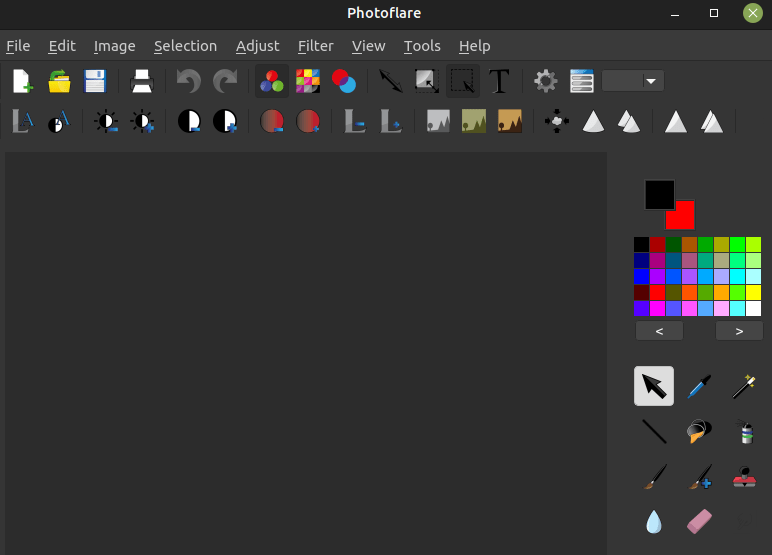
Step 2: Install PhotoFlare on Ubuntu 26.04 via Flatpak (Best for Security)
Flatpak installs PhotoFlare in a sandboxed environment isolated from your system. This method is ideal for security-conscious users who want to prevent applications from accessing system files.
Why Choose Flatpak Installation
| Factor | Flatpak Advantage |
|---|---|
| Security | Sandboxed with no system file access |
| Version | Latest version on any Ubuntu version |
| Dependencies | All bundled (no system conflicts) |
| Ubuntu 26.04 | Native support via GNOME 50 |
| Updates | Independent from system updates |
Flatpak isolates PhotoFlare completely. The application cannot read files outside your designated folders unless you explicitly grant permission. This protects against malicious behavior.
Sub-step 2.1: Install Flatpak Support
sudo apt install flatpak
What this command does:
Installs the Flatpak runtime, daemon, and command-line tools from Ubuntu’s official repositories.
Why you need this step:
Ubuntu 26.04 includes Flatpak in official repositories, so you don’t need a separate PPA. Without this installation, the flatpak command won’t exist.
Ubuntu 26.04’s Rust-based utilities improve Flatpak performance compared to previous versions. The installation takes approximately 50MB and adds Flatpak support to your system.
Sub-step 2.2: Add the Flathub Repository
flatpak remote-add --if-not-exists flathub https://dl.flathub.org/repo/flathub.flatpakrepo
What this command does:
flatpak remote-addregisters a new package repository--if-not-existsprevents errors if Flathub is already addedflathubis the repository name- The URL points to Flathub’s official repository
Why you need this step:
Flathub is Flatpak’s central package repository, similar to how PPA works for apt. PhotoFlare lives on Flathub, so you must add it before installing.
The command downloads Flathub’s package metadata (approximately 10MB) and stores it in /var/lib/flatpak/repo/.
Sub-step 2.3: Install PhotoFlare from Flathub
flatpak install flathub io.photoflare.photoflare.flatpakref
What this command does:
- Downloads the sandboxed PhotoFlare package from Flathub
- Installs to /var/lib/flatpak/app/io.photoflare.photoflare/
- Bundles Qt6 runtime and all dependencies (~180MB total)
- Creates isolated environment with limited filesystem access
Why the size is larger:
Flatpak bundles the entire Qt6 runtime (~150MB) inside the package. This means PhotoFlare doesn’t depend on your system’s Qt installation. The trade-off is larger download size but complete independence from system updates.
Expected output:
Looking for matches...
Downloading flatpak-appdata:
 100% [######################]   12 MB  5.2 MB/s 00:02

Downloading io.photoflare.photoflare:
 100% [######################]  168 MB  8.1 MB/s 00:21

Installing...
The 168MB download confirms bundled dependencies. Installation takes 2-3 minutes on typical systems.
Sub-step 2.4: Launch and Update PhotoFlare
# Launch PhotoFlare
flatpak run io.photoflare.photoflare

# Update later when needed
flatpak update io.photoflare.photoflare
What these commands do:
flatpak runstarts the sandboxed applicationflatpak updatedownloads newer versions from Flathub
Why Flatpak requires explicit run command:
Flatpak applications don’t register with the system PATH like PPA installations. You must use flatpak run or find PhotoFlare in the GUI launcher (which works because Flatpak creates desktop entries).
Flatpak updates are independent from system apt update. This means you can update PhotoFlare without updating other system packages.
Step 3: Install PhotoFlare on Ubuntu 26.04 via AppImage (No Installation Required)
AppImage is the simplest method because it requires no installation. You download a single file and run it directly. This is perfect for testing PhotoFlare before committing to PPA or Flatpak.
Why Choose AppImage Installation
| Factor | AppImage Advantage |
|---|---|
| Portability | Run from any location without installation |
| Cleanup | Delete file to remove completely |
| Ubuntu 26.04 | Works with Wayland-native GNOME 50 |
| Testing | Try before installing via other methods |
AppImage packages are self-mounting executables. They don’t copy files to system directories, so removal is just deleting the file.
Sub-step 3.1: Install libfuse2 for AppImage Support
sudo apt install libfuse2
What this command does:
Installs the FUSE (Filesystem in Userspace) library that AppImage requires to mount as a virtual filesystem.
Why you need this step:
Ubuntu 22.04 and later removed libfuse2 by default to reduce dependencies. Without it, AppImage files won’t execute. Ubuntu 26.04 still requires this manual installation for AppImage support.
FUSE allows AppImage to mount itself as a temporary filesystem without root privileges. This is why AppImage works without installation.
Sub-step 3.2: Download the PhotoFlare AppImage File
# Download from GitHub Assets
wget https://github.com/PhotoFlare/photoflare/releases/download/v1.7.0/PhotoFlare-1.7.0.AppImage
What this command does:
wgetdownloads files from web URLs- Downloads PhotoFlare 1.7.0 AppImage from GitHub’s “Assets” section
- Saves as PhotoFlare-1.7.0.AppImage in your current directory
Why use wget:
wget is faster and more reliable than browser downloads for terminal users. It also shows progress and handles network interruptions gracefully.
You can also download from the PhotoFlare GitHub releases page directly if you prefer a browser. Look for the “Assets” section below the version description.
Sub-step 3.3: Make the AppImage Executable
chmod +x PhotoFlare-1.7.0.AppImage
What this command does:
chmodchanges file permissions+xadds the execute permission bit
Why you need this step:
AppImage files need execute permissions to run. Without chmod +x, double-clicking in the file manager won’t work, and terminal execution fails with “Permission denied” error.
Linux separates read, write, and execute permissions. Downloaded files typically have read/write but not execute permissions by default.
Sub-step 3.4: Run PhotoFlare
./PhotoFlare-1.7.0.AppImage
What this command does:
Executes the AppImage file from your current directory. The ./ prefix means “run this file in the current directory.”
Why double-click also works:
After running chmod +x, the file manager recognizes it as executable. Double-clicking runs the same command automatically. No installation happens, so PhotoFlare runs directly from wherever you stored the file.
To remove AppImage later, simply delete the file:
rm PhotoFlare-1.7.0.AppImage
Post-Installation: Configure PhotoFlare on Ubuntu 26.04 for Best Performance
After installing PhotoFlare on Ubuntu 26.04, configure these settings for optimal performance on Ubuntu 26.04’s new features.
Enable G’MIC Filters (New in Version 1.7.0)
# Install G'MIC from Ubuntu repositories
sudo apt install gmic
What this does:
Installs G’MIC, an image processing framework that adds 100+ advanced filters to PhotoFlare.
Why you need it:
PhotoFlare 1.7.0 includes G’MIC integration, but G’MIC itself isn’t bundled. Ubuntu 26.04’s repositories include G’MIC natively, so installation is simple.
After installing G’MIC, open PhotoFlare and check the “Filter” menu. You’ll see new G’MIC filters like “Color Enhancements,” “Artistic Effects,” and “Noise Reduction.”
Configure HiDPI Scaling for 4K Displays
- Open PhotoFlare
- Go to Settings → Display
- Set HiDPI scaling to Auto
- Enable Views → Rulers for precision work
Why this matters:
PhotoFlare 1.7.0’s Qt6 port enables native HiDPI support. Ubuntu 26.04’s GNOME 50 provides per-monitor scaling, so PhotoFlare renders sharply on 4K displays without blurry interfaces.
Without HiDPI configuration, UI elements appear tiny on high-resolution screens.
Preserve EXIF Metadata on Save
- Open Settings → Save
- Verify Preserve EXIF data is enabled
Why this matters:
PhotoFlare 1.7.0 automatically preserves EXIF metadata (camera settings, date, GPS) when saving images. This is new in 1.7.0. Verify the setting is enabled to keep metadata intact.
Enable Batch Processing Optimizations
- Open Tools → Batch Process
- Enable File format validation
Why this matters:
Version 1.7.0 improved batch processing with file format validation. This prevents errors when processing mixed file types. Use batch processing for bulk editing multiple images at once.
Troubleshooting: Common PhotoFlare Installation Errors on Ubuntu 26.04
Error 1: “PPA Not Found” or Repository Does Not Exist
Symptom:
Error: The repository 'ppa:photoflare/photoflare-stable' does not exist.
Solution:
# Remove the broken PPA
sudo add-apt-repository --remove ppa:photoflare/photoflare-stable

# Re-add the PPA
sudo add-apt-repository ppa:photoflare/photoflare-stable

# Update again
sudo apt update
Why this happens:
Network timeouts during PPA addition can cause incomplete downloads. Ubuntu 26.04’s improved cloud-init helps with network stability, but timeouts still occur on slow connections.
Error 2: “Package photoflare Not Found”
Symptom:
E: Unable to locate package photoflare
Solution:
# Refresh package index
sudo apt update

# Then install again
sudo apt install photoflare
Why this happens:
You skipped the apt update step after adding the PPA. APT doesn’t discover new packages without refreshing its index.
Error 3: AppImage Won’t Execute (Permission Denied)
Symptom:
bash: ./PhotoFlare-1.7.0.AppImage: Permission denied
Solution:
# Add execute permission
chmod +x PhotoFlare-1.7.0.AppImage

# Then run again
./PhotoFlare-1.7.0.AppImage
Why this happens:
Downloaded files don’t have execute permissions by default. You must run chmod +x to make AppImage executable.
Error 4: Flatpak Installation Fails with “No Matches”
Symptom:
Looking for matches...
No matches found
Solution:
# Ensure Flathub is added
flatpak remote-add --if-not-exists flathub https://dl.flathub.org/repo/flathub.flatpakrepo

# Update Flatpak metadata
flatpak update

# Then install
flatpak install flathub io.photoflare.photoflare.flatpakref
Why this happens:
Flathub repository isn’t registered or metadata is outdated. Running flatpak update refreshes the package list.
Error 5: PhotoFlare Won’t Start on Ubuntu 26.04 Wayland
Symptom:
Application opens but shows graphical glitches or won’t render properly.
Solution:
- Verify Qt6 version:
qtpath6 --version - If Qt6 is missing (PPA method), reinstall:
sudo apt remove photoflare
sudo apt install photoflare
Why this happens:
PhotoFlare 1.7.0 requires Qt6 for Wayland compatibility. Ubuntu 26.04 is Wayland-only (no X.org), so Qt5 applications may have rendering issues. The PPA package includes Qt6 dependencies automatically.
How to Uninstall PhotoFlare from Ubuntu 26.04 Completely
Remove PPA Installation
# Remove the package
sudo apt remove photoflare

# Remove the PPA repository
sudo add-apt-repository --remove ppa:photoflare/photoflare-stable
Why both commands:
apt remove deletes the package but keeps configuration files. Removing the PPA prevents future update attempts that will fail.
Remove Flatpak Installation
# Remove package and configuration data
flatpak uninstall --delete-data io.photoflare.photoflare

# Clean unused runtime libraries
flatpak uninstall --unused
Why –delete-data:
Without this flag, Flatpak keeps configuration files in /var/lib/flatpak/. –delete-data removes everything for complete cleanup.
Remove AppImage
# Simply delete the file
rm PhotoFlare-1.7.0.AppImage
Why this is simple:
AppImage never installs to system directories, so deletion is just removing the file. No cleanup commands needed.

