
If you want to install Contao on AlmaLinux 10, you are making a solid choice on both ends. Contao is a Symfony-based, open-source CMS trusted by thousands of businesses in Europe for its clean output, multilingual support, and strict accessibility compliance. AlmaLinux 10 is a community-driven, 1:1 RHEL-compatible operating system with enterprise-grade stability and a 10-year support lifecycle, making it one of the best platforms available for self-hosting a production CMS. Together, they form a server stack that scales well, stays secure, and requires little handholding once configured correctly.
In this guide, you will set up a complete LAMP stack (Apache, MariaDB, PHP 8.3), install Composer, deploy the Contao Managed Edition, configure file permissions with SELinux compatibility, and complete the installation through Contao’s browser-based install tool. Every command comes with a clear explanation of what it does and, more importantly, why it matters. No hand-waving, no “just run this and hope.”
Prerequisites
Before starting, confirm you have the following in place:
- Operating System: AlmaLinux 10, freshly installed (minimal or server install)
- Server specs: Minimum 1 GB RAM (2 GB recommended for Composer), 20 GB disk space
- Access: Root login or a user with full
sudoprivileges via SSH - Domain name: A registered domain with its A record pointing to your server’s public IP address
- Ports: 80 and 443 open on any upstream provider firewall or security group
- Software targets this guide installs:
- Apache (httpd) from AlmaLinux AppStream
- MariaDB 10.11+
- PHP 8.3 with required extensions
- Composer 2.x
- Contao 5.3 LTS Managed Edition
You do not need any prior Contao experience. Basic comfort with the Linux terminal is enough.
Step 1: Update AlmaLinux 10 and Install EPEL
Why You Need to Update First
Before touching any web stack, sync your package index and apply all pending updates. Package managers on fresh installs often ship with slightly outdated metadata, and installing Apache or PHP against a stale cache can pull in mismatched dependencies.
Run the system update:
sudo dnf update -yNow install the EPEL (Extra Packages for Enterprise Linux) repository. EPEL extends AlmaLinux’s default AppStream with hundreds of additional packages. Some PHP utilities and Composer dependencies reference EPEL packages. If the repo is not present, those installs fail silently or throw confusing dependency errors later.
sudo dnf install epel-release -yConfirm the repository is active:
dnf repolistYou should see epel listed in the output alongside appstream and baseos. If it is not there, the epel-release install did not complete cleanly. Run dnf install epel-release -y again before moving on.
Step 2: Install Apache and Configure the Firewall
Install the Apache Web Server
Apache (httpd) is the web server that receives incoming browser requests and hands them off to PHP. Contao ships with .htaccess rules that depend on Apache’s mod_rewrite module, which makes Apache the most straightforward choice for a Contao server.
Install and enable Apache:
sudo dnf install httpd -y
sudo systemctl enable --now httpd
The enable --now flag does two things at once: it starts the service immediately and sets it to auto-start on every reboot. Without enable, Apache stops existing the moment the server reboots, and your site goes dark.
Verify Apache is running:
sudo systemctl status httpdYou should see Active: active (running) in green.
Open Firewall Ports
AlmaLinux 10 runs firewalld by default in active enforcement mode. Even with Apache installed and running, the firewall blocks all web traffic until you explicitly allow it. This surprises a lot of newcomers who see Apache running but cannot reach the server from a browser.
sudo firewall-cmd --permanent --add-service=http
sudo firewall-cmd --permanent --add-service=https
sudo firewall-cmd --reload
The --permanent flag makes the rule survive reboots. Without it, your rules vanish after the next restart.
Verify mod_rewrite Is Loaded
Contao routes every request through its index.php front controller using URL rewriting. If mod_rewrite is not active, URLs like /contao/install return 404 errors and the backend becomes unreachable.
httpd -M | grep rewriteExpected output:
rewrite_module (shared)If you see nothing, enable it by adding LoadModule rewrite_module modules/mod_rewrite.so to your Apache configuration and restarting httpd.
Step 3: Install and Secure MariaDB
Install the Database Server
MariaDB is the database engine that stores all Contao content, page structure, user accounts, and configuration. Contao’s official documentation lists MariaDB as a fully supported MySQL-compatible alternative, and AlmaLinux’s AppStream carries a compatible version without needing external repos.
sudo dnf install mariadb-server mariadb -y
sudo systemctl enable --now mariadb
Verify it is running:
sudo systemctl status mariadbSecure the MariaDB Installation
A fresh MariaDB install leaves anonymous user accounts and a test database in place. Both are known security liabilities on public-facing servers. The mysql_secure_installation script removes them in one guided pass.
sudo mysql_secure_installationWhen the script prompts you, answer as follows:
- Set root password: Yes, use a strong password and write it down somewhere safe
- Remove anonymous users: Yes
- Disallow remote root login: Yes
- Remove test database: Yes
- Reload privilege tables: Yes
Never skip this step on a production server. Anonymous login is not a theoretical risk, it is an active attack surface.
Step 4: Create the Contao Database and User
Why a Dedicated Database User Matters
Running Contao under the MariaDB root account is a bad practice. If the application is ever compromised through a plugin vulnerability or SQL injection, the attacker would have full access to every database on the server. A dedicated user with permissions limited to one database contains the damage.
Log in to MariaDB:
mysql -u root -pCreate the database with the utf8mb4 character set:
CREATE DATABASE contao_db CHARACTER SET utf8mb4 COLLATE utf8mb4_unicode_ci;Contao’s official documentation explicitly requires utf8mb4, not the older utf8 alias. The difference matters: utf8 in MySQL supports only 3-byte Unicode characters. utf8mb4 supports the full 4-byte range, including emoji and certain East Asian characters. Using the wrong charset causes data truncation errors in Contao’s install tool.
Create a dedicated application user:
CREATE USER 'contao_user'@'localhost' IDENTIFIED BY 'YourStrongPassword!';
GRANT ALL PRIVILEGES ON contao_db.* TO 'contao_user'@'localhost';
FLUSH PRIVILEGES;
EXIT;
Replace YourStrongPassword! with a real password that mixes letters, numbers, and symbols.
Step 5: Install PHP 8.3 and All Required Extensions
Configure the Remi Repository for PHP 8.3
AlmaLinux 10’s default AppStream may ship with an older PHP version. Contao 5.3+ requires PHP 8.3 as a minimum. The Remi repository keeps up-to-date PHP builds for RHEL-compatible systems.
sudo dnf install https://rpms.remirepo.net/enterprise/remi-release-10.rpm -y
sudo dnf module reset php -y
sudo dnf module enable php:remi-8.3 -y
Install PHP and Contao’s Required Extensions
Each extension Contao needs serves a specific function. Installing PHP alone without them produces a working PHP interpreter that cannot run Contao.
sudo dnf install php php-fpm php-mysqlnd php-opcache php-gd php-xml \
php-mbstring php-cli php-curl php-intl php-zip php-json php-pdo \
php-dom php-fileinfo php-sodium -y
Here is why each extension is on this list:
| Extension | Why Contao Needs It |
|---|---|
php-mysqlnd |
Native MySQL driver for all database queries |
php-mbstring |
Multi-byte string handling for multilingual pages |
php-gd |
Image resizing and thumbnail generation in the file manager |
php-intl |
Internationalization support, required in all Contao 4+ versions |
php-dom |
DOM parsing for Contao’s page rendering engine |
php-sodium |
Cryptographic operations required since PHP 8.1+ on Contao 5 |
php-opcache |
Bytecode caching that dramatically speeds up every page load |
php-fileinfo |
MIME type detection for file uploads |
php-curl |
Used by Contao Manager and package installers |
php-zip |
Extension package extraction during updates |
Enable and start PHP-FPM:
sudo systemctl enable --now php-fpmWhy PHP-FPM instead of mod_php? Contao uses fastcgi_finish_request() to run background processes like search indexing without blocking the browser response. This function only works under PHP-FPM with FastCGI. The older mod_php integration cannot support it.
Verify the correct PHP version is active:
php -vExpected output starts with: PHP 8.3.x
Step 6: Configure php.ini for Contao
Tune PHP Runtime Settings
Contao’s install process and day-to-day operation require PHP runtime values beyond the defaults. Running with defaults causes silent failures during installation and confusing behavior in production.
Open the PHP configuration file:
sudo nano /etc/php.iniFind and update these values:
memory_limit = 256M
max_execution_time = 30
upload_max_filesize = 32M
post_max_size = 32M
max_input_vars = 1000
date.timezone = Europe/Berlin
opcache.enable = 1
opcache.max_accelerated_files = 16000
opcache.save_comments = On
Replace Europe/Berlin with your server’s timezone.
Why these specific values:
memory_limit = 256M— Composer’s dependency resolution during installation consumes significant memory. Below 256M, the process crashes mid-install with a cryptic “Allowed memory size exhausted” error.opcache.save_comments = On— Contao uses PHP Annotations for routing, service configuration, and dependency injection. If OPcache strips comments, the entire Symfony framework fails to boot.max_input_vars = 1000— Contao’s access rights editor submits many form fields at once. The default limit can be hit when managing users with complex permissions, causing settings to fail silently without any error message.upload_max_filesize = 32M— Contao’s file manager allows media uploads directly in the backend. A low limit silently rejects images and documents.
Restart PHP-FPM and Apache to apply changes:
sudo systemctl restart php-fpm httpdStep 7: Install Composer
Composer is the PHP dependency manager that installs, updates, and manages every package Contao depends on. Contao is not a zip file you download and unpack. It is a Symfony application delivered entirely through Composer. There is no alternative path.
Download the Composer installer and move it to a global system path:
curl -sS https://getcomposer.org/installer | php
sudo mv composer.phar /usr/local/bin/composer
sudo chmod +x /usr/local/bin/composer
Verify the install:
composer --versionExpected output: Composer version 2.x.x
Installing Composer in /usr/local/bin makes it available system-wide. Any user with shell access can call composer from any directory. This is important later when you run Contao’s console commands for cache clearing, migrations, and updates.
Step 8: Install Contao via Composer
Deploy the Contao Managed Edition
Navigate to the web directory and create the Contao project:
cd /var/www/html
sudo composer create-project contao/managed-edition contao "^5.3" --no-interaction
Why contao/managed-edition? This is Contao’s officially pre-configured Symfony application bundle. It includes the Contao Manager GUI, correct directory structure, default bundle registration, and the public/ web root separation that keeps sensitive files off the internet.
Why ^5.3? The caret constraint tells Composer to install version 5.3.x but not jump to 5.4 or 6.x automatically. This gives you a stable install while still receiving patch-level updates when you run composer update.
This command takes 2 to 5 minutes depending on your server’s internet speed. Do not interrupt it.
Confirm the directory structure:
ls /var/www/html/contao/You should see:
composer.json composer.lock config/ public/ src/ var/ vendor/Step 9: Set File Permissions and Fix SELinux Context
Set Filesystem Ownership
Apache runs as the apache system user. If the Contao files are owned by root, PHP-FPM cannot write to the cache directory, generate thumbnails, or process file uploads. All of those failures look like blank pages or cryptic 500 errors.
sudo chown -R apache:apache /var/www/html/contao
sudo chmod -R 755 /var/www/html/contao
sudo chmod -R 775 /var/www/html/contao/var
sudo chmod -R 775 /var/www/html/contao/public/files
The var/ directory holds Contao’s cache and log files, both of which need write access. The public/files/ directory is where uploaded media lives.
Fix SELinux Security Context (AlmaLinux-Specific)
This step trips up nearly everyone running Contao on RHEL-based systems for the first time. SELinux enforces mandatory access control at the kernel level. AlmaLinux 10 ships with SELinux in Enforcing mode by default.
Standard Unix file permissions are not enough here. Even with chmod 775, Apache can still be denied read/write access if the SELinux security label on the files is wrong.
Restore correct SELinux file labels:
sudo restorecon -Rv /var/www/html/contaoAllow Apache to make outbound network connections (needed for Contao Manager to fetch packages):
sudo setsebool -P httpd_can_network_connect 1The -P flag makes the boolean persistent across reboots. Skip it and the setting resets on next boot.
Step 10: Configure the Apache Virtual Host for Contao
Create a Dedicated Virtual Host File
A virtual host file tells Apache which directory to serve for your domain, what permissions apply to it, and where to write logs. Without one, Apache falls back to its default root and Contao never loads correctly.
sudo nano /etc/httpd/conf.d/contao.confPaste the following configuration:
<VirtualHost *:80>
    ServerName yourdomain.com
    ServerAlias www.yourdomain.com
    DocumentRoot /var/www/html/contao/public

    <Directory /var/www/html/contao/public>
        AllowOverride All
        Require all granted
        Options SymLinksIfOwnerMatch
    </Directory>

    ErrorLog /var/log/httpd/contao_error.log
    CustomLog /var/log/httpd/contao_access.log combined
</VirtualHost>
Replace yourdomain.com with your actual domain.
Why DocumentRoot points to /public and not the project root? Contao’s project directory contains sensitive files including .env (database credentials), config/, and the entire vendor/ source tree. Pointing Apache to the project root exposes all of that to anyone with a browser. The /public subdirectory is the only part of the application meant to be publicly accessible.
Why AllowOverride All? Contao ships a .htaccess file in /public that handles URL rewriting, cache headers, and front-controller routing. If AllowOverride All is not set, Apache ignores .htaccess files entirely and every Contao URL returns a 404.
Why Options SymLinksIfOwnerMatch? Contao’s file system abstraction creates symlinks between the /files managed folder and the public web assets directory. Without this option, Apache refuses to follow those symlinks and media files do not load.
Test the configuration for syntax errors:
sudo httpd -tExpected output: Syntax OK
Reload Apache:
sudo systemctl reload httpdStep 11: Run the Contao Install Tool
Complete Setup Through the Browser
Open a browser and visit:
http://yourdomain.com/contao/installYou will see the Contao Install Tool. Work through the following steps in order.
Step 1: Accept the License
Click “Accept License” to proceed. This is a legal acknowledgment of Contao’s LGPL license.
Step 2: Set the Install Tool Password
Create a password for the install tool itself. This password protects the install interface from unauthorized access. It is stored as a bcrypt hash, not as plain text.
Do not reuse this password anywhere else. Anyone who reaches this URL and knows your password can reconfigure your entire database connection.
Step 3: Configure the Database Connection
Enter the values from Step 4:
- Host:
localhost - Port:
3306(default) - Username:
contao_user - Password: the password you set
- Database:
contao_db
Click “Save connection settings.” Contao will test the connection immediately.
Step 4: Update Database Tables
Click “Update database.” Contao runs its Doctrine DBAL migration engine and creates all required tables using the utf8mb4 character set you configured earlier.
For a fresh installation, this list of changes is long. Accept all proposed changes. Skipping or partially applying the schema migrations causes broken pages and missing backend features.
Step 12: Create the Admin Account and Log In
Create the First Administrator
After the database update completes, the install tool presents a form to create your first administrator account.
Fill in:
- Username: Your chosen admin handle
- Full name: Display name shown in the backend
- Email address: Used for password recovery
- Password: A strong, unique password
Click “Create an admin user.”
Why create the admin through the install tool rather than manually inserting a database record? Contao stores passwords using its own secure hashing mechanism layered on top of PHP’s password_hash function. A manually inserted row in the tl_user table produces a hash format Contao cannot verify, resulting in a permanently broken login.
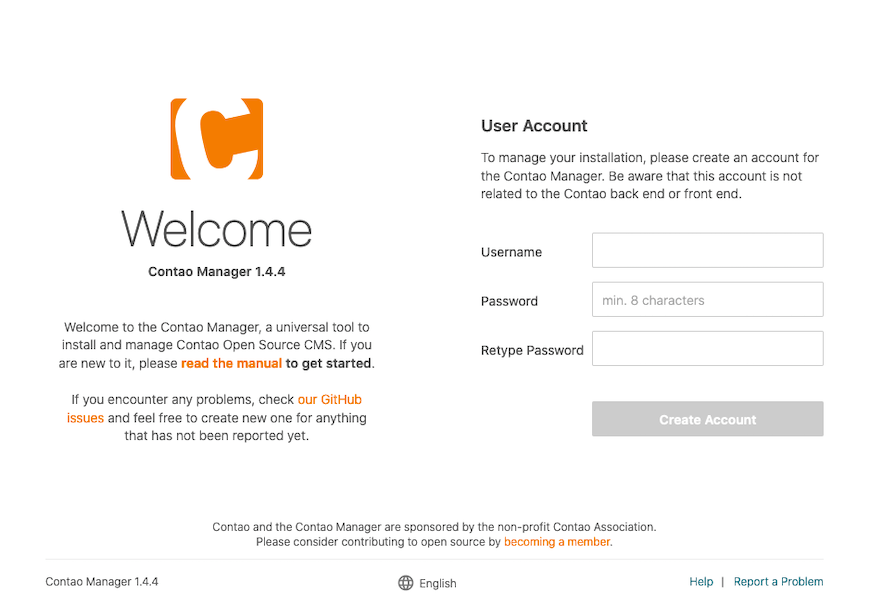
Navigate to the backend:
http://yourdomain.com/contaoLog in with your new credentials. If the backend dashboard loads, your Contao on AlmaLinux 10 setup is complete and fully operational.
Head to System > Maintenance and click “Rebuild the application cache” to warm the cache for production performance.
Post-Install Security Hardening
A working installation is not a secure installation. These steps move you from functional to production-ready.
Install a free SSL/TLS certificate with Certbot:
sudo dnf install certbot python3-certbot-apache -y
sudo certbot --apache -d yourdomain.com -d www.yourdomain.com
HTTPS is not optional for a live site. Admin credentials travel over HTTP in plaintext without it. Google’s ranking algorithm also actively penalizes non-HTTPS domains.
Remove the install tool access after setup:
Once your admin account is created and the database is initialized, lock the install tool URL using an IP-based restriction in your virtual host:
<Location /contao/install>
    Require ip YOUR.SERVER.IP.HERE
</Location>
Hide PHP version from HTTP headers:
sudo nano /etc/php.iniSet:
expose_php = OffThis removes the X-Powered-By: PHP/8.3.x response header, which attackers use to look up version-specific exploits.
Delete any PHP info test files you may have created during testing:
sudo rm /var/www/html/info.phpThese files expose your full PHP configuration, loaded modules, and server paths to any visitor.
Troubleshooting Common Errors
Error 1: mod_rewrite Not Found or Contao URLs Return 404
Cause: mod_rewrite is not loaded, or AllowOverride All is missing from the virtual host.
Fix:
httpd -M | grep rewriteIf nothing returns, add LoadModule rewrite_module modules/mod_rewrite.so to /etc/httpd/conf/httpd.conf, then:
sudo systemctl restart httpdAlso confirm AllowOverride All is set inside your <Directory> block.
Error 2: “Allowed Memory Size Exhausted” During Composer Install
Cause: PHP’s memory_limit is below the threshold needed for Composer’s dependency resolution.
Fix:
sudo nano /etc/php.iniSet memory_limit = 256M, then restart PHP-FPM:
sudo systemctl restart php-fpmError 3: Blank Page or 500 Error After Installation
Cause: Usually SELinux blocking Apache’s read access to the Contao files, or incorrect file ownership.
Fix:
sudo restorecon -Rv /var/www/html/contao
sudo chown -R apache:apache /var/www/html/contao
sudo systemctl restart httpd php-fpm
Check SELinux denials in real time:
sudo tail -f /var/log/audit/audit.log | grep deniedError 4: Contao Install Tool Cannot Connect to Database
Cause: Wrong credentials, MariaDB not running, or the contao_user grant was not applied correctly.
Fix:
Verify MariaDB is running:
sudo systemctl status mariadbTest the credentials manually:
mysql -u contao_user -p contao_dbIf that fails, re-run the GRANT command from Step 4 and run FLUSH PRIVILEGES; again.
Error 5: File Uploads Fail Silently in the Contao File Manager
Cause: upload_max_filesize or post_max_size in php.ini is too low, or public/files/ is not writable.
Fix:
Confirm php.ini values:
php -i | grep upload_max
php -i | grep post_max
Both should return 32M. If not, edit /etc/php.ini and restart PHP-FPM. Also verify directory permissions:
ls -la /var/www/html/contao/public/files/The directory should be owned by apache:apache with write permissions.
Congratulations! You have successfully installed Contao. Thanks for using this tutorial for installing Contao CMS on ALmaLinux OS 10 system. For additional help or useful information, we recommend you check the official Contao website.
[su_box title=”VPS Manage Service Offer” style=”bubbles” box_color=”#000000″ radius=”10″]If you don’t have time to do all of this stuff, or if this is not your area of expertise, we offer a service to do “VPS Manage Service Offer”, starting from $10 (Paypal payment). Please contact us to get the best deal![/su_box]


