
If you have just upgraded to Ubuntu 26.04 LTS and want a proper GUI for managing containers, Docker Desktop is the right tool for the job. Most tutorials online either target older Ubuntu releases or gloss over a critical AppArmor kernel restriction that silently breaks Docker Desktop on Ubuntu 26.04 LTS before it ever launches. This guide covers every step you need to install Docker Desktop on Ubuntu 26.04 LTS correctly, from cleaning up conflicting packages to fixing the namespace restriction that trips up most users on first boot. By the time you finish, Docker Desktop will be running, auto-starting on login, and fully usable without sudo.
What Is Docker Desktop and Why Use It on Ubuntu 26.04 LTS?
Docker Desktop is a native application that brings a full graphical interface to container management on Linux, macOS, and Windows. On Ubuntu, it runs your containers inside a lightweight virtual machine managed by QEMU and KVM, giving you an isolated runtime that does not interfere with anything else on your host system.
This matters on a development machine where you want repeatable, sandboxed environments for your applications. Rather than managing containers entirely through the terminal, Docker Desktop gives you a visual dashboard, integrated Docker Compose support, a built-in Kubernetes cluster, Docker Scout for image vulnerability scanning, and Docker Extensions for third-party tooling.
One distinction you must understand before proceeding: Docker Desktop and Docker Engine are not the same thing.
| Feature | Docker Desktop | Docker Engine |
|---|---|---|
| Interface | GUI + CLI | CLI only |
| Container runtime | Runs inside a QEMU/KVM VM | Runs directly on host kernel |
| Resource overhead | Higher (VM running) | Minimal |
| Best for | Developers on desktop machines | Servers and headless systems |
| Kubernetes support | Built-in single-node cluster | Manual setup required |
| Container contexts | Separate desktop-linux context |
Default context |
Docker Engine is the right choice for a headless server. Docker Desktop is the right choice for a developer workstation running Ubuntu 26.04 LTS.
Prerequisites
Before you run a single command, confirm your system meets these requirements. Skipping this check causes confusing errors later.
System requirements:
- Ubuntu 26.04 LTS installed as a full desktop environment
- 64-bit CPU with virtualization support (Intel VT-x or AMD-V)
- Minimum 4 GB RAM (8 GB recommended for running multiple containers alongside your desktop)
- KVM virtualization enabled in BIOS/UEFI
- QEMU version 5.2 or newer
- A desktop environment with a system tray (GNOME works out of the box; KDE, XFCE, and others require
gnome-terminalinstalled) - Active internet connection
- A user account with
sudoprivileges - Approximately 1 GB free disk space for installation (container images require additional space)
Verify KVM support before proceeding:
egrep -c '(vmx|svm)' /proc/cpuinfoIf the output is 0, virtualization is disabled in your BIOS. You must enable it before continuing because Docker Desktop’s VM will not start without KVM access.
Check your QEMU version:
qemu-system-x86_64 --versionYou need version 5.2 or newer. If QEMU is not installed yet, the Docker Desktop installation process will pull it in as a dependency automatically.
If you are not on GNOME, install gnome-terminal now:
sudo apt install gnome-terminalThis is required because Docker Desktop uses gnome-terminal to open terminal sessions from the GUI, even on non-GNOME desktop environments.
Step 1: Remove Conflicting Docker Packages
Ubuntu’s default APT repositories include an older, community-maintained Docker package called docker.io. This package is not the same as Docker’s official release, and it conflicts directly with the docker-ce-cli binary that Docker Desktop depends on.
If you have previously installed Docker via Snap, that installation creates a separate runtime environment and places its binaries in a sandboxed path that clashes with Docker Desktop’s CLI symlinks. You need to remove both before moving forward.
Run this command to remove all conflicting packages:
sudo apt remove docker docker-engine docker.io containerd runc
sudo snap remove docker
What this does: It removes any existing Docker-related binaries, configuration files, and service entries that could interfere with the official installation. This command does not delete your existing container images or volumes stored in /var/lib/docker, so your data stays safe.
After removal, clean up any leftover package fragments:
sudo apt autoremoveStep 2: Add Docker’s Official APT Repository
This step confuses many users because they try to skip it and download the Docker Desktop DEB package directly. When you then try to install that DEB, APT throws this error:
docker-desktop : Depends: docker-ce-cli but it is not installableWhy this happens: Docker Desktop requires docker-ce-cli as a hard dependency, and that package does not exist in Ubuntu’s default repositories. You must add Docker’s official APT repository first so that APT can resolve and install docker-ce-cli automatically when you install Docker Desktop.
Install the Required Dependencies
Start by installing the tools APT needs to fetch and verify packages over HTTPS:
sudo apt update
sudo apt install apt-transport-https ca-certificates curl gnupg lsb-releaseapt-transport-httpsallows APT to fetch packages over HTTPS instead of plain HTTPca-certificatesvalidates Docker’s SSL certificate chain during the GPG key download, protecting you from man-in-the-middle attackscurldownloads the GPG signing keygnupgprocesses and stores the cryptographic keylsb-releasereports your Ubuntu codename so the repo URL gets set correctly
Add Docker’s GPG Signing Key
sudo install -m 0755 -d /etc/apt/keyrings
curl -fsSL https://download.docker.com/linux/ubuntu/gpg | sudo gpg --dearmor -o /etc/apt/keyrings/docker.gpg
sudo chmod a+r /etc/apt/keyrings/docker.gpg
Why /etc/apt/keyrings/? This directory is the modern standard for per-source GPG keys introduced in Ubuntu 22.04+. Storing Docker’s key here isolates it from the global trusted keyring at /etc/apt/trusted.gpg.d/, preventing accidental cross-contamination if you manage multiple third-party repositories.
Why --dearmor? Docker distributes its GPG key in ASCII-armored format (plain text). APT requires binary format. The --dearmor flag converts it. Without this conversion, APT cannot read the key and will refuse to verify downloaded packages.
Why chmod a+r? The key file needs to be world-readable. When APT runs package verification as a non-root process, it needs to read this file. Without the permission change, APT silently skips signature verification and may warn you about unauthenticated packages.
Register the Docker APT Source
echo "deb [arch=$(dpkg --print-architecture) signed-by=/etc/apt/keyrings/docker.gpg] https://download.docker.com/linux/ubuntu $(lsb_release -cs) stable" | sudo tee /etc/apt/sources.list.d/docker.list > /dev/null
sudo apt update
Why $(dpkg --print-architecture)? This dynamically inserts your system architecture (amd64 on most machines). Hardcoding amd64 works now but breaks if you ever run this on an ARM machine. Dynamic substitution is the safer habit.
Why $(lsb_release -cs)? This inserts Ubuntu 26.04’s codename automatically. If you are unsure what codename Ubuntu 26.04 uses, this flag removes any guesswork and ensures the correct repository branch is targeted.
After running sudo apt update, you should see Docker’s repository listed in the update output, confirming it was added correctly.
Step 3: Download the Docker Desktop DEB Package
With the repository in place, go to docs.docker.com/desktop/setup/install/linux/ubuntu/ and click the “DEB package” download button to grab the latest release.
Always verify the checksum before installing. A DEB file is an executable installer. A corrupted or tampered file can introduce broken dependencies or, in a worst-case scenario, compromised binaries. Docker publishes SHA256 checksums in their release notes.
sha256sum ~/Downloads/docker-desktop-amd64.debCompare the output against the checksum listed on Docker’s official release notes page. If they match, the file is intact and safe to install.
If you prefer to download via the terminal rather than the browser:
curl -L "https://desktop.docker.com/linux/main/amd64/docker-desktop-amd64.deb" -o ~/Downloads/docker-desktop-amd64.debStore the file in ~/Downloads/ to match the install command in the next step.
Step 4: Install Docker Desktop on Ubuntu 26.04 LTS
Now install the DEB package using APT, not dpkg:
sudo apt install ./Downloads/docker-desktop-amd64.debWhy APT and not dpkg -i? The dpkg command installs packages but does not resolve dependencies. It will fail with an unmet dependency error for docker-ce-cli. APT automatically fetches and installs all required dependencies from the Docker repository you added in Step 2, making the process seamless.
You may see this message at the end of the installation:
N: Download is performed unsandboxed as root, as file '/home/user/Downloads/docker-desktop-amd64.deb' couldn't be accessed by user '_apt'. - pkgAcquire::Run (13: Permission denied)This is not an error. APT is just informing you that it could not sandbox the download process because the file is in your home directory. The installation completed successfully regardless of this notice.
What the post-install script configures automatically:
- Sets capability on the Docker Desktop binary to map privileged ports (below 1024) without running the entire process as root
- Adds a DNS entry
kubernetes.docker.internalto/etc/hostsfor the built-in Kubernetes cluster - Creates a symlink from
/usr/local/bin/com.docker.clito/usr/bin/dockerso Docker Desktop’s enhanced CLI wrapper can call the classic Docker CLI binary
Docker Desktop installs to /opt/docker-desktop by default.
Step 5: Fix the AppArmor Restriction That Blocks Docker Desktop
Do not skip this step. On Ubuntu 22.04 and newer, including Ubuntu 26.04 LTS, the kernel enforces an AppArmor security policy that restricts unprivileged user namespaces. Docker Desktop’s internal QEMU virtual machine depends on unprivileged namespaces to isolate its processes. With the restriction active, Docker Desktop either crashes immediately on launch or throws a cryptic error that looks like an installation failure.
This is the most common reason users report that Docker Desktop “doesn’t work” on Ubuntu 26.04 after a clean install.
Apply the Permanent Fix
The right solution is a permanent sysctl configuration that survives reboots:
echo 'kernel.apparmor_restrict_unprivileged_userns = 0' | sudo tee /etc/sysctl.d/20-apparmor-donotrestrict.confWhy write to /etc/sysctl.d/ instead of running sysctl -w directly? The sysctl -w approach only applies the change for the current session. The moment you reboot, the restriction returns and Docker Desktop breaks again. Writing to /etc/sysctl.d/ creates a persistent drop-in configuration file that loads on every boot.
Now apply the change immediately without rebooting:
sudo sysctl --systemWhy --system and not just --load? The --system flag processes all sysctl configuration files from standard locations including /etc/sysctl.d/, applying your new rule alongside all other system settings. The --load flag only reads a specific file.
Verify the setting took effect:
sysctl kernel.apparmor_restrict_unprivileged_usernsExpected output:
kernel.apparmor_restrict_unprivileged_userns = 0If the output still shows 1, the config file may have been misnamed or written to the wrong location. Double-check the file exists:
cat /etc/sysctl.d/20-apparmor-donotrestrict.confStep 6: Launch Docker Desktop and Complete Initial Setup
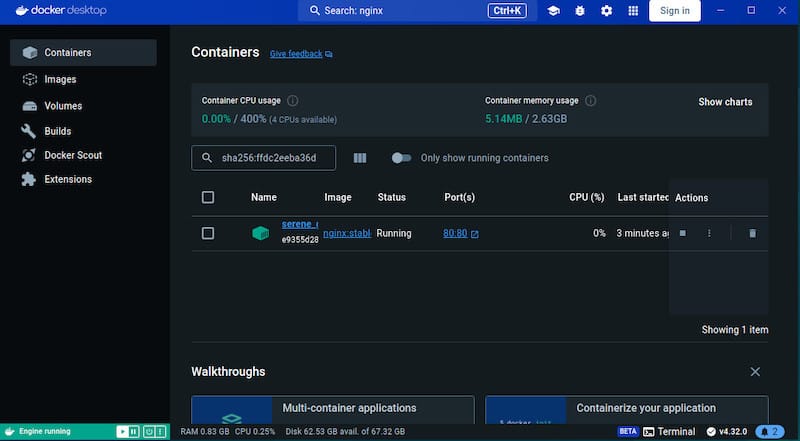
With the AppArmor fix in place, launch Docker Desktop from your application launcher. Search for “Docker Desktop” in GNOME Activities or your DE’s equivalent and click the icon.
On first launch, you will go through a short setup sequence:
- Docker Subscription Service Agreement appears immediately. Read it and click Accept to continue. Docker Desktop will not start the internal VM if you skip this step. The free tier covers personal use, non-commercial open-source projects, education, and companies with fewer than 250 employees and under $10 million in annual revenue.
- Sign in screen appears next. You can log in with your Docker Hub account to access private registries and Docker Scout. Click “Continue without signing in” if you want to skip this for now.
- User survey appears. Answer it or click “Skip survey” to go straight to the dashboard.
Once Docker Desktop loads, confirm the system tray shows the Docker whale icon. A steady icon means the VM is running. An animated icon means Docker Desktop is still initializing.
Verify Everything Works
Run these three commands in a terminal to confirm the full installation is healthy:
docker --versionExpected output:
Docker version 28.4.0, build d8eb465docker compose versionExpected output:
Docker Compose version v2.39.4docker run hello-worldExpected output (partial):
Hello from Docker!
This message shows that your installation appears to be working correctly.
Why run hello-world? This small test validates the entire stack in one command: it pulls an image from Docker Hub (tests network and registry access), creates a container (tests the runtime), runs it (tests the VM), and prints a success message. If this works, your installation is solid.
Step 7: Post-Installation Configuration for Daily Use
Add Your User to the Docker Group
By default, the Docker socket at /var/run/docker.sock is owned by the docker group. Without membership in that group, every docker command you run from the terminal requires sudo. That is both inconvenient and a security anti-pattern since it elevates every Docker operation to root context unnecessarily.
sudo usermod -aG docker $USER
newgrp docker
Why newgrp docker instead of logging out? Group membership changes only take effect in new shell sessions. newgrp docker activates the docker group in your current terminal session without forcing a full logout and login. For the change to apply system-wide across all sessions and applications, log out and back in once.
Enable Docker Desktop to Autostart on Login
Without this, you have to manually open Docker Desktop after every reboot before your containers are accessible. Enable autostart from the Docker Desktop settings:
- Open Docker Desktop
- Click the gear icon (Settings)
- Go to General
- Check “Start Docker Desktop when you sign in to your computer”
- Click Apply and Restart
Alternatively, enable it from the terminal:
systemctl --user enable docker-desktopWhy the --user flag? Docker Desktop runs as a user-level systemd service, not a system-wide daemon. The --user flag tells systemd to manage this service in the user’s session scope rather than the global system scope.
Set Docker Desktop as the Active Context
Docker Desktop creates its own context called desktop-linux to avoid conflicts with any Docker Engine context on the same machine. Confirm the correct context is active:
docker context lsExpected output:
NAME            DESCRIPTION                               DOCKER ENDPOINT
default         Current DOCKER_HOST based configuration   unix:///var/run/docker.sock
desktop-linux   Docker Desktop                            unix:///home/user/.docker/desktop/docker.sock
If desktop-linux is not marked as the current context, switch to it:
docker context use desktop-linuxWhy this matters: If you have Docker Engine installed alongside Docker Desktop, docker ps and other CLI commands will query whichever context is currently active. Running commands in the wrong context leads to empty output and confusion about where your containers actually are.
Troubleshooting Common Issues on Ubuntu 26.04 LTS
Error: “docker-desktop : Depends: docker-ce-cli but it is not installable”
Cause: You tried to install the DEB package before adding Docker’s official APT repository.
Fix: Go back to Step 2, add the Docker repository, run sudo apt update, and then re-run the apt install command.
Docker Desktop Crashes or Shows Error on First Launch
Cause: The AppArmor unprivileged namespace restriction is still active.
Fix: Confirm the sysctl config file exists and contains the correct value:
cat /etc/sysctl.d/20-apparmor-donotrestrict.conf
sysctl kernel.apparmor_restrict_unprivileged_userns
If the value is not 0, re-apply with sudo sysctl --system and reboot.
KVM Is Not Available
Cause: Virtualization is disabled in BIOS/UEFI, or the KVM kernel module is not loaded.
Fix: Enter your BIOS settings and enable Intel VT-x or AMD-V. Then load the module:
sudo modprobe kvm-intel    # For Intel CPUs
sudo modprobe kvm-amd      # For AMD CPUs
Verify the device node exists:
ls /dev/kvmIf /dev/kvm appears, KVM is now available and Docker Desktop will be able to start its VM.
Containers From Docker Engine Not Visible in Docker Desktop
Cause: Docker Desktop uses its own desktop-linux context, completely separate from Docker Engine’s default context. Containers deployed via Docker Engine before Docker Desktop was installed live in a different runtime environment.
Fix: Either switch context to default to manage your Engine containers, or redeploy those containers through Docker Desktop. You cannot migrate a running container between contexts.
Permission Denied When Running Docker Commands Without Sudo
Cause: Your user is not yet in the docker group, or the group membership has not taken effect in the current session.
Fix:
sudo usermod -aG docker $USER
newgrp docker
Then verify group membership:
groups $USERYou should see docker listed in the output.
Congratulations! You have successfully installed Docker Desktop. Thanks for using this tutorial to install the latest version of Docker Desktop on Ubuntu 26.04 LTS (Resolute Raccoon). For additional help or useful information, we recommend you check the official Docker website.
[su_box title=”VPS Manage Service Offer” style=”bubbles” box_color=”#000000″ radius=”10″]If you don’t have time to do all of this stuff, or if this is not your area of expertise, we offer a service to do “VPS Manage Service Offer”, starting from $10 (Paypal payment). Please contact us to get the best deal![/su_box]

