If you want a terminal that feels faster, cleaner, and easier to work with, Install Kitty Terminal Emulator on Fedora 44 is a smart upgrade. Kitty gives you GPU-accelerated rendering, built-in tabs, split windows, and a clean config file that makes daily Linux work smoother.
On Fedora 44, this matters even more because Fedora now leans heavily into DNF5 and modern desktop behavior, so a well-supported terminal fits that workflow well. In this guide, I will show you how to install Kitty the right way, explain why each step matters, and help you avoid the usual setup mistakes.
This is written for beginners, developers, and sysadmins who want a practical result, not a copy-paste mess. By the end, you will know how to install, verify, configure, and troubleshoot Kitty on Fedora 44 with confidence.
Prerequisites
- Fedora 44 installed and updated. Fedora 44 uses DNF5 heavily, so matching the current release reduces package issues.
- Sudo access or root privileges. You need elevated permissions to install system packages with DNF5.
- Internet access. You need this for package downloads or the official binary installer.
- A working desktop session on GNOME, KDE, or another Linux desktop. Kitty works on Linux desktops and uses OpenGL for rendering.
- Basic terminal access. You should know how to open a shell and run commands.
- Optional tools like curl. You need
curlif you choose the official binary installer method.
Step 1: Update Your System
Refresh package metadata
Run this first:
sudo dnf5 upgrade --refreshThis command refreshes repository metadata and installs the latest available updates. It matters because Kitty depends on normal system libraries, and a fresh package index lowers the chance of broken dependencies or mismatched versions.
Why this step matters
A lot of Linux install problems come from skipping updates. On Fedora 44, DNF5 is the package manager you should expect to use, so keeping it current is the safest way to install desktop software cleanly. If you skip this, you may hit dependency conflicts or missing libraries later.
Expected output
You should see a list of packages being checked or upgraded, followed by a summary similar to this:
Dependencies resolved.
Nothing to do.
Complete!
If updates are available, DNF5 will show them before continuing.
Step 2: Install Kitty from Fedora repos
Install the package
Use the Fedora package manager to install Kitty:
sudo dnf5 install kittyThis installs the Fedora-packaged version of Kitty from the official repository. Fedora’s package page describes Kitty as a GPU-based terminal emulator with tabs, splits, images, ligatures, and shell-friendly features.
Why this method is best for most users
This is the safest and easiest install path for most Fedora users. You get system integration, normal package updates, and less manual maintenance than a third-party binary install. Fedora also keeps the package maintained for its release cycle, which is ideal if you want stability over chasing the newest upstream build.
What Fedora installs
The package typically includes the terminal binary and related desktop integration pieces. That matters because it helps Kitty show up properly in your desktop menu and work like a normal application instead of a loose binary.
Expected output
A successful install usually ends with output similar to this:
Complete!If DNF5 asks for confirmation, type y and press Enter.
Step 3: Verify the installation
Check the installed version
Now verify that Kitty is installed correctly:
kitty --versionThis prints the installed Kitty version, which confirms that the binary is available in your PATH. Verification matters because it proves the package install worked before you rely on it in daily work.
Check the binary location
You can also confirm where the system found it:
which kittyThis should return a path such as:
/usr/bin/kittyThe exact path may vary, but the key point is that the command must resolve cleanly. If it does not, the install may have failed or your PATH may be incomplete.
Why verification matters
A terminal emulator is a core tool. If the binary is missing or misregistered, you want to catch that immediately instead of discovering it during a remote SSH session or deployment task.
Step 4: Launch Kitty
Start from the terminal
Run:
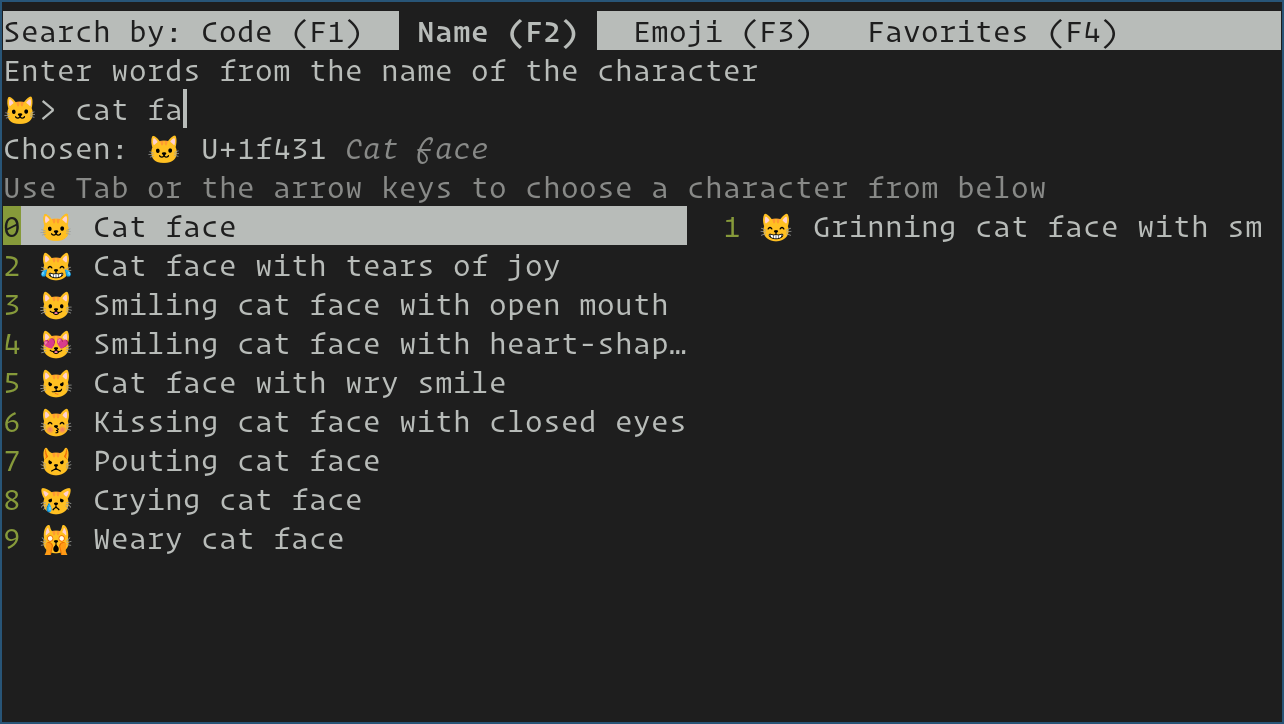
kittyThis opens a new Kitty window. Once it launches, you should see the default interface with a clean terminal area and modern rendering behavior.
Start from the desktop menu
You can also open Kitty from your app launcher. Fedora desktop environments usually register the package so it appears like a regular application.
Why this step matters
Launching the app once confirms that the desktop entry, fonts, and GPU rendering path are all working. Kitty uses OpenGL rendering, so this is also a quick real-world check that your graphics stack is behaving normally.
Step 5: Configure Kitty Terminal Emulator on Fedora 44 setup
Create the config directory
Now prepare Kitty’s config file:
mkdir -p ~/.config/kitty
touch ~/.config/kitty/kitty.conf
This creates the directory and config file Kitty uses for user settings. Kitty reads its main configuration from ~/.config/kitty/kitty.conf, which makes it easy to manage and back up.
Why this matters
A dedicated config file gives you control over fonts, size, colors, and behavior without touching system files. That is important for both home users and sysadmins because it keeps changes scoped to your account.
Add a basic starter config
Open the file:
nano ~/.config/kitty/kitty.confThen add a simple setup like this:
font_family      JetBrains Mono
font_size        13.0
enable_audio_bell no
background_opacity 0.95
tab_bar_style    powerline
Why each setting helps
font_familysets a readable programming font.font_sizeimproves comfort during long sessions.enable_audio_bell noreduces noise during repeated alerts.background_opacitygives a slightly translucent look if your compositor supports it.tab_bar_stylemakes it easier to see which tab is active.
Kitty supports modern terminal features like OpenType ligatures, Unicode, true color, and multiple copy-paste buffers, so a small config file can improve usability a lot.
Save and reload
Save the file, then restart Kitty to apply the changes. Kitty’s config is simple enough that you can adjust it later as your workflow changes.
Step 6: Use Kitty’s tabs and splits
Open a new tab
Press:
Ctrl+Shift+TThis opens a new tab inside Kitty. Tabs help you separate tasks like logs, editing, and SSH sessions without opening extra windows.
Create a split window
Press:
Ctrl+Shift+EnterThis splits the terminal so you can work side by side. That is useful when comparing config files, watching logs, or editing on one side and testing on the other.
Why these features matter
Kitty includes built-in tiling, so you do not need another program just to manage a simple multi-pane workflow. For many users, that reduces the need to launch tmux for basic multitasking.
Practical example
- A log stream in one split.
- A code editor in another.
- An SSH session in a separate tab.
That setup is simple, fast, and easy to manage.
Step 7: Use kittens for extra power
Try a built-in kitten
Kitty uses “kittens” for small helper tools. One useful example is:
kitty +kitten ssh user@serverThis opens an SSH session with Kitty-aware features. It matters because it helps preserve terminal behavior more cleanly than a plain SSH launch in some workflows.
Another useful command
You can also explore other helper tools in the same family. Kitty supports extensible features through its kitten framework, which is part of what makes it more flexible than a basic terminal emulator.
Why this matters for sysadmins
If you manage servers often, these helpers reduce friction. They give you faster access to remote systems and make the terminal feel more integrated into your workflow.
Step 8: Install kitty terminfo for SSH sessions
Understand the issue
When you SSH into another server, the remote system may not fully understand Kitty’s terminal capabilities unless it has the right terminfo entry. Kitty supports advanced terminal behavior, but remote programs still need to know how to interpret it.
Fix on the remote machine
If needed, install the terminfo package on the remote Linux host or use Kitty’s SSH helper. On Fedora systems, the package and desktop integration are designed to work cleanly with terminal features and remote use cases.
Why this matters
Without proper terminfo support, tools like vim, htop, or top may display broken colors or odd control characters. In a Linux server tutorial context, this is one of the most common reasons people think a terminal is “broken” when it is really just a terminal capability mismatch.
Step 9: Binary install option for latest Kitty
Use the official installer
If you want the latest upstream release instead of the Fedora package, use the official binary installer:
curl -L https://sw.kovidgoyal.net/kitty/installer.sh | sh /dev/stdinThis installs Kitty in ~/.local/kitty.app on Linux. The official documentation says the installer only touches that directory, and rerunning the same command updates the app.
Why choose this method
Use this route if you want the newest features sooner than Fedora packaging provides. It is also helpful if you want to test upstream behavior while keeping the Fedora package untouched.
Create desktop integration
The official docs recommend creating symlinks and copying the desktop file if you want clean launcher integration:
ln -sf ~/.local/kitty.app/bin/kitty ~/.local/kitty.app/bin/kitten ~/.local/bin/
cp ~/.local/kitty.app/share/applications/kitty.desktop ~/.local/share/applications/
cp ~/.local/kitty.app/share/applications/kitty-open.desktop ~/.local/share/applications/
sed -i "s|Icon=kitty|Icon=$(readlink -f ~)/.local/kitty.app/share/icons/hicolor/256x256/apps/kitty.png|g" ~/.local/share/applications/kitty*.desktop
sed -i "s|Exec=kitty|Exec=$(readlink -f ~)/.local/kitty.app/bin/kitty|g" ~/.local/share/applications/kitty*.desktop
echo 'kitty.desktop' > ~/.config/xdg-terminals.list
These steps matter because desktop environments often rely on .desktop entries rather than shell PATH logic.
Step 10: Make Kitty your default terminal
Set the XDG terminal entry
Run:
echo 'kitty.desktop' > ~/.config/xdg-terminals.listThis tells supported desktop environments to use Kitty as the default terminal launcher.
Why this matters
If you open terminal links from the file manager or an application, the system needs a default terminal choice. Setting this file makes that behavior consistent across your desktop.
Verify the setting
Open a new terminal request from your desktop or test a launcher that opens the default terminal. If Kitty appears, the setting worked.
Troubleshooting
1. kitty: command not found
This usually means Kitty is not in your PATH. Check it with:
which kittyIf it returns nothing, reinstall the package or make sure the symlink exists in ~/.local/bin for the binary method.
2. Kitty opens but looks wrong
Font issues usually cause this. Check your kitty.conf and make sure the font name is spelled correctly. Kitty supports OpenType ligatures and modern fonts, so a good programming font makes a real difference.
3. SSH session shows broken characters
This often points to missing terminfo support on the remote host. Install the right terminfo package or use Kitty’s SSH helper so the remote shell understands the terminal type.
4. The app does not show in the menu
This usually happens with the binary install method if the .desktop file is missing or edited incorrectly. Recopy the desktop files and fix the Exec= and Icon= paths as shown above.
5. Kitty starts but feels slow
Kitty relies on GPU-based rendering through OpenGL. If graphics drivers are missing or broken, performance can suffer. Update your graphics stack and test again.
[su_box title=”VPS Manage Service Offer” style=”bubbles” box_color=”#000000″ radius=”10″]If you don’t have time to do all of this stuff, or if this is not your area of expertise, we offer a service to do “VPS Manage Service Offer”, starting from $10 (Paypal payment). Please contact us to get the best deal![/su_box]

