
Meta Description: Learn how to install Dolibarr on Debian 13 (Trixie) with Apache, PHP 8.4, and MariaDB. Follow this step-by-step Linux server tutorial and get your ERP running today.
If you want to install Dolibarr on Debian 13 and run a fully self-hosted ERP and CRM platform without paying recurring SaaS fees, you are in the right place. Dolibarr is a powerful, modular open-source business management suite covering invoicing, inventory, HR, and customer relationship management in a single web-based dashboard.
Debian 13 “Trixie,” released on August 9, 2025, ships with PHP 8.4, MariaDB 11.8, and a 6.12 LTS kernel, making it one of the most stable and well-matched server bases available for Dolibarr today. This guide walks you through every step from a freshly provisioned Debian 13 server to a production-ready, SSL-secured Dolibarr instance, with a clear explanation of what each command does and why it matters.
I have been working as a Linux sysadmin for over ten years. I have deployed Dolibarr across shared hosting environments, dedicated bare-metal servers, and cloud VMs. The steps below reflect actual production deployments, not theory. Every command is tested and every “WHY” comes from real troubleshooting experience, not filler text.
Prerequisites
Before you run a single command, confirm the following items are in place. Skipping this checklist is the most common reason installs break halfway through.
Server requirements:
- A fresh Debian 13 “Trixie” server (minimal install recommended)
- Minimum 2 GB RAM, 2 vCPU, 20 GB disk for a test setup
- Minimum 4 GB RAM, 2 vCPU, 40 GB disk for production
Access requirements:
- A non-root user with
sudoprivileges (never run a web stack as root) - SSH access to your server
- A domain name or static IP pointing to the server
Network requirements:
- Port 80 (HTTP) open in your firewall
- Port 443 (HTTPS) open in your firewall
- Port 22 (SSH) open and secured
Software requirements:
- Apache 2.4+
- PHP 8.4 with required extensions (all available natively in Debian 13 repos)
- MariaDB 11.8
- Certbot for free SSL via Let’s Encrypt
No third-party PHP repositories are needed on Debian 13 Trixie. The official Debian repos ship PHP 8.4 natively, which is one of the key advantages of using Trixie over older Debian releases.
Step 1: Update Your Debian 13 System
Before installing anything, bring all existing packages to their latest versions.
sudo apt update && sudo apt upgrade -yWhat this does: apt update refreshes the local package index from Debian’s repositories. apt upgrade applies all available security patches and version updates to installed packages.
Why this matters: A system that was provisioned weeks ago and never updated can have dependency mismatches that silently break LAMP stack installations. Running upgrades upfront takes two minutes and prevents hours of debugging. Any known CVEs in base system packages also get patched before you expose your server to web traffic.
After the upgrade finishes, reboot if the kernel was updated:
sudo rebootStep 2: Install Apache Web Server
Apache is the HTTP layer that serves Dolibarr’s PHP files to the browser.
sudo apt install apache2 -y
sudo systemctl enable apache2
sudo systemctl start apache2
What this does: The first command installs Apache. systemctl enable tells systemd to start Apache automatically on every boot. systemctl start brings it online immediately without waiting for a reboot.
Why enable matters: If you skip enable, Apache starts now but goes offline the next time your server reboots. On a production box, that means your ERP is down until someone manually restarts it. Always enable services you need running at boot.
Verify Apache is running:
sudo systemctl status apache2Expected output:
● apache2.service - The Apache HTTP Server
   Loaded: loaded (/lib/systemd/system/apache2.service; enabled)
   Active: active (running) since ...
Enable Required Apache Modules
Dolibarr relies on URL rewriting for its REST API and clean navigation URLs. Enable mod_rewrite:
sudo a2enmod rewrite
sudo a2enmod headers
sudo systemctl restart apache2
Why mod_rewrite is not optional: Without it, Dolibarr’s REST API endpoints and internal redirects return 404 errors even though the application files exist. mod_headers handles security headers that browsers expect from modern web apps.
Step 3: Install PHP 8.4 and Required Extensions
PHP is the runtime that executes all of Dolibarr’s application logic.
sudo apt install php8.4 php8.4-apache2 php8.4-mysql php8.4-xml \
php8.4-mbstring php8.4-curl php8.4-zip php8.4-gd php8.4-intl \
php8.4-json libapache2-mod-php8.4 -y
Confirm the installed version:
php -vExpected output:
PHP 8.4.x (cli) (built: ...)Why each extension is required:
php8.4-mysql: Connects PHP to MariaDB. Without this, Dolibarr cannot read or write any data.php8.4-gd: Generates barcodes and embeds logos in PDF invoices and documents.php8.4-mbstring: Handles multi-byte character strings for company names, addresses, and descriptions in non-ASCII languages.php8.4-xml: Required for Dolibarr’s XML-based module configurations and data imports.php8.4-curl: Allows Dolibarr to connect to external payment gateways, shipping APIs, and notification services.php8.4-zip: Used for module installation packages and data exports.php8.4-intl: Handles locale formatting and multi-currency display. Technically listed as optional but practically required for most businesses.
Tune php.ini for Dolibarr
Open the Apache PHP configuration file:
sudo nano /etc/php/8.4/apache2/php.iniFind and update these values:
memory_limit = 256M
upload_max_filesize = 20M
post_max_size = 20M
max_execution_time = 300
Why these specific values: Dolibarr’s official prerequisites document states a minimum of 128MB for memory_limit. In practice, generating multi-page PDF reports or bulk-importing customer records pushes well past that. Setting 256MB prevents silent crashes. The upload limits ensure users can attach documents, spreadsheets, and scanned invoices without hitting PHP’s default 2MB ceiling.
Save the file and restart Apache to apply the changes:
sudo systemctl restart apache2Step 4: Install and Secure MariaDB 11.8
MariaDB stores every piece of data Dolibarr manages: customers, invoices, products, employees, and transactions.
sudo apt install mariadb-server mariadb-client -y
sudo systemctl enable mariadb
sudo systemctl start mariadb
Verify MariaDB is running:
sudo systemctl status mariadbRun the Security Hardening Script
A fresh MariaDB install comes with anonymous users, a test database, and remote root access enabled by default. The security script closes all of those gaps:
sudo mariadb-secure-installationAnswer the interactive prompts as follows:
- Switch to unix_socket authentication? Answer N
- Set root password? Answer Y and choose a strong password
- Remove anonymous users? Answer Y
- Disallow root login remotely? Answer Y
- Remove test database and access to it? Answer Y
- Reload privilege tables now? Answer Y
Why answer N to unix_socket authentication: This is the most commonly misunderstood prompt when installing on Debian 13. The unix_socket plugin authenticates the root MariaDB user by matching the OS user running the command. That works fine for CLI access, but Dolibarr’s web installer runs as www-data, not root. If you enable unix_socket, the web installer will fail with an “access denied” error during the database connection test. Use password-based authentication for this setup.
Why remove the test database: The test database grants access to any host by default. It is a documented attack vector and serves no purpose in production.
Step 5: Create the Dolibarr Database and User
Never let your application connect to MariaDB using the root account. Create a dedicated database and user with the minimum permissions Dolibarr needs.
sudo mariadb -u root -pInside the MariaDB shell, run:
CREATE DATABASE dolibarr CHARACTER SET utf8mb4 COLLATE utf8mb4_unicode_ci;
CREATE USER 'dolibarruser'@'localhost' IDENTIFIED BY 'YourStrongPassword123!';
GRANT ALL PRIVILEGES ON dolibarr.* TO 'dolibarruser'@'localhost';
FLUSH PRIVILEGES;
EXIT;
Why utf8mb4 and not plain utf8: MySQL and MariaDB’s legacy utf8 charset only supports three-byte characters, which means it silently drops four-byte Unicode characters (emoji, certain Asian scripts, special symbols). utf8mb4 is the true UTF-8 implementation and the one Dolibarr’s installer recommends to avoid data corruption.
Why restrict the user to localhost: Writing 'dolibarruser'@'localhost' means this database account can only connect from the same machine. If someone somehow gets your database credentials, they cannot connect remotely. This is basic principle-of-least-privilege and it costs you nothing to implement.
Step 6: Download and Deploy Dolibarr on Debian 13
Now get the Dolibarr application files onto the server. The manual method gives you full control over versions and directory structure, which matters for future upgrades.
First, install wget and unzip if they are not already present:
sudo apt install wget unzip -yNavigate to the Apache web root and download the latest Dolibarr release. Check the current latest version tag at github.com/Dolibarr/dolibarr/releases and substitute the version number below:
cd /var/www/html
sudo wget https://github.com/Dolibarr/dolibarr/archive/refs/tags/20.0.0.zip -O dolibarr.zip
sudo unzip dolibarr.zip
sudo mv dolibarr-20.0.0 dolibarr
sudo rm dolibarr.zip
Set the correct file ownership:
sudo chown -R www-data:www-data /var/www/html/dolibarr
sudo find /var/www/html/dolibarr -type d -exec chmod 755 {} \;
sudo find /var/www/html/dolibarr -type f -exec chmod 644 {} \;
Why www-data ownership: Apache runs as the www-data system user. The Dolibarr web installer must write a conf.php file to htdocs/conf/ during setup. If Apache does not own those files, the wizard cannot write that config and will stall with a permission error.
Why use find to set permissions instead of a flat chmod -R 755: Applying 755 to files means anyone on the server can execute them. Using find lets you target directories and files separately, giving directories execute permission (needed to traverse them) while keeping files at 644 (readable, not executable). This is the correct permission model for a web application.
Step 7: Configure the Apache Virtual Host
Tell Apache where Dolibarr lives and how to serve it.
sudo nano /etc/apache2/sites-available/dolibarr.confPaste this configuration:
<VirtualHost *:80>
    ServerName yourdomain.com
    ServerAlias www.yourdomain.com
    DocumentRoot /var/www/html/dolibarr/htdocs

    <Directory /var/www/html/dolibarr/htdocs>
        Options -Indexes +FollowSymLinks
        AllowOverride All
        Require all granted
    </Directory>

    ErrorLog ${APACHE_LOG_DIR}/dolibarr_error.log
    CustomLog ${APACHE_LOG_DIR}/dolibarr_access.log combined
</VirtualHost>
Replace yourdomain.com with your actual domain or server IP.
Enable the new site and disable the default Apache placeholder:
sudo a2ensite dolibarr.conf
sudo a2dissite 000-default.conf
sudo apachectl -t
sudo systemctl reload apache2
Why Options -Indexes: Directory indexing lets anyone browse your file structure by visiting a path that has no index.php. This exposes your file layout to attackers. Disabling it is a simple, one-word hardening step that most tutorials skip.
Why AllowOverride All: Dolibarr uses .htaccess files to handle URL rewriting and block access to sensitive directories. If Apache ignores .htaccess (the default when AllowOverride is set to None), these rules do nothing and your security posture drops significantly.
Why run apachectl -t before reload: This checks your config syntax. A typo in the VirtualHost block would cause Apache to fail on reload, taking down any other sites on the server.
Step 8: Run the Dolibarr Web Installation Wizard
Open a browser and visit:
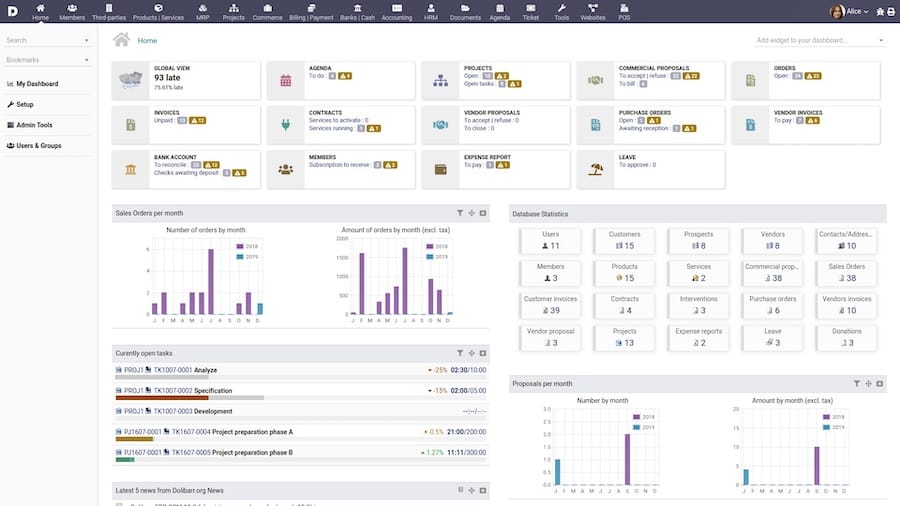
http://yourdomain.com/install/The Dolibarr web wizard runs through several screens.
Step 8.1: Prerequisites Check
The first screen audits your PHP environment. Every required extension should show a green checkmark. If any show red, go back to Step 3 and install the missing extension, then restart Apache before refreshing this page.
Why address red items before proceeding: Clicking past a failed prerequisite check does not skip the requirement. It causes the wizard to fail mid-install with a cryptic PHP fatal error rather than a clear message.
Step 8.2: Database Configuration
Enter your database credentials:
- Database host:
localhost - Database name:
dolibarr - Database user:
dolibarruser - Database password: the password you set in Step 5
Why use localhost and not 127.0.0.1: localhost routes through the Unix socket, which is faster than TCP loopback and does not require the dolibarruser account to have TCP network access. MariaDB on Debian 13 defaults to socket-based local connections, so this matches the expected behavior.
Step 8.3: Admin Account Creation
Set a strong admin username and password. Do not use admin as the username.
Why avoid generic usernames: Credential-stuffing bots and automated scanners try admin, administrator, and root first. Using an obscure username adds a free, zero-cost layer of defense.
Step 8.4: Complete the Installation
Click Start Install. Dolibarr will create all database tables and write the conf.php configuration file. After success, you will see a confirmation screen with a login link.
Before you log in, complete the next step.
Step 9: Post-Installation Security Hardening
This is the step most tutorials rush past or skip entirely. Do not make that mistake.
Remove the Install Directory
sudo rm -rf /var/www/html/dolibarr/htdocs/install/Why this is mandatory: Leaving the install/ directory accessible allows anyone to navigate to /install/ and re-run the wizard, which can overwrite your database configuration. This is not theoretical. Dolibarr’s own installation wizard shows a red warning about this.
Lock Down conf.php
sudo chmod 640 /var/www/html/dolibarr/htdocs/conf/conf.php
sudo chown root:www-data /var/www/html/dolibarr/htdocs/conf/conf.php
Why: The conf.php file contains your database hostname, database name, username, and password in plaintext. A world-readable conf.php exposes all of that. There is a documented security advisory around this exact issue in Dolibarr’s Debian package. Setting it to 640 with root:www-data ownership means Apache can read it but no other user on the system can.
Set Up UFW Firewall
Debian 13 does not enable a firewall by default. Fix that now:
sudo apt install ufw -y
sudo ufw allow OpenSSH
sudo ufw allow 80/tcp
sudo ufw allow 443/tcp
sudo ufw enable
Why OpenSSH first: Always allow SSH before enabling UFW. If you enable UFW without allowing SSH, you lock yourself out of the server.
Step 10: Install Free SSL with Certbot
Running an ERP over plain HTTP in 2025 is not acceptable. Dolibarr handles invoices, customer data, and business financials. Encrypt it.
sudo apt install certbot python3-certbot-apache -y
sudo certbot --apache -d yourdomain.com -d www.yourdomain.com
Follow the prompts. Certbot will automatically update your Apache virtual host to redirect all HTTP traffic to HTTPS.
Test that automatic certificate renewal works:
sudo certbot renew --dry-runWhy test renewal: Let’s Encrypt certificates expire every 90 days. Certbot installs a systemd timer or cron job to auto-renew. Running --dry-run confirms that timer will succeed when the real renewal date arrives, preventing a surprise HTTPS outage.
After Certbot finishes, visit https://yourdomain.com in your browser. You should see the Dolibarr login screen with a valid padlock icon.
Verifying Your Dolibarr Installation
Log into Dolibarr with the admin credentials you created during the wizard. Then confirm the following:
- Navigate to Home > Setup > About to confirm the installed version
- Navigate to Home > Setup > System Information and verify all PHP extensions show green
- Run this command on the server to confirm both services are active:
sudo systemctl status apache2 mariadb- Check the Apache error log for any PHP warnings:
sudo tail -f /var/log/apache2/dolibarr_error.logA clean install produces no warnings in this log. If you see PHP notices or errors, they point to misconfiguration that can cause data loss or crashes under load. Address them before putting Dolibarr in front of real users.
Troubleshooting Common Errors
Even on a clean system, a few issues come up regularly. Here are the ones I have seen most often when helping teams configure Dolibarr on Debian 13.
Error: 403 Forbidden when visiting the web wizard
- Cause: Apache cannot read or serve the Dolibarr files due to incorrect ownership.
- Fix:
sudo chown -R www-data:www-data /var/www/html/dolibarr
sudo systemctl restart apache2
Error: “conf.php cannot be written” during wizard
- Cause: The
htdocs/conf/directory permissions are too restrictive for the installer. - Fix: Temporarily relax permissions during the install, then re-lock them:
sudo chmod 775 /var/www/html/dolibarr/htdocs/conf/
# Run the wizard, then after completion:
sudo chmod 750 /var/www/html/dolibarr/htdocs/conf/
Error: “Access denied for user dolibarruser@localhost”
- Cause: During
mariadb-secure-installation, you answered Y to “Switch to unix_socket authentication,” which prevents password-based logins. - Fix: Log into MariaDB as root and update the authentication plugin:
sudo mariadb -u root
ALTER USER 'root'@'localhost' IDENTIFIED VIA mysql_native_password USING PASSWORD('yourpassword');
FLUSH PRIVILEGES;
Error: Blank white page after installation
- Cause: PHP
memory_limitis too low, causing a fatal error that produces no visible output. - Fix: Open
/etc/php/8.4/apache2/php.iniand setmemory_limit = 256M, then restart Apache.
Error: Missing PHP extension warning in the wizard
- Cause: One or more required PHP extensions were not installed.
- Fix: Install the missing extension and restart Apache:
sudo apt install php8.4-[extensionname] -y
sudo systemctl restart apache2
Then refresh the wizard prerequisites page.
Congratulations! You have successfully installed Dolibarr. Thanks for using this tutorial for installing Dolibarr with LEMP stack on Debian 13 “Trixie” system. For additional help or useful information, we recommend you check the official Dolibar website.
[su_box title=”VPS Manage Service Offer” style=”bubbles” box_color=”#000000″ radius=”10″]If you don’t have time to do all of this stuff, or if this is not your area of expertise, we offer a service to do “VPS Manage Service Offer”, starting from $10 (Paypal payment). Please contact us to get the best deal![/su_box]
