
If you are running Debian 13 “Trixie” and looking for a browser that gives you more than what the default Firefox ESR delivers, Floorp Browser is worth serious consideration. It is open-source, built on Mozilla Firefox’s Gecko engine, and ships with privacy protections and UI customization features that vanilla Firefox simply does not offer out of the box.
In this guide, you will learn exactly how to install Floorp Browser on Debian 13 using four proven methods: the official PPA, Flatpak, Snap, and a portable tarball. Every step comes with a clear explanation of what the command does and why it matters, so you are never just blindly copying and pasting from a terminal window.
What Is Floorp Browser and Why Should Debian 13 Users Care?
Floorp is a free, open-source browser developed by the Japanese team at Ablaze. It runs on Mozilla’s Gecko engine, which means it supports every Firefox extension available at addons.mozilla.org without any workarounds or compatibility layers.
What separates Floorp from a basic Firefox fork is its depth of customization. You get five switchable UI designs, a built-in vertical tab bar, multi-panel sidebar support, workspaces for tab organization, and aggressive tracking protection enabled by default. On top of that, Floorp disables Mozilla’s telemetry while keeping all of Firefox’s anti-tracking features intact. For anyone running Debian 13 who values privacy without sacrificing the Firefox extension ecosystem, this browser fills that gap directly.
Debian 13 “Trixie,” released on August 9, 2025, brought Linux Kernel 6.12 LTS, GNOME 48, KDE Plasma 6.3, and APT 3.0 to the table. That is a substantially modernized base, and Floorp runs cleanly on it. The combination of a stable Debian foundation with a regularly updated, privacy-hardened browser is one of the better desktop setups you can run on Linux today.
Here is a quick comparison to frame the choice:
| Feature | Floorp | Firefox ESR (Debian) | Chromium (Debian) |
|---|---|---|---|
| Firefox Extensions | Full support | Full support | Not supported |
| Vertical Tabs | Built-in | Needs extension | Needs extension |
| Tracking Protection | Strict by default | Standard | Minimal |
| Mozilla Telemetry | Disabled | Enabled | N/A |
| UI Customization | Vivaldi-level depth | Basic | Basic |
| Update Method | Independent PPA | Debian repo | Debian repo |
Prerequisites Before You Start
Before you run a single command, confirm that your system meets these requirements. Skipping this check is the fastest way to end up with a broken install or a confusing error midway through the process.
- Operating system: Debian 13 “Trixie” (desktop or server with a GUI environment installed)
- User account: A non-root user with
sudoprivileges. You should not run these commands as root directly. Debian best practice is to usesudofor privilege escalation, which gives you an audit trail and limits blast radius if something goes wrong. - Internet connection: A stable, active connection. The PPA method fetches packages from Floorp’s servers; a dropped connection mid-install can leave partial packages that confuse APT on subsequent runs.
- Terminal access: GNOME Terminal, Konsole, Xterm, or any terminal emulator of your choice.
curlinstalled: Used to securely fetch the GPG key in Method 1. Check it is present by runningcurl --version. If the command returns nothing, the first step in Method 1 handles the installation.
Method 1: Install Floorp Browser on Debian 13 via Official PPA (Recommended)
The PPA method is the officially recommended and best installation route for Debian-based systems. When you install Floorp this way, it integrates directly into APT, which means future updates happen automatically every time you run sudo apt upgrade. No manual downloads, no version tracking, no old binaries sitting on your system.
This method also uses a GPG-signed repository, so every package APT downloads from Floorp’s servers gets cryptographically verified before installation. That matters on a production desktop or developer machine where supply-chain integrity is not optional.
Step 1: Update the Package Index and Upgrade Existing Packages
sudo apt update && sudo apt upgrade -yWhat this does: apt update refreshes your local package metadata cache so APT knows the current state of every configured repository. apt upgrade applies any pending upgrades before you add new software.
Why this matters: Adding a third-party repository on top of outdated system packages is a common source of dependency conflicts. Running this first eliminates that risk. If APT throws a dependency error after installing Floorp and you skipped this step, come back here first.
Expected output: You will see a list of repositories being hit and fetched, followed by a summary like X upgraded, Y newly installed, 0 to remove.
Step 2: Install curl
sudo apt install curl -yWhat this does: Installs the curl command-line tool for transferring data over URLs.
Why this matters: Debian 13 minimal desktop installs may not include curl by default. The next step uses it to fetch Floorp’s GPG signing key. If curl is missing, the GPG key download fails silently or with a “command not found” error that is easy to miss.
Step 3: Download and Import the Floorp GPG Signing Key
curl -fsSL https://ppa.ablaze.one/KEY.gpg | sudo gpg --dearmor -o /usr/share/keyrings/Floorp.gpgWhat this does: Downloads Floorp’s public GPG key from the official PPA server and converts it from ASCII-armored format into the binary .gpg format that modern APT expects. The output file is written to /usr/share/keyrings/, which is the correct system location for trusted third-party keys on Debian.
Why this matters: APT will refuse to install packages from a repository it cannot cryptographically verify. Without this key, you will either get a “NO_PUBKEY” error or APT will label the repository as untrusted. The --dearmor conversion is required because APT 3.0 on Debian 13 no longer accepts ASCII-armored keys directly.
Flag breakdown (because understanding your commands matters more than just running them):
-
-f— Fail silently on HTTP errors instead of showing server error pages-s— Silent mode, suppresses progress output
-S — Shows errors even when silent mode is active
-L— Follows HTTP redirects automatically
Expected output: No output means success. The file /usr/share/keyrings/Floorp.gpg is created silently.
Step 4: Add the Floorp APT Repository to Your Sources
sudo curl -sS --compressed -o /etc/apt/sources.list.d/Floorp.list 'https://ppa.ablaze.one/Floorp.list'What this does: Downloads the Floorp repository definition file and writes it to /etc/apt/sources.list.d/Floorp.list.
Why this matters: Placing the repository file in /etc/apt/sources.list.d/ rather than appending it to /etc/apt/sources.list is the correct Debian approach. It keeps your sources clean and organized. It also makes future removal straightforward. The --compressed flag requests a compressed response from the server, saving bandwidth.
Verify the file was written correctly:
cat /etc/apt/sources.list.d/Floorp.listYou should see a deb line pointing to ppa.ablaze.one.
Step 5: Refresh the APT Package Cache
sudo apt updateWhat this does: Forces APT to read the newly added Floorp repository and download its package metadata.
Why this matters: After adding a new repository, APT’s local index does not automatically include it. This second apt update run is what makes the floorp package visible to APT. You should see a line in the output like:
Hit:X https://ppa.ablaze.one stable InReleaseIf you skip this step, the next command will return “Package floorp has no installation candidate.”
Step 6: Install Floorp Browser
sudo apt install floorp -yWhat this does: Resolves all dependencies, downloads the Floorp binary from the verified PPA, and installs it to your system. The -y flag auto-confirms the confirmation prompt.
Why this matters: APT handles everything at this point, including setting up the .desktop entry that makes Floorp appear in your application launcher. Once this command completes, Floorp is installed, managed by APT, and will receive updates through your normal apt upgrade workflow.
Expected output:
Setting up floorp (XX.X.X) ...
Processing triggers for desktop-file-utils ...
Processing triggers for gnome-menus ...
Method 2: Install Floorp on Debian 13 via Flatpak
Flatpak is the right choice when you want Floorp isolated in a sandbox, separate from your system libraries. This method is distribution-agnostic and works cleanly on any desktop environment Debian 13 supports.
Step 1: Install Flatpak
sudo apt install flatpak -yWhy this matters: Debian 13 minimal installs do not include Flatpak. This installs the Flatpak runtime and its CLI tool, which acts as the package manager for containerized apps.
Step 2: Add the Flathub Repository
flatpak remote-add --if-not-exists flathub https://dl.flathub.org/repo/flathub.flatpakrepoWhy this matters: Without a remote repository configured, Flatpak has no source to pull Floorp from. Flathub is the official, community-maintained central repository for Flatpak applications. The --if-not-exists flag prevents errors if you have already added Flathub from a previous app install.
Step 3: Install Floorp from Flathub
flatpak install flathub one.ablaze.floorpWhy this matters: Using the full Flathub application ID one.ablaze.floorp avoids any ambiguity. It pulls exactly the official Floorp package from Ablaze’s Flathub entry, not a community repackage.
Step 4: Log Out and Back In
After installation, log out of your desktop session and log back in before launching Floorp. Flatpak registers its .desktop entries at session start. Without a logout/login cycle, Floorp will not appear in GNOME Activities or the KDE Application Launcher even though the installation completed successfully.
Method 3: Install Floorp via Snap
Snap is the right pick for low-maintenance setups where you want Floorp to update itself in the background without any manual intervention. Keep in mind that Snap packages carry some performance overhead due to squashfs filesystem mounting, and snapd is not enabled on Debian 13 by default.
Step 1: Install snapd
sudo apt update
sudo apt install snapd -y
Step 2: Bootstrap the Snap Core Runtime (Required on Debian)
sudo snap install snapdWhy this matters: On Debian specifically, installing snapd via APT gives you an older version. You must bootstrap the snap version of snapd itself to get the current runtime. Skipping this step causes snap package installations to fail with cryptic errors on Debian.
Step 3: Install Floorp via Snap
sudo snap install floorpSnap handles everything from this point. The browser installs as a self-contained package and updates automatically in the background without requiring any command from you.
Method 4: Install Floorp via Portable Tarball (No Root Required)
This method is ideal for restricted environments, shared machines, or simply testing Floorp without writing anything to /usr or /etc. Nothing touches the system package manager.
Step 1: Download the Latest Tarball
Visit the official Floorp GitHub Releases page and download the file ending in .linux-x86_64.tar.bz2.
Why GitHub Releases: This is the upstream developer’s official distribution point for verified binaries. Downloading from any other source skips the integrity assurance the Ablaze team provides.
Step 2: Extract the Archive
tar -xvjf floorp-*.linux-x86_64.tar.bz2Why the j flag: The .bz2 compression format requires the j flag in tar. Using the wrong flag causes a silent extraction failure that leaves you with a partial directory and no clear error message.
Step 3: Launch Floorp
cd floorp
./floorp
Floorp links to its own bundled libraries. No system-level installation is needed.
Step 4 (Optional): Create a Desktop Launcher
nano ~/.local/share/applications/floorp.desktopAdd the following content, adjusting the path to match where you extracted the tarball:
[Desktop Entry]
Name=Floorp Browser
Exec=/home/YOUR_USERNAME/floorp/floorp %u
Icon=/home/YOUR_USERNAME/floorp/browser/chrome/icons/default/default128.png
Type=Application
Categories=Network;WebBrowser;
Why this matters: Without a .desktop file, Floorp will not appear in GNOME Activities or the KDE Application Launcher. You would need to launch it from the terminal every time.
How to Launch, Update, and Remove Floorp
Launching Floorp
- From the application menu: Search “Floorp” in GNOME Activities or KDE Application Launcher.
- From the terminal (PPA install):
floorp - From the terminal (Flatpak):
flatpak run one.ablaze.floorp
Running Floorp from the terminal is useful for debugging startup errors because it prints stderr output directly to your terminal window.
Updating Floorp
PPA method:
sudo apt update && sudo apt upgrade floorpFlatpak method:
flatpak update one.ablaze.floorpSnap method: Updates automatically in the background with no command needed.
Removing Floorp
PPA method (full cleanup):
sudo apt remove floorp --purge
sudo rm /etc/apt/sources.list.d/Floorp.list
sudo rm /usr/share/keyrings/Floorp.gpg
sudo apt update
The --purge flag removes configuration files alongside the binary. Deleting the .list and .gpg files prevents APT from printing “unknown repository” warnings on every future apt update run.
Flatpak method: flatpak uninstall one.ablaze.floorp
Snap method: sudo snap remove floorp
First-Launch Configuration: Set These Before You Browse
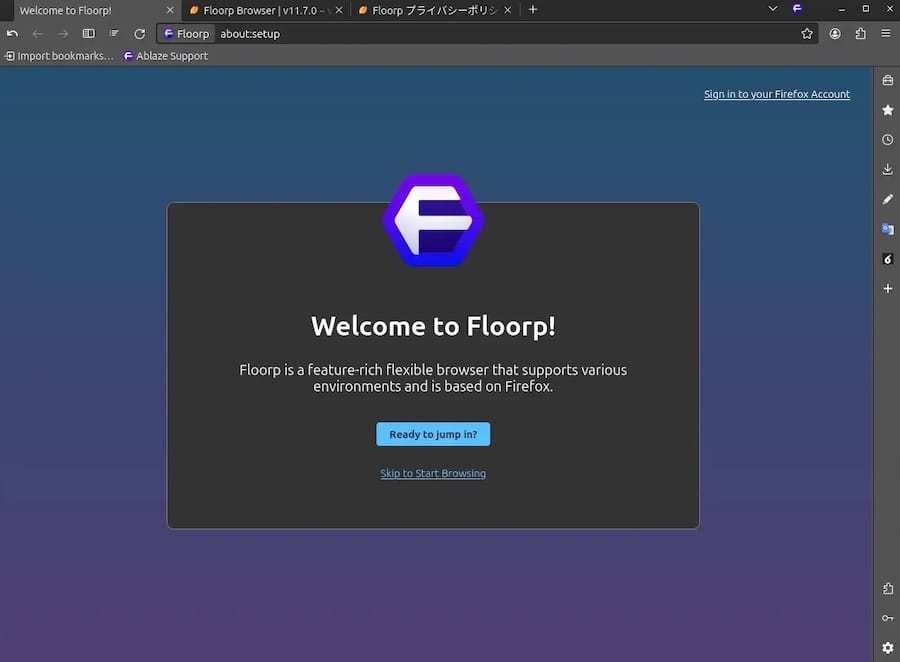
When Floorp opens for the first time, the onboarding wizard runs. Do not skip it. Configure your default search engine and privacy level here rather than hunting through settings menus later.
Once inside the browser, do these immediately:
- Enable Strict Tracking Protection: Settings > Privacy and Security > Enhanced Tracking Protection > Strict
- Enable DNS-over-HTTPS: Settings > Privacy and Security > Enable DNS over HTTPS
- Enable Vertical Tabs: Settings > Floorp Design > Tab Bar Style > Vertical
- Explore Workspaces: The Workspaces button in the sidebar lets you organize tabs by project, which is invaluable for developers juggling multiple client environments.
- Install Firefox extensions: Navigate directly to
addons.mozilla.orgin Floorp. Every Firefox extension installs natively with no compatibility layer.
Troubleshooting: Common Errors and How to Fix Them
Error 1: “Duplicate sources.list Conflict” on apt update
Symptom: W: Target Packages is configured multiple times appears after running apt update.
Cause: An older Floorp repository entry was written to /etc/apt/sources.list instead of the correct /etc/apt/sources.list.d/Floorp.list location.
Fix:
grep -r "ablaze" /etc/apt/Find and remove the duplicate entry, keeping only the one in /etc/apt/sources.list.d/Floorp.list.
Error 2: “NO_PUBKEY” GPG Error on apt update
Symptom: W: GPG error: ... NO_PUBKEY appears when running apt update.
Cause: The keyring file was either not written correctly or was written to the wrong path during Step 3.
Fix: Re-run the GPG key import command from Method 1 Step 3, then verify the file exists:
ls -la /usr/share/keyrings/Floorp.gpgIt should show a non-zero file size.
Error 3: “Package floorp has no installation candidate”
Symptom: apt install floorp returns E: Package 'floorp' has no installation candidate.
Cause: You added the repository but did not run sudo apt update afterward. APT’s local index still does not know about the Floorp package.
Fix: Run sudo apt update and then retry sudo apt install floorp -y.
Error 4: Floorp Icon Missing from GNOME or KDE Launcher After Flatpak Install
Symptom: Floorp installed successfully via Flatpak but does not appear in the application grid.
Cause: Flatpak registers .desktop entries at session start. Your current session predates the install.
Fix: Log out and log back in, or run:
update-desktop-database ~/.local/share/applications/Error 5: Snap Fails with “device not seeded yet”
Symptom: snap install floorp throws a “device not seeded yet” error immediately after installing snapd via APT.
Cause: The snapd service needs a moment to fully initialize after installation.
Fix: Wait 30 seconds, then re-run sudo snap install floorp. Alternatively, restart the snapd service first:
sudo systemctl restart snapdCongratulations! You have successfully installed Floorp. Thanks for using this tutorial to install the latest version of the Floorp Browser on Debian 13 “Trixie” system. For additional help or useful information, we recommend you check the official Floorp website.
[su_box title=”VPS Manage Service Offer” style=”bubbles” box_color=”#000000″ radius=”10″]If you don’t have time to do all of this stuff, or if this is not your area of expertise, we offer a service to do “VPS Manage Service Offer”, starting from $10 (Paypal payment). Please contact us to get the best deal![/su_box]

