
If you are running a modern application that needs to handle both graph relationships and document data without switching between two separate databases, OrientDB is worth your attention. Most teams end up cobbling together a relational database and a graph engine, then spending weeks managing two sets of connections, backups, and schemas. OrientDB solves that by combining graph, document, key/value, and object models into a single ACID-compliant engine. In this guide, you will learn how to install OrientDB on Debian 13 “Trixie” from start to finish, including Java setup, service configuration, firewall rules, and post-installation security hardening.
What Is OrientDB and Why Should You Run It on Debian 13?
OrientDB is an open-source, multi-model NoSQL database written in Java and distributed under the Apache 2.0 license. It supports graph traversals the way Neo4j does, handles flexible document storage the way MongoDB does, but does both natively in a single engine with full ACID transaction support.
Debian 13 “Trixie” ships with the Linux 6.12 LTS kernel and includes OpenJDK 21 in its official repositories. This matters because OrientDB 3.2.x requires Java 11 or higher to run, and OpenJDK 21 is the current LTS release you can install and maintain directly through apt without any manual version juggling.
Running OrientDB on Debian 13 gives you a stable, well-tested base operating system under a database engine that, according to its own benchmarks, can sustain over 220,000 records per second on commodity hardware.
Use Cases Worth Knowing Before You Install
- Social networks and recommendation engines where you need to traverse relationships between millions of users and items quickly
- Fraud detection pipelines that need to connect transaction nodes and flag unusual graph patterns in real time
- IoT telemetry storage where devices generate a mix of structured event data and contextual metadata
- API backends that need a flexible schema during early product development
Prerequisites
Before you start, make sure you have the following in place:
- Debian 13 (Trixie) installed on a server or VPS. This guide does not cover Debian 11 or 12, since package names and default Java versions differ.
- Root or sudo access. Several steps involve writing to system directories and creating systemd units. Without elevated permissions, these steps will fail silently or throw permission errors.
- Minimum 2 GB of RAM. OrientDB’s JVM heap defaults to
Xms2Gon startup. On a server with less than 2 GB of total RAM, the process will get killed by the Linux OOM (out-of-memory) killer before it fully initializes. wgetandtarutilities installed. These come pre-installed on most Debian 13 images, but worth confirming.- An open SSH connection with a stable network. The download step pulls around 70 MB.
Step 1: Update Your System Before Anything Else
The first thing you do on any fresh Debian 13 server before installing software is sync your package index and apply outstanding updates. This is not optional ceremony. If your local package metadata is stale, apt may attempt to install an older version of OpenJDK or resolve dependencies against packages that no longer exist at those versions.
Run the following two commands:
sudo apt update
sudo apt upgrade -y
What this does: apt update fetches the latest package lists from Debian’s mirrors. apt upgrade -y applies all pending security patches and package updates. The -y flag confirms all prompts automatically so the process does not hang waiting for input.
Expected output: You will see a list of packages being upgraded followed by a line like:
0 upgraded, 0 newly installed, 0 to remove and 0 not upgraded.If you see a large number of packages upgrading, that is expected on a fresh install. Let it complete fully before moving to the next step.
Step 2: Install OpenJDK 21 on Debian 13
OpenJDK 21 is OrientDB’s recommended runtime for Debian 13. It is the LTS version of the Java Development Kit available directly from Debian’s Trixie repository, meaning it receives security patches through apt just like any other system package.
Without a working Java installation, OrientDB’s startup script (server.sh) will exit immediately with a JAVA_HOME not found error. No Java, no database.
Install OpenJDK 21
sudo apt install -y openjdk-21-jdkOnce that completes, confirm the installation worked:
java -versionExpected output:
openjdk version "21.0.9" 2024-10-15
OpenJDK Runtime Environment (build 21.0.9+10-Debian-1)
OpenJDK 64-Bit Server VM (build 21.0.9+10-Debian-1, mixed mode, sharing)
The exact build number may differ, but openjdk version "21 is what you need to see.
Set JAVA_HOME System-Wide
OrientDB’s startup scripts and systemd service need JAVA_HOME to locate the JVM. Without this, the service may start fine when you run it manually (because your user shell has the path set) but fail silently when systemd calls it in a non-interactive environment.
cat > /etc/profile.d/java.sh <<'EOF'
export JAVA_HOME=$(dirname $(dirname $(readlink $(readlink $(which java)))))
export PATH=$PATH:$JAVA_HOME/bin
EOF
Apply the changes immediately:
source /etc/profile.d/java.sh
echo $JAVA_HOME
You should see a path like /usr/lib/jvm/java-21-openjdk-amd64.
Step 3: Create a Dedicated System User for OrientDB
Never run OrientDB as root. This is not just a best-practice suggestion — it is a hard security requirement for any production deployment.
If a remote code execution vulnerability is ever discovered in OrientDB’s Rhino JavaScript engine or HTTP listener, an attacker exploiting it while the process runs as root gains full control of the entire host. A dedicated system user limits any compromise to the OrientDB process space only.
sudo useradd -r -s /bin/false -d /opt/orientdb orientdbWhat each flag does:
-rcreates a system account (lower UID range, no aging information)-s /bin/falsesets the login shell to/bin/false, which prevents anyone from using this account to open an interactive shell session-d /opt/orientdbsets the home directory to where OrientDB will live
Verify the user exists:
id orientdbStep 4: Download and Extract OrientDB Community Edition
OrientDB 3.2.43 is the latest stable release as of August 2025. Download it directly to /opt/, which is the correct Linux Filesystem Hierarchy Standard location for self-contained third-party applications.
cd /opt
sudo wget https://s3.us-east-1.amazonaws.com/orientdb-release/orientdb-community-3.2.43.tar.gz
Extract the archive:
sudo tar -xzf orientdb-community-3.2.43.tar.gzRename the directory to a clean, version-agnostic path:
sudo mv orientdb-community-3.2.43 orientdbRemove the tarball to free up disk space:
sudo rm orientdb-community-3.2.43.tar.gzWhy rename the directory? Your systemd service unit and any scripts you write later will reference /opt/orientdb. If you leave the version number in the directory name, every future upgrade requires editing those files. Keeping the path clean makes upgrades a simple directory swap.
Set Ownership and Permissions
Give the orientdb user ownership of everything under /opt/orientdb:
sudo chown -R orientdb:orientdb /opt/orientdbLock down the config/ directory, which contains orientdb-server-config.xml with credentials stored in plaintext:
sudo chmod 750 /opt/orientdb/config
sudo chmod 750 /opt/orientdb/bin
Why 750 and not 755? Mode 755 allows any local system user to read your configuration file. Since orientdb-server-config.xml stores the root database password in plaintext by default, world-readable permissions on that file would let any local user on the server retrieve it without any special access.
Step 5: Configure the OrientDB Environment Script
Before creating the systemd service, you need to tell OrientDB two things: where it lives on the filesystem, and which OS user to run as.
Open the startup script:
sudo nano /opt/orientdb/bin/orientdb.shLocate the following two lines near the top of the file and set them:
ORIENTDB_DIR="/opt/orientdb"
ORIENTDB_USER="orientdb"
Save and close the file (Ctrl+X, then Y, then Enter in nano).
Why this matters: The ORIENTDB_DIR variable tells the script where to find all subdirectories including databases/, config/, log/, and backup/. Without an absolute path here, the script resolves paths relative to its current working directory. When systemd calls the script, the working directory is not /opt/orientdb, so every path resolution fails.
The ORIENTDB_USER variable tells the script to su into the orientdb system account before forking the Java process, which enforces the least-privilege setup you created in Step 3.
Step 6: Create the systemd Service Unit
This is the step that makes OrientDB a properly managed Linux service rather than a process you have to start and stop manually via SSH.
Create the service unit file:
sudo nano /etc/systemd/system/orientdb.servicePaste the following content exactly:
[Unit]
Description=OrientDB Multi-Model NoSQL Server
After=network.target

[Service]
User=orientdb
Group=orientdb
ExecStart=/opt/orientdb/bin/server.sh
ExecStop=/opt/orientdb/bin/shutdown.sh
Restart=on-failure
RestartSec=5

[Install]
WantedBy=multi-user.target
Save the file, then reload the systemd daemon so it registers the new unit:
sudo systemctl daemon-reloadEnable the service so it starts automatically on every boot:
sudo systemctl enable orientdbStart OrientDB now:
sudo systemctl start orientdbCheck that it is running:
sudo systemctl status orientdbExpected output:
● orientdb.service - OrientDB Multi-Model NoSQL Server
     Loaded: loaded (/etc/systemd/system/orientdb.service; enabled; vendor preset: enabled)
     Active: active (running) since Wed 2026-05-06 15:00:00 WIB; 5s ago
Why After=network.target? OrientDB binds to network ports 2424 and 2480 on startup. If systemd starts it before the network stack is ready, the bind calls fail and OrientDB exits. This directive ensures the network is available first.
Why Restart=on-failure? Production databases get OOM-killed by the Linux kernel during memory pressure events. Without auto-restart, a transient OOM kill means your database is down until someone notices and SSHes in to restart it manually. With Restart=on-failure and a 5-second backoff, the service recovers automatically from transient failures.
Step 7: Configure Firewall Rules with UFW
OrientDB listens on two ports by default:
- Port 2424 — Binary protocol used by the OrientDB console, native drivers, and language clients
- Port 2480 — HTTP/REST interface and OrientDB Studio web UI
On a fresh Debian 13 server with UFW enabled, both ports are blocked. You need to open them explicitly.
sudo ufw allow 2424/tcp comment 'OrientDB Binary Protocol'
sudo ufw allow 2480/tcp comment 'OrientDB HTTP and Studio'
If UFW is not yet active, enable it:
sudo ufw enableVerify the rules are in place:
sudo ufw status verboseSecurity note: If this server is publicly accessible, do not open port 2480 to 0.0.0.0. Instead, restrict access to your IP address only:
sudo ufw allow from YOUR.IP.ADDRESS to any port 2480Exposing OrientDB Studio to the public internet without TLS and IP restriction is a known attack surface.
Step 8: Verify the Installation via OrientDB Studio
Open a browser on your local machine and navigate to:
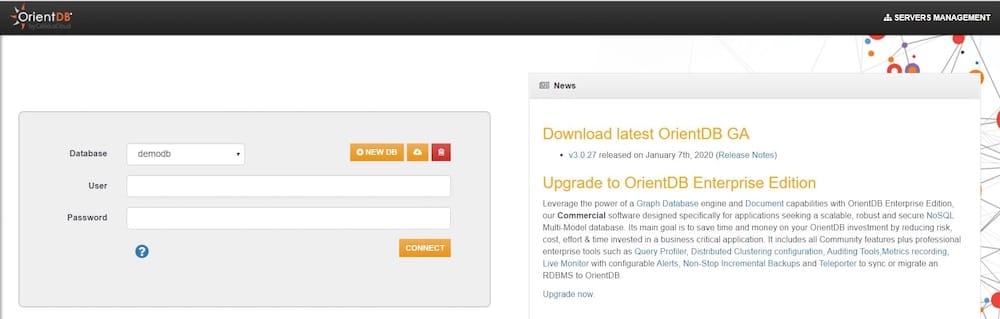
http://YOUR_SERVER_IP:2480/studio/index.htmlYou will see the OrientDB Studio login screen. Log in with the username root and the password you set during the first server startup. The Studio dashboard confirms that both the HTTP listener and the underlying binary protocol are working correctly end to end.
Verify via the Console (Alternative)
If you prefer command-line verification, run:
sudo /opt/orientdb/bin/console.shThen inside the console:
connect remote:localhost root YOUR_PASSWORD
list databases
A successful connection with a list of system databases confirms the server is running and accepting connections.
Step 9: Post-Installation Security Hardening
Getting OrientDB running is only half the job. A working but insecure database is worse than no database at all.
Remove the Guest Account
By default, OrientDB ships with a guest account that has read-only access to all databases. Open the server configuration file and remove it:
sudo nano /opt/orientdb/config/orientdb-server-config.xmlFind and delete the line:
<user name="guest" password="guest" resources="connect,server.listDatabases,server.dblist"/>Save the file, then restart OrientDB for the change to take effect:
sudo systemctl restart orientdbWhy remove guest? Even read-only access lets an attacker enumerate all databases, understand your schema, and profile your data structure. It creates an unauthenticated reconnaissance surface that you do not need.
Enable TLS Encryption
By default, OrientDB transmits credentials and query results in plaintext on both port 2424 and port 2480. Any attacker with access to your network traffic can capture authentication tokens with a simple packet capture. OrientDB supports TLS 1.2 in-transit encryption via the ssl configuration block in orientdb-server-config.xml. Enabling TLS is strongly recommended before you move any production workload onto this server.
Verify Config Directory Permissions
Double-check that no permission drift has occurred since Step 4:
ls -la /opt/orientdb/config/The config/ directory should be owned by orientdb:orientdb with mode 750. If it shows 755, run the chmod command from Step 4 again.
Troubleshooting Common Issues
Even experienced sysadmins run into problems the first time they set up OrientDB on Debian 13. Here are the five most common errors and how to fix them.
1. Service fails to start with “JAVA_HOME not found”
OrientDB cannot locate the JVM. Check that your /etc/profile.d/java.sh file exists and contains a valid path. Run echo $JAVA_HOME in a fresh SSH session. If it is empty, re-source the file with source /etc/profile.d/java.sh.
2. Port 2480 is unreachable from the browser
Two possible causes. First, run ss -tlnp | grep 2480 to check if OrientDB is actually listening. If it is listening but only on 127.0.0.1, open orientdb-server-config.xml and change the listener ip-address attribute from 127.0.0.1 to 0.0.0.0. Second, check your UFW rules with ufw status verbose to confirm port 2480 is open.
3. OrientDB is killed immediately on startup (OOM Kill)
Your server has less RAM than OrientDB’s default JVM heap requires. Open /opt/orientdb/bin/server.sh, find the -Xms2G -Xmx2G flags, and lower them. For a server with 1 GB of RAM, use -Xms512M -Xmx512M as a starting point.
4. “Permission denied” errors in the logs
The orientdb system user does not own the files under /opt/orientdb. Run chown -R orientdb:orientdb /opt/orientdb to fix ownership, then restart the service with sudo systemctl restart orientdb.
5. systemd status shows “Activating” but never reaches “Active”
This usually means OrientDB is waiting for a root password to be set during first startup. Check the service journal with sudo journalctl -u orientdb -n 50 to see if it is prompting for a root password. If so, stop the service, run the startup script manually as the orientdb user, set the password interactively, then restart via systemd.
Congratulations! You have successfully installed OrientDB. Thanks for using this tutorial for installing OrientDB open source NoSQL database on Debian 13 “Trixie” system. For additional help or useful information, we recommend you check the official OrientDB website.
[su_box title=”VPS Manage Service Offer” style=”bubbles” box_color=”#000000″ radius=”10″]If you don’t have time to do all of this stuff, or if this is not your area of expertise, we offer a service to do “VPS Manage Service Offer”, startin

