Fedora 44 ships with GIMP version 3.2.4, a major upgrade from the GIMP 2.x builds found in older tutorials. If you searched for a way to install GIMP Fedora 44, you probably found guides written for GIMP 2, and those commands do not always match what Fedora 44 expects today.
This guide walks you through every reliable method to install GIMP Fedora 44, explains why each step matters, and shows you how to fix the errors that trip up most beginners. You will learn three separate installation paths: DNF, Flatpak, and Snap. By the end, you will know which method fits your workflow and how to verify, update, and remove GIMP cleanly.
As a sysadmin who has managed Fedora workstations and servers for over a decade, I have seen readers get stuck on the same two problems every time: outdated package names from old blog posts, and confusion over which install method actually updates itself. This tutorial fixes both.
Why GIMP Fedora 44 Setup Is Different From Older Guides
Fedora 44 packages GIMP 3.2.4, while many older tutorials online still reference GIMP 2.10. GIMP 3 restructured its plug-in system, folded Python support directly into the main package, and introduced non-destructive layers along with vector and link layers.
This matters because commands like dnf install gimp-python that worked on GIMP 2 systems will fail on Fedora 44. If you are configuring GIMP Fedora 44 for a production workstation, you need to know which package names are current, not just copy commands from a five-year-old post.
Fedora 44 itself launched in April 2026 with GNOME 50, kernel updates, and refreshed default applications. That refresh cycle is exactly why the GIMP Fedora 44 setup instructions below differ slightly from older Fedora releases.
Prerequisites
Before you start the GIMP Fedora 44 setup, make sure you have the following ready:
- A working installation of Fedora Linux 44 (Workstation, KDE Plasma, or a server edition with a desktop environment)
- Sudo or root access to run installation commands
- An active internet connection to reach Fedora repositories or Flathub
- At least 300 to 500MB of free disk space, depending on which install method you pick
- A terminal application (GNOME Terminal, Konsole, or any shell you prefer)
You do not need any special developer tools unless you plan to build GIMP plug-ins later. Basic terminal familiarity is enough to follow every command below.
Step 1: Update Your System Before Installing GIMP
Before installing anything new, refresh your Fedora package metadata and apply pending updates.
sudo dnf upgrade --refreshWhat this does: it tells DNF to re-download the latest list of available packages from Fedora’s repositories, then upgrades any installed packages that have newer versions.
Why it matters: if your local package cache is outdated, DNF might try to install GIMP against mismatched library versions. This can cause crashes right after installation or missing dependency errors that are hard to diagnose later. Skipping this step is one of the most common reasons a fresh install fails to launch.
Expected output looks something like this:
Fedora 44 - x86_64                    2.1 MB/s | 25 MB     00:12
Dependencies resolved.
Nothing to do.
Complete!
If updates are available, DNF will list them and ask for confirmation before proceeding.
Step 2: Install GIMP Using DNF (Recommended Method)
DNF is Fedora’s default package manager, and it is the simplest way to install GIMP Fedora 44 for most users.
Running the Install Command
sudo dnf install gimpWhat this does: DNF fetches the gimp package along with all required dependencies directly from Fedora’s official repositories.
Why choose DNF first: this method ties GIMP’s updates to your normal system update cycle. Every time you run dnf upgrade, GIMP updates alongside the rest of your OS. You do not need to track a separate update schedule, which matters a lot if you manage multiple machines.
When DNF finishes, you should see:
Installed:
  gimp-3.2.4-1.fc44.x86_64
Complete!
Installing gimp-devel (Optional)
If you plan to compile plug-ins or build software that links against GIMP’s libraries, install the development headers too.
sudo dnf install gimp-develWhy this is optional: most users editing photos or graphics never need this package. It exists specifically for developers writing C-based plug-ins, so skip it unless you know you need it.
Verifying the DNF Installation
Confirm the exact version installed on your system.
rpm -q gimp
gimp --version
Why verification matters: knowing your exact build (for example, gimp-3.2.4-1.fc44.x86_64) helps you match troubleshooting steps later in this guide to your actual installed version, instead of guessing.
Step 3: Install GIMP Using Flatpak (Flathub)
Flatpak offers a sandboxed way to install GIMP Fedora 44, separate from your base system packages. This is a strong option if you run an immutable Fedora variant like Silverblue.
Installing Flatpak Support
Flatpak ships by default on Fedora Workstation and KDE Plasma editions. On minimal or server installs, add it manually.
sudo dnf install flatpakWhy you might choose this path: Flatpak isolates GIMP’s runtime and update cycle from your core OS packages. If you want to test GIMP updates without touching your base system, this is the safer route.
Adding the Flathub Repository
sudo flatpak remote-add --if-not-exists flathub https://dl.flathub.org/repo/flathub.flatpakrepoWhat this does: it registers Flathub, the largest Flatpak app store, as a trusted source for your system.
Why system scope matters: adding the remote with sudo makes GIMP available to every user account on the machine, not just the one that ran the command. This is useful on shared workstations.
Installing GIMP From Flathub
sudo flatpak install flathub org.gimp.GIMPWhy Flatpak trades speed for isolation: the sandboxed model means GIMP runs somewhat separately from your system libraries. This can prevent certain conflicts, though in practice Flatpak apps often still request broad file access, so do not assume it is automatically more secure than DNF.
Verifying the Flatpak Installation
flatpak info org.gimp.GIMP
flatpak run org.gimp.GIMP --version
Why this check matters: confirming the installation scope shows “system” tells you other accounts on a shared machine can launch GIMP without a separate install.
Step 4: Install GIMP Using Snap (Alternative Option)
Snap is a distro-agnostic packaging format. Fedora does not include Snap by default, unlike Ubuntu, so a few extra steps are needed.
sudo dnf install snapd
sudo ln -s /var/lib/snapd/snap /snap
sudo snap install gimp
What each command does: the first installs the snap daemon, the second creates a symlink so classic snap confinement paths resolve correctly on Fedora, and the third pulls GIMP from the Snap Store.
Why a sysadmin might still pick Snap: if you manage a mixed fleet of Linux distributions, Snap gives you one packaging format to learn instead of three. That consistency can save time on documentation and training, even though it is less native to Fedora than DNF or Flatpak.
After installing snapd, you may need to log out and back in for all paths to register correctly before running the final install command.
Step 5: Compare DNF, Flatpak, and Snap Before You Commit
Choosing the right method affects long-term maintenance, not just the initial install.
| Method | Update Mechanism | Best For |
|---|---|---|
| DNF | Tied to system updates (dnf upgrade) |
Most desktop and workstation users |
| Flatpak | Separate (flatpak update) |
Immutable Fedora, sandboxed testing |
| Snap | Separate (snap refresh) |
Mixed-distro sysadmin environments |
Why this decision matters: if you forget which method you used, you might run the wrong update command and end up with an outdated GIMP version while thinking your system is current. Pick one method per machine and stick with it to avoid this confusion.
Step 6: Launch GIMP on Fedora 44
Once installed, you can start GIMP from the terminal or your desktop menu.
gimpFor Flatpak installs, use:
flatpak run org.gimp.GIMPFor Snap installs, use:
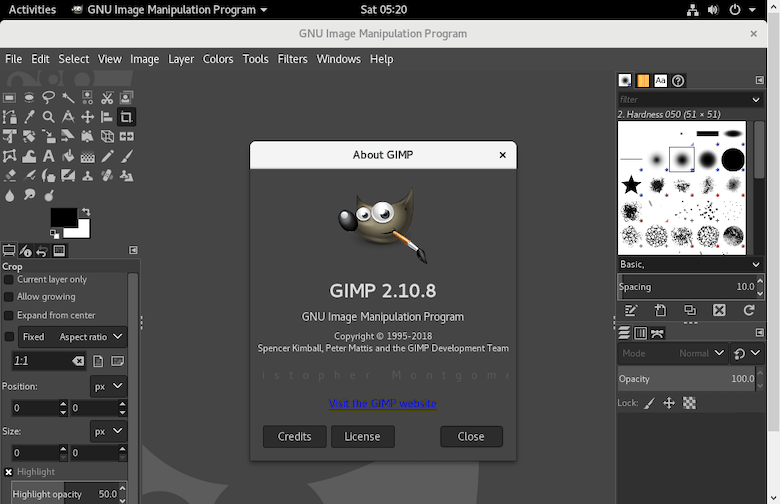
snap run gimpWhy launching from the terminal helps: if GIMP fails to start, the terminal shows error output immediately. This is the fastest way to diagnose a problem before searching online or filing a bug report. You can also launch GIMP through the Activities search bar on GNOME or the application menu on KDE Plasma.
Step 7: Update GIMP to the Latest Version
Keeping GIMP current matters for security patches and new features like the non-destructive layers introduced in GIMP 3.2.
For DNF installs:
sudo dnf upgrade --refreshFor Flatpak installs:
sudo flatpak update org.gimp.GIMPFor Snap installs:
sudo snap refresh gimpWhy method-specific updating matters: mixing update commands across installation types leaves you unsure which GIMP build is actually running. Always update using the same method you used to install.
Step 8: Troubleshooting Common GIMP Fedora 44 Errors
Even with a clean install process, a few errors show up often enough to cover here.
Error: Flathub Remote Is Disabled
Some Fedora configurations disable Flathub by default for security review reasons. If flatpak install fails silently, enable the remote manually.
sudo flatpak remote-modify --enable flathubError: No Match for gimp-python
Older tutorials reference a separate gimp-python package. This does not exist on Fedora 44 because Python 3 plug-in support is now bundled directly inside the main gimp package. If you see this error, simply skip that command and continue with the standard dnf install gimp instruction.
GIMP Fails to Launch After Installation
If GIMP installs but will not open, launch it from the terminal instead of the desktop icon. Terminal output usually reveals missing graphics drivers or session dependency issues that the desktop launcher hides.
Flatpak Install Runs but GIMP Icon Is Missing
This usually means the desktop database needs a refresh. Log out and back in, or run:
sudo update-desktop-databaseDNF Reports Broken Dependencies
If DNF reports a dependency conflict, run the update command from Step 1 again before retrying the install. Stale repo metadata is the most common cause of this error.
Step 9: Uninstall GIMP Completely
If you need to remove GIMP later, the cleanup command depends on your install method.
For DNF:
sudo dnf remove gimp gimp-develFor Flatpak:
sudo flatpak uninstall org.gimp.GIMP
sudo flatpak uninstall --unused
For Snap:
sudo snap remove gimpWhy check configuration folders first: GIMP stores custom brushes, plug-ins, and preferences in your home directory. Before deleting these folders, back up anything you want to keep, since removal is permanent.

