
Every few months, a support ticket lands on my desk with some variation of the same complaint: “The invoice PDF looks wrong,” or “LibreOffice is rendering our client’s Word doc in some ugly substitute font.” Nine times out of ten, the root cause is the same — Arial, Times New Roman, Calibri, or Verdana simply aren’t present on the box, and the system is falling back to Liberation or DejaVu substitutes that shift line spacing, kerning, and pagination just enough to break a layout someone spent hours perfecting.
If you’ve just rolled out Ubuntu 26.04 LTS “Resolute Raccoon” — Canonical’s latest long-term support release, running on the 7.0 kernel and shipping Wayland-only by default — you’ll hit this issue almost immediately if your workflow touches Office documents, print layouts, or any web page that expects Microsoft’s core font metrics to be available. Fedora and most Linux distributions ship without these fonts out of the box, for licensing reasons that go back decades, and Ubuntu is no exception even on its shiniest new LTS.
This isn’t a “click here and you’re done” situation, though it’s close. There are a handful of gotchas specific to fresh 26.04 installs — particularly around minimal server images, the multiverse component not always being pre-enabled, and how the EULA-acceptance dialog behaves differently when you’re SSH’d into a headless box versus sitting at a GNOME 50 desktop session. I’ve installed this font package on hundreds of machines over the years, from single-user workstations to fleets of Nginx-fronted document-rendering servers, and this guide walks through the whole thing the way I’d actually do it in production — including the parts that go wrong and how to fix them.
By the end, you’ll have Arial, Times New Roman, Courier New, Georgia, Verdana, Trebuchet MS, Comic Sans MS, Impact, Andale Mono, and Webdings correctly installed, cached, and available system-wide — whether you’re running a desktop, a headless server generating PDFs, or a Docker container that needs consistent font rendering for automated screenshot or wkhtmltopdf-style workflows.
Why Microsoft Fonts Aren’t Bundled With Ubuntu
This trips people up constantly, so it’s worth spending a paragraph on it. Microsoft’s core TrueType fonts are proprietary. Canonical can’t legally bundle them directly into the main Ubuntu ISO because of licensing restrictions — Microsoft permits redistribution under specific terms via the ttf-mscorefonts-installer package, but that package doesn’t ship the font files themselves. Instead, it’s a small script-and-license wrapper that downloads the actual font archives from Sourceforge mirrors at install time and unpacks them locally.
That’s why the package lives in Ubuntu’s multiverse component — the repository tier reserved for software with legal restrictions on redistribution, copying, or modification, as opposed to main (free and open, fully supported) and universe (free and open, community-maintained). On a standard desktop ISO, multiverse is typically pre-enabled. On minimal cloud images, JeOS builds, and a fair number of custom preseed/cloud-init images I’ve dealt with, it’s stripped out to reduce attack surface and repo noise. That single detail causes the majority of “package not found” errors people report.
Prerequisites Before You Start
A few sanity checks save you time later:
- Confirm you’re actually on 26.04:
lsb_release -ashould reportUbuntu 26.04 LTSwith codenameresolute. - Make sure you have sudo privileges. Note that 26.04 introduces
sudo-rs, the Rust reimplementation of sudo, as the default on fresh installs — functionally it behaves the same for everyday commands, but if you’re scripting privilege escalation in automation, be aware the binary underneath has changed. - An active internet connection is mandatory. The installer package doesn’t contain the fonts — it fetches them, so if your server sits behind a restrictive egress firewall or a proxy that blocks Sourceforge, the install will silently stall or fail.
- Root or sudo access to modify
/etc/apt/sources.listor the newer deb822-format sources file, since 26.04 continues the shift toward/etc/apt/sources.list.d/ubuntu.sources.
Step 1: Update Your Package Index
Start clean. Skipping this step is the single most common reason people get “unable to locate package” errors on fresh installs.
sudo apt update
sudo apt upgrade -y
On a brand-new 26.04 install this can pull a surprising number of updates, especially in the first weeks after a point release. Let it finish before moving on — I’ve seen partial upgrades leave dpkg in a half-configured state that then makes the fonts package installation behave unpredictably.
Step 2: Enable the Multiverse Repository
Check whether multiverse is already active:
grep -r multiverse /etc/apt/sources.list /etc/apt/sources.list.d/ 2>/dev/nullIf nothing comes back, or the lines are commented out with a #, enable it:
sudo add-apt-repository multiverse
sudo apt update
On 26.04’s deb822-format sources (the .sources file replacing the old flat sources.list in most default configurations), add-apt-repository still handles this correctly — it edits the Components: line to include multiverse rather than appending a separate legacy-style entry. If you’re managing sources manually via Ansible or Puppet, make sure your templates target the right file format; templates written for 20.04 or 22.04 that assume the old one-line-per-repo syntax will silently do nothing on a 26.04 deb822 setup.
Step 3: Install the ttf-mscorefonts-installer Package
This is the actual install command:
sudo apt install ttf-mscorefonts-installerOn a desktop session, this pops a text-mode EULA dialog rendered through debconf — read it (or don’t, we all know how that goes), tab to OK, then tab to Yes to accept the license. Without accepting, the fonts won’t download and the package installs in a broken, half-configured state.
Here’s where headless servers get interesting. If you’re SSH’d into a box with no interactive terminal frontend configured properly, that debconf dialog can hang the install or throw a confusing prompt error. The fix, and honestly the way I install this on every server I manage regardless of whether it’s interactive, is to pre-seed the EULA acceptance:
echo "ttf-mscorefonts-installer msttcorefonts/accepted-mscorefonts-eula select true" | sudo debconf-set-selections
sudo apt install -y ttf-mscorefonts-installer
This is not a shortcut that skips reading a license out of laziness — it’s the standard, documented way to automate this install for provisioning scripts, Ansible playbooks, and Dockerfiles where a human isn’t present to click through a dialog. Anyone building golden images or configuration management roles should be doing this rather than trying to script expect around an interactive TUI.
Step 4: Rebuild the Font Cache
APT usually triggers fc-cache automatically as part of the post-install hooks, but I’ve seen enough cases where new fonts don’t show up immediately in LibreOffice or GIMP that I always force it manually as a matter of habit:
sudo fc-cache -f -vThe -f flag forces a rebuild even if fontconfig thinks the cache is current, and -v gives you verbose output so you can actually confirm the Microsoft font directory got scanned. Look for a line referencing /usr/share/fonts/truetype/msttcorefonts (or similar, depending on package version) in the output.
Step 5: Verify the Installation
Don’t just trust the installer finished cleanly — confirm the fonts are actually registered with fontconfig:
fc-list | grep -i "arial\|times new roman\|verdana"You should see multiple entries per family (Regular, Bold, Italic, Bold Italic). If that command returns nothing, the fonts either didn’t download (check for network issues during install) or the cache hasn’t picked them up yet — rerun fc-cache -f -v and check again.
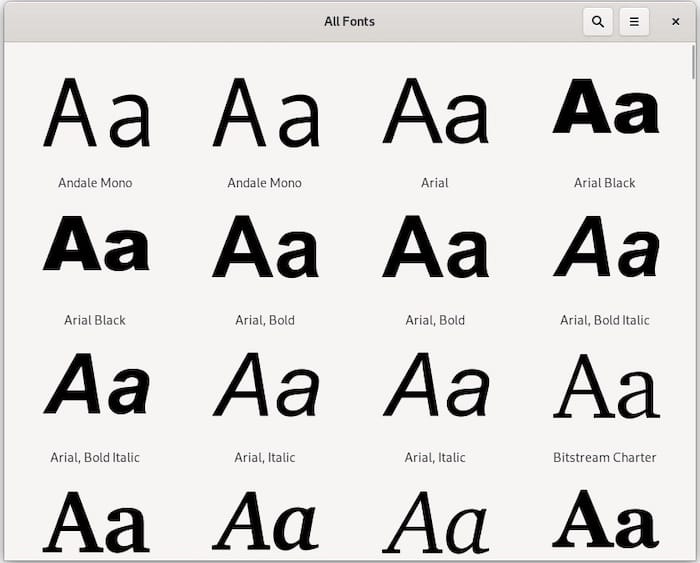
For a desktop GNOME 50 session, open LibreOffice Writer or GIMP and check the font dropdown directly — Arial, Times New Roman, and friends should now be selectable, sitting alongside Liberation Sans and other open substitutes that were previously covering for them.
Real-World Use Case: Document-Rendering Servers
A scenario I run into constantly in technical SEO and content-ops work: a backend service converts HTML or Markdown into PDF using something like wkhtmltopdf, Puppeteer, or WeasyPrint, running headless on an Ubuntu server. If the CSS specifies font-family: Arial, sans-serif and Arial isn’t actually present, the renderer silently substitutes a metrically different font. Line breaks shift. Page counts change. Nobody notices until a client complains that page 4 of their contract PDF looks different from what was proofed on a Windows machine.
Installing ttf-mscorefonts-installer on these rendering servers isn’t optional polish — it’s a correctness requirement. I bake the debconf pre-seed command directly into the provisioning script for any server that touches document generation, right alongside cabextract and fontconfig package installs, so it’s never an afterthought discovered during a production incident.
Edge Case: Minimal and Container Images
Docker images based on ubuntu:26.04 or minimal cloud-init deployments often lack add-apt-repository entirely, because software-properties-common isn’t installed by default on minimal images. If you hit command not found: add-apt-repository, install it first:
sudo apt install software-properties-commonAlternatively, for Dockerfiles, skip the helper entirely and edit the sources directly, or simply append multiverse to the deb822 sources file with sed in a scripted, idempotent way — cleaner for reproducible builds where you don’t want an interactive command mutating config in unpredictable ways across build layers.
Troubleshooting Common Errors
“Unable to locate package ttf-mscorefonts-installer”
Multiverse isn’t enabled, or you ran apt install before apt update picked up the newly added repo. Re-run both add-apt-repository multiverse and apt update, in that order, then retry.
Installer hangs or fails silently on a headless server
This is almost always the debconf EULA dialog waiting for input that never comes. Pre-seed the EULA acceptance with debconf-set-selections as shown above, then reinstall.
Fonts installed but not showing up in applications
Force a cache rebuild with sudo fc-cache -f -v. If that doesn’t help, check that the font directory has correct permissions — it should be world-readable:
ls -l /usr/share/fonts/truetype/msttcorefonts/
sudo chmod -R a+r /usr/share/fonts/truetype/msttcorefonts/
Download fails partway through with a Sourceforge timeout
The package fetches font archives from remote mirrors at install time, not from Ubuntu’s own repos. If your server’s outbound traffic goes through a corporate proxy or a restrictive egress firewall, exports may need adjusting:
export http_proxy="http://your-proxy:port"
export https_proxy="http://your-proxy:port"
sudo -E apt install ttf-mscorefonts-installer
The -E flag on sudo preserves your environment variables, including the proxy settings, into the elevated shell — easy to forget and a frequent cause of “it works when I curl manually but not when apt tries.”
Package installs but EULA was never accepted, leaving it half-configured
Purge and reinstall cleanly:
sudo apt purge ttf-mscorefonts-installer
echo "ttf-mscorefonts-installer msttcorefonts/accepted-mscorefonts-eula select true" | sudo debconf-set-selections
sudo apt install -y ttf-mscorefonts-installer
Best Practices and Performance Considerations
A few habits worth adopting beyond the base install:
- Automate the EULA pre-seed in provisioning tooling. Whether you use Ansible, cloud-init, Terraform user-data scripts, or a Dockerfile, the debconf pre-seed line should live in version control alongside the rest of your infrastructure-as-code, not be a manual step someone remembers (or forgets) during onboarding.
- Rebuild font cache after bulk font operations, not per-font. If you’re deploying multiple font packages in one provisioning run, run
fc-cache -f -vonce at the end rather than after each package — repeated cache rebuilds on a system with thousands of fonts (common on design or print workflow servers) add unnecessary disk I/O and CPU cycles during boot or deployment. - Watch disk usage on font-heavy servers. It’s a small footprint per package, but font-heavy servers running dozens of typeface families for automated rendering can accumulate real disk usage over time — periodically audit
/usr/share/fontsand~/.fonts(or~/.local/share/fontson newer systems) for duplicates or stale caches. - Restrict egress carefully rather than blanket-blocking. If your server sits behind a hardened firewall, don’t just block all outbound traffic and hope apt figures it out — allowlist the specific mirrors the installer needs, or better, host font archives internally and modify the installer script’s source URLs for air-gapped environments.
- Keep permissions sane. Font directories should never be group- or world-writable. A misconfigured
chmod -R 777“fix” for a permissions error is a security smell — stick to755for directories and644for the font files themselves. - Container image size matters. If you’re building Docker images for document rendering, install fonts in a dedicated layer early in the Dockerfile so Docker’s layer caching doesn’t force a redownload of ~10MB of font archives on every unrelated code change.
Security Notes Worth Mentioning
The ttf-mscorefonts-installer package downloads binary font archives from third-party mirrors at install time — it’s not fetching from Canonical’s own signed repositories the way a typical apt package does for its payload. The package itself is signed and verified through Ubuntu’s normal APT trust chain, but the actual font .exe/.cab archives it pulls down are checksummed against known-good hashes baked into the package rather than verified through GPG signing at download time. This has been stable and reliable for years, but it’s worth knowing the trust model differs slightly from a standard APT package install — relevant if you’re doing a formal security review of a hardened production image and someone asks “where did these binaries come from?”
Keep your system updated regardless — sudo apt update && sudo apt upgrade on a regular cadence, combined with unattended-upgrades for security patches, remains the baseline hygiene that matters far more than any font-specific concern.
